1. Киришүү
Thank you for choosing the Doohoeek Surface Pro 11/10/9/8/X 13 Inch Bluetooth Keyboard. This ultra-slim keyboard is designed to enhance your productivity and user experience with its integrated touchpad, pen slot, and lighting keys. It offers seamless compatibility with Surface Pro 11, 10, 9, 8, and X models, and is optimized for Windows 11 gestures. Please read this manual carefully to ensure proper setup and operation of your new keyboard.
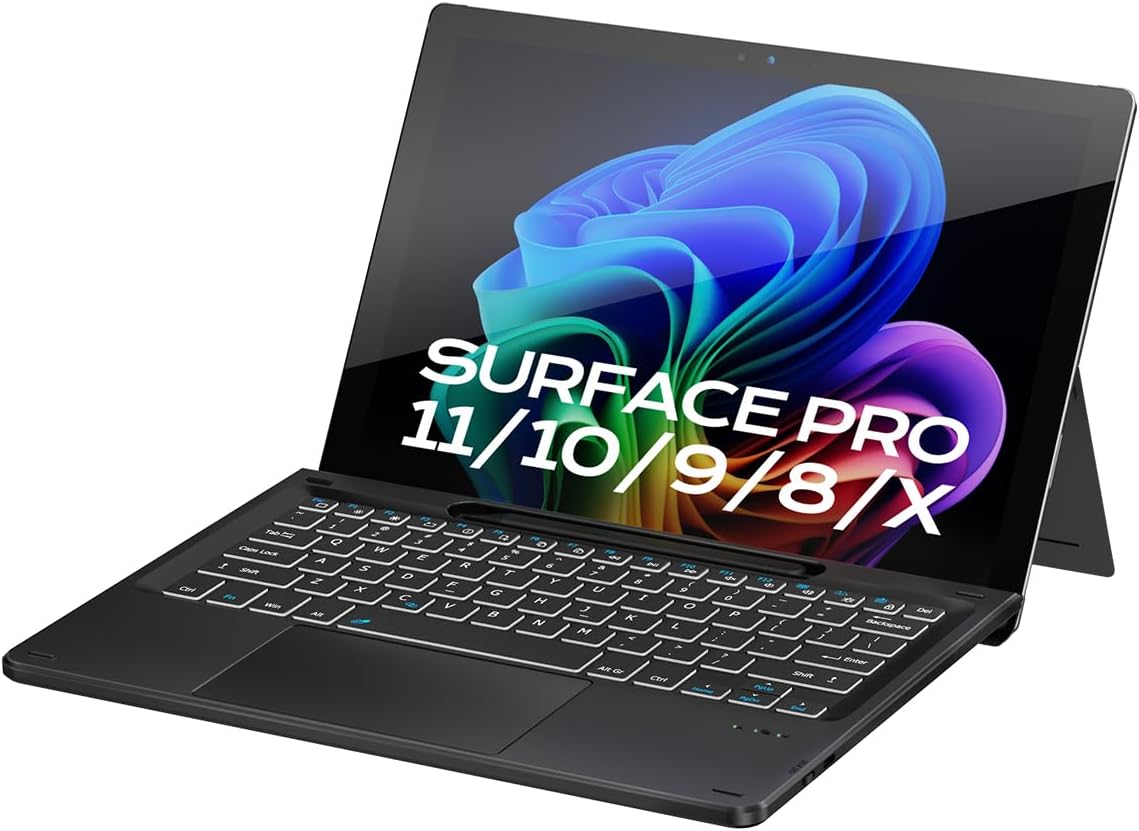
Image: The Doohoeek Surface Pro Keyboard seamlessly attached to a Surface Pro tablet, showcasing its sleek design and perfect fit.
2. Орнотуу
2.1 Пакеттин мазмуну
- Doohoeek Surface Pro 11/10/9/8/X 13 Inch Bluetooth Keyboard
- USB-C заряддоо кабели
- User Manual
2.2 Алгачкы заряддоо
Before first use, fully charge the keyboard. Connect the supplied USB-C charging cable to the keyboard's charging port and the other end to a USB power source (e.g., computer USB port, wall adapter). The charging indicator light will show charging status. A full charge typically takes 2-3 hours.

Сүрөт: жакын план view of the keyboard's USB-C charging port with the charging cable connected, illustrating the charging process. The image also highlights the keyboard's battery life: 2-3 hours charging time, 650mAh capacity, and 300 hours standby time (without lighting).
2.3 Bluetooth жупташтыруу
- Баскычтоп кубатталып, күйгүзүлгөнүн текшериңиз.
- басып, кармап туруңуз Fn ачкыч жана C key simultaneously for 3 seconds to enter Bluetooth pairing mode. The Bluetooth indicator light on the keyboard will begin to flash.
- Surface Pro түзмөгүңүзгө өтүңүз Орнотуулар > Bluetooth жана түзмөктөр.
- Turn on Bluetooth and select Түзмөк кошуу.
- Тандоо Bluetooth and select "Doohoeek Keyboard" (or similar name) from the list of available devices.
- Жупташтыруу процессин аяктоо үчүн экрандагы көрсөтмөлөрдү аткарыңыз. Ийгиликтүү жупташтырылгандан кийин баскычтоптогу индикатор жарыгы күйүп-өчүүнү токтотот.
2.4 Магниттик тиркеме
The keyboard features smart magnetic alignment for easy attachment to your Surface Pro. Simply align the top edge of the keyboard with the bottom edge of your Surface Pro until it snaps into place. This provides a secure connection for typing and protects your screen when closed.

Сүрөт: деталдуу view illustrating the strong magnetic connection between the keyboard and the Surface Pro tablet, ensuring a stable and secure attachment.

Image: A visual guide demonstrating the keyboard's compatibility with Surface Pro 11, Surface Pro 10, Surface Pro 9, Surface Pro 8, and Surface Pro X models.
3. Иштөө нускамалары
3.1 Баскычтоптун функциялары
- Арткы жарыкты жөндөө: The keyboard features adjustable backlighting with 7 color options and 3 brightness levels. Use the dedicated backlight keys (often Fn + Жарык сүрөтчөсү or similar) to cycle through colors and adjust brightness.
- Функция баскычтары: The top row of keys includes multimedia and system function shortcuts. Press the Fn key in combination with these keys to activate their secondary functions (e.g., volume control, screen brightness).

Image: The keyboard illuminated with various backlight colors, demonstrating the 7 color lighting effects and 3 levels of brightness for enhanced visibility in low-light conditions.
3.2 Touchpad Functions
The integrated touchpad supports multi-touch gestures for Windows 11, allowing for intuitive navigation and control.
- Негизги навигация: Single finger tap for left-click, two-finger tap for right-click.
- Жылдыруу: Өйдө же ылдый сыдыруу үчүн эки манжаңызды колдонуңуз.
- Чоңойтуу: Чоңойтуу же кичирейтүү үчүн эки манжаңыз менен чымчыңыз.
- Switch Applications: Swipe three fingers up to view бардык ачык колдонмолор.
- иш-такта: Swipe three fingers down to show the desktop.
- Алаканды четке кагуу: The touchpad features intelligent palm rejection to prevent accidental touches while typing. To lock/unlock the trackpad, press Fn + Lock icon.

Image: Visual representations of various multi-touch gestures for the trackpad, including scrolling and zooming, alongside a demonstration of the palm rejection feature to prevent unintended inputs during typing.
3.3 Калем уясынын колдонулушу
The keyboard includes an integrated slot for conveniently storing your Surface Pen or compatible stylus. This keeps your pen secure and easily accessible.
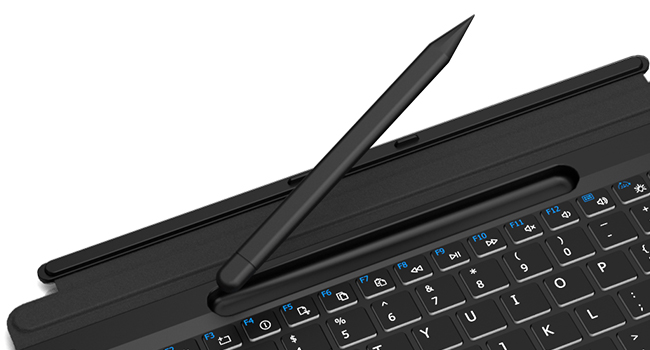
Сүрөт: жакын план view of the integrated pen slot located on the keyboard, designed for secure and convenient storage of a stylus.
3.4 Ergo Lift Design
The keyboard features an Ergo Lift design, allowing it to be slightly angled when attached to the Surface Pro. This ergonomic tilt provides a more comfortable typing experience and improved airflow for your device.

Image: A visual explanation of the keyboard's Ergo Lift design, demonstrating how it creates a comfortable typing angle when connected to the Surface Pro.
4. Техникалык тейлөө
4.1 Тазалоо
- To clean the keyboard, gently wipe the surface with a soft, lint-free cloth.
- өжөр кир үчүн, бир аз гampчүпүрөктү суу же жумшак, абразивдүү эмес тазалоо эритмеси менен жабыңыз.
- Avoid using harsh chemicals, solvents, or abrasive materials, as these can damage the keyboard's finish.
- Ensure no liquid enters the keyboard's ports or crevices.
4.2 Батареяга кам көрүү
- Батареянын иштөө мөөнөтүн узартуу үчүн, клавиатуранын тез-тез толук зарядсызданышынан алыс болуңуз.
- Клавиатураны үзгүлтүксүз колдонууда болбосо да, дайыма заряддаңыз.
- Клавиатураны узак убакыт бою колдонбогондо салкын, кургак жерде сактаңыз.
5. Кыйынчылыктарды
5.1 Баскычтоп туташпайт/жупташтырылбайт
- Батареяны текшерүү: Ensure the keyboard has sufficient charge.
- Жупташтыруу режимине кайра кириңиз: Басыңыз Fn + C for 3 seconds to put the keyboard back into pairing mode.
- Bluetooth'ду кайра иштетүү: On your Surface Pro, turn Bluetooth off and then on again.
- Түзмөктү унут: If previously paired, remove the keyboard from your Surface Pro's Bluetooth device list and attempt to pair again.
- Түзмөктөрдү кайра иштетүү: Restart both your Surface Pro and the keyboard.
5.2 Арткы жарык иштебейт
- Жарыктыкты текшерүү: Ensure the backlight brightness is not set to the lowest level. Use the backlight adjustment keys.
- Батарея деңгээли: Low battery may disable the backlight. Charge the keyboard.
5.3 Touchpad Unresponsive
- Check Lock Status: Ensure the touchpad is not locked. Press Fn + Lock icon которуу.
- Баскычтопту өчүрүп-күйгүзүү: Баскычтопту өчүрүп, кайра күйгүзүңүз.
- Bluetoothду кайра жупташтыруу: Disconnect and re-pair the keyboard via Bluetooth.
5.4 Resetting Keyboard to Default Settings
If you experience persistent issues, you can reset the keyboard to its default settings. Press down the first key and the last key on the top row of the keyboard simultaneously until the indicator flickers.
6. Техникалык шарттар
| Өзгөчөлүк | Description |
|---|---|
| Бренд | Духук |
| Модел | Doohoeek Surface Pro 11/10/9/8/X 13 Inch Keyboard |
| Шайкеш түзмөктөр | Surface Pro 10, Surface Pro 11, Surface Pro 8, Surface Pro 9, Surface Pro X |
| Байланыш технологиясы | Bluetooth |
| Өзгөчөлүктөр | Backlit, Rechargeable, Trackpad |
| Түс | Кара |
| Ачкычтардын саны | 84 |
| Батарея | 1 9V батарейка талап кылынат (киргизилген) |
| Элемент Салмагы | 1.19 фунт |
| Пакеттин өлчөмдөрү | 11.61 x 8.9 x 1.06 дюйм |
7. Кепилдик жана колдоо
Doohoeek products are manufactured to high quality standards. For information regarding warranty coverage, please refer to the warranty card included with your product or visit the official Doohoeek website. If you encounter any issues or require technical assistance, please contact Doohoeek customer support through the contact information provided on our webсайт же сатып алуу платформасы аркылуу.


