1. Киришүү
This manual provides comprehensive instructions for the SUPVAN E10 Label Maker. It covers essential information regarding the device's setup, operation, maintenance, and troubleshooting. Please read this manual thoroughly before using your E10 Label Maker to ensure proper function and longevity of the product.
2. Пакеттин мазмуну
Төмөндө тизмеленген нерселердин баары пакетиңизде бар экенин текшериңиз:
- 1 x SUPVAN E10 Label Maker
- 1 x Roll of Dots Continuous Label
- 1 x Roll of Cosmetic Continuous Label
- 1 x Roll of White Continuous Label
- 1 x USB Charging Cable (not explicitly listed but standard for rechargeable devices)

Сүрөт 2.1: The SUPVAN E10 Label Maker shown alongside the three included label rolls: one with a dots pattern, one with a cosmetic pattern, and one plain white roll.
3. Продукциянын өзгөчөлүктөрү
The SUPVAN E10 Label Maker offers several features designed for efficient and versatile labeling:
- Компакт жана портативдик дизайн: The E10 is designed to be smaller and lighter than traditional label makers, enhancing portability.
- Камтылган кайра заряддалуучу батарея: Eliminates the need for disposable AA batteries, offering convenience and cost savings.
- Термикалык басып чыгаруу технологиясы: Utilizes thermal printing, removing the requirement for ink or toner cartridges.
- Акылдуу RFID автоматтык түрдө аныктоо: Automatically recognizes and detects the size of the inserted label roll, minimizing misalignment errors and waste.
- BPA-Free Labels: The included labels comply with BPA-free standards, ensuring safety for various applications, including food and cosmetic labeling.
- Туруктуу энбелгилер: Labels are designed to be waterproof and oilproof, suitable for diverse environments.
- Vibrant Label Color Options: The package includes labels with distinct colors and patterns for personalization and organization.

Сүрөт 3.1: A visual comparison highlighting the compact size of the SUPVAN E10 Label Maker against a larger, traditional label maker, emphasizing its portability and built-in rechargeable battery.
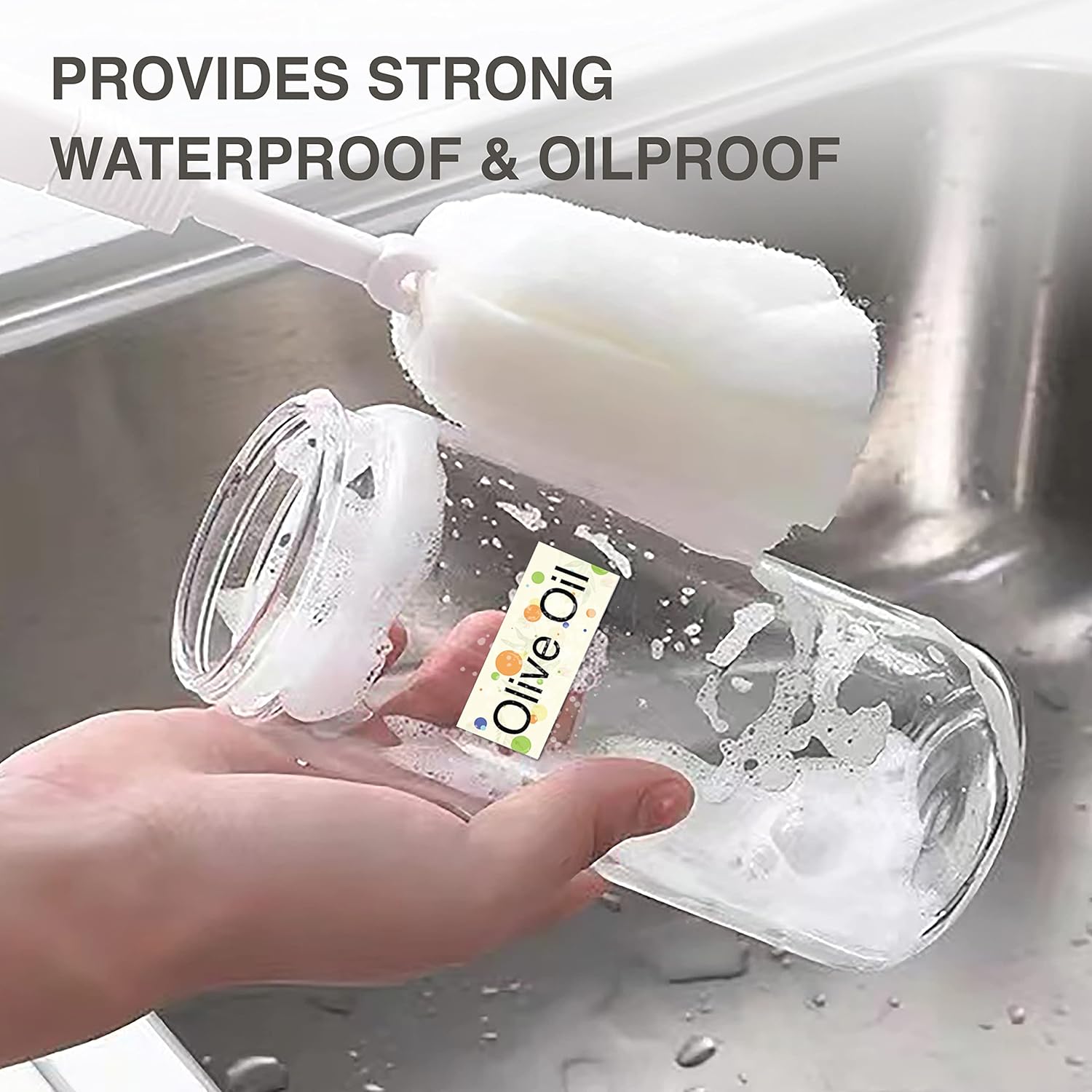
Сүрөт 3.2: A label applied to a bottle being washed, illustrating the waterproof and oilproof characteristics of the SUPVAN labels.

Сүрөт 3.3: Food storage containers with labels, demonstrating practical applications for organizing and identifying contents.
4. Орнотуу
4.1 Аппаратты заряддоо
Before initial use, fully charge the E10 Label Maker. Connect the provided USB cable to the charging port on the device and to a standard USB power adapter (not included) or a computer's USB port. The charging indicator light will provide status feedback (refer to device indicators for specific light behaviors).
4.2 Loading Label Rolls
- Open the label compartment cover on the E10 Label Maker.
- Insert a label roll into the compartment, ensuring the printing side of the label faces upwards and the leading edge extends slightly out of the slot.
- Close the label compartment cover. The device's RFID auto-detection feature will identify the label type and size.
4.3 Колдонмону орнотуу жана туташуу
- Download the official SUPVAN labeling application from your smartphone's app store (iOS App Store or Google Play Store).
- Смартфонуңузда Bluetooth иштетилгенин текшериңиз.
- Turn on the E10 Label Maker by pressing and holding the power button.
- Open the SUPVAN app and follow the on-screen instructions to connect to your E10 device via Bluetooth. The app will typically display available devices for pairing.
5. Иштөө нускамалары
Once the E10 Label Maker is set up and connected to the app, you can begin creating and printing labels.
5.1 Designing Labels
- In the SUPVAN app, select the 'New Label' or 'Edit' option.
- Utilize the various design tools available in the app, which typically include:
- Текст: Add and format text with different fonts, sizes, and styles.
- кадр: Apply decorative borders around your label content.
- Сөлөкөт: Insert pre-designed icons or symbols.
- Эскиз: Draw custom elements directly on the label.
- Сүрөт: Import images from your device.
- Штрих-код/QR коду: Generate and add barcodes or QR codes.
- Excel: Integrate data from spreadsheets for batch printing.
- Adjust the layout and content to fit the label size detected by the E10.

Сүрөт 5.1: A smartphone displaying the SUPVAN app interface, demonstrating the various tools available for designing labels, including text, frames, icons, and image insertion, followed by the print command.

Сүрөт 5.2: A close-up of the Dots Continuous Label roll and various example labels printed using the SUPVAN E10, showcasing different design elements like text, icons, and barcodes.

Сүрөт 5.3: A close-up of the Cosmetic Continuous Label roll and various example labels printed using the SUPVAN E10, demonstrating different design elements like text, icons, and barcodes.
5.2 Этикеткаларды басып чыгаруу
After designing your label:
- Review the label design in the app's preview режими.
- Басып чыгаргыңыз келген нускалардын санын тандаңыз.
- Tap the 'Print' button in the app. The E10 Label Maker will then print the labels.
- Басылып чыккан этикетканы аппараттын чыгаруу уясынан этияттык менен жулуп алыңыз.
6. Техникалык тейлөө
Regular maintenance ensures optimal performance and extends the lifespan of your E10 Label Maker.
6.1 Басып чыгаруу башын тазалоо
If print quality degrades (e.g., faint lines, smudges), the print head may need cleaning.
- Turn off the label maker and disconnect it from any power source.
- Энбелгилер бөлүмүн ачыңыз.
- Басып чыгаруучу башты кебез таякча менен акырын сүртүңүзampened with isopropyl alcohol. Allow it to dry completely before closing the cover and resuming use.
6.2 Батареяга кам көрүү
- Батареяны бат-баттан толук кубаттап калуудан алыс болуңуз.
- Батареянын иштөө мөөнөтүн сактоо үчүн, тынымсыз колдонулбаса дагы, түзмөктү үзгүлтүксүз кубаттап туруңуз.
- Аппаратты узак убакыт бою колдонбогондо салкын, кургак жерде сактаңыз.
6.3 Этикеткаларды сактоо
Store label rolls in a cool, dry place away from direct sunlight and extreme temperatures to prevent degradation of the thermal material.
7. Кыйынчылыктарды
If you encounter issues with your E10 Label Maker, refer to the following common problems and solutions:
| Көйгөй | Мүмкүн себеп | Чечим |
|---|---|---|
| Түзмөк күйбөйт. | Батареянын кубаты аз же түзмөктүн иштебей калышы. | Charge the device for at least 30 minutes. If it still doesn't power on, contact support. |
| Bluetooth аркылуу колдонмого туташуу мүмкүн эмес. | Bluetooth off, device not discoverable, or app issue. | Ensure Bluetooth is enabled on your phone and the E10 is powered on. Restart both the device and the app. Try re-pairing in the app. |
| Басып чыгаруунун сапаты начар (алсыз, бош сызыктар). | Dirty print head, incorrect label orientation, or low battery. | Clean the print head (see Section 6.1). Ensure the label roll is inserted correctly with the printing side up. Charge the device. |
| Label not recognized or misaligned. | Label roll not inserted correctly, or RFID sensor issue. | Re-insert the label roll, ensuring it is seated properly. Close the cover firmly. |
| Колдонмо бузулат же катып калат. | Software bug or compatibility issue. | Restart the app and your smartphone. Ensure the app is updated to the latest version. |
8. Техникалык шарттар
| Өзгөчөлүк | Деталь |
|---|---|
| Модель аты | E10 |
| Бренд | СУПВАН |
| Басма технологиясы | Термикалык |
| Байланыш технологиясы | Bluetooth (App-controlled), USB (for charging) |
| Түс | Жашыл |
| Аппараттык интерфейс | USB |
| Принтердин кошумча функциялары | Басып чыгаруу гана |
| Басма маалымат каражаттары | Термалдык кагаз |
| Максималдуу киргизүү барагынын сыйымдуулугу | 1 (roll) |
| Эки тараптуу басып чыгаруу | Жок |
9. Кепилдик жана колдоо
For warranty information and technical support, please refer to the warranty card included with your product or visit the official SUPVAN website. You may also contact SUPVAN customer service directly through the contact information provided on their website or within the SUPVAN application.


