Introduction
Thank you for choosing the RisoPhy PC419 RGB Gaming Keyboard. This manual provides essential information for setting up, operating, maintaining, and troubleshooting your new keyboard. Please read it carefully to ensure optimal performance and longevity of your device.
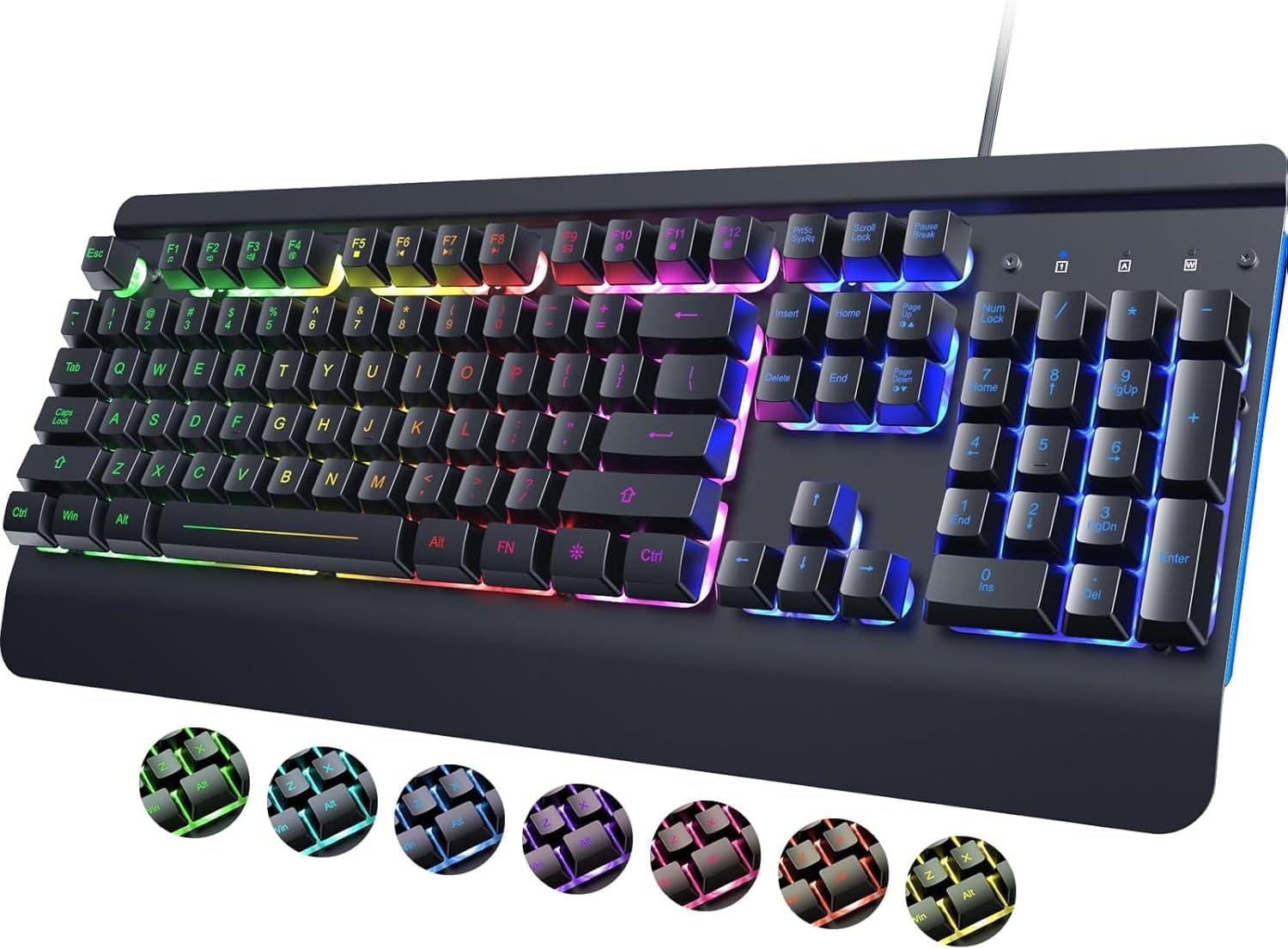
Image: The RisoPhy PC419 RGB Gaming Keyboard, showcasing its full layout and vibrant backlighting.
Орнотуу нускамалары
Баскычтопту туташтыруу
- Locate an available USB-A port on your computer (PC, Laptop, Mac).
- Plug the USB cable from the RisoPhy PC419 keyboard into the USB-A port.
- The keyboard is designed for Plug & Play functionality. No additional drivers are required for basic operation. Your operating system should automatically detect and configure the device.
The RisoPhy PC419 is compatible with a wide range of operating systems, including Windows 95/98/XP/2000/ME/VISTA/7/8/9/10, and Mac OS.

Image: Illustration of the keyboard connected to various devices, highlighting its broad compatibility.
Иштөө нускамалары
Арткы жарыкты ыңгайлаштыруу
The PC419 keyboard features 7 vibrant backlight colors and 6 dynamic lighting modes. You can customize the lighting effects to suit your preferences.

Image: The keyboard displaying its adjustable RGB backlighting, emphasizing true RGB colors.
Backlight Control Functions:
- FN + INSERT/DEL: Switch between different backlight modes (e.g., rainbow, breathing, ripple, solid colors).
- FN + ҮЙ: Switch between the 7 available single backlight colors.
- FN + PGUP: Activate custom backlight settings (specific customization details may vary by mode).
- FN + END: Turn the backlight on or off.
- FN + ↑ (Up Arrow): Арткы жарыктын жарыктыгын жогорулатуу.
- FN + ↓ (Down Arrow): Арткы жарыктын жарыктыгын азайтыңыз.
- FN + ← (Left Arrow): Decrease backlight speed (for dynamic modes).
- FN + → (Right Arrow): Increase backlight speed (for dynamic modes).

Image: Close-up of the keyboard highlighting the FN key and associated keys for dynamic RGB backlight control.

Image: Visual representation of different backlight modes including Steady, Breathing, Monochrome Cycle, and Chasing lights.
Мультимедиа жана Функция баскычтары
The keyboard includes 12 multi-functional keys, accessible via the FN key, to provide quick access to various system functions and media controls.

Image: The keyboard with F1-F12 keys illuminated, indicating their multi-functional capabilities.
Win-Lock Function
To prevent accidental interruptions during gaming or intensive tasks, you can lock the Windows key.
- Басыңыз FN + WIN Windows баскыч кулпусун күйгүзүү же өчүрүү үчүн.

Image: A visual representation of the FN and WIN keys, indicating their combination for the Win-Lock function.
Ergonomic Design and Typing Experience
The PC419 features an ergonomic design with a wrist rest and adjustable stand to promote a natural wrist position and reduce strain during extended use. The volcano-shaped keycap structure and quiet switches contribute to a comfortable and silent typing experience.

Image: A user's hands positioned comfortably on the keyboard's wrist rest, illustrating the ergonomic 7-degree tilt angle.

Image: The keyboard in use, with an icon indicating silent operation, emphasizing its quiet crater-keys and switches.
Durable Keycaps
The keycaps are laser-etched with an anti-corrosion coating, ensuring characters remain clear and resistant to fading over time.

Сүрөт: жакын план view of the keyboard's laser-engraved keycaps, highlighting their durability and resistance to fading.
Техникалык тейлөө
Төгүлүүгө туруктуу дизайн
The PC419 keyboard features a spill-resistant design with 4 drain holes and a durable aluminum alloy frame. In case of minor spills, liquid can drain through these holes, protecting internal components.

Image: The keyboard with water droplets, illustrating its spill-resistant design and visible drain holes.
Тазалоо нускамалары
- Тазалоодон мурун клавиатураны компьютерден ажыратыңыз.
- Бир аз жумшак, түксүз кездемени колдонуңуз dampклавиатуранын бетин сүртүү үчүн суу же жумшак тазалоо эритмеси менен иштетиңиз.
- Ачкычтардын ортосундагы чаң жана таштанды үчүн кысылган абаны колдонуңуз.
- Клавиатуранын сырткы көрүнүшүнө же ички компоненттерине зыян келтириши мүмкүн болгондуктан, катуу химиялык заттарды, абразивдүү тазалоочу каражаттарды же ашыкча нымдуулукту колдонуудан алыс болуңуз.
- Компьютериңизге кайра туташтыруудан мурун клавиатура толугу менен кургак экенин текшериңиз.
Проблемаларды чечүү
Жалпы маселелер жана чечимдер
- Баскычтоп жооп бербейт:
– Ensure the USB cable is securely plugged into both the keyboard and the computer.
– Try plugging the keyboard into a different USB port.
– Компьютериңизди өчүрүп күйгүзүңүз. - Backlight Not Working or Turning Off:
– Ensure the backlight is turned on using FN + END.
– Adjust brightness using FN + ↑ / ↓.
– Note: The backlight may automatically turn off after a period of inactivity to conserve power. This is a design feature and not a malfunction. - Катталбаган ачкычтар:
– Check for any debris or obstructions under the affected keycaps.
– Ensure the keyboard is clean and free from spills.
– Test the keyboard on another computer to rule out a system-specific issue. - Windows Key is Disabled:
– Басыңыз FN + WIN to toggle the Win-Lock function.
Техникалык шарттар
| Өзгөчөлүк | Деталь |
|---|---|
| Продукциянын өлчөмдөрү | 17.2 x 7.3 x 1.97 дюйм (43.7 x 18.5 x 5 см) |
| Элемент Салмагы | 2.33 фунт (1.06 кг) |
| Өндүрүүчү | RisoPhy |
| Элемент моделинин номери | PC419 |
| Байланыш технологиясы | USB-A (Зымдуу) |
| Keyboard Description | Мембрана |
| Өзгөчө өзгөчөлүк | Ergonomic, Spill-Resistant, Backlit |
| Баскычтоптун арткы жарыгы | RGB (7 single colors, multiple dynamic modes) |
| Шайкеш түзмөктөр | ЖК, ноутбук, Mac |
| Негизги өмүр | 50 million+ keystrokes |
Кепилдик жана колдоо
For any questions, technical assistance, or warranty inquiries, please contact RisoPhy customer service. We are committed to providing a satisfactory response.
Кардарларды тейлөө кызматы менен кантип байланышса болот:
- Продукт барагы аркылуу: Click on the seller's name on the product page and send a message.
- Via Your Order: Go to your order history, click on the store name associated with your purchase, and send a message.

Image: A graphic indicating customer support contact methods.


