1. Киришүү
The AutoSky CarPlay TV Adapter enhances your in-car infotainment system by converting wired Apple CarPlay to wireless CarPlay and enabling HDMI input for external streaming devices. This device allows for seamless integration of navigation, music, calls, and streaming applications directly onto your vehicle's display.
This manual provides detailed instructions for setting up and operating your AutoSky CarPlay TV Adapter, ensuring you can maximize its features for a connected and entertaining driving experience.
2. Эмнелер камтылган
Upon unboxing your AutoSky CarPlay TV Adapter, please verify that all the following components are present:
- AutoSky CarPlay TV Adapter Unit
- USB-C - USB-A кабели
- USB-C - USB-C кабели
- Ыкчам баштоо колдонмосу / Колдонуучунун колдонмосу

Figure 2.1: Package Contents of the AutoSky CarPlay TV Adapter.
3. Орнотуу нускамалары
The AutoSky CarPlay TV Adapter is designed for easy plug-and-play installation. Follow these steps to set up your device:
- Унаанын шайкештигин текшерүү: Ensure your vehicle supports wired Apple CarPlay or Android Auto. This adapter converts wired connections to wireless and enables HDMI input; it does not add CarPlay or Android Auto functionality to vehicles that do not already possess it.
- Адаптерди туташтыруу:
- Locate your car's USB port that supports wired CarPlay/Android Auto.
- Connect one end of the provided USB-C cable to the AutoSky adapter.
- Connect the other end of the USB-C cable to the appropriate USB-A or USB-C port in your car using the included adapter if necessary.

Figure 3.1: Connecting the AutoSky Adapter to your vehicle's USB port.
- Баштапкы жүктөө: Once connected, your car's infotainment screen should display the AutoSky interface, presenting options for CarPlay/Android Auto and HDMI.
Video 3.1: Demonstrates the unboxing and initial connection process of the AutoSky CarPlay TV Adapter, showing how to plug it into the car's USB port and the immediate display of the interface on the infotainment screen.
4. Иштөө нускамалары
4.1. Wireless CarPlay / Android Auto Mode
- Select CarPlay/Android Auto: On your car's infotainment screen, tap the "CarPlay" or "Android Auto" icon displayed by the AutoSky adapter.
- Bluetooth аркылуу жупташуу:
- Смартфонуңузда Bluetooth жөндөөлөрүнө өтүңүз.
- Издөө and select the AutoSky device (e.g., "AutoSky-XXXX").
- Confirm the pairing request on both your phone and the car's screen.
- Автоматтык туташуу: Once paired, your phone will automatically connect wirelessly to CarPlay or Android Auto every time you start your car, providing access to maps, music, calls, and other compatible apps hands-free.
Figure 4.1: Wireless CarPlay interface on the car's display.
4.2. HDMI Streaming Mode
The adapter allows you to connect external HDMI devices for streaming content directly to your car's screen.
- Select HDMI: On your car's infotainment screen, tap the "HDMI" icon displayed by the AutoSky adapter.
- Connect HDMI Device:
- Connect your HDMI streaming device (e.g., Fire TV Stick, Roku, gaming console) to the HDMI port on the AutoSky adapter.
- Маанилүү: External HDMI devices require their own power source (e.g., a USB power adapter) and an internet connection (e.g., from your phone's hotspot or another Wi-Fi source) to function. The AutoSky adapter does not provide power or internet to the HDMI device.

Figure 4.2: Connecting an external HDMI streaming device.
- Агымдан ырахат алыңыз: Once connected and powered, the content from your HDMI device will be mirrored on your car's infotainment screen.
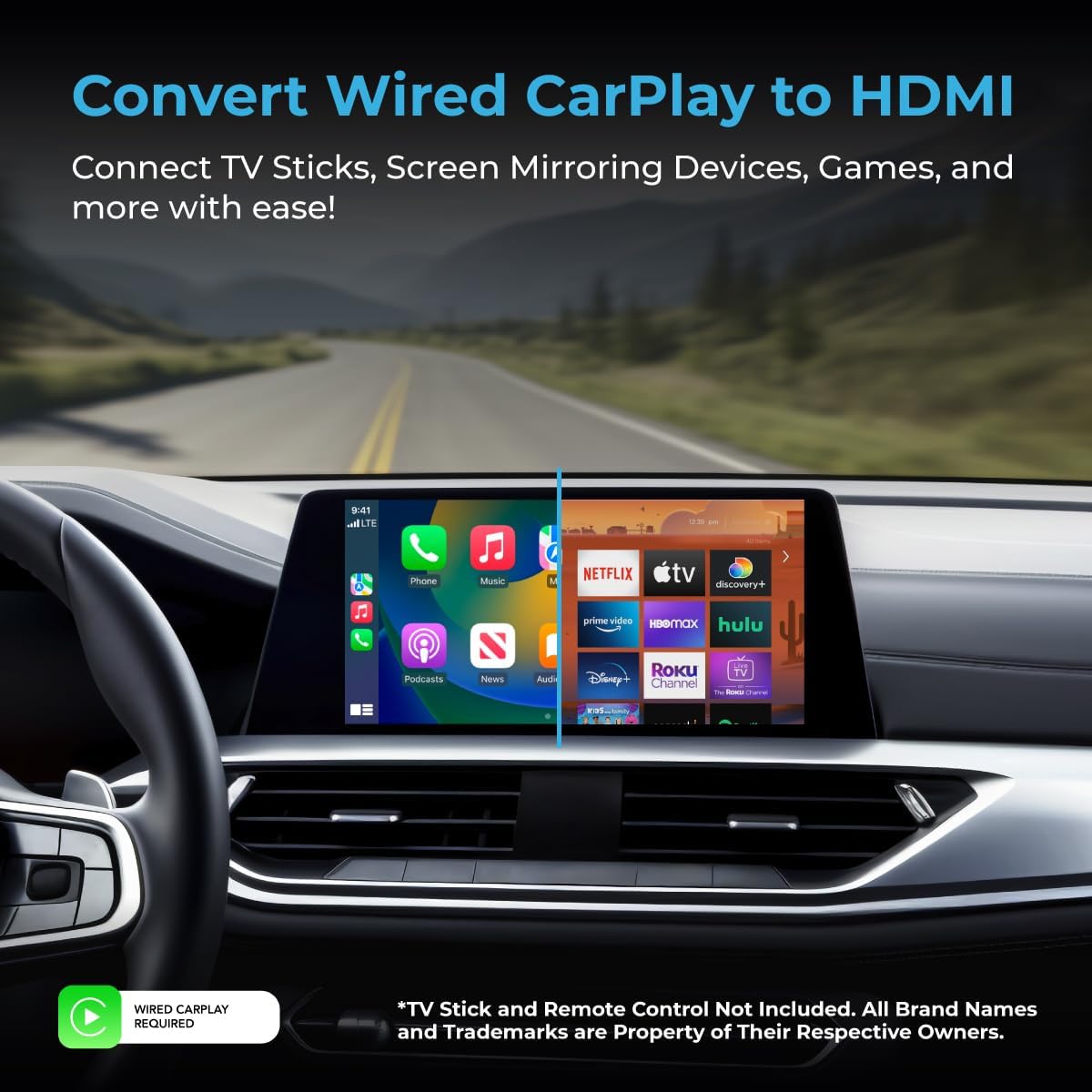
Figure 4.3: Dual functionality with CarPlay and HDMI streaming.
5. Шайкештик
- Унаа талабы: Compatible with most vehicles that support factory-installed wired Apple CarPlay or Android Auto. This device converts existing wired functionality to wireless and adds HDMI input.
- Түзмөктүн шайкештиги:
- Зымсыз CarPlay/Android Auto: iPhone (iOS 10+), Android Phones (Android 11+).
- HDMI киргизүү: Any HDMI-compatible device such as Fire TV Stick, Roku, gaming consoles, or other video devices.
- Эскертүү: The HDMI–USB-C mode supports video only and does not charge your phone.
6. Техникалык шарттар
| Бренд | AutoSky |
| Байланыш технологиясы | Bluetooth, HDMI, Wi-Fi |
| Controller Type | HDMI device (external) |
| Өзгөчө өзгөчөлүк | HDMI киргизүү |
| Шайкеш түзмөктөр | iPhone, Android Phone, HDMI devices |
| Жалпы HDMI порттору | 1 |
| Туташтыргыч түрү | USB Type A, USB Type-C |
| Аудио чыгаруу режими | Стерео |
| Видеону коддоо | H.264, H.265/HEVC, MPEG-4 |
| Түс | Кара |
7. Кыйынчылыктарды
- Унаанын экранында дисплей жок:
- Ensure the adapter is securely plugged into the correct USB port that supports wired CarPlay/Android Auto.
- Verify your vehicle's infotainment system is turned on and set to the correct input.
- Restart your car and the adapter.
- Wireless CarPlay/Android Auto туташпай жатат:
- Confirm Bluetooth is enabled on your smartphone and it is paired with the AutoSky adapter.
- Ensure Wi-Fi is also enabled on your phone, as wireless CarPlay/Android Auto often uses Wi-Fi for data transfer after the initial Bluetooth handshake.
- Телефонуңуздун Bluetooth жөндөөлөрүнөн түзмөктү унутуп, кайра жупташтырыңыз.
- HDMI Device Not Working:
- Ensure the HDMI device is properly connected to the adapter's HDMI port.
- Verify the HDMI device has its own power supply connected and is turned on.
- Confirm the HDMI device has an active internet connection (e.g., via your phone's hotspot).
- Check if the HDMI device requires any specific input selection on its own interface.
- Аудио көйгөйлөр:
- Adjust the volume on both your car's infotainment system and the connected device/phone.
- Ensure your car's audio input is correctly selected (e.g., USB or Bluetooth for CarPlay/Android Auto, or the HDMI input for streaming).
8. Коопсуздук маалыматы
- Айдоо коопсуздугу: Always prioritize safe driving. Do not operate the device or engage in activities that distract you from the road.
- Орнотуу: Ensure the adapter and all cables are securely placed and do not obstruct driving controls or airbags.
- Температура: Аппаратты экстремалдык температурага, түз күн нуруна же нымдуулукка узак убакытка калтырбаңыз.
- Кубат булагы: Use only appropriate USB power sources for the adapter and any connected HDMI devices.
- Тазалоо: Аппаратты жумшак, кургак чүпүрөк менен тазалаңыз. Суюк тазалагычтарды же аэрозолдорду колдонбоңуз.
9. Кепилдик жана колдоо
For warranty information and customer support, please refer to the documentation included with your product or visit the official AutoSky webсайт. Ошондой эле жардам алуу үчүн сатуучуга түздөн-түз кайрылсаңыз болот.
For additional support or to explore other AutoSky products, visit the AutoSky Store on Amazon.


