1. Киришүү
The FIREBAT X3 Wired RGB Gaming Mouse is designed for precision and comfort, suitable for various computing tasks including gaming, office work, and general use. This manual provides detailed instructions for setting up, operating, and maintaining your mouse.

Бүттүview of the FIREBAT X3 Wired RGB Gaming Mouse highlighting its main features.
2. Орнотуу
2.1 Чычканды туташтыруу
The FIREBAT X3 Gaming Mouse features a simple plug-and-play design for easy setup.
- Locate an available USB-A port on your computer or laptop.
- Insert the USB connector of the mouse into the USB-A port.
- Your operating system will automatically detect and install the necessary drivers. No additional software installation is required for basic functionality.

The FIREBAT X3 mouse connects via a standard USB-A port for immediate use.
3. Операция
3.1 Баскыч функциялары
The FIREBAT X3 Gaming Mouse is equipped with 6 programmable buttons for enhanced control.
- Сол баскыч: Стандарттык чыкылдатуу функциясы.
- Оң баскыч: Стандарттык оң баскычты чыкылдатуу функциясы.
- Жылдыруу дөңгөлөгү: Scrolls up and down. Can also be pressed for a middle-click function.
- DPI жөндөө ачкычы: Чычкандын сезгичтигин (DPI) өзгөртөт.
- Алга баскычы: Алга карай жылдырат web браузерлер же file изилдөөчүлөр.
- Артка баскычы: Артка карай багыт алат web браузерлер же file изилдөөчүлөр.

Illustration of the 6-button layout on the FIREBAT X3 Gaming Mouse.
3.2 DPIди (сезгичтикти) жөндөө
The mouse features 4 adjustable DPI levels to suit different tasks and preferences.
- басыңыз DPI жөндөө ачкычы (located behind the scroll wheel) to cycle through the preset DPI settings.
- The default DPI levels are 1200, 1800, 2400, and 3600.
- Each press will switch to the next DPI level, allowing you to find the optimal sensitivity for your current activity.

The DPI adjustment key allows for quick changes in mouse sensitivity.
3.3 RGB жарык режимдери
The FIREBAT X3 mouse features 7 dynamic RGB backlit modes to enhance your setup.
- The RGB lighting automatically cycles through its 7 distinct modes.
- There is no manual button to change the RGB mode; the mouse will continuously display various lighting effects.
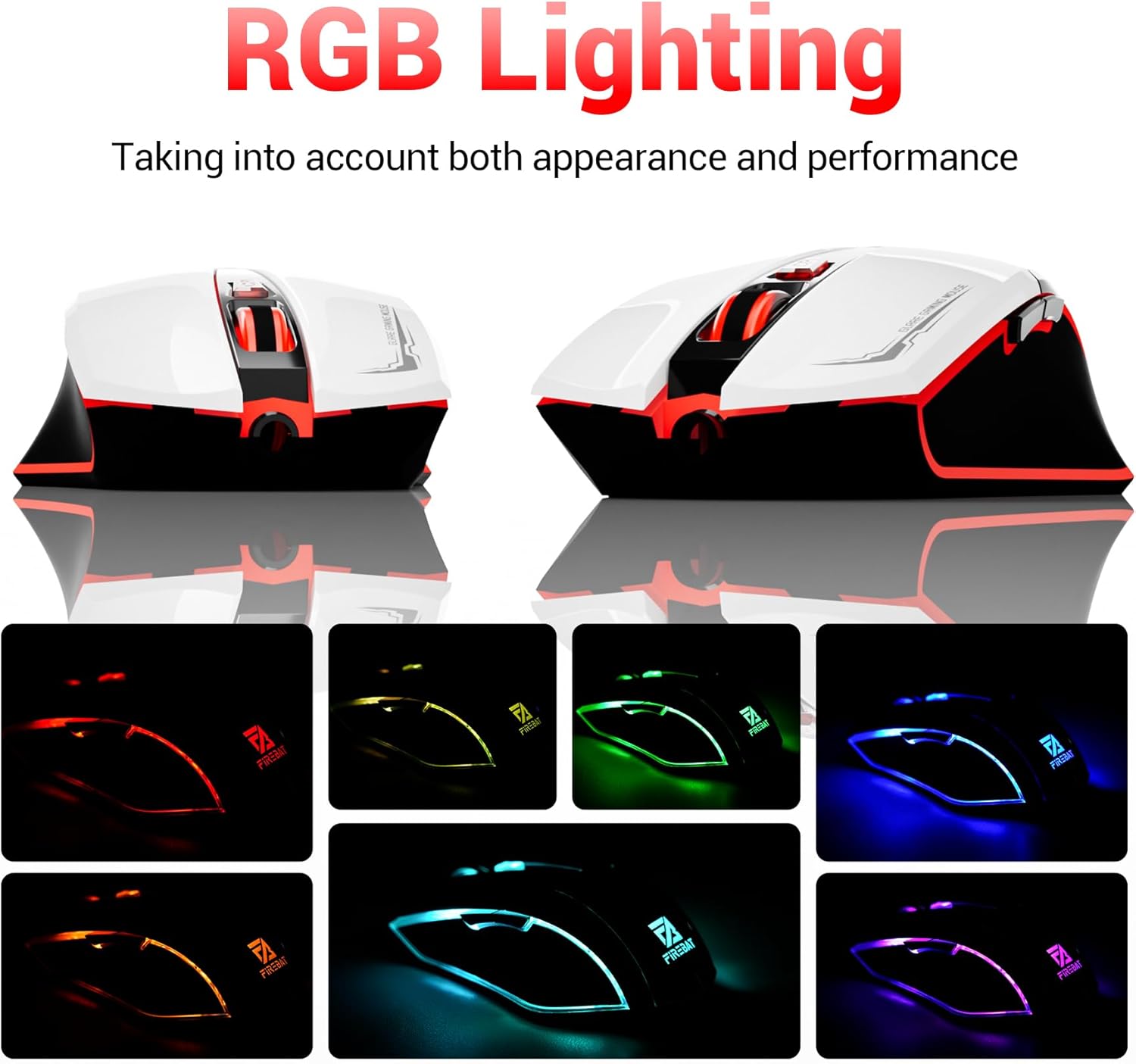
The mouse features vibrant RGB lighting with multiple dynamic modes.
3.4 Ergonomic Design and Comfort
The mouse is designed with an ergonomic shape to provide a comfortable grip and reduce hand fatigue during extended use, suitable for both right and left-hand users.

The ergonomic design ensures comfort during prolonged use.
3.5 Quiet Click Feature
The mouse incorporates a 'Heavy Bass Design' for its key sounds, ensuring soft clicks without excessive noise, which is beneficial in quiet environments.

The mouse features quiet clicks, minimizing noise during use.
4. Техникалык тейлөө
4.1 Тазалоо
To ensure optimal performance and longevity, keep your mouse clean.
- Тазалоодон мурун чычканды компьютериңизден ажыратыңыз.
- Жумшак, түксүз кездемени жеңил колдонуңуз dampчычкандын бетин сүртүү үчүн суу же жумшак тазалоо эритмеси менен иштетилген.
- Катуу химиялык заттарды, абразивдүү тазалагычтарды же ашыкча нымдуулукту колдонбоңуз, алар чычканга зыян келтириши мүмкүн.
- For the optical sensor, use a cotton swab to gently remove any dust or debris.
4.2 Сактоо
Колдонулбаган учурда, чычканды таза, кургак жерде, өтө жогорку температурадан жана түз күн нурунан алыс сактаңыз.
5. Кыйынчылыктарды
5.1 Чычкан жооп бербейт
- USB туташуусун текшерүү: USB кабели компьютериңиздеги иштеген USB портуна бекем сайылганын текшериңиз. Башка USB портун колдонуп көрүңүз.
- Компьютерди кайра иштетүү: Кээде жөнөкөй өчүрүп күйгүзүү байланыш маселелерин чечиши мүмкүн.
- Башка компьютерде сыноо: Мүмкүн болсо, чычканды башка компьютерде сынап көрүңүз, маселе чычканда же сиздин компьютериңиздин орнотулушунда экенин аныктаңыз.
5.2 Курсордун кыймылы туура эмес же секирик
- Таза оптикалык сенсор: Dust or debris on the optical sensor can cause erratic movement. Refer to the cleaning instructions in the Maintenance section.
- Use a Mouse Pad: Ensure you are using the mouse on a suitable surface. Reflective, transparent, or uneven surfaces can interfere with the optical sensor.
5.3 RGB жарыктандыруу иштебей жатат
- USB кубатын текшерүү: Ensure the mouse is receiving sufficient power through the USB connection.
- Кол менен башкаруу жок: Remember that the RGB lighting cycles automatically and does not have a manual control button. If the mouse is functioning otherwise, the lighting should be active.
6. Техникалык шарттар
| Өзгөчөлүк | Деталь |
|---|---|
| Модель номери | X3 Gaming Mouse |
| Бренд | FIREBAT |
| Байланыш технологиясы | USB Wired |
| Кыймылды аныктоо | Оптикалык |
| DPI деңгээли | 1200 / 1800 / 2400 / 3600 |
| баскычтардын саны | 6 (Программалануучу) |
| Арткы жарык | 7 RGB режимдери |
| Продукциянын өлчөмдөрү | 5 x 3 x 0.1 дюйм (12.7 x 7.6 x 0.25 см) |
| Элемент Салмагы | 5.1 унция (144.6 грамм) |
| Эргономика | Right or Left Hand Use |
| Өндүрүүчү | FIREBAT |
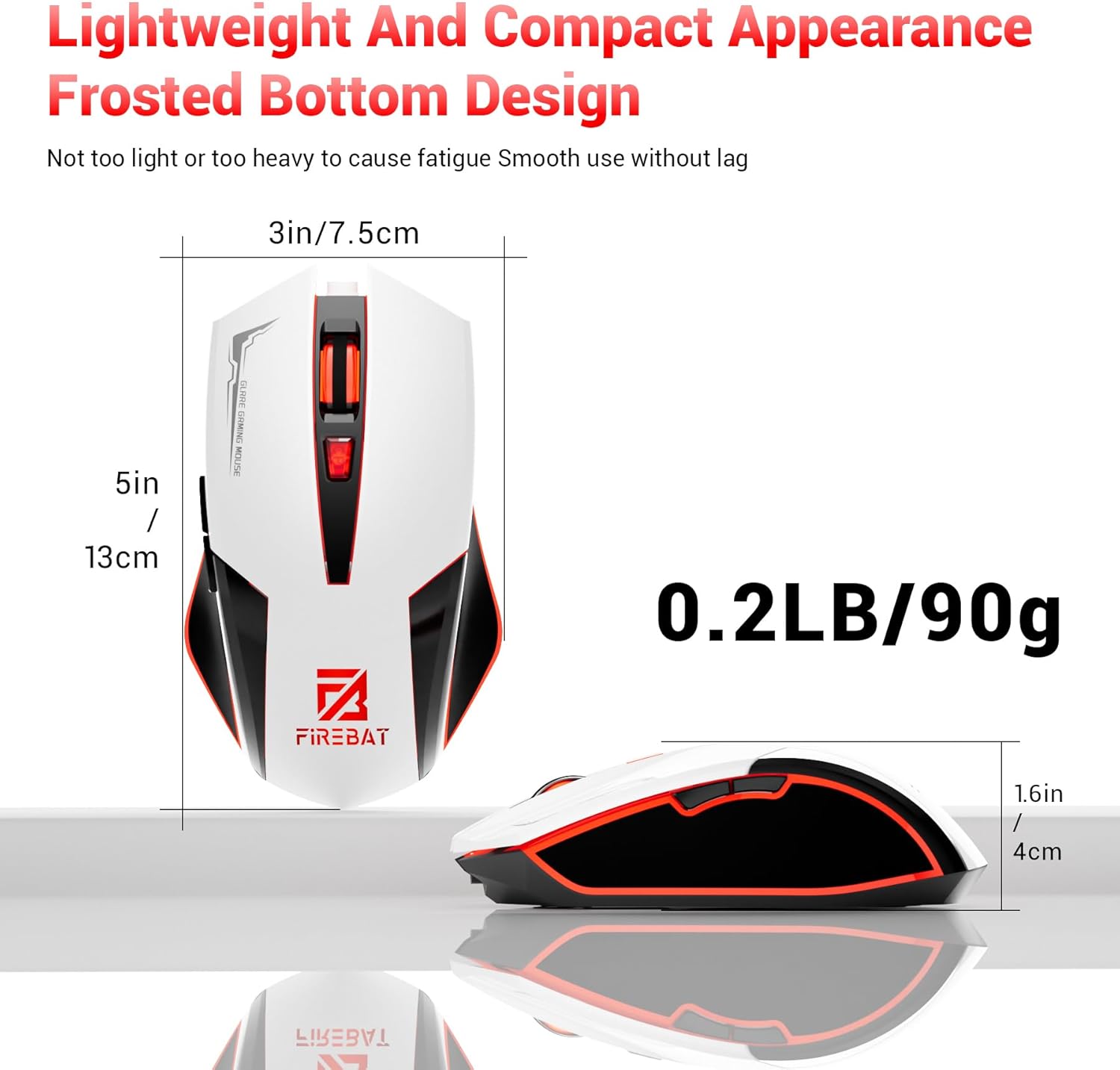
Physical dimensions and weight of the FIREBAT X3 Gaming Mouse.
7. Кепилдик жана колдоо
7.1 Кепилдик маалыматы
FIREBAT products are manufactured to high-quality standards. For specific warranty details, please refer to the warranty card included with your product or visit the official FIREBAT webсайт. Адатта, өнүмдөр өндүрүштүк кемчиликтерди камтыган чектелген кепилдик менен келет.
7.2 Кардарларды колдоо
If you encounter any issues or have questions regarding your FIREBAT X3 Gaming Mouse, please contact our customer support team:
- Электрондук почта: support@firebatpc.com
- Webсайт: www.firebatpc.com
Please provide your product model number (X3 Gaming Mouse) and a detailed description of your issue when contacting support for faster assistance.


