
1. Киришүү
This manual provides detailed instructions for the setup, operation, and maintenance of your MOKiN 13-in-1 USB-C Docking Station. Please read this manual thoroughly before using the device to ensure proper functionality and to prevent damage.
Коопсуздук эрежелери
- Аппаратты сууга, нымдуулукка же экстремалдык температурага тийгизбеңиз.
- Аппаратты түшүрүүдөн же катуу таасирлерден сактаныңыз.
- Use only the provided power adapter or a compatible power source.
- Аппаратты балдардан алыс кармаңыз.
- Түзмөктү өз алдынча бөлүктөргө бөлүүгө же оңдоого аракет кылбаңыз. Тейлөө керек болсо, кардарларды колдоо кызматына кайрылыңыз.
2. Продукт бүтүп калдыview
The MOKiN 13-in-1 USB-C Docking Station is designed to expand the connectivity of your USB-C enabled laptop, providing multiple ports for display, data transfer, network, and charging.
Негизги өзгөчөлүктөрү
- 13-in-1 Expansion: Includes 2 HDMI ports, 2 USB-C data ports, 1 USB-A data port, 1 USB-A 2.0 port, 3 USB-C charging ports (including host), 1 USB-A charging port, Gigabit Ethernet, AC power port, and a screen-lock button.
- Кош дисплейди колдоо: Extends your display in up to 4K resolution via HDMI ports. Supports dual-display mode for macOS and Windows.
- Жогорку ылдамдыктагы маалыматтарды өткөрүп берүү: USB 3.2 Gen 2 ports (2 USB-C and 1 USB-A) offer up to 10Gbps data transfer speeds.
- 160 Вт максималдуу кубаттуулук: Capable of charging up to four devices simultaneously, with individual ports supporting up to 100W (USB-C) and 12W (USB-A).
- 2.26" LCD Smart Display: Provides real-time monitoring of charging status, power output, display resolution, and refresh rate.
- Гигабит Ethernet: Ensures fast and stable wired network connection up to 1000Mbps.
- Инновациялык дизайн: Compact vertical design with an aluminum finish, 80cm host cable, and a magnetic base.
- Купуялык өзгөчөлүгү: Built-in screen-lock button for securing sensitive information.
Port Layout

Detailed diagram illustrating the front and rear ports of the MOKiN Docking Station, including USB-C, USB-A, HDMI, Ethernet, and power input.
Алдыңкы порттор:
- Кубат баскычы
- 3 x USB 3.2 Gen 2 Data Ports (2x USB-C, 1x USB-A) - 10Gbps
- 2 x USB-C Charging Ports
- 1 x USB-A Charging Port
Арткы порттор:
- 1 x USB-C Host Port (20Gbps/100W PD)
- 1 x USB-A 2.0 порту
- 2 x HDMI Ports (up to 4K@60Hz)
- 1 x Gigabit Ethernet порту
- AC кубаттуу киргизүү
3. Орнотуу нускамалары
1-кадам: Power Connection
- Connect the provided AC power adapter to the AC Power Input port on the rear of the docking station.
- Кубат адаптерин розеткага сайыңыз.
Step 2: Connecting to Host Device
- Connect the integrated USB-C host cable from the docking station to a compatible USB-C, USB4, or Thunderbolt port on your laptop.
- Ensure your laptop supports DP Alt Mode and Power Delivery for full functionality.
3-кадам: Перифериялык түзүлүштөрдү туташтыруу
- Дисплейлер: Connect your monitors to the HDMI ports on the rear of the docking station using HDMI cables.
- USB түзмөктөрү: Connect USB peripherals such as keyboards, mice, external hard drives, or USB flash drives to the available USB-A and USB-C data ports.
- Тармак: For a wired internet connection, connect an Ethernet cable from your router or modem to the Gigabit Ethernet port on the rear.
- Түзмөктөрдү кубатталууда: Use the dedicated USB-C and USB-A charging ports on the front to charge your smartphones, tablets, or other compatible devices.
4. Иштөө нускамалары
Жалпы колдонуу
Once all connections are made, the docking station should automatically be recognized by your laptop. Drivers are typically installed automatically by your operating system (Windows, macOS, ChromeOS).
LCD Smart Display
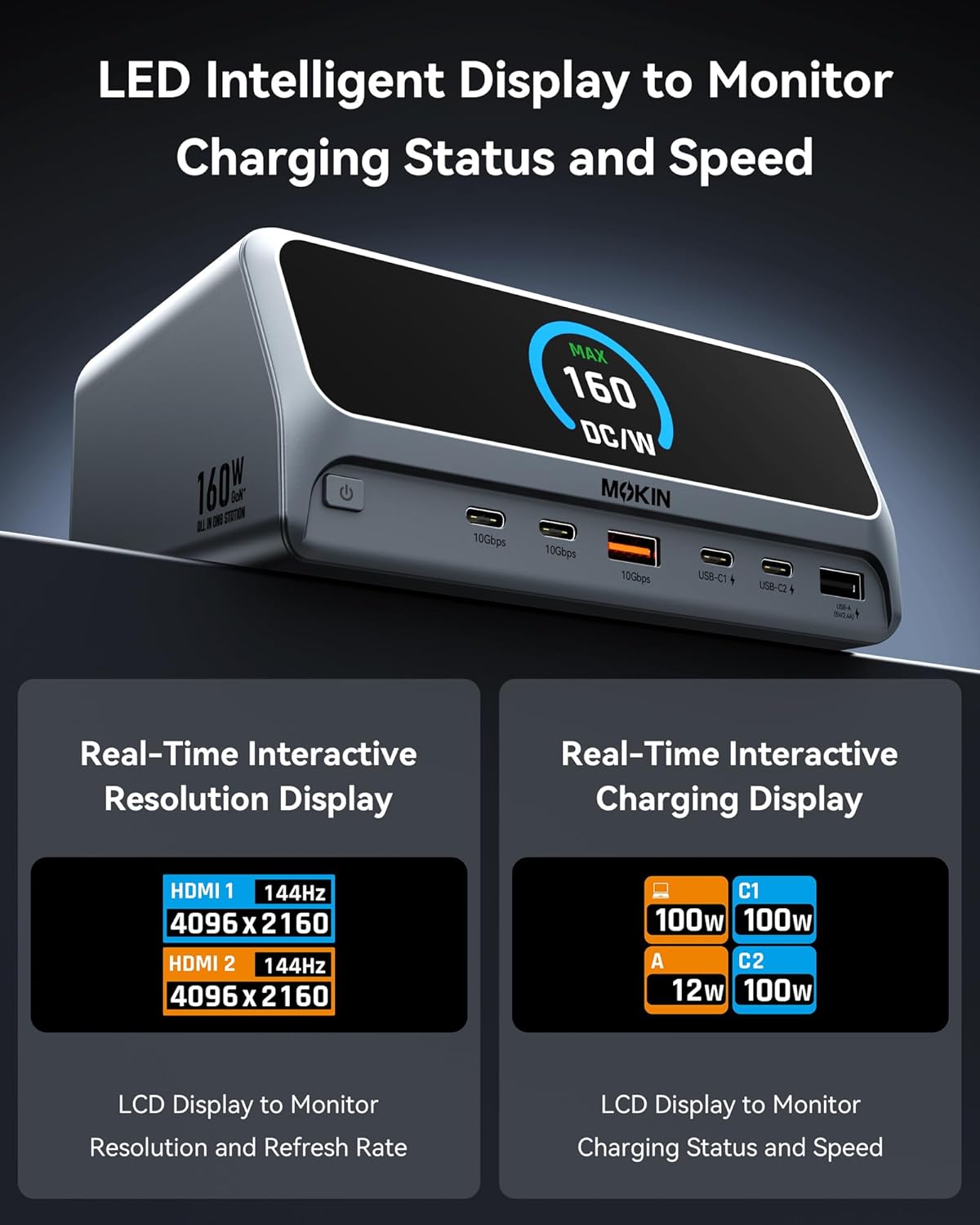
Close-up of the docking station's LCD smart display, showing real-time information such as charging status, power output, and display resolution.
The 2.26-inch LCD smart display provides real-time information:
- Кубаттоо абалы: Displays the power output (in Watts) for each connected charging port (USB-C1, USB-C2, USB-A).
- Дисплейдин чечилиши: Shows the resolution and refresh rate of connected HDMI monitors (e.g., HDMI 1: 144Hz 4096x2160).
- Жалпы кубаттуулугу: Indicates the maximum total power being drawn from the docking station.
Screen-Lock Button
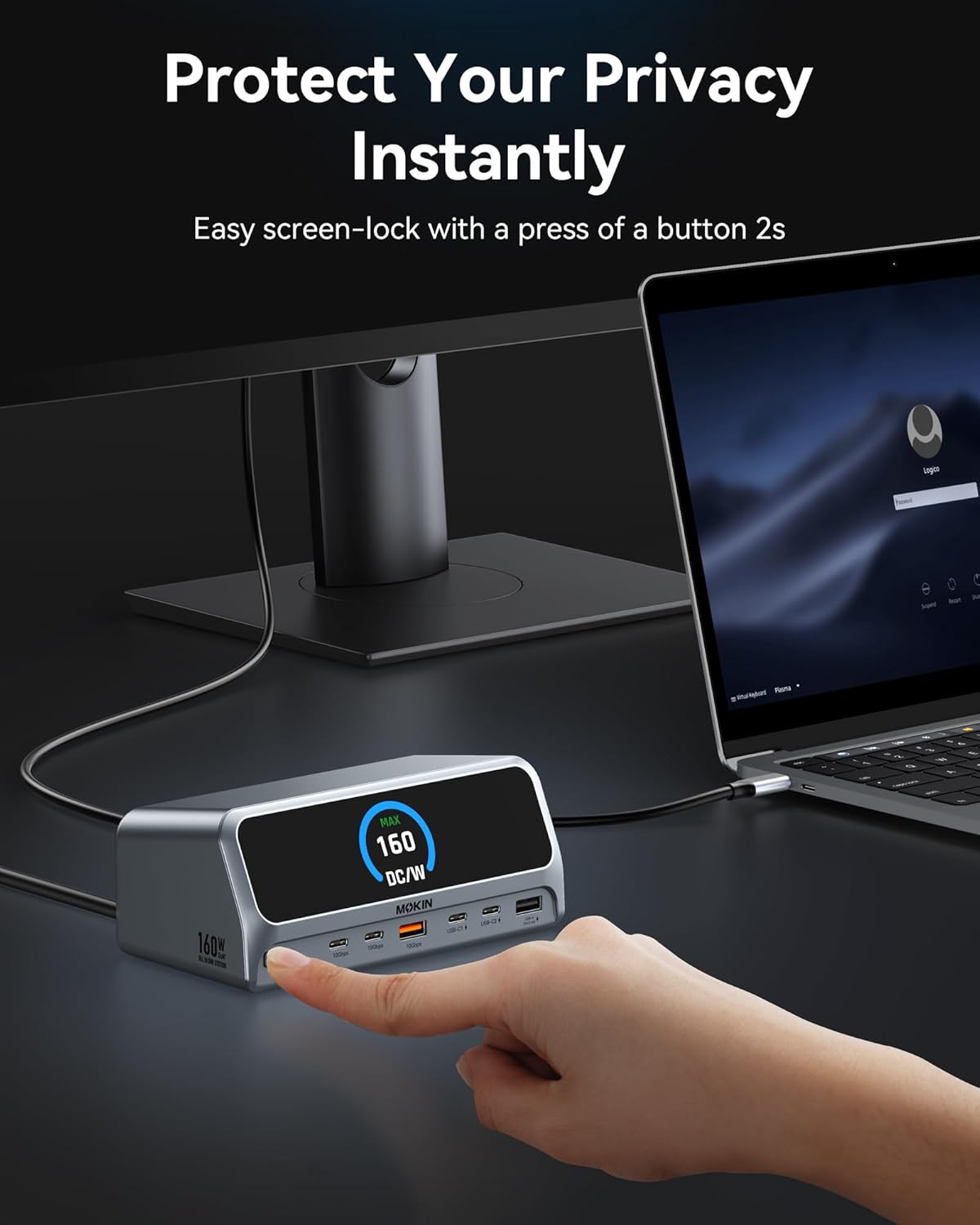
A hand pressing the screen-lock button on the docking station, demonstrating the privacy feature.
Press and hold the screen-lock button for approximately 2 seconds to instantly turn off the connected displays. This feature is useful for privacy or when you need to quickly disable external monitors without disconnecting them.
5. Дисплей конфигурациясы

Visual guide demonstrating various dual 4K display configurations supported by the docking station for both Windows and macOS operating systems.
The docking station supports dual 4K displays. The behavior of extended displays varies slightly between Windows and macOS.
- Windows системалары: Support Multi-Stream Transport (MST) for dual independent displays (A+B, A+B+C, etc.).
- macOS системалары: Support dual-display mode, typically mirroring the primary display or extending it with a single additional desktop (A+A, A+B).
To configure your displays, access your operating system's display settings:
- Windows: Иш тактада оң баскыч менен чыкылдатыңыз > Дисплей жөндөөлөрү.
- MacOS: Система жөндөөлөрү > Дисплейлер.
6. Кубаттоо мүмкүнчүлүктөрү

Image showing the MOKiN Docking Station charging multiple devices simultaneously, highlighting its 160W total power output capability.
The docking station delivers a total of 160W power output, distributed across its charging ports:
- Host Port (USB-C): Up to 100W Power Delivery to your laptop.
- Dedicated USB-C Charging Ports: Each supports up to 100W max output.
- Dedicated USB-A Charging Port: Supports up to 12W max output.
Note: The dedicated charging ports do not support data transmission or display extension functions.
7. Маалыматтарды өткөрүү
The docking station is equipped with high-speed data transfer ports:
- USB 3.2 Gen 2 Ports (2x USB-C, 1x USB-A): Provide data transfer speeds of up to 10Gbps, allowing for rapid file которуулар.
- USB 2.0 Port (1x USB-A): Suitable for connecting standard peripherals like keyboards, mice, or printers.
8. Тармакка кошулуу
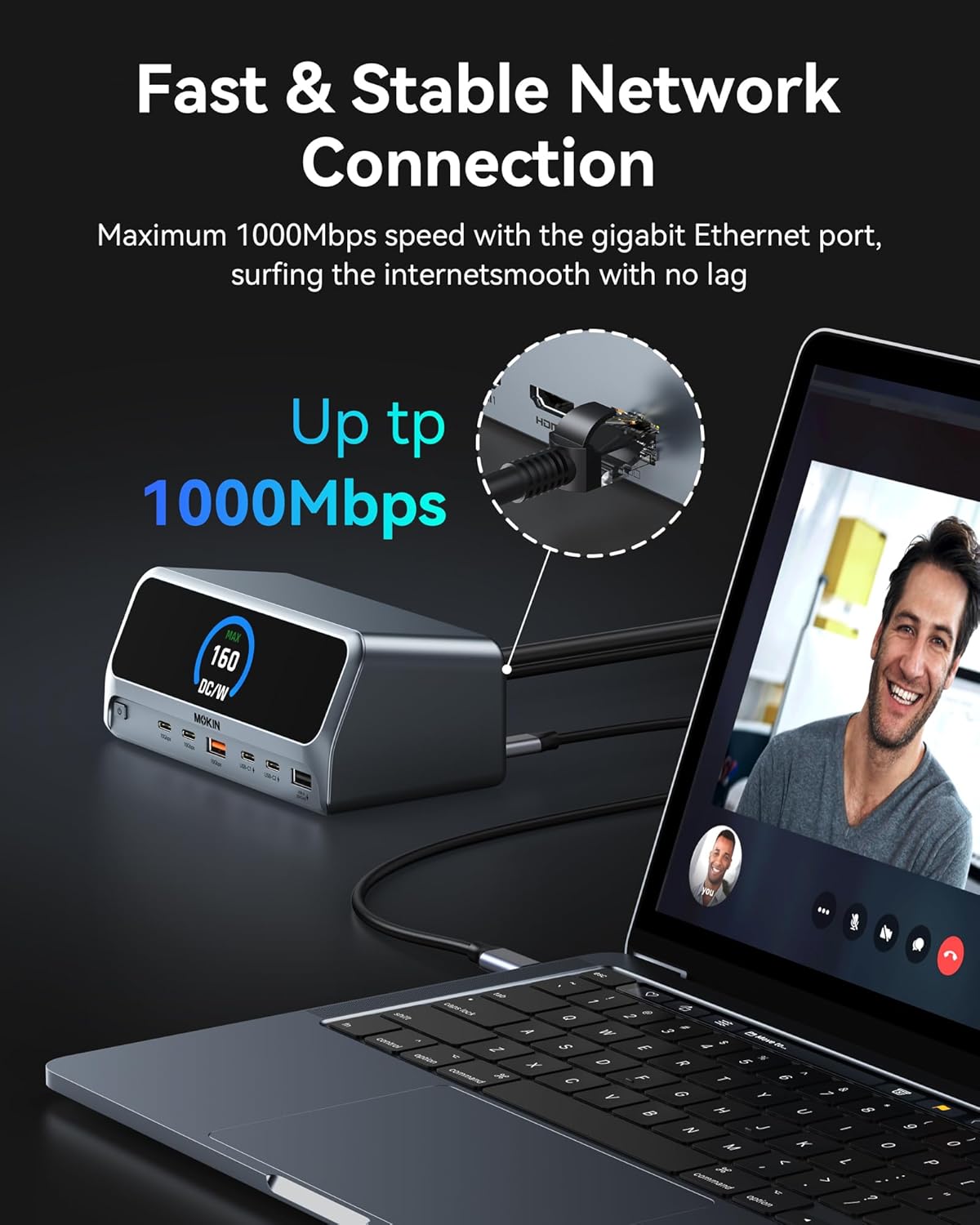
A laptop connected to the docking station via an Ethernet cable, illustrating the stable gigabit network connection.
The integrated Gigabit Ethernet port provides a stable and fast wired network connection, supporting speeds up to 1000Mbps. This is ideal for reliable internet access and large file transfers, especially in environments where Wi-Fi may be unstable or slow.
9. Техникалык шарттар
| Өзгөчөлүк | Спецификация |
|---|---|
| Модел | 13 in 1 заряддоо станциясы |
| Бренд | MOKiN |
| Хост байланышы | USB Type-C (USB-C, USB4, Thunderbolt compatible) |
| Жалпы USB порттору | 7 (3x 10Gbps data, 1x USB 2.0 data, 3x charging) |
| Video Output | 2 x HDMI (4K@60Hz чейин) |
| Ethernet | Гигабит Ethernet (10/100/1000 Мбит/сек) |
| Чыгуу кубаттуулугу (жалпы) | 160W макс |
| Power Output (Host) | 100 Вт чейин кубаттуулукту жеткирүү |
| Power Output (Charging Ports) | USB-C: 100W Max each; USB-A: 12W Max |
| Маалыматтарды өткөрүү ылдамдыгы | 10Gbps (USB 3.2 Gen 2 ports) |
| Дисплей | 2.26" LCD Smart Display |
| Шайкеш OS | Windows 10/11, macOS, ChromeOS |
| Элемент Салмагы | 2.48 фунт |
| Пакеттин өлчөмдөрү | 7.83 x 7.28 x 3.11 дюйм |
10. Кыйынчылыктарды
Жалпы маселелер жана чечимдер
- Дисплей чыгышы жок:
- Ensure the docking station is powered on and connected to your laptop's USB-C port.
- Verify that your laptop's USB-C port supports DisplayPort Alternate Mode (DP Alt Mode).
- Check HDMI cable connections to both the docking station and the monitor.
- Confirm that the monitor input source is set correctly (e.g., HDMI 1, HDMI 2).
- Ноутбугуңуздун графикалык драйверлерин жаңыртып көрүңүз.
- Ноутбугуңузду жана док станциясын өчүрүп-күйгүзүңүз.
- USB түзмөктөрү таанылбайт:
- Док-станциянын ноутбугуңузга туура туташкандыгын текшериңиз.
- USB түзмөгүн док станциясындагы башка портко туташтырып көрүңүз.
- Connect the USB device directly to your laptop to confirm it functions independently.
- Check your laptop's Device Manager (Windows) or System Information (macOS) for any unrecognized USB devices.
- Slow Charging or No Charging:
- Verify that the docking station's power adapter is securely connected and receiving power.
- Ensure your laptop's USB-C port supports Power Delivery (PD).
- Check the power requirements of your laptop; if it requires more than 100W, it may charge slower or not at all through the docking station.
- Note that the USB-C downstream data ports do not support charging. Use the dedicated charging ports.
- Ethernet туташуу маселелери:
- Ethernet кабелинин док станциясына да, роутериңизге/модемиңизге да бекем туташтырылганын текшериңиз.
- Ноутбугуңуздагы тармак жөндөөлөрүн текшериңиз.
- Башка Ethernet кабелин колдонуп көрүңүз.
- Docking Station Not Detected by Laptop:
- Disconnect and reconnect the USB-C host cable.
- Ноутбугуңузду өчүрүп күйгүзүңүз.
- Ensure your laptop's operating system is up to date.
11. Техникалык тейлөө
To ensure the longevity and optimal performance of your MOKiN Docking Station, follow these maintenance guidelines:
- Тазалоо: Use a soft, dry cloth to wipe the exterior of the docking station. Do not use liquid cleaners or abrasive materials.
- Сактагыч: Узак убакыт бою колдонулбаган учурда, док-станцияны салкын, кургак жерде, күндүн нуру түз тийбеген жерде сактаңыз.
- Вентиляция: Ensure the docking station has adequate airflow around it to prevent overheating. Do not block ventilation openings.
12. Кепилдик жана колдоо
MOKiN products are designed for reliability and performance. For warranty information and technical support, please refer to the warranty card included with your product or visit the official MOKiN webсайт. Колдоо кызматына кайрылганда, өнүмүңүздүн үлгүсү жана сатып алуу маалыматы даяр болсун.