1. Киришүү
The Machenike KG98 is a versatile mechanical gaming keyboard designed for various uses including work, gaming, and study. It features multi-device connectivity, hot-swappable switches, an ergonomic structure, and customizable RGB lighting. This manual provides detailed instructions for setup, operation, and maintenance to ensure optimal performance and user experience.
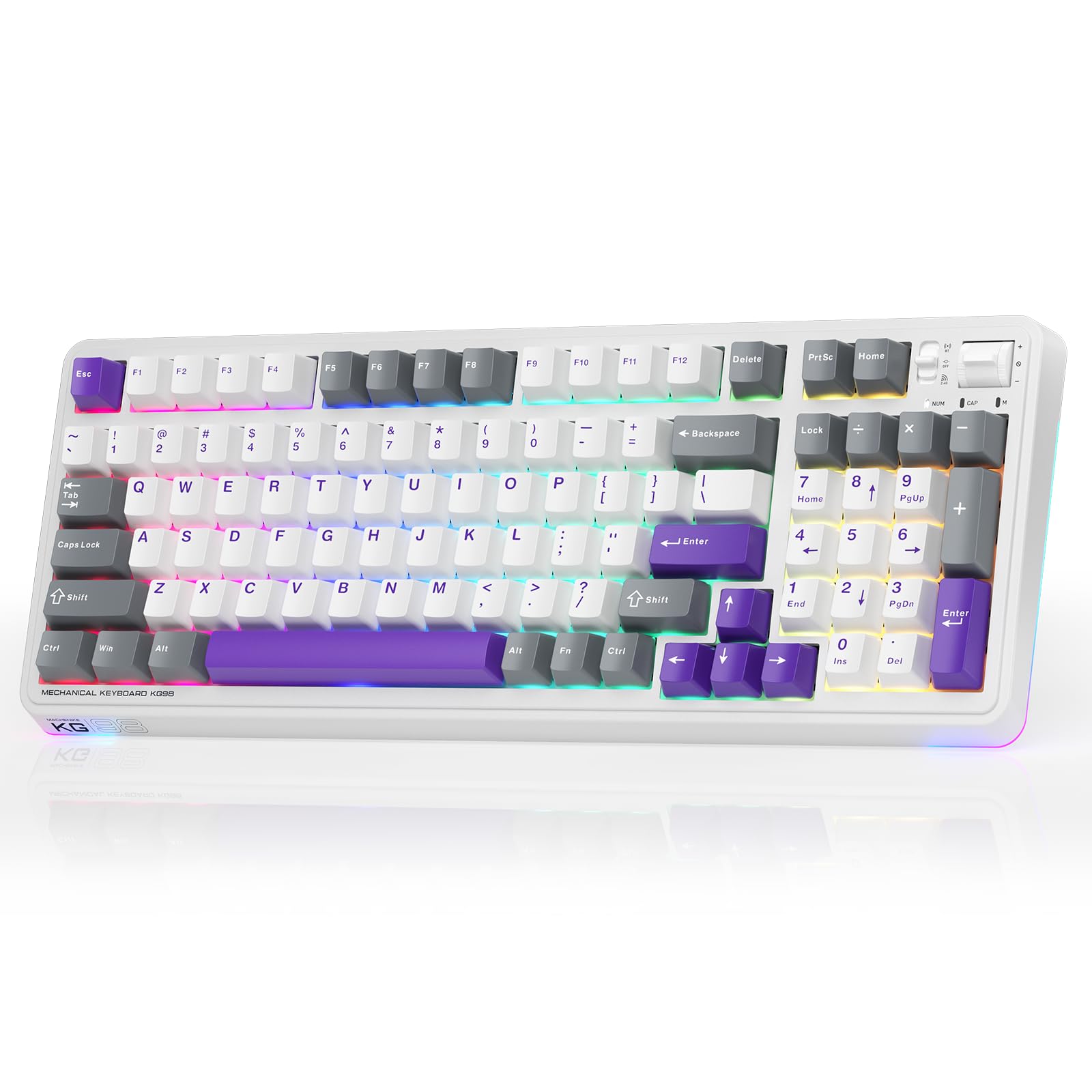
Figure 1: Machenike KG98 Mechanical Gaming Keyboard
2. Кутуда эмне бар
Сураныч, кутудан чыгарылганда бардык буюмдар бар экенин текшериңиз:
- Machenike KG98 механикалык клавиатурасы
- Кошумча 2 боз түстөгү алдын ала майланган сызыктуу өчүргүчтөр
- Баскыч капкагын тарткыч
- USB кабели (Type-A to Type-C)
- Колдонуучунун Колдонмосу (бул документ)

Figure 2: Box Contents of the KG98 Keyboard
3. Орнотуу
3.1 Байланыш режимдери
The KG98 keyboard supports three connection modes: Wired (USB-C), 2.4G Wireless, and Bluetooth (BT5.0). A mode switch is located on the top-right side of the keyboard.
- Зымдуу режим: Connect the provided USB-C cable to the keyboard and your computer. The mode switch should be in the middle (USB) position.
- 2.4G зымсыз режими: Locate the 2.4G USB dongle (usually stored magnetically on the keyboard's underside). Insert the dongle into your computer's USB port. Slide the mode switch to the bottom (2.4G) position. The keyboard will automatically connect.
- Bluetooth режими: Slide the mode switch to the top (BT) position. On your device (computer, tablet, smartphone), search for Bluetooth devices and select 'Machenike KG98'. The keyboard's indicator light will flash blue during pairing.
3.2 Баскычтопту заряддоо
The keyboard is equipped with an 8000mAh battery. To charge, connect the USB-C cable to the keyboard and a power source (e.g., computer USB port, USB wall adapter). The indicator light will show charging status.

Figure 3: Connectivity and Multimedia Control Switches
Video 1: Machenike KG98 Mechanical Keyboard Overview (Seller Content)
This video demonstrates the unboxing, various features, and connectivity options of the Machenike KG98 Mechanical Keyboard, including switch removal and typing sound tests.
4. Иштөө нускамалары
4.1 Функционалдык баскычтардын айкалышы
The KG98 keyboard utilizes the 'Fn' key for various secondary functions. Refer to the included user manual for a comprehensive list of Fn key combinations for both Windows and macOS, including multimedia controls, brightness adjustments, and system functions.
4.2 RGB жарыкты башкаруу
The keyboard features 16.8 million customizable RGB backlighting and dual-sided RGB light strips. Use the following key combinations to adjust the lighting:
- Fn + Shift: Cycle through various RGB lighting effects.
- Fn + Enter: Change the solid color of the current lighting effect.
- Fn + Өйдө/Төмөн жебе: Арткы жарыктын жарыктыгын тууралоо (4 деңгээл).
- Fn + Сол/Оң жебе: Adjust animation speed (4 levels).
- Fn + Page Up/Page Down: Change side light strip color.
- Fn + Home/End: Change side light strip mode/speed.
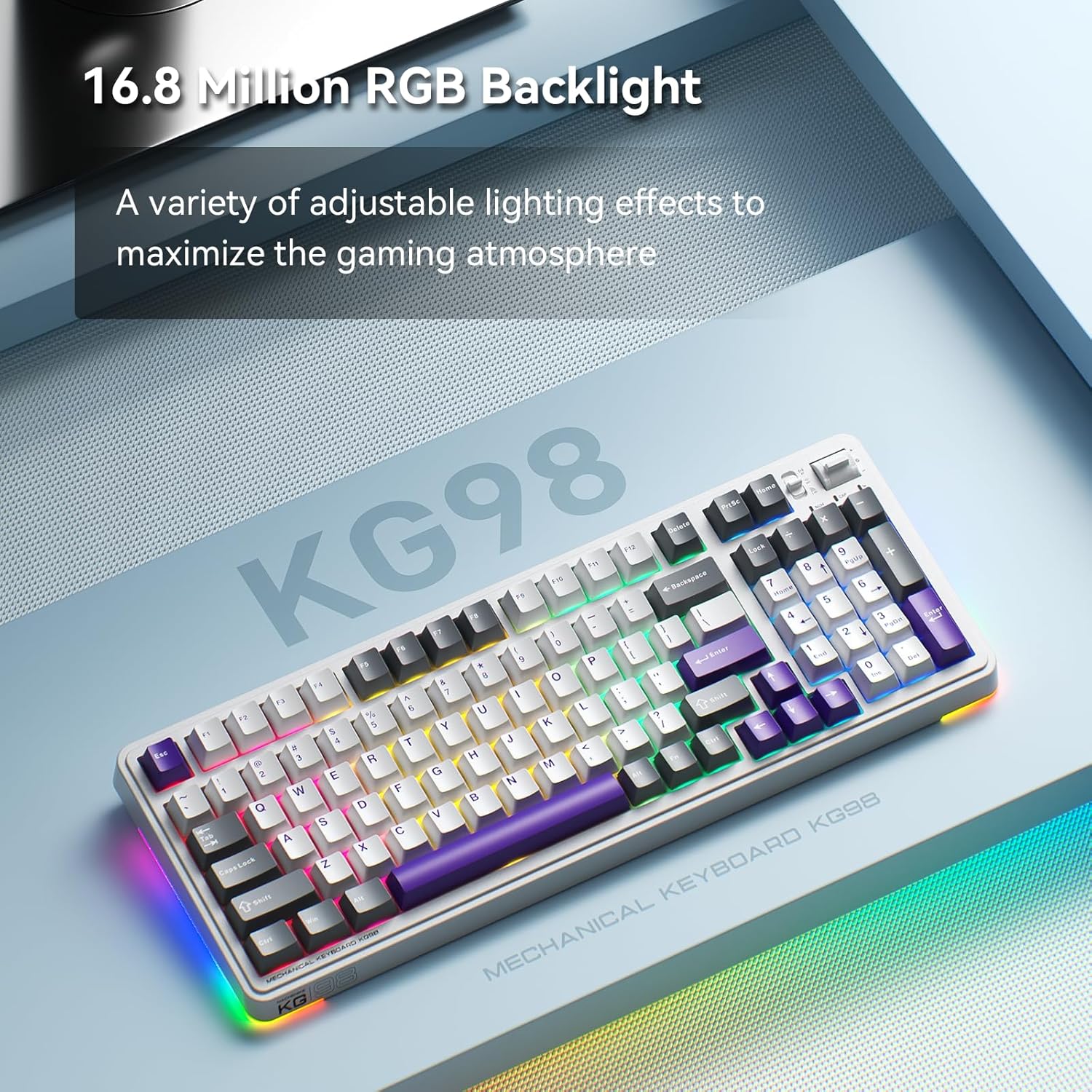
Figure 4: Customizable RGB Backlighting
4.3 Мультимедиа жана үндү башкаруу элементтери
A multi-functional toggle switch is located on the top-right of the keyboard, allowing for quick adjustments:
- Айлантуу: Үндү жогору же ылдый тууралаңыз.
- Пресс: Аудионун үнүн басуу/ачуу.
- Басып кармап туруңуз: RGB жарыктандыруу режимдери аркылуу айлануу.
5. Ыңгайлаштыруу
5.1 Ыкчам алмаштыруучу которгучтар
The KG98 keyboard features hot-swappable sockets, allowing you to easily replace switches without soldering. This enables personalization of typing feel and sound. Use the included keycap puller and switch puller to remove and install switches. The keyboard supports both 3-pin and 5-pin switches.

5-сүрөт: Ыкчам алмаштыруучу которгучтар
5.2 Баскыч капкагын алмаштыруу
The keyboard comes with durable PBT keycaps. You can replace these with aftermarket keycaps of your choice to further customize the keyboard's aesthetics. Use the keycap puller to safely remove keycaps.
5.3 Программалык камсыздоону ыңгайлаштыруу
Download the official Machenike software to unlock advanced customization options, including:
- Key remapping for individual keys.
- Macro recording and assignment.
- Detailed RGB lighting effects and color customization.
- Adjusting debounce time and sleep settings.
6. Техникалык шарттар
| Модель номери | KG98 |
| Продукциянын өлчөмдөрү | 16.61"L x 7.48"W x 2.16"H |
| Элемент Салмагы | 3.39 фунт |
| Байланыш технологиясы | BT5.0 (Bluetooth), 2.4G Wireless, USB-C Wired |
| Keyboard Description | Зымсыз механикалык клавиатура |
| Баскычтоптун арткы жарыгы | RGB |
| Батарея | 1 литий-иондук батарейка (кошулган) |
| Өзгөчө өзгөчөлүк | Noise-canceling, Hot-swappable switches, Multi-functional switch |
| Шайкеш түзмөктөр | Оюн консолу, ноутбук, компьютер, смартфон, планшет |
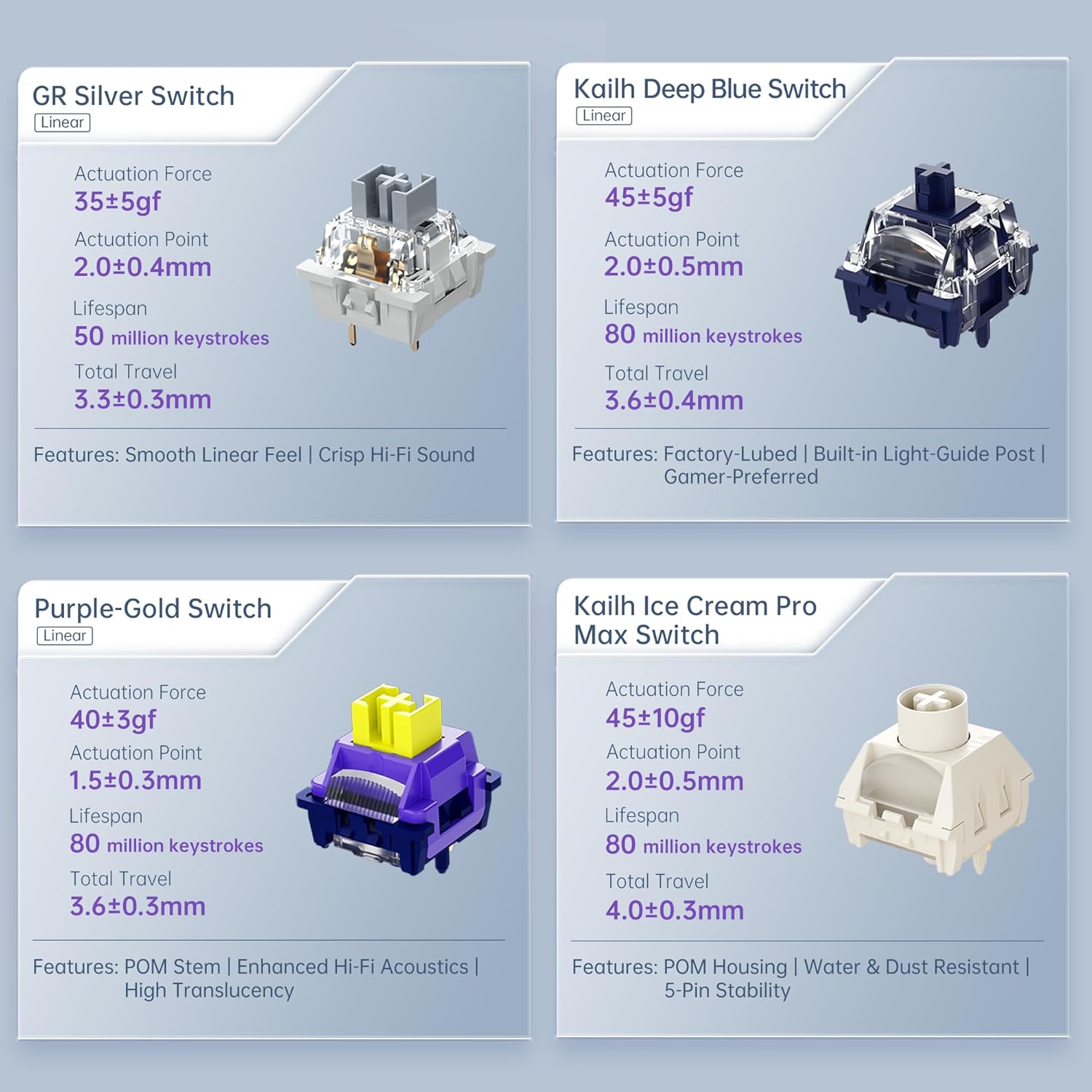
Figure 6: Premium 5-Layer Acoustic Filling Design
7. Техникалык тейлөө
To ensure the longevity and optimal performance of your Machenike KG98 keyboard, follow these maintenance guidelines:
- Тазалоо: Regularly clean the keyboard with a soft, dry cloth. For deeper cleaning, remove keycaps using the provided puller and use compressed air to clear debris from between switches.
- Суюктуктардан алыс болуңуз: Do not expose the keyboard to liquids. If spills occur, immediately disconnect the keyboard and allow it to dry completely before re-using.
- Сактагыч: Клавиатураны күн нурунан жана экстремалдык температурадан алыс, салкын, кургак жерде сактаңыз.
8. Кыйынчылыктарды
If you encounter issues with your Machenike KG98 keyboard, try the following troubleshooting steps:
- Жооп жок: Ensure the keyboard is properly connected in wired mode, or that the 2.4G dongle/Bluetooth is correctly paired and the mode switch is in the correct position. Check battery level.
- Туташуу маселелери: For wireless modes, ensure the keyboard is within range of your device. Try re-pairing Bluetooth or re-inserting the 2.4G dongle.
- RGB жарыктары иштебейт: Check brightness settings (Fn + Up Arrow). Ensure the lighting mode is active (Fn + Shift).
- Катталбаган ачкычтар: If individual keys are not working, try replacing the switch using the provided tools and extra switches.
- Программалык камсыздоо маселелери: Ensure you have the latest version of the Machenike software installed. Restart your computer and the software.
- Заводдун баштапкы абалга келтирүү: If problems persist, you can perform a factory reset via the customization software.
9. Кепилдик жана колдоо
For warranty information, technical support, or service inquiries, please contact Machenike customer support through their official website or the contact details provided with your purchase. Keep your proof of purchase for warranty claims.


