1. Киришүү
This user manual provides essential information for the safe and efficient operation of your Thunderobot Radiant 16 5060 Gaming Laptop. Please read this manual thoroughly before using the device to ensure proper setup, usage, and maintenance. Keep this manual for future reference.

Image: The Thunderobot Radiant 16 Gaming Laptop, showcasing its display and RGB backlit keyboard.
2. Продукт бүтүп калдыview
2.1 Негизги өзгөчөлүктөрү
- Процессор: Intel Core i7-14650HX (16 өзөк, 24 жип, 5.2 ГГц чейин)
- Графика: NVIDIA GeForce RTX 5060
- Дисплей: 16-inch QHD+ (2560x1600) 300Hz display
- Эстутум: 32 ГБ DDR5 RAM
- Сактагыч: 2 ТБ PCIe M.2 SSD
- Операция системасы: Windows 11 Home
- Байланыш: Wi-Fi 6, Bluetooth, Multiple USB ports (Type-A, Type-C), HDMI, RJ-45, Audio Port
- Баскычтоп: Сандык баскычтоп менен RGB арткы жарыктандырылган баскычтоп
- Муздатуу: Advanced thermal management with dual turbofans and copper fins
2.2 Компоненттер жана порттор
Familiarize yourself with the various components and ports of your laptop for optimal usage.

Image: Diagram illustrating the various ports and slots on the Thunderobot Radiant 16 laptop, including USB, HDMI, RJ45, and power input.
- Сол жагы: USB 3.1 Gen1 Type-A, Audio Port
- Оң жагы: USB 3.1 Gen1 Type-A, USB 3.1 Gen1 Type-A
- Арткы жагы: AC Power Supply, USB 3.1 Gen2 Type-C, HDMI 2.1, RJ45
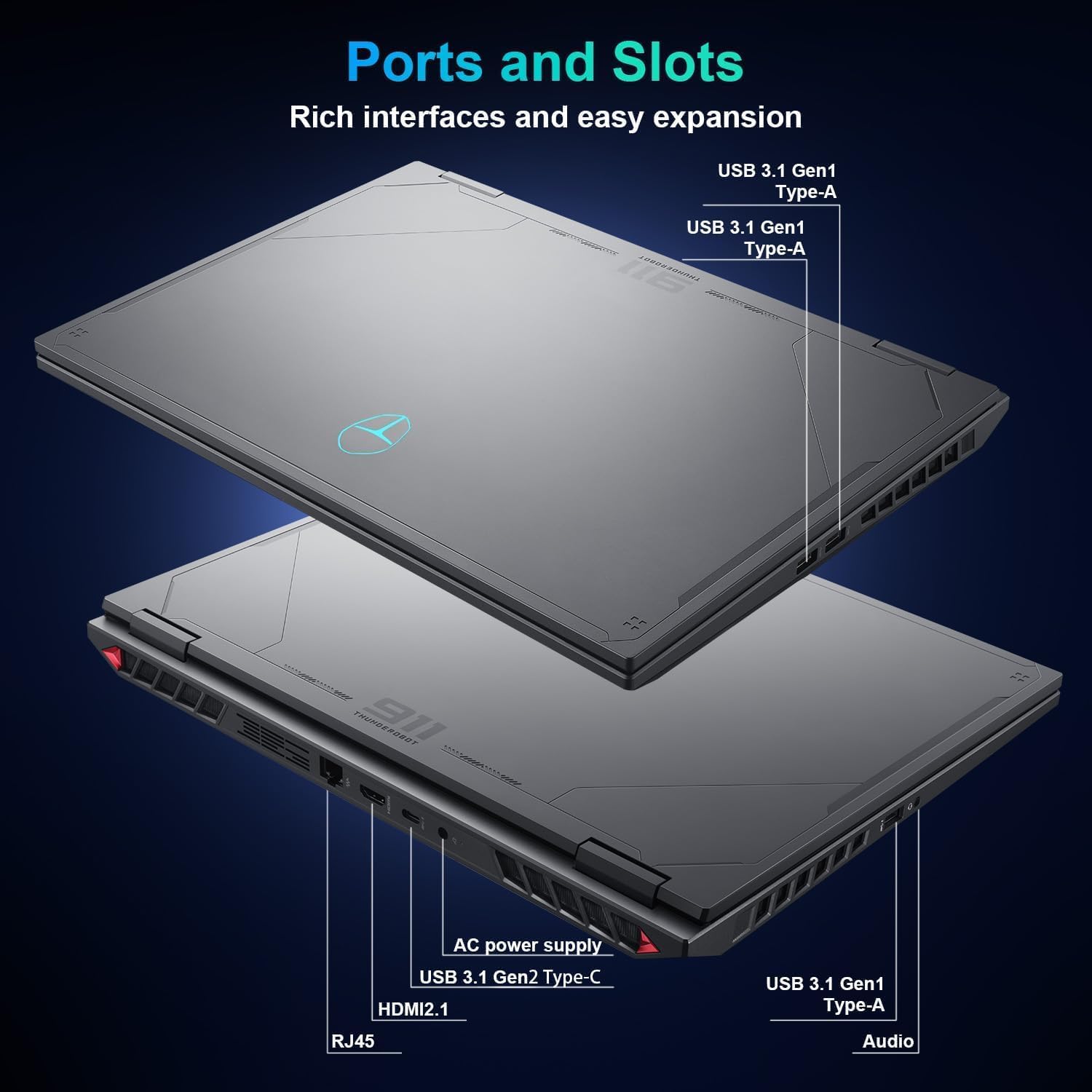
Image: Close-up of the Thunderobot Radiant 16 keyboard, highlighting the RGB backlighting, numeric keypad, and key travel.
- Баскычтоп: Features three-zone RGB backlighting, 1.8mm key travel, 0.2T micro arc keycaps, sunken full-size arrow keys, and an independent numeric keypad.
3. Орнотуу
3.1 Баштапкы күйгүзүү
- Ноутбукту жана бардык аксессуарларды кутудан чыгарыңыз.
- Connect the AC power adapter to the laptop's power input port and then to a power outlet.
- Ноутбуктун капкагын ачып, адатта клавиатуранын үстүндө же капталында жайгашкан кубат баскычын басыңыз.
- Тил тандоо, тармакка туташуу жана колдонуучу каттоо эсебин түзүү сыяктуу Windows 11 Home'дун баштапкы орнотуусун аяктоо үчүн экрандагы нускамаларды аткарыңыз.
3.2 Перифериялык түзүлүштөрдү туташтыруу
Connect external devices such as a mouse, external keyboard, or monitor to the appropriate ports as needed.
4. Иштөө нускамалары
4.1 Дисплейди колдонуу
The 16-inch QHD+ (2560x1600) display offers a 300Hz refresh rate for smooth visuals. Adjust display settings through Windows Display Settings (Right-click on desktop > Display settings) to optimize resolution, refresh rate, and color profiles.

Image: Details of the 16-inch IPS Esports Display, highlighting 300Hz refresh rate, 100% sRGB, 2560x1600 QHD+ resolution, and 500 Nit brightness.
4.2 Баскычтоптун функциялары
The RGB backlit keyboard includes a numeric keypad. Use the Fn key in combination with other keys to access special functions (e.g., screen brightness, volume control, keyboard backlight adjustment). Refer to the keyboard legends for specific functions.
4.3 Башкаруу борборунун программасы
The Thunderobot Control Center software allows you to manage performance modes, fan speeds, and lighting settings.

Image: Screenshots of the Control Center interface, showing options for performance modes (Berserk, Game, Audio/Video Office), fan adjustment, and system monitoring. Note: System mode switching requires the device to be connected to a power source.
- Аткаруу режимдери: Switch between Berserk mode (full performance), Game mode (smooth and online), and Audio/Video Office mode (power-efficient).
- Желдетүүчү жөндөө: Customize fan speed profiles.
- Жарык орнотуулары: Adjust RGB keyboard backlighting.
- Эскертүү: Башкаруу борборунда системанын режимин которуу үчүн түзмөк кубат булагына туташтырылышы керек.
4.4 Аудио системасы
The laptop features Nahimic-powered audio for immersive sound. Adjust audio settings through the Nahimic software or Windows Sound settings.
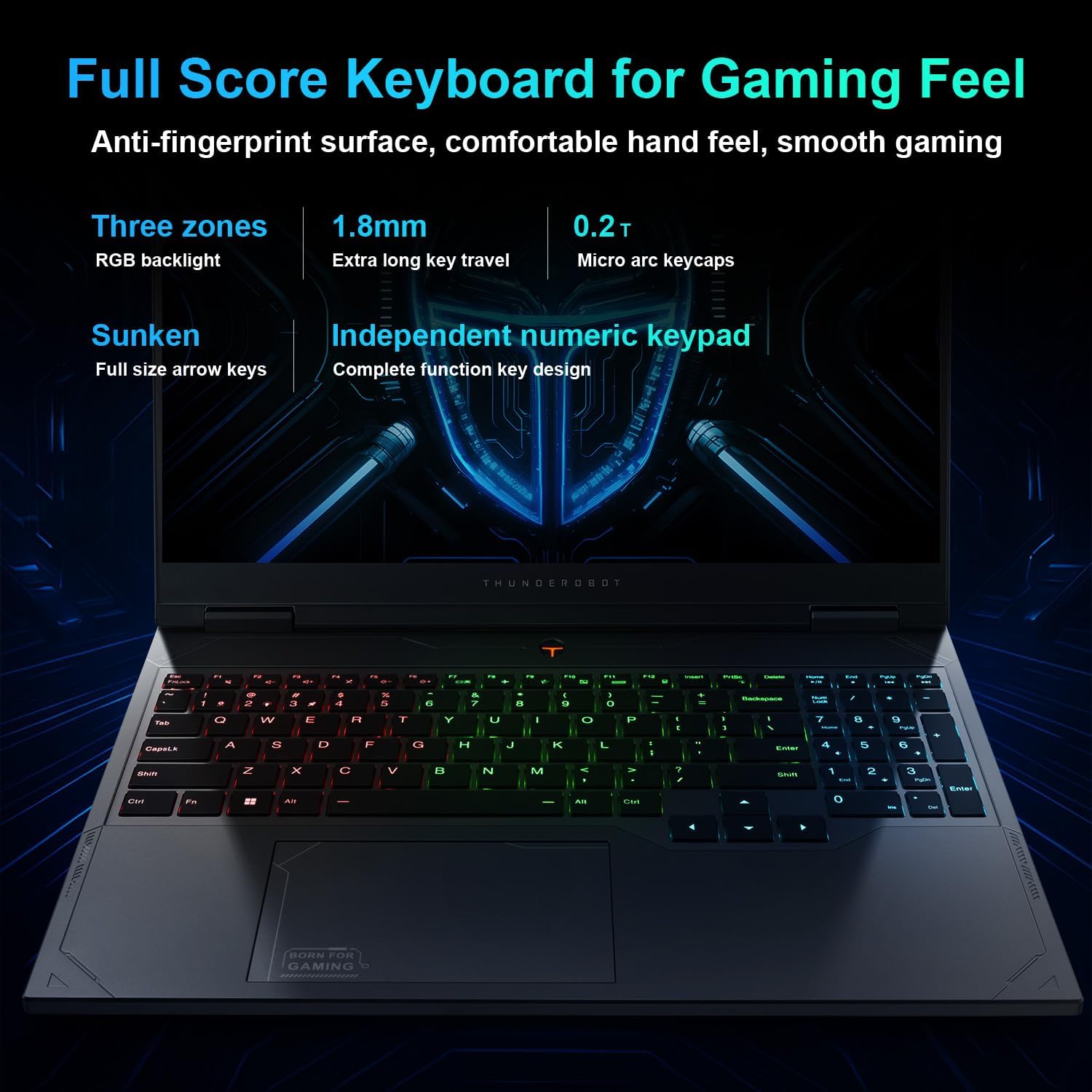
Image: Visual representation of the Nahimic audio system, emphasizing rich bass and crystal highs for immersive soundscapes.
5. Техникалык тейлөө
5.1 Тазалоо
- Экранды жана сырткы беттерди тазалоо үчүн жумшак, түксүз чүпүрөктү колдонуңуз.
- Өжөр белгилер үчүн, dampкездемени суу же экранды коргоочу каражат менен бир аз сүртүңүз.
- Ноутбукка түз суюктук чачуудан алыс болуңуз.
- Клавиатура баскычтары менен желдетүү торлорунан чаңды тазалоо үчүн кысылган абаны колдонуңуз.
5.2 Жылуулук башкаруу
The laptop is equipped with an advanced cooling system. Ensure ventilation openings are not obstructed during use. Regularly clean dust from the fan vents to maintain optimal cooling performance.
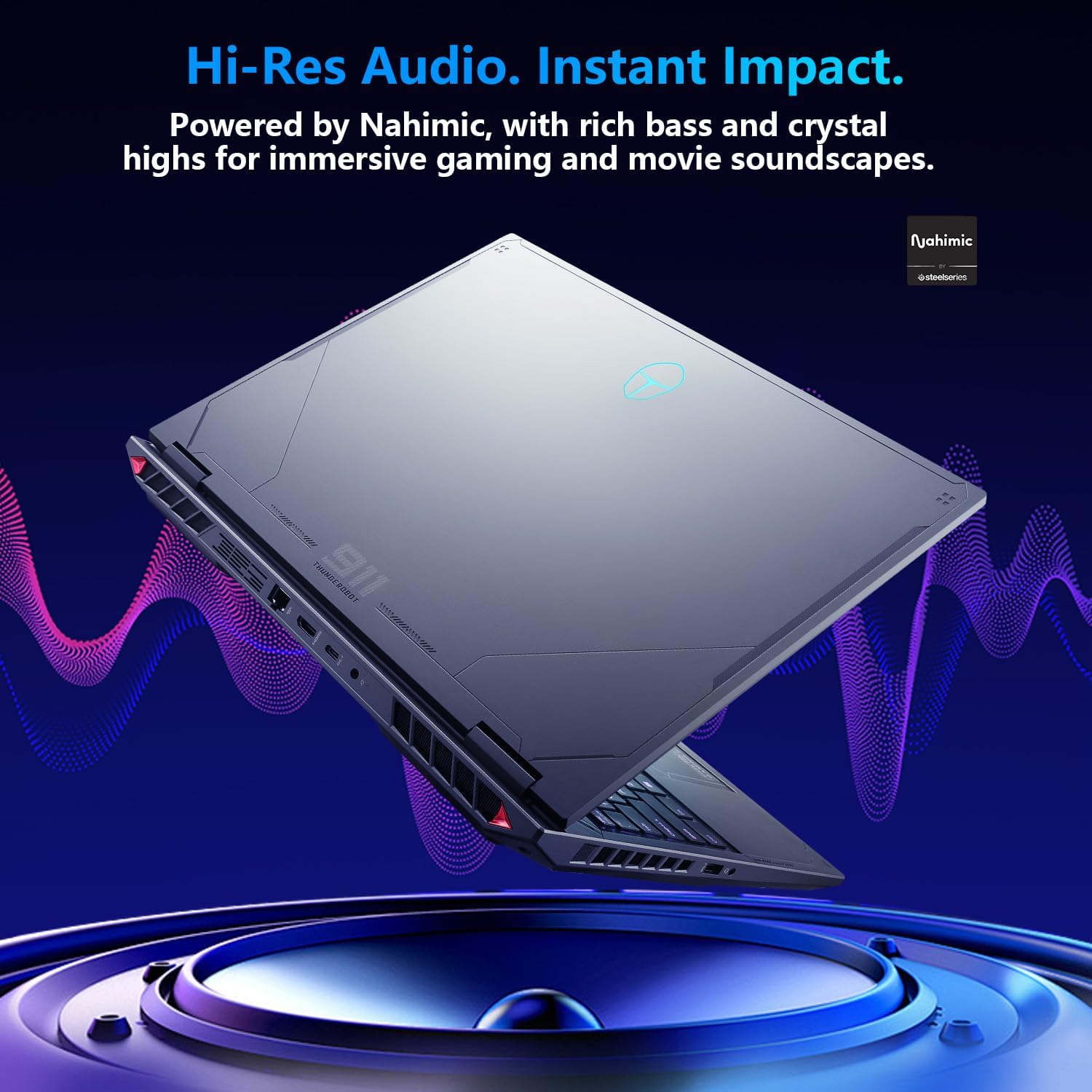
Image: Diagram illustrating the laptop's thermal management, including ultra-thin copper fins and dual turbofans for rapid cooling.
5.3 Батареяга кам көрүү
- Батареянын оптималдуу иштөө мөөнөтү үчүн, бат-баттан батарейканы толук зарядсыздандырбаңыз.
- Ноутбукту узак убакыт бою колдонбосо, салкын, кургак жерде сактаңыз.
- Use only the original power adapter provided with the laptop.
6. Кыйынчылыктарды
6.1 Жалпы маселелер жана чечимдер
| Көйгөй | Мүмкүн чечим |
|---|---|
| Ноутбук күйбөйт. | Ensure the power adapter is securely connected to both the laptop and a working power outlet. Check if the power outlet is functional. Try pressing the power button for 10-15 seconds. |
| Дисплей бош же кара түстө. | Check if the laptop is powered on. Connect an external monitor to verify if the issue is with the laptop's display. Adjust screen brightness using function keys. |
| Wi-Fi туташуу маселелери. | Windows жөндөөлөрүндө Wi-Fi иштетилгенин текшериңиз. Роутериңизди жана ноутбугуңузду өчүрүп-күйгүзүңүз. Жаңыртылган Wi-Fi драйверлерин текшериңиз. |
| Баскычтоп же сенсордук панел жооп бербей жатат. | Restart the laptop. Check for any physical obstructions. Ensure touchpad is not disabled via function keys. |
| Система жай же жооп бербей жатат. | Close unnecessary applications. Check Task Manager for high CPU/RAM usage. Ensure sufficient free space on the SSD. Run a system scan for malware. |
7. Техникалык шарттар
The following table outlines the key technical specifications of the Thunderobot Radiant 16 5060 Gaming Laptop.
| Өзгөчөлүк | Деталь |
|---|---|
| Бренд | Тандеробот |
| Модель аты | Радиант 16 |
| Туруктуу экран дисплей өлчөмү | 16 дюйм |
| Max Screen Resolution | 2560x1600 Pixels (QHD+) |
| Процессор | Intel Core i7-14650HX (16 Cores, up to 5.2 GHz) |
| RAM | 32 ГБ DDR5 (4800 МГц) |
| Катуу диск | 2 ТБ SSD (PCIe x 4) |
| Графикалык сопроцессор | NVIDIA GeForce RTX 5060 |
| Операция системасы | Windows 11 Home |
| Зымсыз түрү | 802.11ax (Wi-Fi 6) |
| USB 3.0 порттордун саны | 4 (3x А түрү, 1x С түрү) |
| Элемент Салмагы | 12 фунт |
| Продукциянын өлчөмдөрү | 14.09 x 10 x 0.82 дюйм |
| Түс | Боз |
| Power Source | AC & Батарея |
| Өзгөчө өзгөчөлүк | Сандык баскычтоп |
8. Кепилдик жана колдоо
Your Thunderobot Radiant 16 laptop comes with a 12-month warranty. This warranty covers expert support, thorough diagnostics, and genuine parts for any necessary repairs. Additionally, a 90-day warranty is provided on all warranty replacement parts to ensure hassle-free repairs.
8.1 Кутуда эмне бар
- THUNDEROBOT Radiant Laptop
- AC кубат адаптери
- Колдонуучунун Колдонмосу (бул документ)
8.2 Колдоо кызматы менен байланышуу
For technical assistance, warranty claims, or further inquiries, please visit the official Thunderobot support webсайтка же кардарларды тейлөөгө кайрылыңыз.
Онлайн ресурстар: Thunderobot Official Store on Amazon


