1. Киришүү
The Azpen AI Wireless Mouse M191-Pro is a high-performance office device designed to enhance productivity through advanced AI features. This ergonomic mouse offers seamless integration with various operating systems and applications, providing hands-free typing, voice-controlled AI interactions, and multi-language translation capabilities.
Негизги өзгөчөлүктөр төмөнкүлөрдү камтыйт:
- Voice-to-Text at up to 500 words per minute.
- Voice Access to ChatGPT and other AI models.
- Voice-Controlled Google Издөө quick information retrieval.
- Multi-Language Voice and Screenshot Translation across 144+ languages.
- Compatibility with iOS, Windows, and Mac operating systems via Bluetooth and USB connections.
2. Продукт бүтүп калдыview
The Azpen AI Wireless Mouse M191-Pro features a sleek, ergonomic design for comfortable use. It includes dedicated buttons for its AI functionalities, a scroll wheel, and a USB receiver for versatile connectivity.
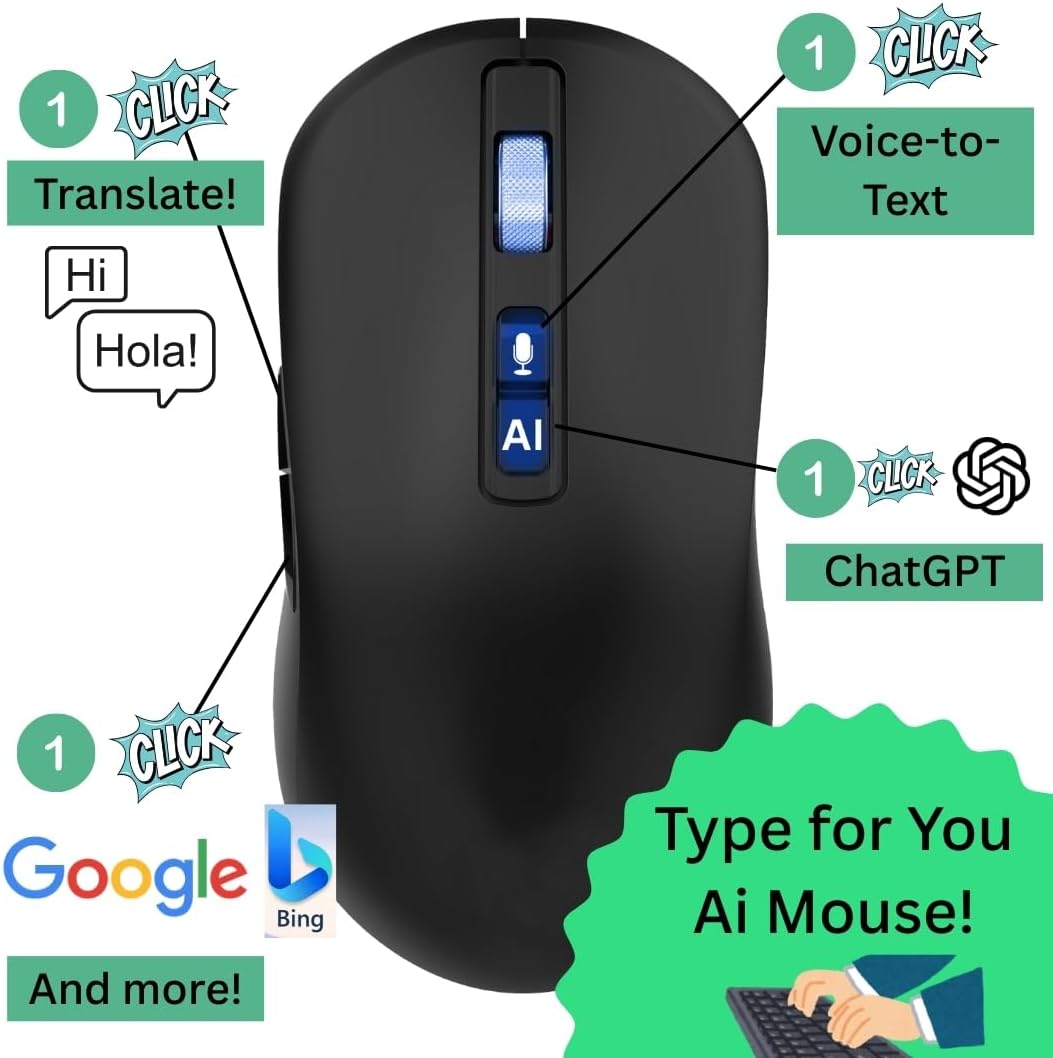
Сүрөт 1: Алдыңкы view of the Azpen AI Wireless Mouse M191-Pro.

Figure 2: Labeled diagram highlighting the microphone, scroll wheel, Voice-to-Text button, AI button (Voice-to-ChatGPT), Translation button, One-Click Google Search button, Charging Indicator, BT/USB Mode Switch, and USB port.
Компоненттери:
- AI Silent Mouse (M191-Pro)
- USB кабыл алгыч
- Type-C Charging and Data Cable
- User Manual
3. Орнотуу
3.1 Кутудан чыгаруу жана алгачкы текшерүү
Carefully remove all components from the packaging. Ensure all items listed in the 'Components' section are present. The USB receiver is typically stored within the mouse itself, accessible from the bottom panel.
Video: Unboxing the Wireless AI Mouse. This video demonstrates how to unbox the mouse, locate the USB receiver, and shows the included charging cable and manual.
3.2 Байланыш параметрлери
The M191-Pro mouse supports both 2.4G wireless (via USB receiver) and Bluetooth connections.
- 2.4G зымсыз режими: Insert the USB receiver into an available USB port on your computer. The mouse should automatically connect.
- Bluetooth режими: Switch the mode selector on the bottom of the mouse to 'BT'. On your computer, navigate to Bluetooth settings and pair with 'M191-Pro'.
3.3 Программалык камсыздоону орнотуу
For full functionality, including AI features and customization, download and install the dedicated software from the manufacturer's official website. The user manual included in the box provides detailed instructions and download links.
4. Иштөө нускамалары
The Azpen AI Wireless Mouse M191-Pro is equipped with several intelligent features to streamline your workflow.

Figure 3: Diagram illustrating the VoiceX AI Mouse features including Voice-to-ChatGPT, Voice-to-Text, Voice-to-Google, Translation, Multi-Language Support, and compatibility.
4.1 Voice-to-Text Functionality
To activate hands-free typing, press the dedicated microphone button on the mouse. Speak clearly into the mouse, and your words will be converted into text in real-time in any compatible application (e.g., word processors, email clients, chat applications). Press the microphone button again to stop dictation.

Figure 4: A user demonstrating the Voice-to-Text feature, speaking into the mouse to type on a laptop screen.
4.2 Voice Access to ChatGPT & AI Models
Engage with ChatGPT and other AI models directly through your mouse. Press the 'AI' button and speak your query or command. The AI will process your request and provide a response, which can be displayed in a dedicated interface or integrated into your workflow.
4.3 Multi-Language Voice & Screenshot Translation
The mouse supports real-time translation for both spoken words and text captured via screenshots. To translate spoken words, press the 'Translation' button and speak. For screenshot translation, use the designated function (often activated via a customizable button or software setting) to capture text on your screen, and the mouse will provide a translation.

Figure 5: An illustration of the multi-language translation feature, showing text translated into various languages from a screenshot.
4.4 Voice-Controlled Google Search
Perform quick Google searches by voice. Press the 'One Tap Google' button (magnifying glass icon) and speak your search query. The mouse will automatically open a browser and display your search results.
4.5 DPI Settings and Programmable Buttons
The mouse features adjustable DPI settings for sensitivity control, typically managed through the accompanying software. Side buttons can be programmed for various functions, such as navigating forward/backward in web browsers or executing custom commands, enhancing user efficiency.
5. Техникалык тейлөө
5.1 Заряддоо
The Azpen AI Wireless Mouse M191-Pro is rechargeable via a Type-C USB cable. Connect the cable to the mouse's charging port and a power source. The charging indicator light will show the charging status.
5.2 Тазалоо
Чычканды тазалоо үчүн жумшак, кургак чүпүрөктү колдонуңуз. Өжөр кир үчүн бир азamp cloth can be used, ensuring no liquid enters the mouse's internal components. Avoid harsh chemicals or abrasive materials.
5.3 Сактоо
When not in use for extended periods, store the mouse in a cool, dry place. Ensure the USB receiver is securely stored within the mouse's designated slot to prevent loss.
6. Кыйынчылыктарды
6.1 Байланыш маселелери
- Чычкан жооп бербей жатат: Ensure the mouse is powered on and fully charged. Check the mode switch (2.4G or Bluetooth) matches your connection method.
- 2.4G байланышы: USB кабыл алгыч иштеп жаткан USB портуна бекем сайылганын текшериңиз. Башка USB портун колдонуп көрүңүз.
- Bluetooth байланышы: Ensure Bluetooth is enabled on your computer and the mouse is in pairing mode. Remove and re-pair the device in your computer's Bluetooth settings.
6.2 Voice Recognition Accuracy
- Poor accuracy: Speak clearly and at a moderate pace. Minimize background noise. Ensure the mouse's microphone is not obstructed.
- Программалык камсыздоо маселелери: Ensure the latest version of the companion software is installed. Restart the software or your computer.
7. Техникалык шарттар
| Өзгөчөлүк | Деталь |
|---|---|
| Бренд | Azpen |
| Модел | M191-Pro |
| Байланыш технологиясы | Bluetooth, USB (2.4G зымсыз) |
| Кыймылды аныктоо технологиясы | Оптикалык |
| Өзгөчөлүктөр | Hands-Free Typing, Microphone Voice Recognition, One Click Google (Customizable), Voice-to-ChatGPT, Voice-to-Text |
| Элемент Салмагы | 8 унция |
| Пакеттин өлчөмдөрү | 6 x 4 x 2 дюйм |
| Түс | Black with Hints of Blue |
8. Кепилдик жана колдоо
The Azpen AI Wireless Mouse M191-Pro comes with a standard manufacturer's warranty. For detailed warranty information, product support, or technical assistance, please refer to the official Azpen webсайтка же кардарларды тейлөөгө кайрылыңыз. Кепилдик дооматтар үчүн сатып алуу дүмүрчөгүңүздү сактаңыз.
Кошумча жардам алуу үчүн, сураныч, баш багыңыз Azpen Store on Amazon.


