1. Киришүү
The QCOQ Air Tracker Tag is an MFi-certified Bluetooth smart locator designed to help you keep track of your valuable items. Working exclusively with Apple's Find My network, these tags provide seamless and secure tracking for items such as luggage, keys, backpacks, and more. This manual provides essential information for setting up, operating, and maintaining your Air Tracker Tags.

Image: QCOQ Air Tracker Tags аксессуарлар менен
2. Пакеттин мазмуну
Your QCOQ Air Tracker Tag пакет төмөнкү буюмдарды камтыйт:
- 2 x Air Tracker Tags
- 2 x Protective Silicone Cases
- 2 x Lanyards
- 2 x ачкыч шакекчелер
- 1 x User Manual

Image: Product structure and package contents.
3. Техникалык шарттар
| Өзгөчөлүк | Деталь |
|---|---|
| Модел | TX03 (Diamond Tag) |
| Өлчөмдөр | 31.2 мм / 1.23 дюйм (диаметри), 8.9 мм / 0.35 дюйм (калыңдыгы) |
| Салмагы | 7.3г / 0.25 унция |
| Байланыш | Bluetooth 5.3 |
| Батарея түрү | CR2032 (алмаштырылган) |
| Батареянын иштөө мөөнөтү | 365 күнгө чейин |
| Speaker Output | Макс. 100дБ |
| Шайкеш түзмөктөр | iOS, iPadOS, macOS (iOS 17, iPadOS 17, macOS 14 or later for Item Sharing) |
| Өзгөчөлүктөр | Geo-Fence, Location Tracking, Replaceable Battery, MFi-Certified |

Image: Compact design and dimensions of the Air Tracker Tag.
4. Орнотуу
Follow these steps to set up your QCOQ Air Tracker Tag Apple түзмөгүңүз менен:
- Күйгүзүү: Hold the function button on the tracker for 2 seconds until you hear a "Di" sound, confirming activation.
- Менин колдонмомду табуу: On your iOS, iPadOS, or macOS device, open the built-in "Find My" application. Ensure Bluetooth and network functions are enabled.
- Жаңы нерсе кошуу: In the "Find My" app, navigate to the "Items" tab. Tap the "+" icon and select "Add Other Item" or "Add Supported Item."
- Туташуу: Place the Air Tracker Tag close to your device. The app will search for and display "Diamond tag." Tap "Connect" and follow the on-screen prompts until setup is complete.
- Ыңгайлаштыруу: You can name your item and choose an emoji to represent it in the app for personalized tracking.

Image: Visual guide for connecting the Air Tracker Tag.
Video: Unboxing and setup demonstration of the QCOQ Air Tracker Tags.
5. Иштөө нускамалары
5.1 Nearby Tracking
When your item is within Bluetooth range, you can use the "Find My" app to play a sound on your Air Tracker Tag. The built-in speaker emits a sound up to 100dB, helping you quickly locate misplaced belongings nearby.

Image: Nearby tracking with sound alert.
5.2 Cross-Region Tracking
For items outside Bluetooth range, the Apple Find My network provides crowd-sourced location data from millions of Apple devices worldwide. This allows for continuous, anonymous, and encrypted tracking of your item's location, even across vast distances.
5.3 Forget Reminder (Notify When Left Behind)
Enable the "Notify When Left Behind" feature in the "Find My" app. If your item moves out of Bluetooth range from your device, you will receive a pop-up notification with its last known location. You can also customize a circular geofence radius to prevent alerts when the tag remains within designated safe areas.
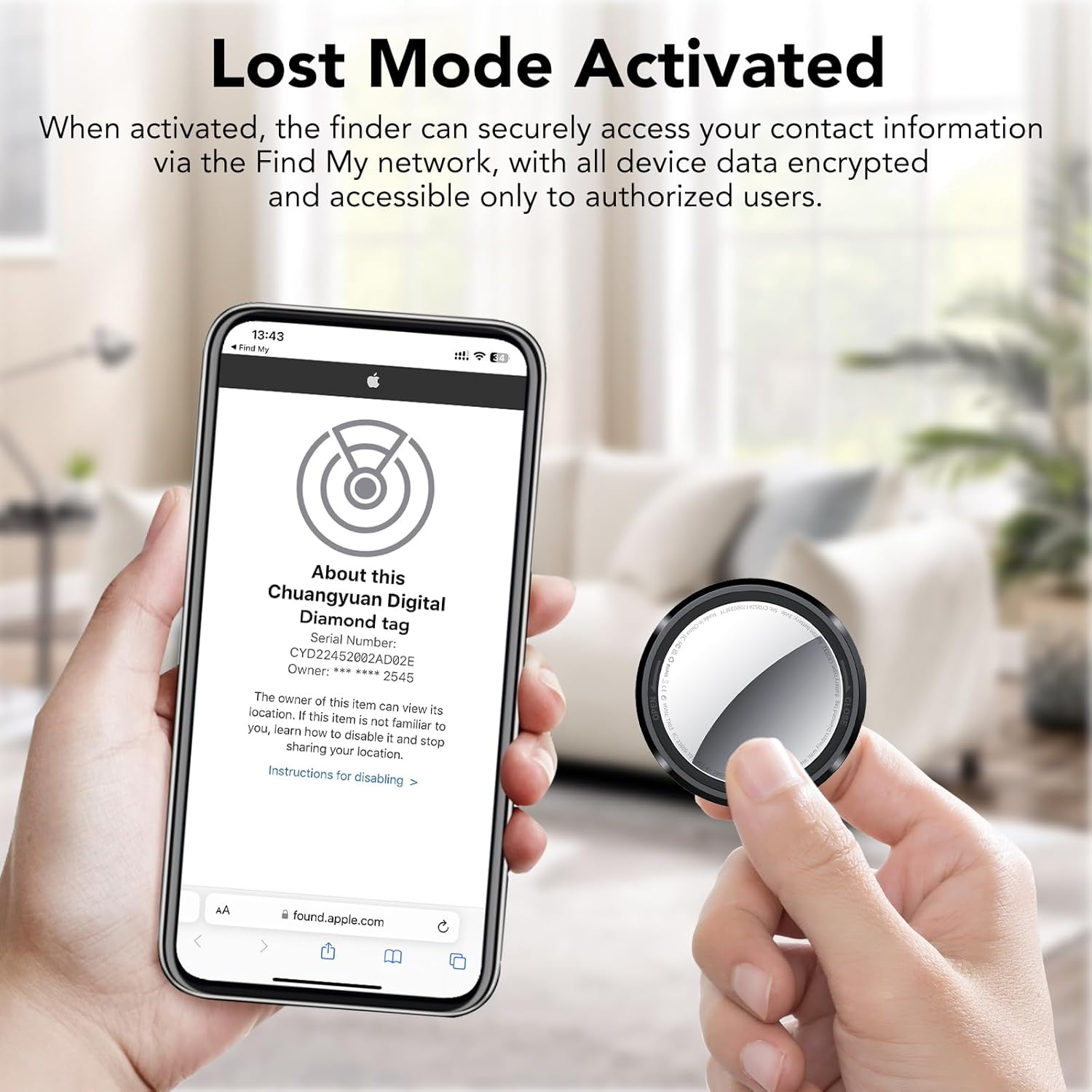
Image: Left-behind reminder notification.
5.4 Жоголгон режим
If an item is lost, activate "Lost Mode" in the "Find My" app. You can preset contact details (e.g., phone number or email address). Any compatible Apple device that detects your lost tag will display a "Lost Mode" message, allowing the finder to contact you directly. This feature ensures your privacy by only sharing contact information you explicitly provide.
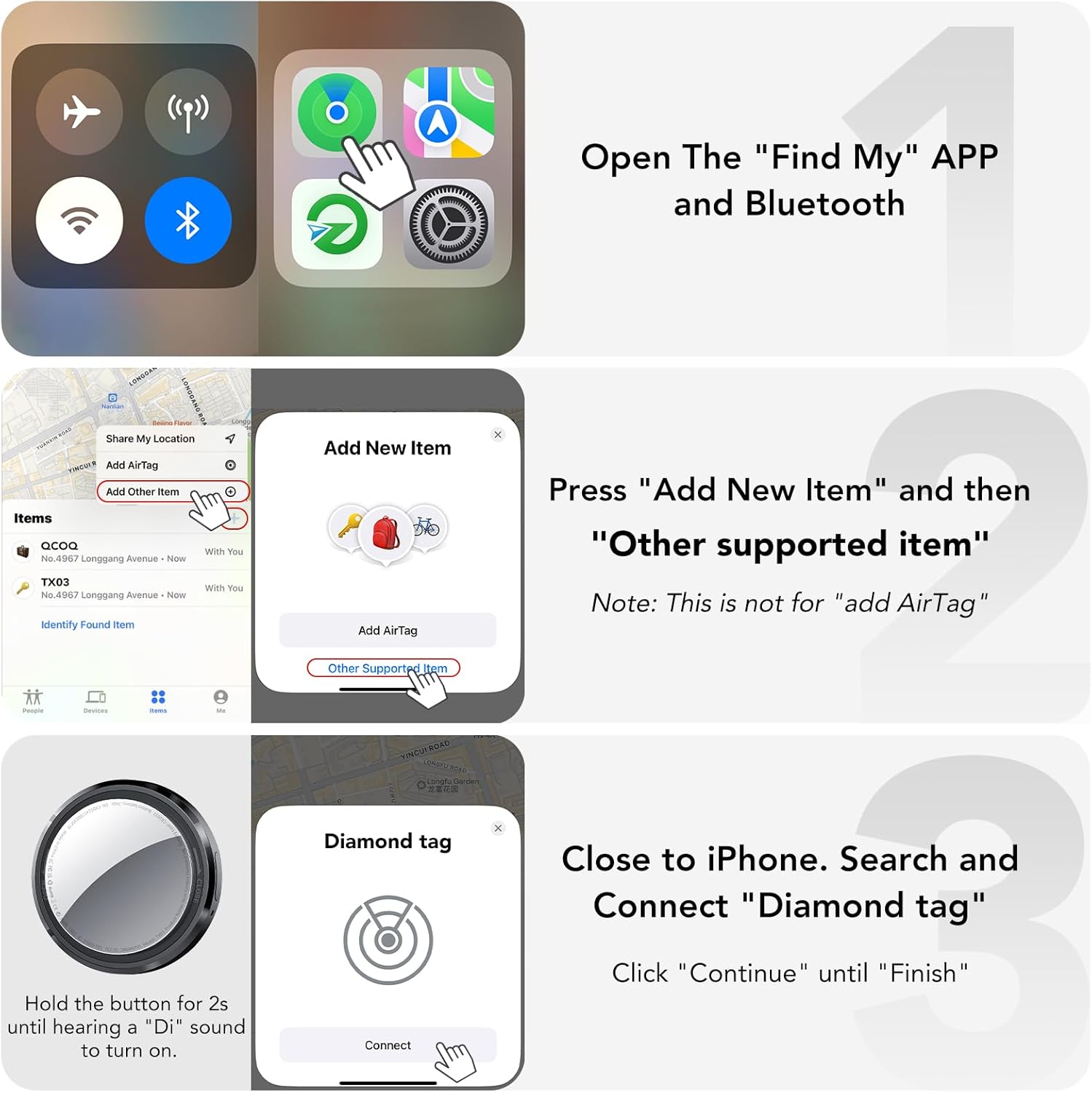
Image: Lost Mode activation screen.

Image: Steps to activate Lost Mode.

Image: Steps to check contact information for a found item.
5.5 Item Sharing Feature
With iOS 17, iPadOS 17, macOS 14, or later, you can share your Air Tracker Tag with up to 5 other users via the "Find My" app. All shared users can track the item's location in real-time.
6. Техникалык тейлөө
6.1 Батареяны алмаштыруу
The QCOQ Air Tracker Tag uses a replaceable CR2032 coin cell battery, which typically lasts up to 365 days. To replace the battery, follow these steps:
- Turn the stainless steel battery cover counterclockwise to remove it.
- Insert the new CR2032 battery with the positive (+) side facing up.
- Align the battery cover and press it gently.
- Rotate the battery cover clockwise to tighten it securely.

Сүрөт: Батареяны алмаштыруу кадамдары.
7. Кыйынчылыктарды
Жалпы маселелер жана аларды чечүү үчүн төмөнкү таблицага кайрылыңыз:

Image: Functionality and troubleshooting table.
- Туташуу маселелери: Ensure your device's Bluetooth is on and the Air Tracker Tag is powered on. Try resetting the tag by holding the function button for 5 seconds until you hear a sustained "Di" tone.
- Үн жок: экендигин текшериңиз tag is within Bluetooth range. Ensure the volume on your connected Apple device is not muted.
- Так эмес жайгашкан жер: Location accuracy depends on the density of Apple devices in the Find My network. In areas with fewer Apple devices, location updates may be less frequent or precise.
8. Кепилдик жана колдоо
QCOQ offers a 2-Year After-Sales Service. To activate your warranty, please send your order number to our WhatsApp contact within 7 days of receiving the product. This service includes free replacement of damaged products.


