1. Киришүү
The TABWEE 10.1 Inch WiFi Digital Calendar, Model P10, is an interactive touchscreen display designed to streamline family organization. It integrates calendars, task management, meal planning, and digital photo frame capabilities into a single device. This manual provides detailed instructions to help you set up and utilize all features of your new digital calendar.

Сүрөт 1.1: The TABWEE Digital Calendar in use, showcasing its calendar interface and mobile app synchronization.
2. Коопсуздук маалыматы
- Кокусунан кулап калбоо үчүн аппараттын туруктуу, жалпак бетине коюлганын текшериңиз.
- Берилген кубат адаптерин гана колдонуңуз. Уруксат берилбеген адаптерлерди колдонуу түзмөккө зыян келтирип, кепилдикти жокко чыгарышы мүмкүн.
- Аппаратты суудан, нымдан жана экстремалдык температурадан алыс кармаңыз.
- Do not attempt to open or repair the device yourself. Refer to qualified service personnel for any maintenance or repair needs.
- Keep out of reach of small children to prevent accidental ingestion of small parts or damage to the device.
3. Пакеттин мазмуну
Пакетте бардык буюмдар бар экенин текшериңиз:
- TABWEE 10.1 Inch WiFi Digital Calendar (Model P10)
- Кубаттуу адаптер
- Колдонуучунун Колдонмосу (бул документ)
4. Продукт бүтүп калдыview
Familiarize yourself with the physical components of your TABWEE Digital Calendar.

Сүрөт 4.1: Technical details and component layout of the TABWEE Digital Calendar.
- Күйгүзүү / Өчүрүү баскычы: Located on the side for turning the device on or off.
- Көлөмдү өйдө / ылдый баскычтары: Adjust the device's audio output.
- Жарык сенсору: Automatically adjusts screen brightness based on ambient light.
- Support Stand: Integrated stand for desk placement.
5. Орнотуу
5.1 Баштапкы күйгүзүү
- Connect the provided power adapter to the device's power port.
- Plug the adapter into a standard electrical outlet. The device will automatically power on.
- Тилди жана аймакты тандоо үчүн экрандагы көрсөтмөлөрдү аткарыңыз.
5.2 Тармактык туташуу
- Баштапкы орнотуу экранында, тизмеден Wi-Fi тармагыңызды тандаңыз.
- Enter your Wi-Fi password and tap 'Connect'.
- Ensure the device is connected to a stable internet connection for full functionality.
5.3 Колдонмону орнотуу жана аккаунт түзүү
To fully utilize the calendar's features, download and set up the companion 'eCalendar' app on your smartphone (iOS or Android).

Сүрөт 5.1: Steps for downloading and creating an account on the eCalendar app.
- Scan the QR code displayed on the calendar screen or search for 'eCalendar' in your device's app store (Google Play Store for Android, Apple App Store for iOS).
- Колдонмону жүктөп алып, орнотуңуз.
- Open the eCalendar app and follow the prompts to create a new account or log in if you already have one.
- Колдонуучу келишимине жана Купуялык саясатына макул болуңуз.
5.4 Device Linking
Link your TABWEE Digital Calendar to your eCalendar app account.

Сүрөт 5.2: Linking the calendar device to the eCalendar app and setting up your unique calendar email.
- In the eCalendar app, select the option to 'Add Device' or 'Activate a new eCalendar Frame'.
- Follow the on-screen instructions to pair your device. This may involve scanning a QR code displayed on the calendar or entering a pairing code.
- Once linked, you can set up your unique calendar email address within the app.
6. Операция
6.1 Негизги навигация
The TABWEE Digital Calendar features a responsive touchscreen. Navigate through menus and features by tapping, swiping, and pinching as you would on a tablet device.
6.2 Calendar Management
The core function of your device is calendar management, allowing for seamless synchronization and event organization.
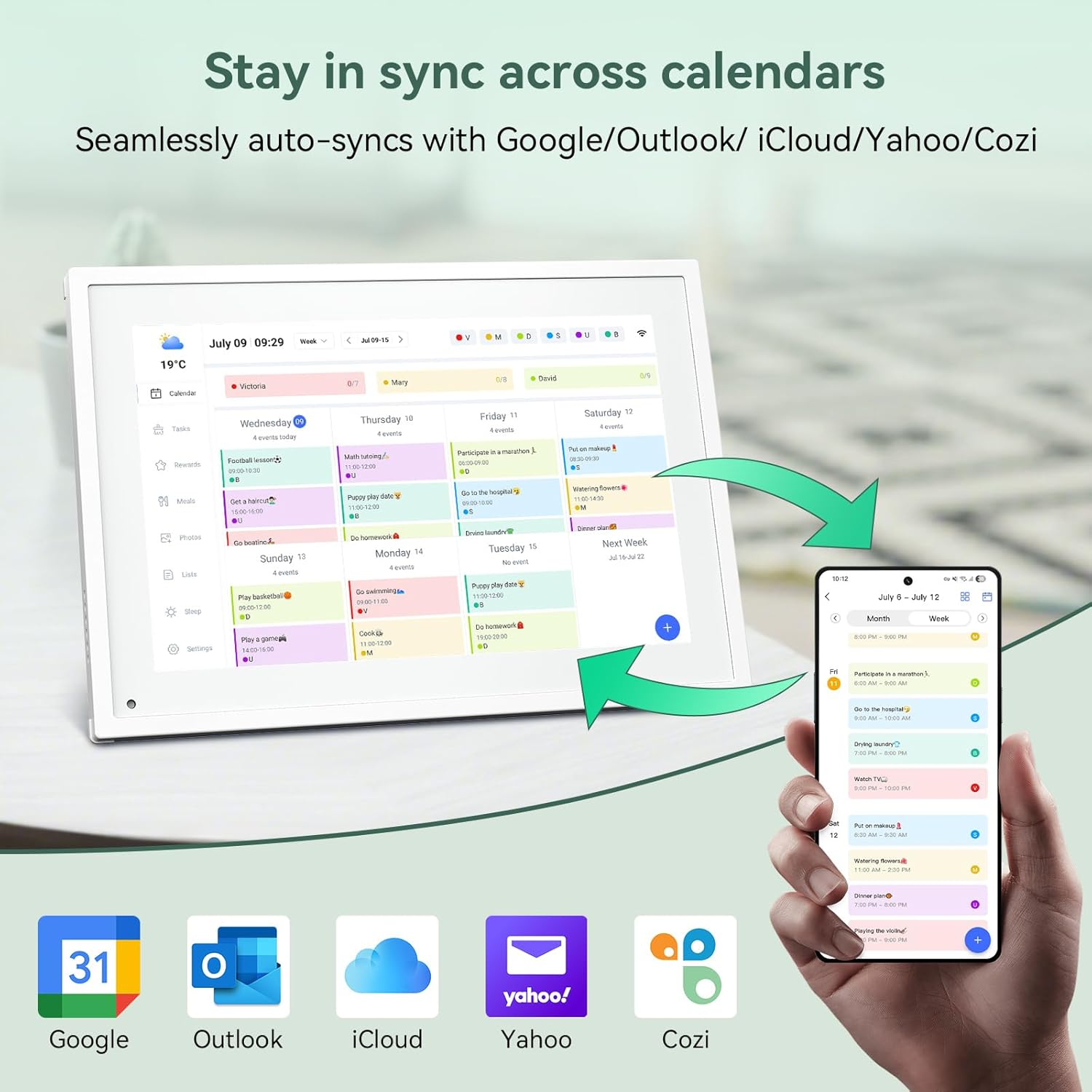
Сүрөт 6.1: Seamless synchronization of the digital calendar with various external calendar services.
- Syncing External Calendars: Within the eCalendar app settings, you can link your Google, Apple, Outlook, Yahoo, or Cozi calendars. Events from these linked accounts will automatically appear on your TABWEE Digital Calendar.
- Иш-чараларды кошуу/түзөтүү: Tap on a date or time slot on the calendar display or use the eCalendar app to add new events. You can specify event details, set reminders, and assign participants.
- Ыңгайлаштырылган Views: Switch between day, week, or month views directly on the device or through the app.
6.3 Task Management (Chore Chart)
Organize tasks and chores for family members with a built-in reward system.
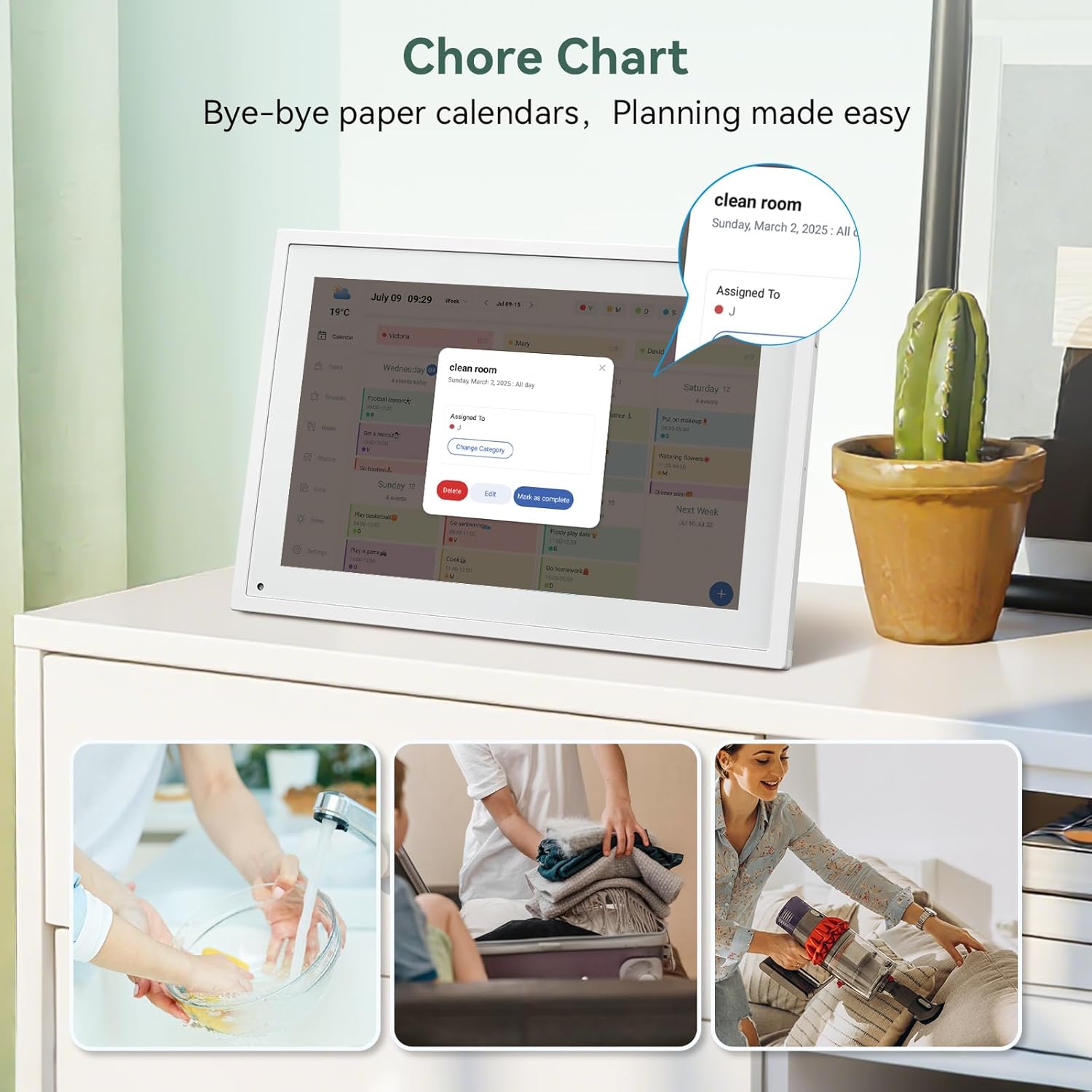
Сүрөт 6.2: Managing tasks and chores on the digital calendar interface.
- Creating Tasks: Use the 'Tasks' section on the device or app to create new tasks. Assign them to specific individuals, set due dates, and configure recurring tasks.
- Tracking Progress: Users can mark tasks as complete. The system tracks completion and can be configured to award points.
- Сыйлык системасы: Set up a star-point reward system within the app. Points earned from completed tasks can be redeemed for custom rewards, encouraging participation.

Сүрөт 6.3: The task manager and rewards interface, designed for engaging users.
6.4 Meal Planning
Plan your meals directly on the device or through the app.

Сүрөт 6.4: Visual meal planning interface on the digital calendar.
- Create Meal Plans: Access the 'Meals' section to plan breakfasts, lunches, dinners, and snacks for the week.
- Custom Recipes: Upload and store your favorite recipes.
- Grocery Lists: Generate grocery lists based on your meal plans.
6.5 Digital Photo Frame Functionality
The device can also function as a digital photo frame.

Сүрөт 6.5: The digital calendar switching between calendar and photo frame modes, in both landscape and portrait orientations.
- Которуу режимдери: Navigate to the 'Photos' section on the device or app to activate the digital photo frame mode.
- Сүрөттөрдү жүктөө: Upload your favorite memories directly from your smartphone via the eCalendar app.
- Багыты: The device supports both landscape and portrait orientations, automatically adjusting the display.
6.6 Башка өзгөчөлүктөр
The TABWEE Digital Calendar includes additional smart features to enhance usability.
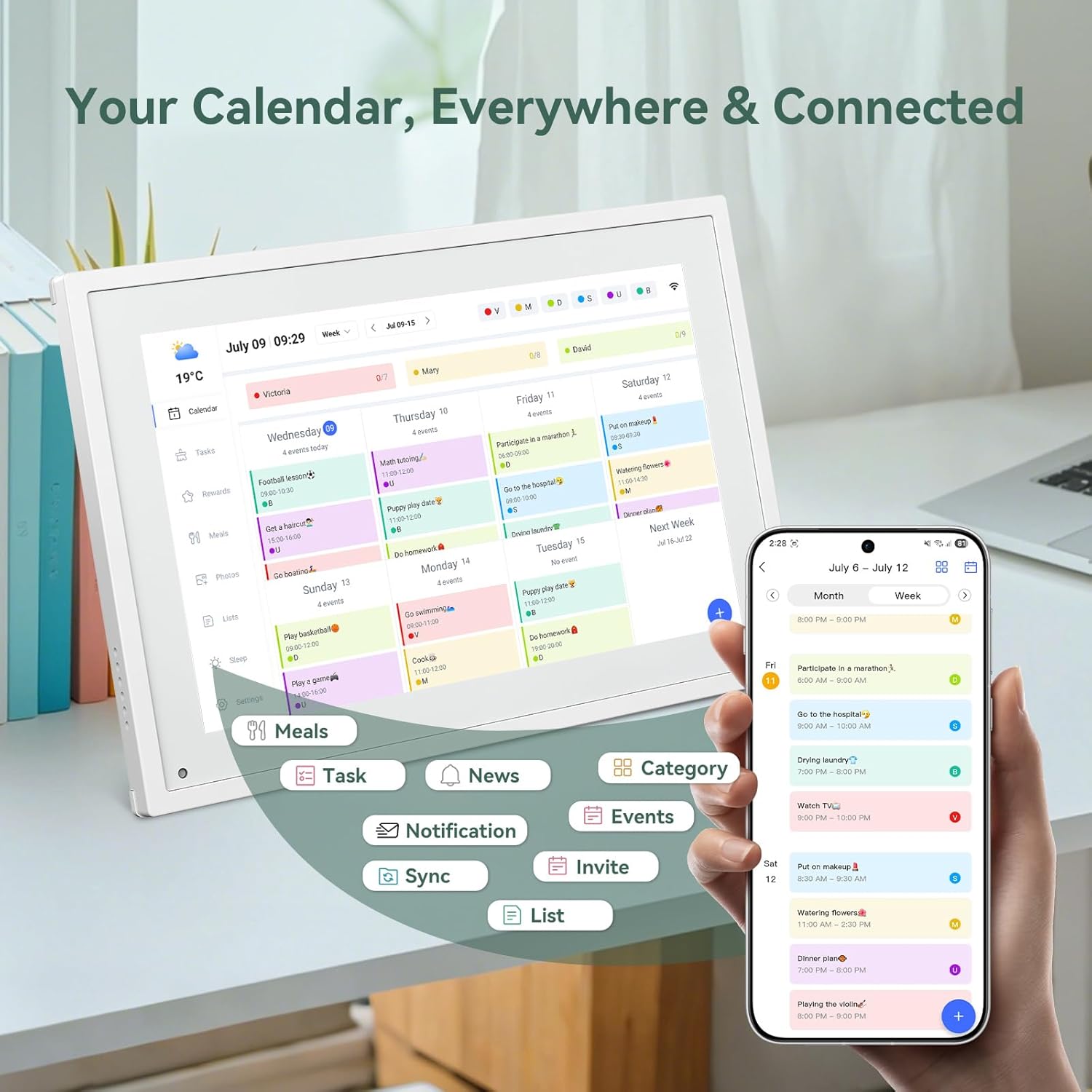
Сүрөт 6.6: Бүттүview of smart features and app connectivity.
- Live Weather Forecasts: Displays current weather conditions and forecasts.
- Авто Жарыктык: The built-in light sensor automatically adjusts screen brightness for optimal viewing.
- Уйку режими: Configure scheduled times for the device to enter a low-power sleep mode.
- Custom Lists: Create and manage various lists (e.g., shopping lists, packing lists).
- Түс коддоо: Assign different colors to events or tasks for easy visual identification.
7. Техникалык тейлөө
7.1 Аппаратты тазалоо
- Экранды жумшак, түксүз чүпүрөк менен акырын сүртүңүз. өжөр тактар үчүн, бир аз гampчүпүрөккө суу же экранды тазалоо эритмеси.
- Катуу химиялык заттарды, абразивдүү материалдарды же аэрозоль чачыраткычтарын түз түзмөккө колдонуудан алыс болуңуз.
- Тазалоодон мурун аппараттын өчүрүлгөнүн жана розеткадан ажыратылганын текшериңиз.
7.2 Программалык камсыздоо жаңыртуулары
The device may receive periodic software updates to improve performance and add new features. Ensure your device is connected to Wi-Fi to receive these updates. You will typically be notified on-screen when an update is available.
8. Кыйынчылыктарды
| Көйгөй | Мүмкүн себеп | Чечим |
|---|---|---|
| Түзмөк күйбөйт. | Кубат адаптери туташкан эмес же туура эмес. | Кубат адаптери аспапка жана иштеген электр розеткасына бекем туташып турганын текшериңиз. |
| Wi-Fi'га туташпай жатат. | Туура эмес сырсөз, диапазондон тышкары же тармак маселеси. | Verify Wi-Fi password. Move the device closer to the router. Restart your router. |
| Calendar events are not syncing. | App not linked, external calendar not connected, or internet issue. | Check app-device linking. Ensure external calendars are correctly linked in the eCalendar app. Verify internet connection. |
| Экран жооп бербей жатат. | Убактылуу программалык ката. | Түзмөктү өчүргүчө кубат баскычын басып туруп, кайра күйгүзүңүз. |
9. Техникалык шарттар
| Өзгөчөлүк | Деталь |
|---|---|
| Модель номери | P10 |
| Screen Size | 10.1 дюйм |
| Дисплей түрү | Сенсордук экран |
| Байланыш | WiFi |
| Продукциянын өлчөмдөрү | 10.51 x 0.91 x 7.32 дюйм (26.7 x 2.3 x 18.6 см) |
| Элемент Салмагы | 2.58 фунт (1.17 кг) |
| Монтаж түрү | Desk Mount (not wall-mountable) |
| Power Source | Plug-in (no internal battery) |
| Түс | Ак |
10. Кепилдик жана колдоо
The TABWEE Digital Calendar comes with a standard manufacturer's warranty. For specific warranty terms and conditions, please refer to the warranty card included in your product packaging or visit the official TABWEE webсайт.
For technical support, troubleshooting assistance, or any inquiries regarding your product, please contact TABWEE customer service through their official webсайт же продукт документациясында көрсөтүлгөн байланыш маалыматы.


