Introduction
The Tukio Air Tracker Tags are designed to help you keep track of your valuable items using Apple's Find My network. These MFi certified Bluetooth trackers offer reliable item location, long battery life, and robust design for everyday use. This manual provides comprehensive instructions for setting up, operating, and maintaining your Air Tracker Tags.

Figure 1: Tukio Air Tracker Tags (Black and White)
Кутуда эмне бар
Your Tukio Air Tracker Tags пакет төмөнкү буюмдарды камтыйт:
- 2 x Air Tags
- 2 x Protective Silicone Cases
- 2 x ачкыч шакекчелер
- 2 x Lanyards
- 2 x CR2032 Batteries (pre-installed in the product)
- 1 x User Manual

2-сүрөт: Пакеттин мазмуну
Жайгашуу
The Tukio Air Tracker Tags are designed for easy setup with your Apple devices. Please ensure your iOS device is updated to iOS 17/iPadOS 17/macOS 14 or above for full functionality, especially for sharing features.
Connecting to Apple Find My App
- Prepare the Tracker: Ensure the tracker has a working CR2032 battery installed. The batteries are pre-installed.
- Трекерди иштетүү: Hold the function button on the tracker for 2 seconds until you hear a "Di" sound, confirming activation.
- Менин колдонмомду табуу: On your iPhone or iPad, open the pre-installed "Find My" app. Ensure Bluetooth and network functions are enabled on your device.
- Жаңы нерсе кошуу: In the "Find My" app, navigate to the "Items" tab. Tap the "+" icon and then select "Add Other Item" (Note: This is not for "Add AirTag").
- Туташуу: Bring the Tukio Air Tracker Tag close to your iPhone. The app will search for and detect "Lucid tag". Tap "Connect" and follow the on-screen prompts until the setup is complete.

3-сүрөт: Баштапкы орнотуу кадамдары

Figure 4: Detailed Connection Process
Шайкештик Эскертүү: Tukio Air Tracker Tags are only compatible with iOS devices (iPhone, iPad, Mac) and do not support Android devices.

Figure 5: iOS Compatibility
Иштөө нускамалары
Once your Tukio Air Tracker Tag is connected, you can utilize various features within the Apple Find My app to locate and manage your items.
Locating Nearby Items (Within Bluetooth Range)
When your item is within Bluetooth range (up to 200 feet or 60 meters), you can use the "Play Sound" feature to pinpoint its exact location.
- iOS түзмөгүңүздөн "Мени табуу" колдонмосун ачыңыз.
- Select the specific Air Tracker Tag "Буюмдар" өтмөгүнөн.
- Tap "Play Sound". The tracker will emit an 80-100dB beep to help you find it.
- Alternatively, you can ask Siri for assistance by saying, "Hey Siri, where is my [item name]?"

Figure 6: Locating Items with Sound

Figure 7: High Volume Alert

Figure 8: Siri Integration
Locating Far Away Items (Outside Bluetooth Range)
If your item is out of Bluetooth range, the vast Apple Find My network can help you locate it. Hundreds of millions of Apple devices anonymously and securely relay the location of your tracker to the Find My app.
- "Мени табуу" колдонмосун ачыңыз.
- Select your Air Tracker Tag "Буюмдар" өтмөгүнөн.
- The app will display the last known location of your item on the map.
- You can get directions to the last known location directly from the app.
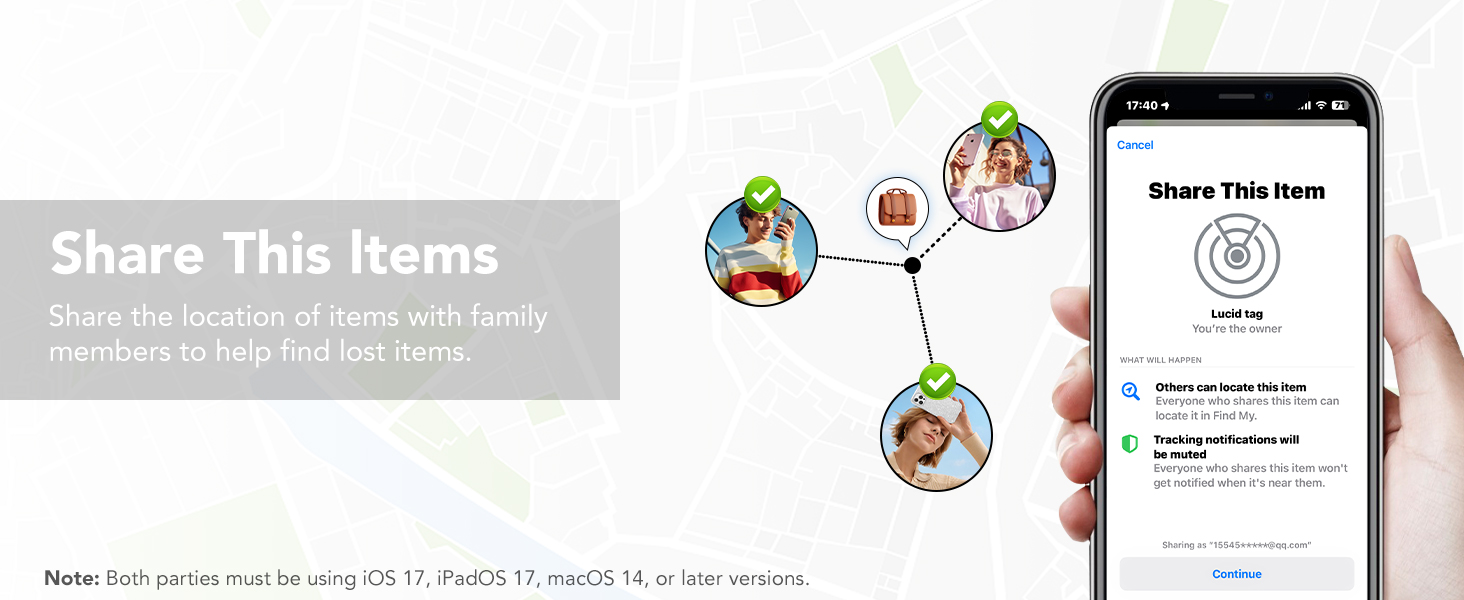
Figure 9: Global Tracking

Figure 10: Finding Items Far Away
Артта калган эскертүүлөр
Receive instant notifications on your iOS device if you leave your Air Tracker Tag behind or if it goes out of Bluetooth range. This feature helps prevent items from being lost.

Figure 11: Left-Behind Notification

Figure 12: Left-Behind Remind Feature
Lost Mode Activation
If your item is truly lost, you can activate "Lost Mode" in the Find My app. This allows anyone who finds your tag to securely access your contact information, helping facilitate its return.
- In the "Find My" app, select your Air Tracker Tag.
- Scroll down and select "Lost Mode".
- Follow the prompts to enter your contact information (phone number or email address).
- When someone finds your tag and scans it with their NFC-enabled smartphone, they will see your contact details.

Figure 13: Lost Mode Interface

Figure 14: Activating Lost Mode
Sharing Items with Family and Friends
With iOS 17 and later, you can share your Air Tracker Tags with up to 5 other individuals in the "Find My" app. This is ideal for items used by multiple family members or friends, allowing everyone to track the item's location.
- Ensure all participating iOS devices are updated to iOS 17/iPadOS 17/macOS 14 or above.
- In the "Find My" app, select the item you wish to share.
- Tap "Share This Item" and follow the instructions to add family members or friends.
- Note: Borrowers will not receive tracking notifications when the item moves with them.

Figure 15: Sharing Items
Техникалык тейлөө
Батареяны алмаштыруу
The Tukio Air Tracker Tags use replaceable CR2032 batteries, offering up to 1 year of uninterrupted use. The device will notify you when the battery is low.
- Turn the stainless steel battery cover counter-clockwise to remove it.
- Жаңы CR2032 батареясын оң (+) тарабын өйдө каратып салыңыз.
- Align the battery cover and press it gently.
- Rotate the battery cover clockwise to tighten it securely.

Figure 16: Replaceable Battery

17-сүрөт: Батареянын аздыгы жөнүндө эскертүү

Figure 18: Battery Replacement Steps
Суу жана чаң өткөрбөйт
The Tukio Air Tracker Tags have an IP67 rating, meaning they can withstand immersion in water up to 3 feet (1 meter) for 30 minutes. This makes them suitable for outdoor activities and provides protection against dust and splashes.
Проблемаларды чечүү
If you encounter any issues with your Tukio Air Tracker Tags, төмөнкү кеңири таралган чечимдерди караңыз:
- Туташуу маселелери: Ensure Bluetooth is enabled on your iOS device and the tracker is within range. Try restarting your iOS device and the tracker (by removing and reinserting the battery).
- Трекер табылган жок: Verify the tracker's battery is not depleted. If the tracker was previously connected, check its last known location in the Find My app.
- Үн ойнотулбай жатат: Check the volume settings on your iOS device. Ensure the tracker is within Bluetooth range.
- Resetting the Tracker: To restore factory settings, press the function button 6 times quickly, then hold it down on the 7th press until you hear a long beep.
For further assistance, please refer to the detailed instructions in the included user manual or contact our customer support team.
Техникалык шарттар
| Өзгөчөлүк | Деталь |
|---|---|
| Продукциянын өлчөмдөрү | 1.22 x 1.22 x 0.35 дюйм (30.9 мм x 30.9 мм x 8.3 мм) |
| Элемент Салмагы | 0.494 унция (болжол менен 14 г) |
| Модель номери | TX02 |
| Батареялар | 2 литий-металл батарейкасы (CR2032) талап кылынат (кошулган) |
| Байланыш технологиясы | Bluetooth |
| Өзгөчөлүктөр | Alert Notification, Shock Resistant, Battery Life Indicator, Location History, Water Resistant (IP67) |
| Колдоого алынган колдонмо | Find My Phone (Apple Find My network) |
| Түс | Black and White (for this 2-pack variant) |
| Өндүрүүчү | Tukio |

19-сүрөт: Продукттун өлчөмдөрү жана өзгөчөлүктөрү
Кепилдик жана колдоо
Tukio stands behind the quality of its products. Your Tukio Air Tracker Tags менен кел 2 жылдык кепилдик.
For any questions, technical support, or warranty claims, please contact our customer service team. We offer 24 саат кардарларды тейлөө жооп сага жардам берүү үчүн.
Байланыш маалыматын биздин расмий баракчабыздан таба аласыз webсайт же сатып алуу платформасы аркылуу.

Figure 20: Track Your Luggage


