1. Продукт бүтүп калдыview
The NETUM Q900 is a robust handheld mobile computer designed for demanding environments such as warehousing, logistics, and asset tracking. It integrates an Android 14 operating system with a high-performance barcode scanning engine, offering reliable data capture and processing capabilities.

1.1-сүрөт: Алдыңкы жана арткы view of the NETUM Q900 device, showcasing its ergonomic design and integrated scanner.
Негизги өзгөчөлүктөрү:
- Жогорку аткаруу: Powered by an octa-core MT8781 processor and Android 14, with 4GB RAM and 64GB storage (expandable).
- Иммерсивдүү дисплей: 5.99-inch HD IPS touchscreen with multi-touch support.
- Advanced Barcode Scanning: Equipped with a Honeywell HS7 scan engine for 1D and 2D barcodes.
- Industrial-Grade Rugged Design: IP67 rated for water and dust resistance, drop-tested from 1.5 meters.
- Дүйнөлүк байланыш: Supports global 4G LTE (dual SIM), Wi-Fi 5 (dual band), Bluetooth 5.2, and full GNSS.
- Батареянын узак иштөө мөөнөтү: 5000mAh battery providing up to 13.5 hours of operation, with quick charging via USB-C or optional docking cradle.
- Модулдук кеңейүү: Optional modules include UHF RFID, NFC, fingerprint reader, and a scan handle.
2. Орнотуу колдонмосу
2.1. Пакеттин мазмуну
Сиздин пакетиңизде төмөнкү заттар бар экенин текшериңиз:
- NETUM Q900 Mobile Computer
- USB-C заряддоо кабели
- Кубаттуу адаптер
- Quick Start Guide
- (Optional) Docking Cradle, Hand Strap, other modules
2.2. Батареяны орнотуу жана заряддоо
- Аппараттын артындагы батарея бөлүкчөсүнүн капкагын табыңыз.
- Open the cover and insert the 5000mAh battery, ensuring the contacts align correctly.
- Батарея бөлүкчөсүнүн капкагын бекем орнотуңуз.
- Connect the USB-C cable to the device's charging port and the power adapter. Plug the adapter into a wall outlet.
- Allow the device to charge fully before first use. A full charge typically takes less than 4 hours.

2.1-сүрөт: Illustration of the 5000mAh battery, highlighting its long-lasting power for extended use.
2.3. Баштапкы күйгүзүү жана негизги конфигурация
- Түзмөк титиреп, экран күйгүчө Кубат баскычын басып, кармап туруңуз.
- Тилди тандоо, Wi-Fi туташуусу жана Google аккаунтун орнотуу сыяктуу баштапкы Android 14 орнотуусун аяктоо үчүн экрандагы көрсөтмөлөрдү аткарыңыз.
- Ensure the device is connected to a stable Wi-Fi network or has a 4G LTE connection for updates and application downloads.
3. Иштөө нускамалары
3.1. Сенсордук экран навигациясы
The Q900 features a responsive 5.99-inch HD IPS touchscreen. Navigate the Android interface using standard touch gestures: tap, swipe, pinch-to-zoom, and long-press.
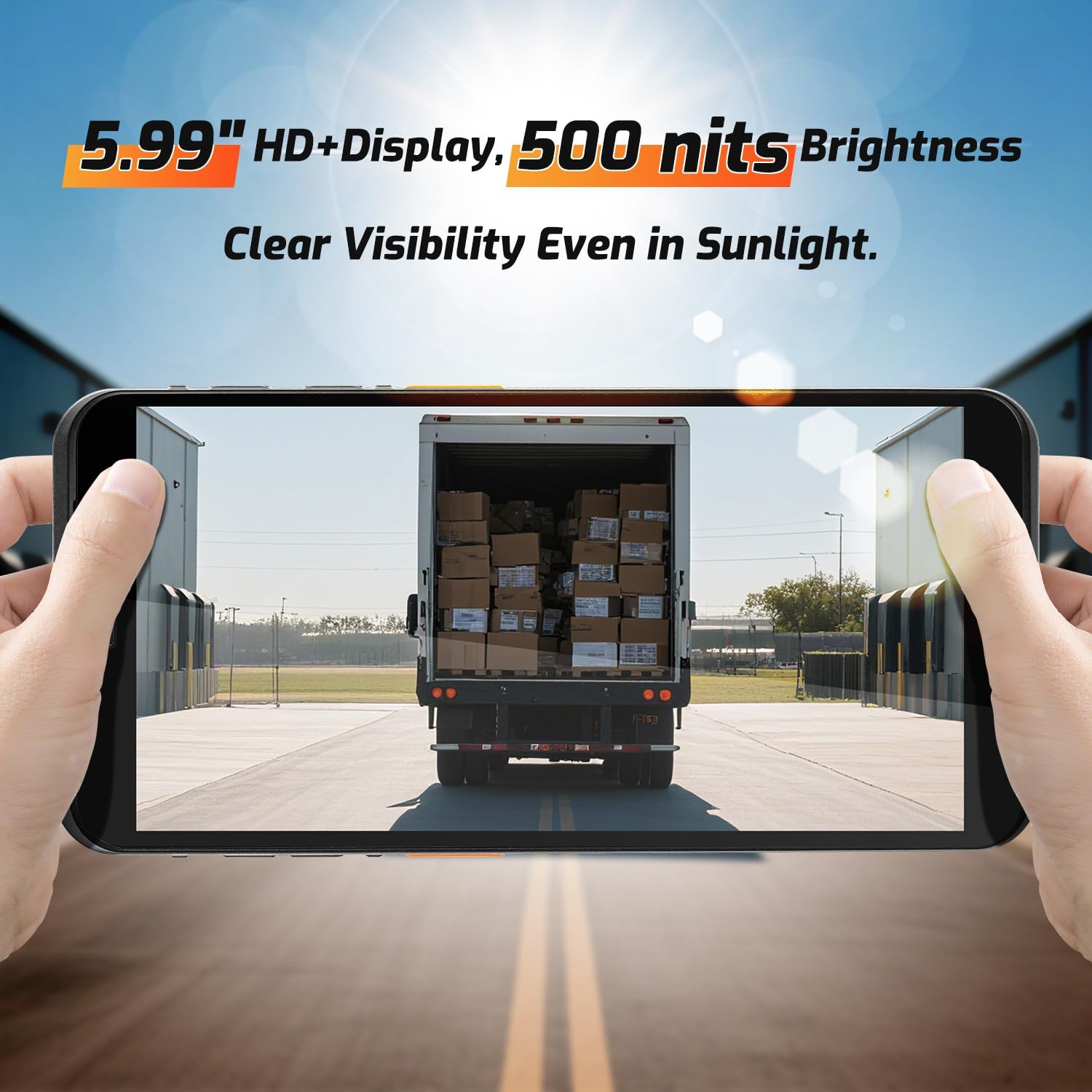
3.1-сүрөт: The 5.99-inch HD+ display offers clear visibility even in bright sunlight, enhancing outdoor usability.
3.2. Штрихкод сканерлөө
The integrated Honeywell HS7 scan engine allows for rapid and accurate capture of 1D and 2D barcodes.
- Open the scanning application or an application that supports barcode input.
- Сканер терезесин (түзмөктүн жогору жагында жайгашкан) штрих-кодго багыттаңыз.
- Press one of the dedicated scan buttons (typically on the side of the device) to activate the laser/imager.
- Ensure the barcode is within the scanning range (approximately 5cm to 2m+ for long-range scanning) and centered in the aiming pattern.
- A successful scan will typically be indicated by an audible beep and/or a visual confirmation on the screen.

3.2-сүрөт: The Honeywell HS7 engine efficiently scans various barcode types, including damaged or difficult-to-read codes.
Видео 3.1: Demonstration of the NETUM Q900's barcode scanning capabilities, including long-range scanning and DPM code recognition.
3.3. Камераны колдонуу
The Q900 is equipped with an 8MP front camera and a 13MP rear camera for documentation and image capture.
- Үй экранынан же колдонмо суурмасынан Камера тиркемесин ачыңыз.
- Select between front and rear cameras as needed.
- Tap the screen to focus and press the shutter button to capture photos or videos.

3.3-сүрөт: Location of the 8MP front camera, 13MP rear camera, and NFC module on the NETUM Q900.
3.4. NFC функциясы
The device supports NFC for short-range wireless communication, enabling applications like contactless payments, data exchange, and access control.
- Ensure NFC is enabled in the device settings (Settings > Connected devices > Connection preferences > NFC).
- Түзмөктү NFC жанына кармаңыз tag or compatible reader to initiate communication.
- Follow on-screen prompts for specific NFC applications.
4. Техникалык тейлөө
4.1. Аспапты тазалоо
- Бир аз жумшак, түксүз кездемени колдонуңуз dampened with water or a mild screen cleaner to wipe the display and exterior.
- Катуу химиялык заттарды, абразивдүү тазалагычтарды же аэрозолдук спрейлерди колдонуудан алыс болуңуз.
- Аксессуарларды заряддоо же туташтыруудан мурун бардык порттор кургак экенин текшериңиз.
4.2. Батареяга кам көрүү
- Батареянын иштөө мөөнөтүн узартуу үчүн, өтө жогорку температурадан алыс болуңуз.
- If the device will not be used for an extended period, charge the battery to about 50% before storage.
- The battery is user-replaceable; refer to Section 2.2 for installation instructions.
4.3. Программалык камсыздоону жаңыртуу
Оптималдуу аткарууну, коопсуздукту жана жаңы функцияларга жетүүнү камсыз кылуу үчүн программалык камсыздоо жаңыртууларын дайыма текшерип, орнотуп алыңыз.
- Орнотуулар > Система > Системанын жаңыртууларына өтүңүз.
- Бардык жеткиликтүү жаңыртууларды жүктөп алуу жана орнотуу үчүн экрандагы нускамаларды аткарыңыз.
- Ensure the device has sufficient battery charge and a stable internet connection during updates.
5. Кыйынчылыктарды
| Көйгөй | Мүмкүн себеп | Чечим |
|---|---|---|
| Түзмөк күйбөйт. | Low battery; faulty battery; power button issue. | Charge the device for at least 30 minutes. Ensure battery is correctly installed. Contact support if issue persists. |
| Штрихкод сканери иштебей жатат. | Scanner application not open; barcode damaged; incorrect scanning distance. | Open the scanning application. Ensure barcode is clean and within optimal range. Check scanner settings. |
| Wi-Fi'га туташпай жатат. | Туура эмес сырсөз; диапазондон тышкары; роутер маселеси. | Verify Wi-Fi password. Move closer to the router. Restart the router and device. |
| Сенсордук экран жооп бербейт. | Software glitch; physical damage; wet screen. | Restart the device. Ensure screen is dry and clean. If damaged, contact support. |
6. Техникалык шарттар
| Өзгөчөлүк | Деталь |
|---|---|
| Модель номери | PDA Q900 |
| Операция системасы | Android 14 |
| Процессор | Octa-core MT8781 |
| RAM | 4 ГБ |
| Сактагыч | 64GB (expandable via microSD up to 1TB) |
| Дисплей | 5.99" HD IPS Touchscreen |
| Barcode Engine | Honeywell HS7 (1D/2D Scanning) |
| Арткы камера | 13MP |
| Алдыңкы камера | 8MP |
| Батарея | 5000mAh (up to 13.5 hours working time) |
| Байланыш | 4G LTE (Dual SIM), Wi-Fi 5 (Dual Band), Bluetooth 5.2, GNSS (GPS, GLONASS, Galileo, Beidou), NFC |
| Туруктуулук рейтинги | IP67 (Water and Dust Resistant), 1.5m Drop-tested |
| Өлчөмдөр | 0.71 x 2.6 x 6.61 дюйм (18 x 66 x 168 мм) |
| Элемент Салмагы | 12.3 унция (348 грамм) |
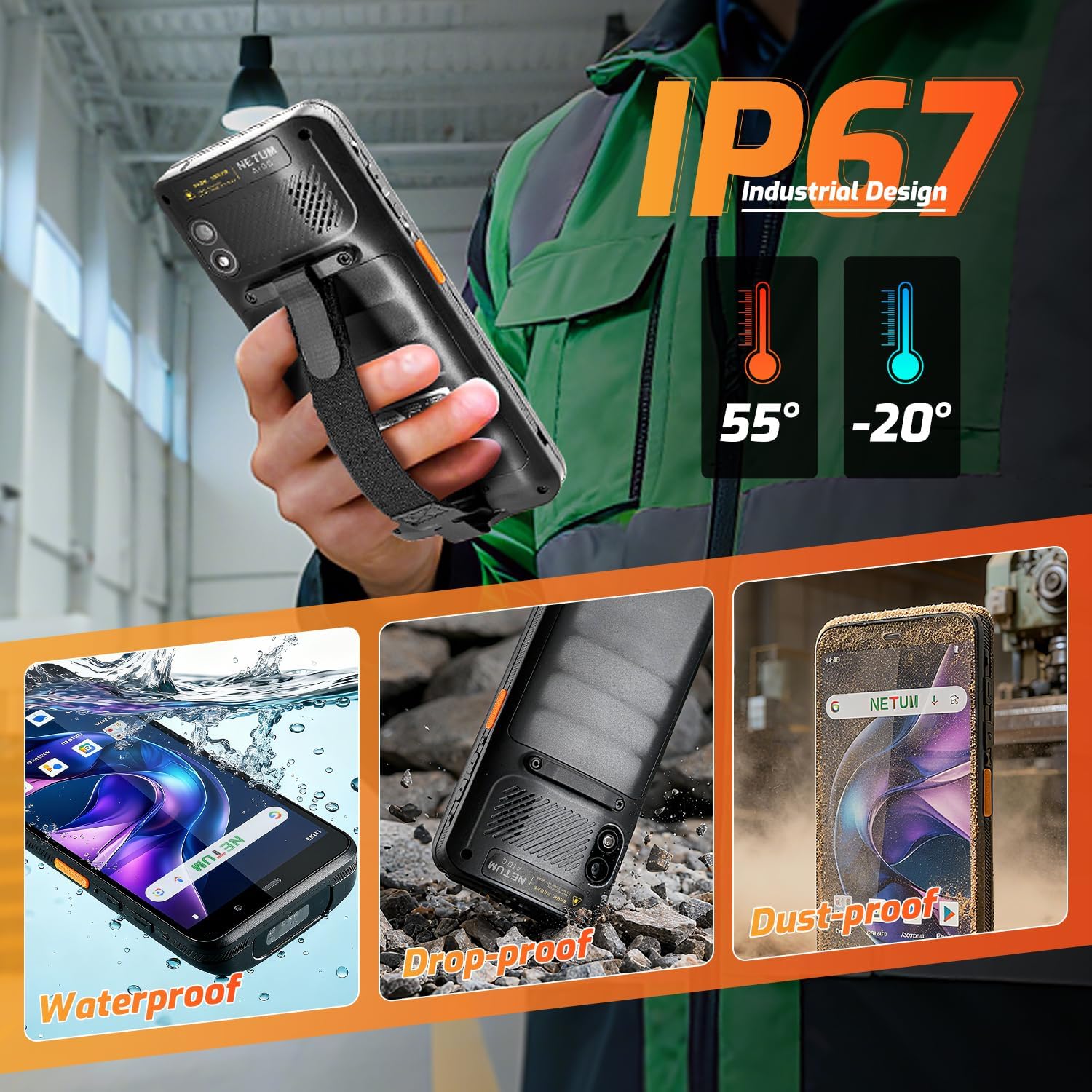
6.1-сүрөт: The NETUM Q900's IP67 rating ensures protection against water, dust, and drops, making it suitable for harsh environments.
7. Кепилдик жана колдоо
NETUM products are designed for reliability and performance. For warranty information, technical support, or service inquiries, please refer to the warranty card included with your product or visit the official NETUM webсайт.
Сатып алуу квитанциясын кепилдик дооматтары үчүн сатып алуунун далили катары сактаңыз.


