Introduction
AceGamer Aurora II зымсыз Bluetooth контроллеринин колдонмосуна кош келиңиз. Бул колдонмодо жаңы оюн контроллериңизди орнотуу, иштетүү жана тейлөө боюнча кеңири маалымат берилген. Ар кандай платформаларда оптималдуу иштөөнү жана үзгүлтүксүз оюн тажрыйбасын камсыз кылуу үчүн бул колдонмону кылдаттык менен окуп чыгыңыз.
AceGamer Aurora II контроллери көп платформалуу шайкештик үчүн иштелип чыккан, анын ичинде компьютер (Windows 7/10 жана андан кийинки версиялары), Nintendo Switch, Nintendo Switch 2, iOS жана Android түзмөктөрү. Анда Hall Effect джойстиктери, ыңгайлаштырылуучу артка баскычтары жана ар тараптуу колдонуу үчүн бир нече туташуу режимдери бар.
Продукт бүттүview
AceGamer Aurora II контроллери оюн тажрыйбасын жакшыртуу үчүн өркүндөтүлгөн функцияларды сунуштайт. Негизги компоненттер жана функциялар төмөнкүлөрдү камтыйт:
- Холл эффектисинин джойстиктери: Так жана ишенимдүү киргизүүнү аныктоону камсыз кылат, дрейфти азайтат жана оюн ичиндеги так кыймылды камсыздайт.
- Ыңгайлаштырылуучу арткы баскычтар: Арткы бетинде ыңгайлаштырылган триггер айкалыштары же башка функциялар үчүн эки программалануучу баскыч (M1, M2). Оңой жетүү үчүн эки артка баскыч которгучу камтылган.
- Зымсыз туташуу: Туруктуу, аз кечигүү менен байланышуу үчүн 2.4G зымсыз берүүсүн жана Bluetooth'ду колдойт.
- Чоң кубаттуулуктагы батарея: Узак убакыт ойноо үчүн 1000 мАч батарея менен жабдылган.
- Көп платформа шайкештиги: PC, Nintendo Switch, Nintendo Switch 2, iOS жана Android менен шайкеш келет. Эскертүү: Xbox системалары менен шайкеш келбейт.
- Айланма моторлор: Иммерсивдүү тактильдүү кайтарым байланыш үчүн.
- RGB жарыктандыруу: Ыңгайлаштырылуучу RGB Холл эффекти джойстиктери.

Сүрөт: AceGamer Aurora II зымсыз Bluetooth контроллери жана анын чекене таңгагы.

Сүрөт: Пакетке 1x Зымсыз контроллер, 1x Type-C маалымат кабели, 1x Зымсыз кабыл алгыч жана 1x Колдонуучу колдонмосу кирет.
Орнотуу жана туташуу
1. 2.4G зымсыз байланыш (PC)
- 2.4G кабыл алгычын компьютериңиздеги жеткиликтүү USB портуна сайыңыз.
- Башкаргычтагы 'A' баскычын басып, кармап туруңуз, андан кийин бир эле учурда 'БАШКЫ БЕТ' баскычын 3 секунд басып, кармап туруңуз.
- Контроллердеги LED1 жана LED3 күйүп, жупташтыруу режимин көрсөтөт.
- 3-5 секунд күтө туруңуз. Ийгиликтүү туташууну көрсөткөн LED2 күйөт.
Видео: Aurora II контроллерин 2.4G зымсыз кабыл алгыч аркылуу компьютерге кантип туташтыруу керектиги көрсөтүлөт.
2. Bluetooth туташуусу (PC)
- Компьютериңизде Bluetooth функциясын иштетип, Bluetooth жөндөөлөрүнөн "Түзмөк кошуу" опциясын тандаңыз.
- Башкаргычтагы "БАШКЫ БЕТ" баскычын LED2 күйүп-өчкөнгө чейин болжол менен 3 секунд басып туруңуз. Бул Bluetooth жупташтыруу режимин билдирет.
- Компьютериңизде туташуу үчүн жеткиликтүү Bluetooth түзмөктөрүнүн тизмесинен "Xbox Wireless Controller" тандаңыз.
- 3-5 секунддан кийин, контроллердеги LED2 күйүп турат, бул Bluetooth байланышынын ийгиликтүү экендигин билдирет.
Видео: Aurora II контроллерин Bluetooth аркылуу компьютерге туташтыруу кадамдарын көрсөтөт.
3. Nintendo Switch / Switch 2 туташуусу
- Nintendo Switch/Switch 2 түзмөгүңүздө, БАШКЫ БЕТ менюсунан "Контроллерлер" опциясына өтүңүз.
- Жупташтыруу интерфейсин ачуу үчүн "Тартипти өзгөртүү" дегенди тандаңыз.
- Aurora II контроллеринде 'Y' баскычын жана 'HOME' баскычын бир убакта басып, кармап туруңуз. Контроллердеги бардык төрт LED жарыгы удаалаш күйүп-өчөт.
- Switch экранында контроллердин сүрөтчөсү пайда болгондон кийин, туташуу ийгиликтүү болду.
Видео: Aurora II контроллерин Nintendo Switch 2 консолуна туташтыруу боюнча колдонмо.
Видео: Aurora II контроллерин Nintendo Switch консолуна туташтыруу боюнча нускамалар.
4. iOS жана Android байланышы
iOS жана Android түзмөктөрү үчүн Bluetooth туташуу режимин колдонуңуз. Жалпы Bluetooth жупташтыруу кадамдарын аткарыңыз: түзмөгүңүздө Bluetooth'ту иштетиңиз, контроллерди жупташтыруу режимине коюңуз (LED2 күйүп-өчкөнчө "БАШКЫ БЕТ" баскычын басып туруңуз) жана түзмөгүңүздүн Bluetooth тизмесинен контроллерди тандаңыз.
Иштөө нускамалары
Ыңгайлаштырылуучу арткы баскычтар (M1, M2)
Башкаргычта эки программалануучу артка баскыч бар: M1 жана M2. Булар оюн процессин жакшыртуу үчүн белгилүү бир аракеттерди аткаруу же айкалыштарды иштетүү үчүн дайындалышы мүмкүн. Программалоонун толук көрсөтмөлөрүн алуу үчүн толук колдонмону караңыз.

Сүрөт: Контроллерде жакшыртылган башкаруу үчүн ыңгайлаштырылуучу M1 жана M2 артка баскычтары бар.
Холл эффектисинин джойстиктери
Оюн учурунда жылмакай жана так кыймыл үчүн так жана ишенимдүү киргизүүнү аныктоону камсыз кылган Холл эффекти сенсорлору менен жакшыртылган джойстик башкаруусун сезиңиз. Бул технология ырааттуу оюн тажрыйбасы үчүн таякчалардын жылышын минималдаштырат.

Сүрөт: Холл эффектиси бар джойстиктердин тактыгын жана бышыктыгын баса белгилеген деталдары.
Эки-С.tagэлектрондук аналогдук триггерлер
Аналогдук триггерлер эки башка с сунуштайтtagар кандай жооп кайтаруу жөндөмдүүлүгү үчүн. Жарыш оюндарында жылмакай башкаруу үчүн узун триггер кыймылын же экшн оюндарында тез жооп кайтаруу үчүн кыска триггер кыймылын колдонуңуз.
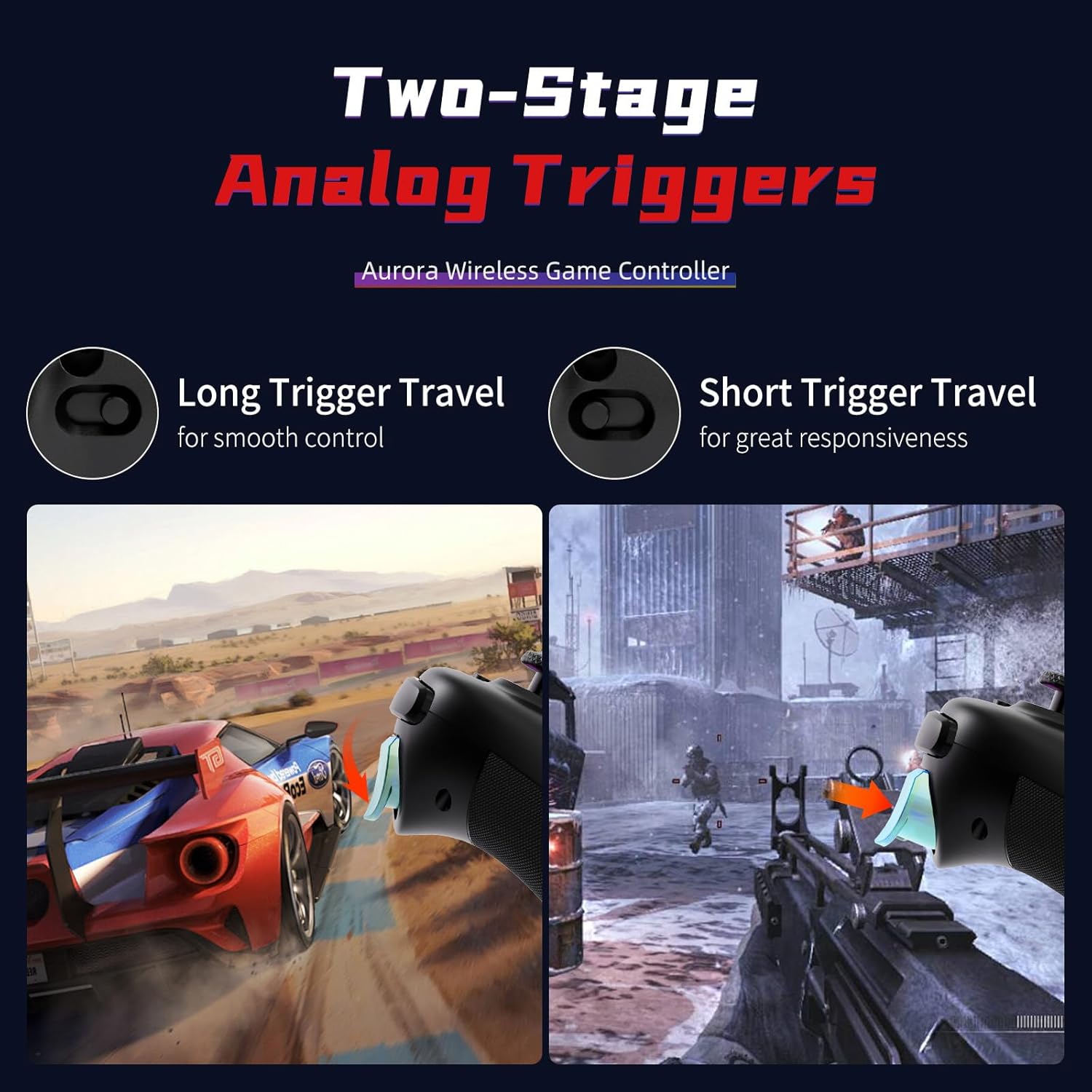
Сүрөт: Эки адамдын визуалдык чагылдырылышыtage аналогдук триггерлер, узак жана кыска саякат параметрлерин көрсөтөт.
RGB түсүн тууралоо
Джойстиктерде RGB жарыктандыруу ыңгайлаштырылуучу функциялар бар. Контроллериңиздин көрүнүшүн жекелештирүү үчүн бир түстүү режим менен иштеп жаткан жарык режиминин ортосунда которула аласыз. RGB жөндөөлөрүн тууралоо үчүн баскычтардын белгилүү бир айкалыштары жөнүндө толук колдонмону караңыз.

Сүрөт: RGB түсүн жөндөө функцияларын, анын ичинде бир түстүү жана иштеп жаткан жарык режимдерин көрсөтөт.
Оюндун иштөө режимин тууралоо (ABXY баскычтарын алмаштыруу)
Контроллер ABXY баскычтарын алмаштыруу функциясын колдойт, бул сизге баскычтардын жайгашуусу үчүн демейки Xbox режими менен Nintendo Switch режиминин ортосунда которулууга мүмкүндүк берет. Бул функциялар, адатта, өчүктөн кийин сакталбай турганын эске алыңыз.

Сүрөт: ABXY баскычтарын алмаштыруу функциясын көрсөтүп, баскычтардын жайгашуусун ар кандай оюн платформаларына ылайыкташтырат.
FPS режими (Өлүк зонасы жок кесипкөй джойстик)
Өлүк зонасы жок кесипкөй джойстик тажрыйбасы үчүн FPS режимин иштетиңиз. Бул режим биринчи жак атуу оюндарында тактык үчүн иштелип чыккан. Бул жөндөө өчүрүлгөндөн кийин сакталбай калышы мүмкүн экенин эске алыңыз.

Сүрөт: Так мээлөө үчүн өлүү зона жок экенин баса белгилеп, контроллерди FPS режиминде көрсөтөт.
Жөнгө салынуучу титирөө деңгээлдери
Контроллер 4 жөнгө салынуучу деңгээлдеги кош титирөө моторлору менен жабдылган, бул оюн тажрыйбасын кызыктуураак кылуу үчүн иммерсивдүү тактильдүү кайтарым байланышты камсыз кылат.
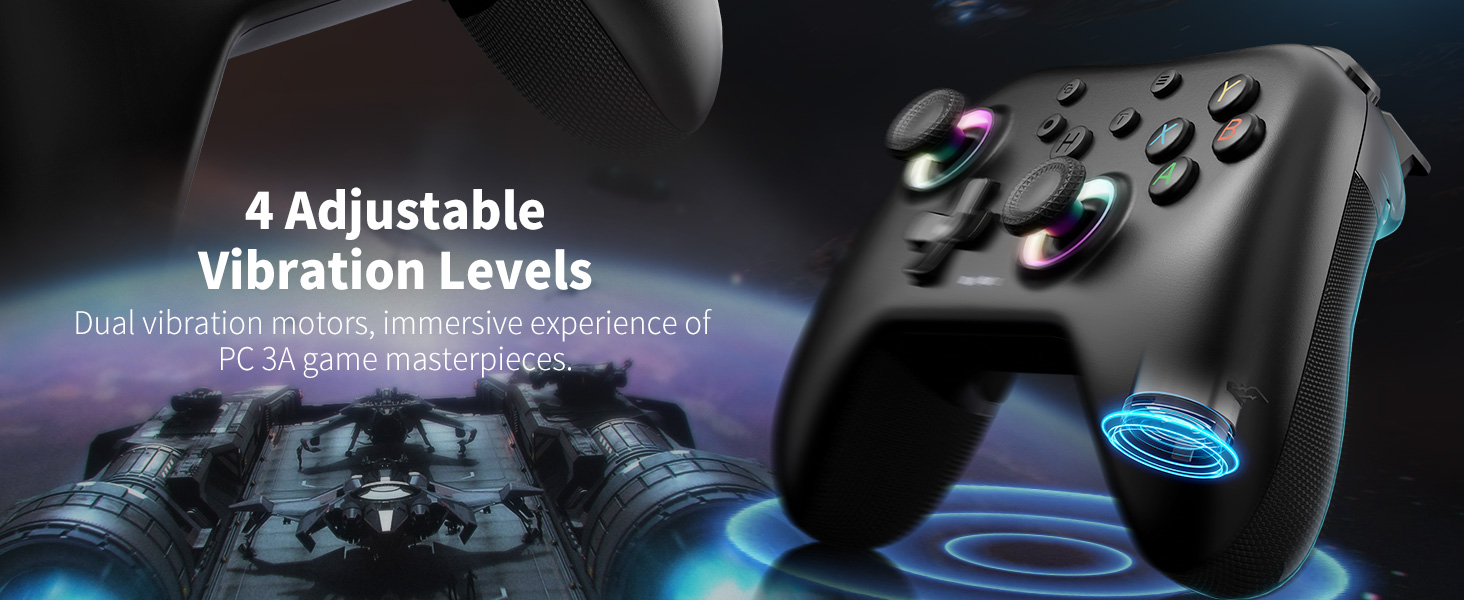
Сүрөт: Оюндун кызыктуулугун арттыруучу 4 жөнгө салынуучу титирөө деңгээлин көрсөтөт.
Заряддоо жана Батарея
AceGamer Aurora II контроллери 1000 мАч жаңыртылган батарея менен жабдылган. Толук кубаттоо болжол менен 2-3 саатты талап кылат жана кошумча узак убакыт ойнотууну камсыз кылат, лабораториялык сыноо маалыматтарына ылайык, адатта 8 сааттай. Кубаттоо үчүн контроллерди берилген Type-C маалымат кабели аркылуу USB кубат булагына туташтырыңыз.

Сүрөт: Контроллердин 1000 мАч батареясы стандарттуу Type-C кабели аркылуу кубатталууда.
Техникалык тейлөө
AceGamer Aurora II контроллериңиздин узак мөөнөттүү иштешин жана оптималдуу иштешин камсыз кылуу үчүн, төмөнкү техникалык тейлөө көрсөтмөлөрүн аткарыңыз:
- Башкаргычты жумшак, кургак чүпүрөк менен сүртүп, таза кармаңыз. Катуу химиялык заттарды же абразивдүү материалдарды колдонуудан алыс болуңуз.
- Контроллерди түз күн нурунан жана экстремалдык температурадан алыс салкын, кургак жерде сактаңыз.
- Контроллерди түшүрүүдөн же катуу таасирлерге дуушар кылуудан качыңыз.
- Контроллерди бөлүп алууга аракет кылбаңыз, анткени бул кепилдикти жокко чыгарып, зыян келтириши мүмкүн.
- Батареянын иштөө мөөнөтүн сактоо үчүн, көп колдонулбаса да, аны үзгүлтүксүз кубаттап туруңуз.
Проблемаларды чечүү
Эгерде сиз AceGamer Aurora II контроллериңиз менен көйгөйлөргө туш болсоңуз, төмөнкү жалпы чечимдерди караңыз:
- Контроллер туташпай жатат: Контроллер толук заряддалганын текшериңиз. "Орнотуу жана туташуу" бөлүмүндө сүрөттөлгөндөй, өзүңүздүн платформаңыз (2.4G, Bluetooth же Switch) үчүн туташуу кадамдарын кайра аракет кылып көрүңүз.
- Киргизүү кечигүү же ажыратуу: Башкаргыч түзмөгүңүздүн иш диапазонунда экенин текшериңиз. Башка зымсыз түзмөктөрдөн келген тоскоолдуктарды азайтыңыз. 2.4G туташуусу үчүн, кабыл алгыч бекем сайылганын текшериңиз.
- Баскычтар же джойстиктер жооп бербейт: Контроллердин батареясы аз калганын текшериңиз. Контроллерди баштапкы абалга келтирип көрүңүз (эгер мүмкүн болсо, баштапкы абалга келтирүү боюнча көрсөтмөлөрдү толук колдонмодон караңыз).
- Компьютерге туташуу көйгөйлөрү ("GameMacro" деп таанылган): Айрым колдонуучулар Microsoft дүкөнүнөн Xbox аксессуарлары колдонмосун орнотуу Bluetooth туташуулары үчүн зарыл болгон Xbox зымсыз контроллер драйверлерин берүү менен таануу көйгөйлөрүн чече аларын билдиришти.
- Заряддоо маселелери: Type-C кабели контроллерге да, кубат булагына да туура туташкандыгын текшериңиз. Башка кубаттоочу кабелди же USB портун колдонуп көрүңүз.
Эгерде көйгөйлөр чечилбесе, кошумча жардам алуу үчүн AceGamer кардарларды колдоо кызматына кайрылыңыз.
Техникалык шарттар
| Өзгөчөлүк | Деталь |
|---|---|
| Модель номери | Аврора II (T47) |
| Байланыш | 2.4G зымсыз байланыш, Bluetooth |
| Шайкештик | Компьютер (Windows 7/10+), Nintendo Switch, Nintendo Switch 2, iOS, Android |
| Батарея сыйымдуулугу | 1000mAh |
| Батареянын иштөө мөөнөтү | Болжол менен 8 саат (колдонууга жараша) |
| Заряддоо убактысы | 2-3 саат |
| Джойстиктер | RGB жарыктандыруу менен Холл эффектиси |
| Программалануучу баскычтар | 2 арткы баскыч (M1, M2) |
| Вибрация | Эки мотор, 4 жөнгө салынуучу деңгээл |
| Продукциянын өлчөмдөрү | 1.21 x 6.5 x 4.07 дюйм |
| Элемент Салмагы | 11.3 унция |
Кепилдик жана колдоо
Кепилдик жөнүндө маалымат жана кардарларды колдоо үчүн, өнүмүңүзгө тиркелген документтерди караңыз же расмий AceGamer веб-сайтына кириңиз webсайт. Кепилдик дооматтары үчүн сатып алуу дүмүрчөгүңүздү сактаңыз.


