Introduction
This manual provides instructions for the setup, operation, and maintenance of your HyperX Cloud Alpha 2 Wireless Gaming Headset. Please read this manual thoroughly before using the product to ensure proper functionality and to maximize your user experience.

Image: HyperX Cloud Alpha 2 Wireless Gaming Headset with its RGB Base Station, showcasing продуктунун толук пакети.
Кутуда эмне бар
- Зымсыз Оюн Гарнитура
- Базалык станция
- Алынуучу микрофон
- USB-C - USB-C кабели
- USB-C - USB-A адаптер
- 3.5 mm Headset Audio Cable
- Quick Start Guide
Жайгашуу
1. Гарнитураны заряддоо
Before initial use, fully charge the headset. Connect the headset to a power source using the provided USB-C to USB-C cable or USB-C to USB-A adapter. A full charge can provide up to 250 hours of battery life in 2.4GHz mode or 125 hours with simultaneous connection.

Image: A visual representation highlighting the headset's battery life capability of up to 250 hours on a single charge.
2. Базалык станцияны туташтыруу
Connect the RGB Base Station to your PC or console using the appropriate USB cable. The base station acts as a central hub for audio control and connectivity.

Image: A hand interacting with the RGB Base Station, demonstrating its function as an audio control hub.
3. Software Installation (HyperX NGENUITY)
For full customization and optimal performance, download and install the HyperX NGENUITY software from the official HyperX website. This software allows for equalization adjustments, audio controls, and lighting customization for the RGB Base Station.
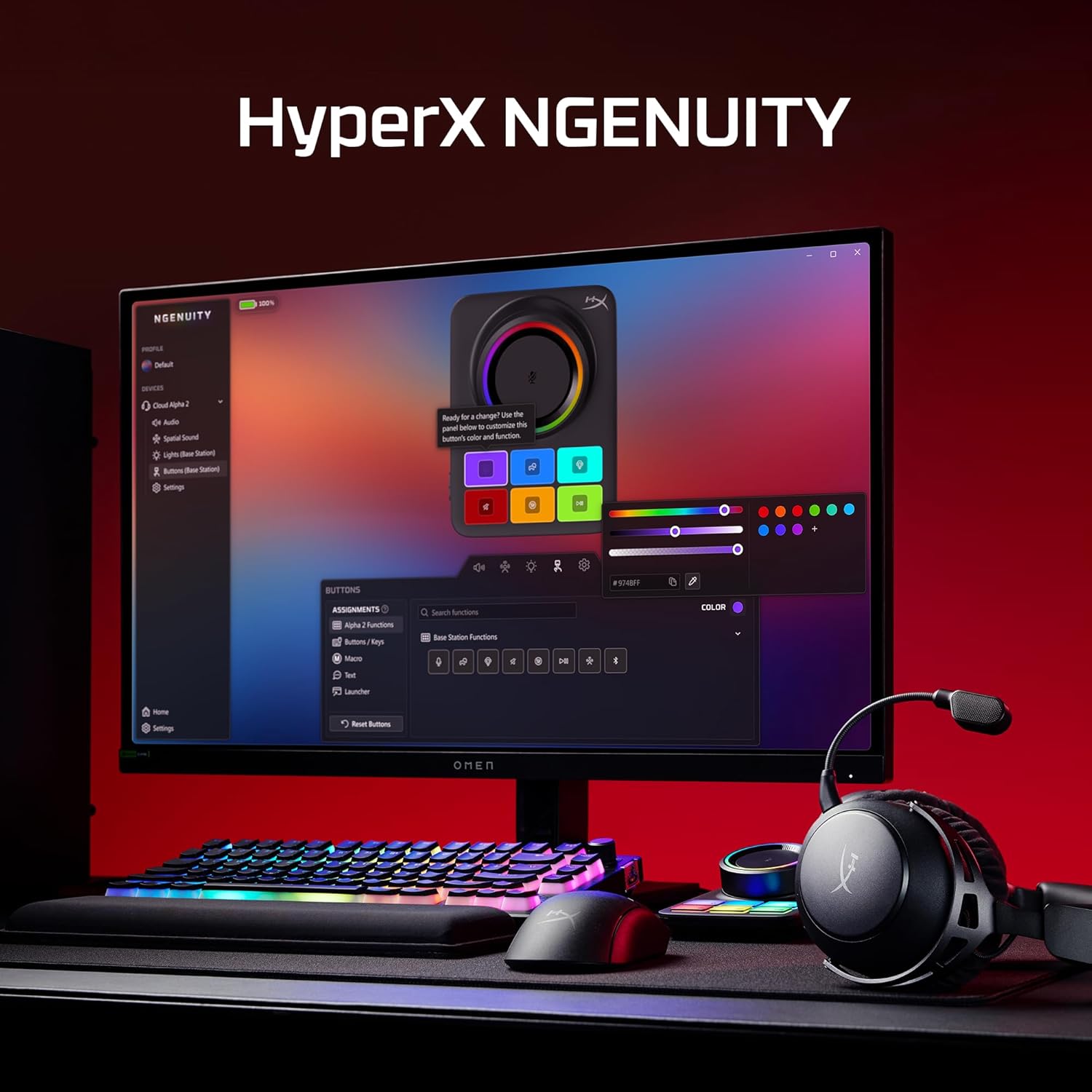
Image: A computer screen displaying the HyperX NGENUITY software, illustrating its interface for customizing headset and base station settings.
4. Микрофонду тиркөө
Insert the detachable boom microphone into the designated port on the headset. Ensure it is securely connected for clear voice communication.

Сүрөт: деталдуу view of the detachable 10mm boom microphone, highlighting its position on the headset.
Иштөө нускамалары
Байланыш режимдери
- 2.4 ГГц зымсыз: Connects to PC, PS5, PS4, Nintendo Switch, Mac via the Base Station for low-latency audio.
- Bluetooth: Connects to mobile devices for audio and calls.
- Бир убактагы туташуу: The headset supports simultaneous 2.4GHz and Bluetooth connections, allowing you to listen to audio from two sources concurrently.
- 3.5mm Wired: Use the included 3.5mm headset audio cable for wired connection to devices like Xbox.

Image: A user demonstrating the headset's ability to maintain simultaneous 2.4GHz and Bluetooth connections.

Image: Icons illustrating the headset's compatibility across multiple platforms including PC, PlayStation, Nintendo Switch, Mac, mobile devices, and Xbox via 3.5mm connection.
Гарнитураны башкаруу
- Көлөм дөңгөлөгү: Аудио чыгаруу деңгээлин тууралайт.
- Үнсүз баскычы: Toggles microphone mute. An LED indicator on the boom mic shows mute status.
- Көп функциялуу баскыч: Controls media playback and call management.
- Зымсыз режимди которуу: Selects between 2.4GHz and Bluetooth modes.

Сүрөт: деталдуу view of the headset's onboard controls, including the volume wheel, mute button, multifunction button, and wireless mode switch.
Аудио өзгөчөлүктөрү
The headset features 53mm dual-chamber drivers designed to provide clear audio with distinct bass and treble frequencies. Spatial audio can be enabled and customized through the HyperX NGENUITY software for an immersive sound experience.

Image: A visual representation of the headset's 53mm dual-chamber drivers in action, emphasizing sound clarity.
Техникалык тейлөө
Тазалоо
- Use a soft, dry cloth to clean the headset and base station.
- For earpads, gently wipe with a slightly damp зарыл болсо, кездеме менен сүртүп, колдонуудан мурун толугу менен кургатыңыз.
- Катуу химиялык заттарды же абразивдүү материалдарды колдонуудан алыс болуңуз.
Сактагыч
Store the headset in a cool, dry place away from direct sunlight and extreme temperatures. When not in use, the headset's 90° rotating earcups allow for flat storage.

Image: The headset positioned to highlight its comfortable design and flexible earcups, suitable for storage.
Батареяга кам көрүү
To prolong battery life, avoid fully discharging the headset frequently. Charge the headset regularly, even if not in constant use.
Проблемаларды чечүү
Аудио жок / Төмөн үн
- Ensure the headset is powered on and connected to the correct source (2.4GHz, Bluetooth, or 3.5mm).
- Check the volume wheel on the headset and the system volume on your device.
- Verify that the correct audio output device is selected in your operating system's sound settings.
- For 2.4GHz connection, ensure the Base Station is properly connected and recognized by your system.
Микрофон иштебейт
- Ensure the detachable boom microphone is securely inserted into the headset.
- Check if the microphone mute button on the headset is disengaged (LED indicator off).
- Verify that the correct microphone input device is selected in your operating system's sound settings and communication applications.
- If using the internal microphone, ensure the boom mic is detached.
Байланыш маселелери
- 2.4 ГГц: Ensure the Base Station is within range and free from interference. Try reconnecting the headset to the Base Station.
- Bluetooth: Ensure Bluetooth is enabled on your device and the headset is in pairing mode. Remove previous pairings and attempt to pair again.
- Жалпы: Гарнитураны да, туташкан аппаратты да өчүрүп күйгүзүңүз.
Software (NGENUITY) Issues
- Ensure you have the latest version of HyperX NGENUITY installed.
- Check for firmware updates for both the headset and the Base Station within the NGENUITY software.
- If the software is not recognizing the device, try restarting the application or your computer.
Техникалык шарттар
| Өзгөчөлүк | Деталь |
|---|---|
| Модель аты | HyperX Cloud Alpha 2 - Wireless Gaming Headset |
| Модель номери | AJ5C7AA |
| Байланыш технологиясы | 2.4 GHz Wireless, Bluetooth 5.2, 3.5 mm Jack |
| Зымсыз диапазон | 20 Meters (Bluetooth) |
| Айдоочулар | 53mm Dual-Chamber |
| Frequency Response | 20 Гц |
| Импеданс | 64 Ом |
| Батареянын иштөө мөөнөтү | Up to 250 hours (2.4GHz mode) |
| Микрофон | Detachable 10mm Boom Mic, Internal Mics |
| Материал | Stainless steel, aluminum forks |
| Элемент Салмагы | 345 грамм (12.2 унция) |
| Өлчөмдөрү (LxWxH) | 7.24 x 3.6 x 8.11 дюйм |
| Платформанын шайкештиги | PC, PS5, PS4, Nintendo Switch, Mac, Mobile, Xbox (wired) |
Кепилдик маалымат
For detailed warranty information regarding your HyperX Cloud Alpha 2 Wireless Gaming Headset, please refer to the official HyperX webсайтына же өнүмүңүз менен кошо берилген кепилдик картасына кайрылыңыз. Кепилдик шарттары жана жоболору аймакка жараша өзгөрүшү мүмкүн.
Колдоо
If you require further assistance or have questions not covered in this manual, please visit the official HyperX support website for FAQs, drivers, and contact information. You can also find additional resources and community forums there.
Official HyperX Webсайт: www.hyperx.com/support


