1. Продукт бүтүп калдыview
The Xiaomi Portable Photo Printer Pro is a compact and lightweight device designed for printing photos directly from your smartphone or other compatible devices. It utilizes advanced printing technology to produce high-quality, vibrant prints.
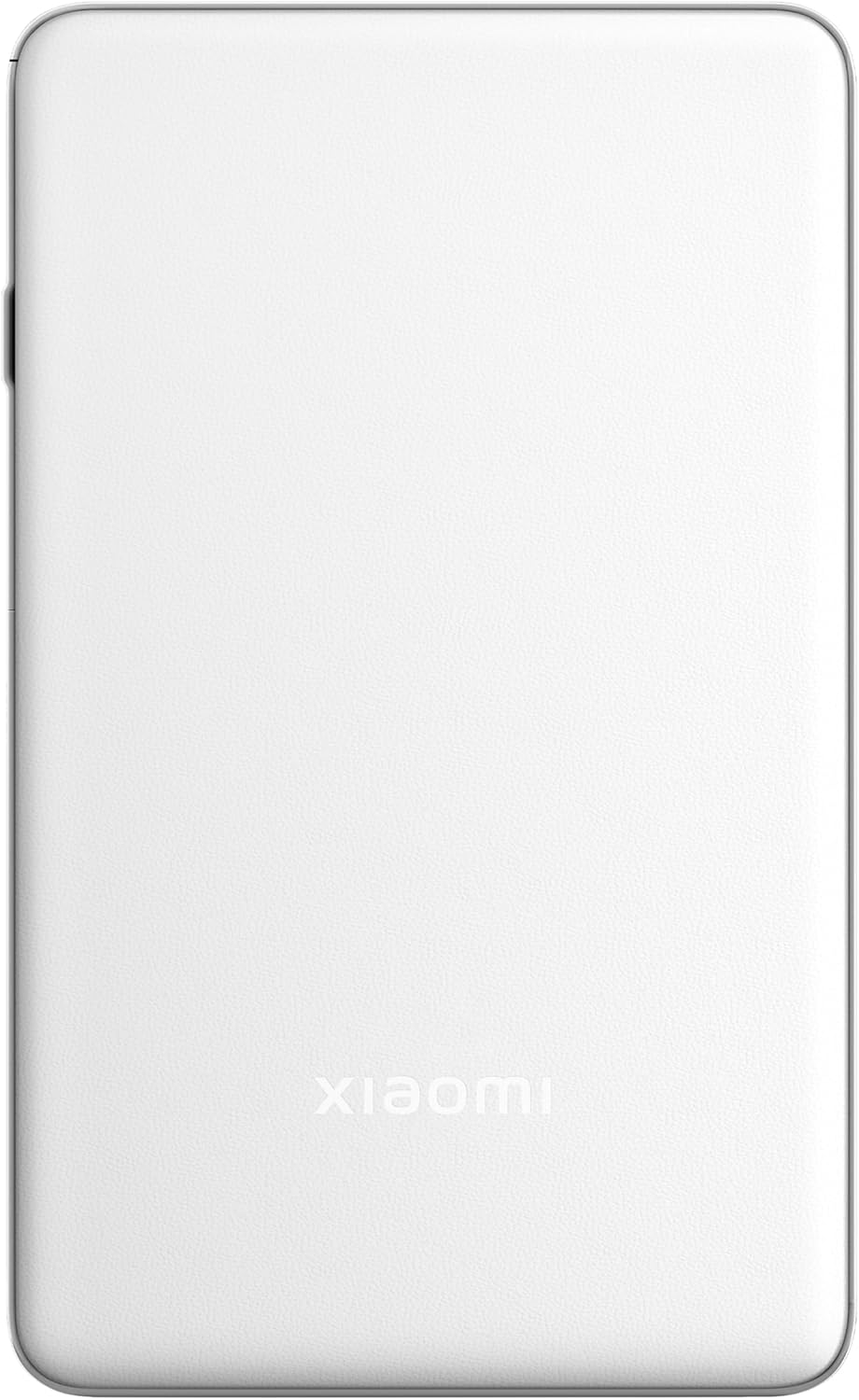
Сүрөт 1.1: Жогорку view of the Xiaomi Portable Photo Printer Pro, showcasing its minimalist design and compact form factor.

Сүрөт 1.2: Каптал view of the Xiaomi Portable Photo Printer Pro, highlighting its slim profile and power button location.
2. Орнотуу
2.1 Принтерди заряддоо
Before initial use, fully charge the printer. Connect the provided USB charging cable to the printer's charging port and a compatible power adapter. The indicator light will show charging status.
2.2 Фотокагазды жүктөө
- Open the paper tray cover on the printer.
- Insert the photo paper stack into the tray with the glossy side facing up. Ensure the paper is aligned correctly.
- Кагаз салгычтын капкагын бекем жабыңыз.

Image 2.1: The Xiaomi Portable Photo Printer Pro with photo paper being inserted into the paper tray, demonstrating the correct orientation.
2.3 Companion колдонмосун орнотуу
Download and install the official Xiaomi Home app (or designated printer app) from your device's app store. This app is required for connecting to the printer and managing print jobs.
2.4 Bluetooth аркылуу туташуу
- Принтер күйгүзүлгөнүн текшериңиз.
- Смартфонуңузда же планшетиңизде Bluetooth иштетүү.
- Open the Xiaomi Home app and follow the on-screen instructions to add a new device. Select the Xiaomi Portable Photo Printer Pro from the list of available devices.
- Confirm the pairing request on both your device and the printer if prompted.
3. Иштөө нускамалары
3.1 Күйгүзүү/өчүрүү
- Күйгүзүү үчүн: Индикатор жарыгы күйгөнгө чейин кубат баскычын болжол менен 3 секунд басып туруңуз.
- Өчүрүү үчүн: Индикатор жарыгы өчкөнгө чейин кубат баскычын болжол менен 3 секунд басып туруңуз.
3.2 Сүрөттөрдү басып чыгаруу
- Ensure the printer is powered on and connected to your device via Bluetooth.
- Open the Xiaomi Home app and select the photo you wish to print.
- Adjust any print settings (e.g., size, filters) within the app.
- Tap the 'Print' button. The printer will feed the paper and begin printing.

Image 3.1: The Xiaomi Portable Photo Printer Pro positioned on a wooden table, actively printing a photo, with the printed image emerging from the top slot.

Image 3.2: The Xiaomi Portable Photo Printer Pro being held in a hand, illustrating its portability and ease of handling for on-the-go printing.
4. Техникалык тейлөө
4.1 Принтерди тазалоо
- Ensure the printer is powered off before cleaning.
- Принтердин сыртын сүртүү үчүн жумшак, кургак, түксүз чүпүрөктү колдонуңуз.
- Суюк тазалоочу каражаттарды же абразивдүү материалдарды колдонбоңуз, анткени алар түзмөккө зыян келтириши мүмкүн.
4.2 Replacing Photo Paper
When the printer runs out of paper, follow the steps in Section 2.2 to load a new stack of photo paper. Use only genuine Xiaomi photo paper for optimal print quality and to prevent damage to the printer.
4.3 Батареяга кам көрүү
- Принтерди өтө жогорку температурага дуушар кылбаңыз.
- If storing the printer for an extended period, ensure it is partially charged (around 50%) to prolong battery life.
- Батареяны бат-баттан колдонбосо дагы, үзгүлтүксүз толтуруңуз.
5. Кыйынчылыктарды
- Принтер күйбөй жатат: Батарея заряддалганын текшериңиз. Принтерди кубат булагына туташтырып, кайра аракет кылыңыз.
- Bluetooth аркылуу туташуу мүмкүн эмес:
- Ensure Bluetooth is enabled on your device and the printer.
- Принтерди да, түзмөгүңүздү да өчүрүп күйгүзүңүз.
- Forget the device in your phone's Bluetooth settings and attempt to pair again through the app.
- Начар басып чыгаруу сапаты:
- Check if the photo paper is loaded correctly with the glossy side up.
- Ensure you are using genuine Xiaomi photo paper.
- The image resolution might be too low. Try printing a higher-resolution image.
- Кагаз тыгылышы:
- Power off the printer immediately.
- Carefully open the paper tray cover and gently remove any jammed paper. Avoid tearing the paper inside the mechanism.
- Close the cover and power on the printer.
- Принтер жооп бербей жатат: Try performing a soft reset by pressing and holding the power button for 10-15 seconds until the printer restarts.
6. Техникалык шарттар
| Өзгөчөлүк | Спецификация |
|---|---|
| Модел | KDRSHDY03HT |
| Продукциянын өлчөмдөрү | 14.25 x 8.68 x 2.68 см |
| Элемент Салмагы | 308 грамм |
| Максималдуу киргизүү барагынын сыйымдуулугу | 20 барак |
| Басма маалымат каражаттары | Жылтырак фотокагаз, Жөнөкөй кагаз |
| Принтердин чыгышы | Түс |
| Өзгөчөлүктөр | Portable |
| Батареялар | 1 x 12V батарейка (киргизилген) |
| Байланыш | Bluetooth |
7. Кепилдик жана колдоо
7.1 Кепилдик маалыматы
The Xiaomi Portable Photo Printer Pro comes with a standard manufacturer's warranty. Please refer to the warranty card included in the product packaging for specific terms, conditions, and duration. Keep your proof of purchase for warranty claims.
7.2 Кардарларды колдоо
For technical assistance, troubleshooting beyond this manual, or warranty inquiries, please contact Xiaomi customer support. Visit the official Xiaomi webбайланыш маалыматы жана колдоо булактары үчүн сайт.
Көбүрөөк маалымат жана колдоону расмий сайттан таба аласыз XIAOMI дүкөнү.


