Introduction
The NEWFAST B912 Outdoor WiFi Bridge is designed to provide reliable, long-range wireless network connectivity for various outdoor environments. This device extends your network up to 3 kilometers (1.9 miles) using 5.8 GHz high-speed transmission, making it suitable for connecting buildings, barns, shops, farms, garages, warehouses, Starlink installations, or remote security cameras. This manual will guide you through the installation, configuration, and maintenance of your B912 WiFi Bridge system.

Image: Two NEWFAST B912 outdoor WiFi bridges are shown mounted on poles, illustrating their intended outdoor placement and the long-range wireless connection they establish over a landscape.
Пакеттин мазмуну
- 2 x NEWFAST B912 Outdoor WiFi Bridges
- 2 x 48V POE Power Adapters
- 4 x Кабель байламталары
- 1 x Ыкчам орнотуу колдонмосу
1. Орнотуу жана орнотуу
1.1 Физикалык орнотуу
The NEWFAST B912 devices are designed for outdoor use and can be mounted on a pole or wall. Ensure a clear line of sight between the two units for optimal performance.

Image: This diagram demonstrates the physical installation process, showing how to secure the NEWFAST B912 unit to a pole using cable ties. It also depicts wall mounting options, emphasizing ease of installation.
Монтаждоо: Use the provided cable ties to securely attach the WiFi bridge to a pole. For wall mounting, additional brackets (not included) may be required.

Image: A network diagram illustrating a typical Point-to-Point (PtP) setup. One CPE (Master) connects to a router via a PoE adapter, and the other CPE (Slave) connects to a computer or switch, also powered by a PoE adapter, extending the internet connection wirelessly.
1.2 Powering On and Automatic Pairing
The devices are powered using the included 48V Power over Ethernet (PoE) adapters. Connect an Ethernet cable from the PoE adapter's LAN port to your router/switch, and another Ethernet cable from the PoE adapter's PoE port to the B912 unit's WAN/PoE port.
The B912 units feature automatic pairing. To assign roles:
- Identify the rotary switch on each device.
- Set one unit to "AP" (Access Point) mode. This unit will act as the transmitter, connecting to your main network.
- Set the other unit to "STA" (Station) mode. This unit will act as the receiver, extending the network to your remote location.
- Once powered on, the devices will automatically pair within minutes.

Сүрөт: деталдуу view of the NEWFAST B912's underside, highlighting the WAN and LAN Ethernet ports, the reset button, and the rotary switch used to select between STA (receiver) and AP (transmitter) modes for automatic pairing.
1.3 Signal Strength Indicator
The device features a 4-bar LED signal strength indicator to assist with alignment and ensure optimal signal reception. Adjust the direction and angle of the units based on these indicators for the best connection.
- 4 бар: Very Strong Signal
- 3 бар: Күчтүү сигнал
- 2 бар: Орто сигнал
- 1 бар: Алсыз сигнал

Image: This graphic illustrates the LED indicators on the side of the NEWFAST B912, detailing what each light signifies: signal strength (4 bars), WiFi status, WAN activity, and power status. This helps users optimize device placement.
2. Иштөө режимдери
The NEWFAST B912 supports multiple operating modes to suit various network extension needs:
- Point-to-Point (PtP) Bridge Mode: Connects two locations wirelessly, ideal for extending a network from one building to another.
- Point-to-MultiPoint (PtMP) Bridge Mode: One AP unit can connect to multiple STA units, allowing network extension to several remote locations.
- AP (кирүү чекити) режими: Functions as a wireless access point, broadcasting a WiFi signal.
- Кайталоо режими: Учурдагы WiFi тармагынын диапазонун кеңейтет.
- Багыттоочу режим: Functions as a basic router, providing network address translation (NAT) and DHCP services.
2.1 High-Speed 5.8 GHz Connectivity
The B912 operates on the 5.8 GHz band, offering speeds up to 300 Mbps. This frequency band provides superior interference resistance compared to 2.4 GHz, ensuring stable and efficient data transmission, particularly beneficial for video surveillance and IoT deployments.

Image: This diagram illustrates a Master bridge unit providing connectivity to a main building, while a Slave bridge unit extends the network to a remote surveillance camera, demonstrating smooth video streaming capabilities.
2.2 Тармактын коопсуздук функциялары
To enhance network security, the B912 supports SSID masking. This feature prevents unauthorized wireless devices from detecting your network's SSID, thereby protecting your network data.
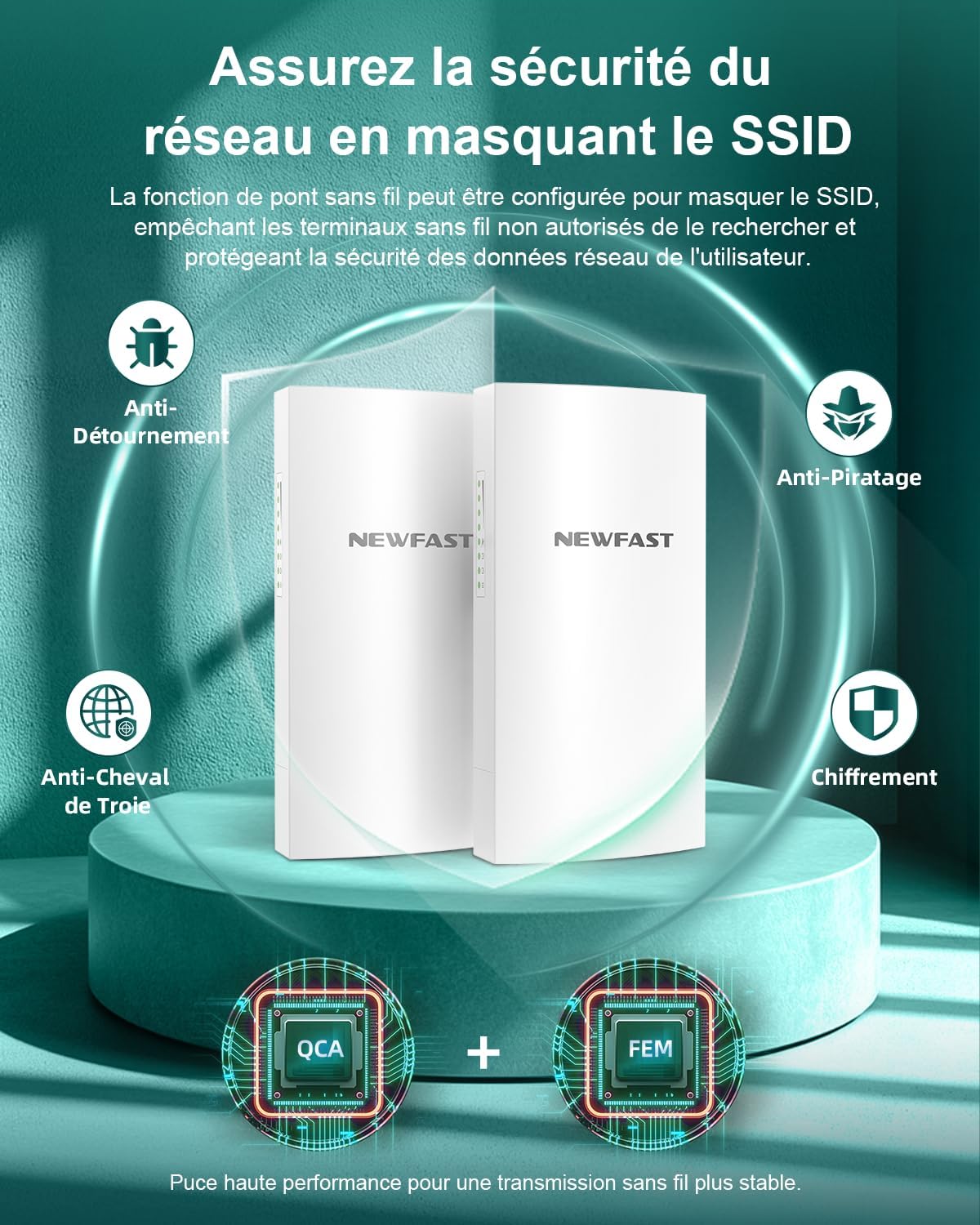
Image: This graphic highlights the robust security features of the NEWFAST B912, including anti-hijacking, anti-piracy, anti-Trojan, and encryption, all designed to protect the user's network and data.
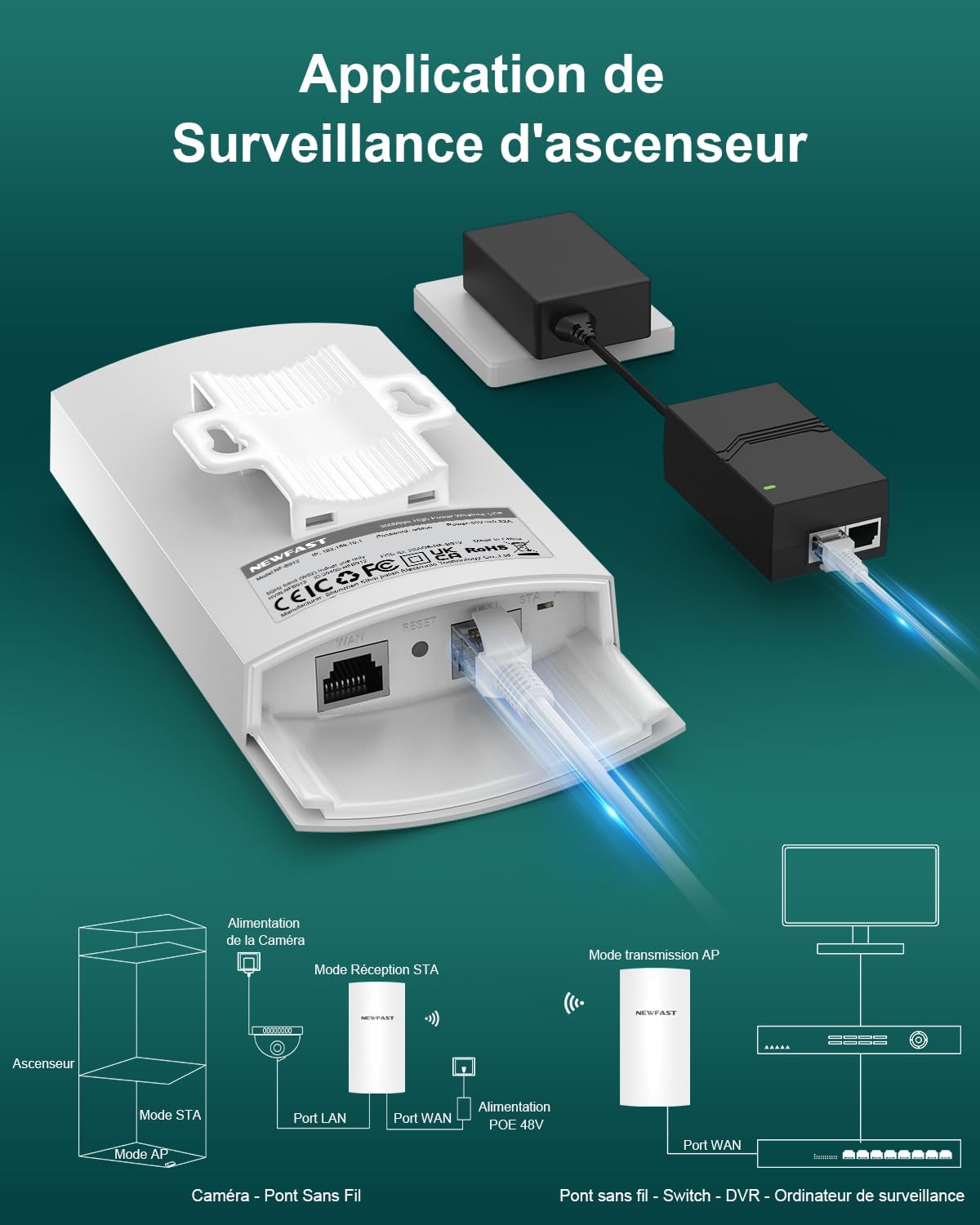
Image: A diagram illustrating the application of the NEWFAST B912 for surveillance systems, showing how one unit in STA mode connects to a camera and another in AP mode transmits the signal to a monitoring station.
3. Техникалык тейлөө
The NEWFAST B912 is built for durability in outdoor conditions. Its IP65-rated casing provides exceptional resistance to dust and water, and it includes lightning protection. Regular maintenance is minimal:
- Тазалоо: Periodically wipe the exterior of the units with a soft, damp чаңды жана калдыктарды тазалоо үчүн кездеме. Катуу химиялык заттарды колдонбоңуз.
- Текшерүү: Annually inspect the mounting hardware and cable connections to ensure they remain secure and free from damage.
- Программалык камсыздоонун жаңыртуулары: Өндүрүүчүнү текшериңиз webоптималдуу иштөөнү жана коопсуздукту камсыз кылуу үчүн жеткиликтүү болгон программалык камсыздоонун жаңыртуулары үчүн сайт.

Image: A collage demonstrating the all-weather durability of the NEWFAST B912, showcasing its resistance to lightning, sun, rain (waterproof), dust, and freezing temperatures, making it suitable for diverse outdoor environments.
4. Кыйынчылыктарды
If you encounter issues with your NEWFAST B912 WiFi Bridge, refer to the following common troubleshooting steps:
- No Connection/Weak Signal:
- Ensure both units are powered on and the PoE adapters are functioning correctly.
- Verify a clear line of sight between the AP and STA units. Obstructions like trees or buildings can degrade signal quality.
- Check the LED signal strength indicators (refer to Section 1.3) and adjust the alignment of the units for optimal signal.
- Confirm that the AP and STA modes are correctly set on each device.
- Жай ылдамдык:
- Check for potential interference from other 5 GHz devices in the area.
- Ensure the units are aligned properly, as indicated by the signal strength LEDs.
- Verify that your internet source (router) is providing adequate speed.
- Unable to Access Web Интерфейс:
- Ensure your computer is directly connected to the LAN port of the PoE adapter (for the unit you are trying to configure) or is on the same network segment.
- Verify the IP address of the B912 and your computer's IP settings. Refer to the Quick Installation Guide for default IP addresses.
- Түзмөк күйбөй жатат:
- Check the power outlet and the PoE adapter connections.
- Ensure the Ethernet cable from the PoE adapter to the B912 is securely connected to the PoE port.
5. Техникалык шарттар
| Өзгөчөлүк | Деталь |
|---|---|
| Бренд | NEWFAST |
| Модель аты | NF-B912 |
| Түс | Ак |
| Байланыш технологиясы | Ethernet, Wi-Fi |
| Зымсыз байланыш стандарты | 802.11а |
| Жыштык тилкесинин классы | Бир тилкелүү (5.8 ГГц) |
| Өзгөчөлүктөр | Access Point Mode, Internet Security, LED Indicator, IP65 Waterproof |
| Сунушталган колдонуу | Сыртта |
| Шайкеш түзмөктөр | WiFi Devices, Surveillance Camera, Personal Computer, Smartphone, Smart TV |
| Электр камсыздоо | 48V POE Adapter |
| Берүүнүн диапазону | Up to 3 KM (1.9 miles) |
| Максималдуу ылдамдык | 300 Мбит/сек (5.8 ГГц) |
6. Кепилдик маалыматы
The NEWFAST B912 Outdoor WiFi Bridge comes with a manufacturer's warranty of 1 year. Please retain your proof of purchase for warranty claims. For detailed terms and conditions, refer to the warranty card included in your package or visit the official NEWFAST webсайт.
7. Кардарларды колдоо кызматы
For technical assistance, troubleshooting, or further inquiries, please refer to the following resources:
- Онлайн ресурстар: Visit the official NEWFAST webКөп берилүүчү суроолор, жаңыртылган колдонмолор жана колдоо форумдары үчүн сайт.
- Колдоо кызматы менен байланышуу: If you require direct assistance, please contact NEWFAST customer service through the contact information provided on the official webсайт же сатып алуу платформаңыз.


