1. Киришүү
This manual provides essential information for setting up, operating, and maintaining your GEEKOM GT2 Mega Ai Mini PC. This compact desktop computer features an Intel Core Ultra 9 285H processor with integrated Intel Arc 140T GPU, 32GB DDR5 RAM, and a 2TB SSD. It comes pre-installed with Windows 11 Pro and offers advanced connectivity options including Dual 2.5G LAN, WiFi 7, and USB4 ports.
Түзмөктүн туура иштешин жана узак убакытка кызмат кылуусун камсыз кылуу үчүн аны колдонуудан мурун, ушул колдонмону кылдат окуп чыгыңыз.
2. Кутуда эмне бар
Таңгакта бардык буюмдар бар экенин текшериңиз:
- 1 x GEEKOM GT2 MEGA Mini PC
- 1 x HDMI кабели
- 1 x VESA Mount
- 1 х кубат адаптери
- 1 х Колдонуучунун колдонмосу (бул документ)
3. Продукт бүтүп калдыview
3.1 Алдыңкы жана арткы порттор
The GEEKOM GT2 Mega Mini PC is equipped with a variety of ports for versatile connectivity.

- Алдыңкы порттор: Power Button, 3x USB 3.2 Gen2 Type-A, 1x SD 4.0 Card Reader, 1x 3.5mm Headset Jack.
- Арткы порттор: 1x Kensington Lock, 1x DC In, 2x HDMI 2.0 (4K@120Hz), 1x USB 3.2 Gen2 Type-A, 1x USB 2.0 Type-A, 2x 2.5G LAN RJ45, 2x USB4 Type-C (40Gbps, 8K video, 15W PD).
3.2 Internal Components and Expandability
The mini PC is designed for efficient performance and offers storage expansion options.

- RAM: Dual-channel DDR5 5600MHz SODIMM, expandable up to 128GB.
- SSD: One M.2 2280 NVMe PCIe Gen4 x4 SSD slot (up to 4TB) and one M.2 2242 SATA III SSD slot (up to 2TB).
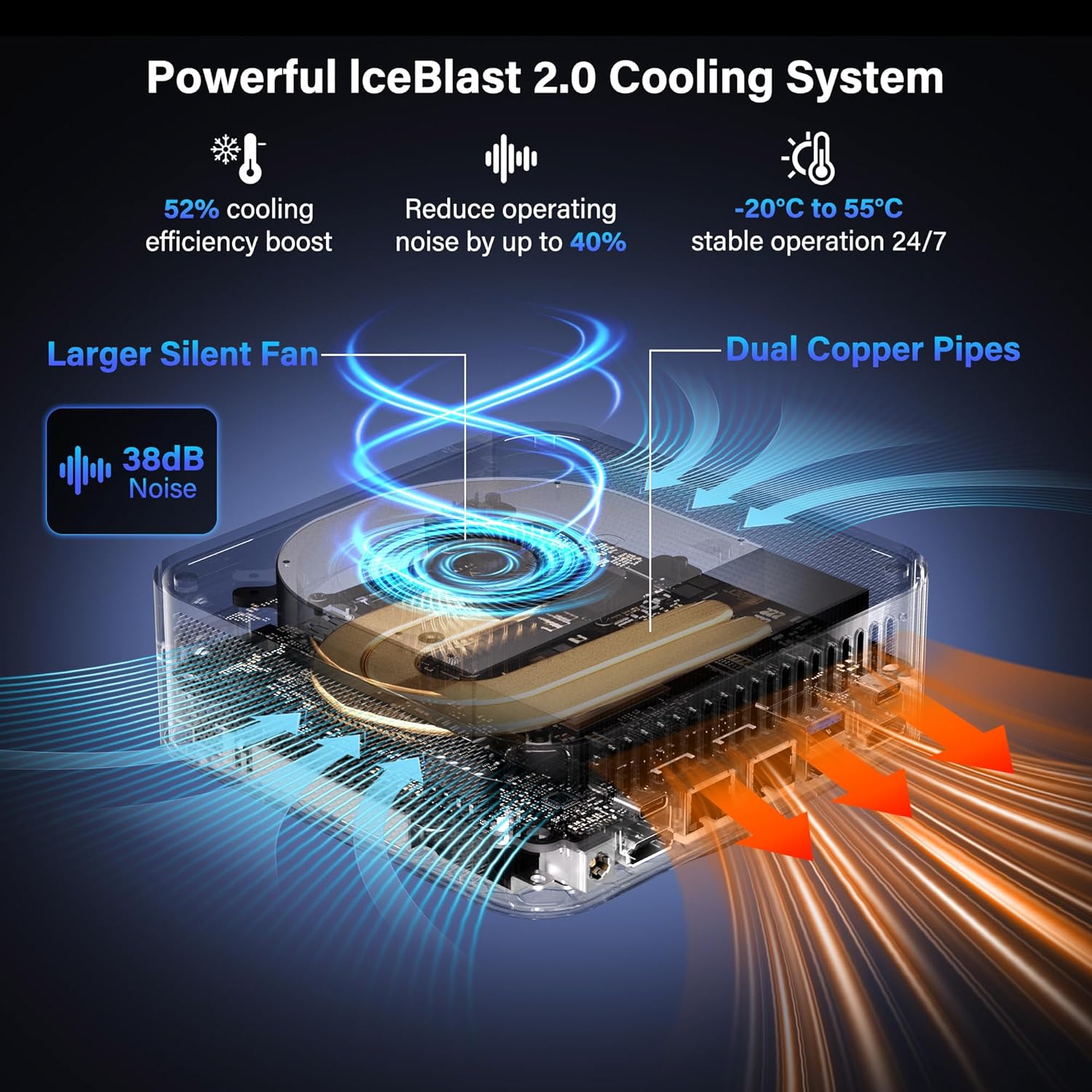
- Муздатуу: IceBlast 2.0 cooling system with dual copper heat pipes and a large silent fan.
4. Орнотуу нускамалары
4.1 Баштапкы туташуу
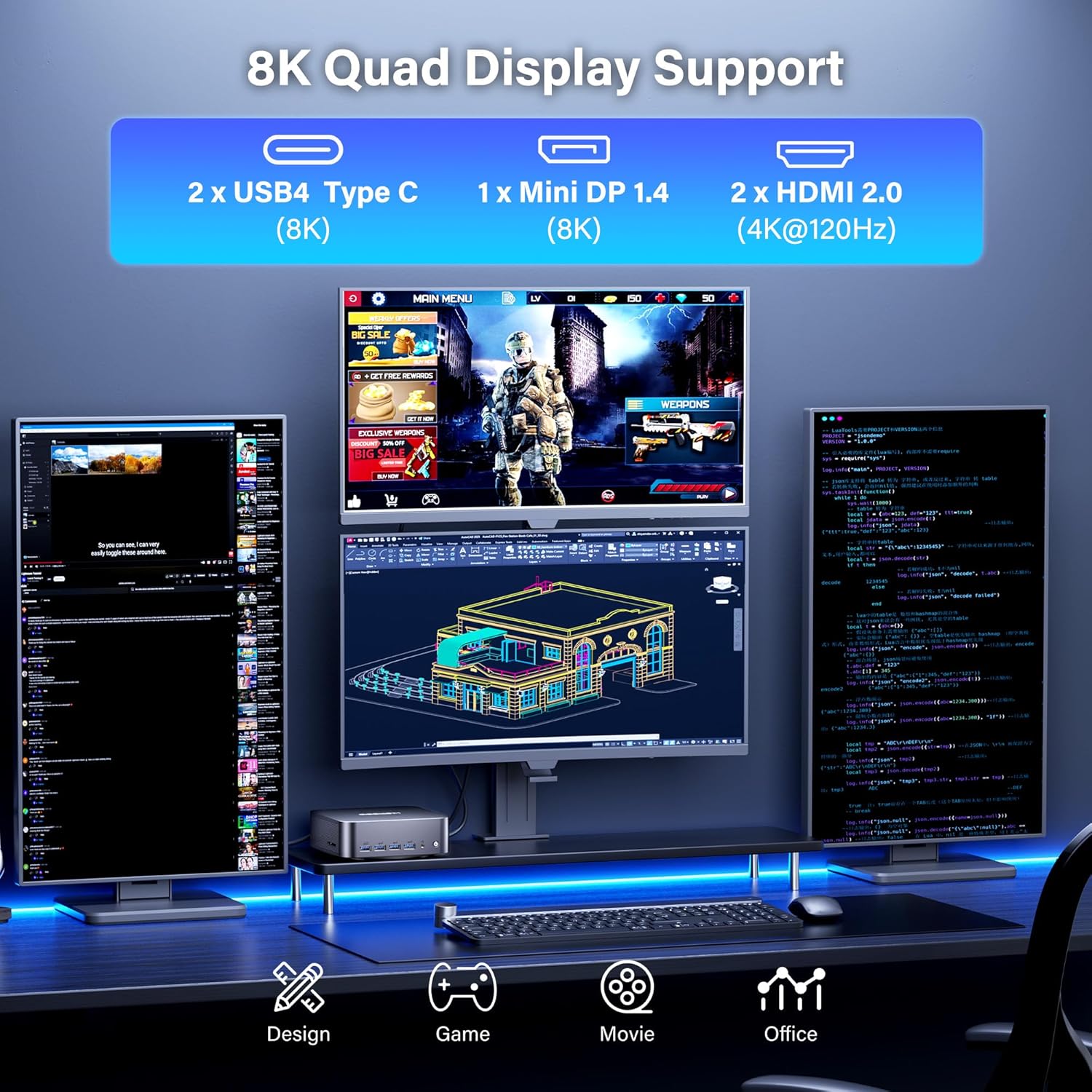
- Дисплейди туташтыруу: Use the provided HDMI cable or a Mini DP/USB4 cable to connect your monitor(s) to the mini PC. The device supports up to four displays simultaneously (2x 8K, 2x 4K).
- Перифериялык түзүлүштөрдү туташтыруу: Клавиатураңызды, чычканыңызды жана башка USB түзмөктөрүңүздү жеткиликтүү USB портторуна сайыңыз.
- Тармакка туташуу: For wired internet, connect an Ethernet cable to one of the 2.5G LAN ports. For wireless, ensure your WiFi network is available.
- Туташуу кубаты: Plug the power adapter into the DC In port on the mini PC, then connect the adapter to a power outlet.
- Күйгүзүү: Press the power button located on the front of the mini PC.

4.2 VESA орнотуу (милдеттүү эмес)
The GEEKOM GT2 Mega Mini PC can be mounted to the back of a VESA-compatible monitor to save desk space.
- Attach the VESA mount bracket to the back of your monitor using the provided screws.
- Slide the mini PC onto the VESA mount until it clicks securely into place.

5. Иштөө нускамалары
5.1 Биринчи жүктөө жана Windows 11 Pro орнотуу
Upon first boot, the system will guide you through the Windows 11 Pro setup process. Follow the on-screen instructions to configure your language, region, network, and user account.

5.2 Multi-Display Configuration
The GT2 Mega supports up to four displays. To configure multiple displays in Windows:
- Connect all desired monitors to the available HDMI, Mini DP, or USB4 ports.
- Иш тактада оң баскычты чыкылдатып, "Экран жөндөөлөрү" дегенди тандаңыз.
- In the Display settings, you can detect, arrange, and configure the resolution and orientation of each monitor.
6. Техникалык тейлөө
6.1 Тазалоо
- Тазалоодон мурун аппараттын өчүрүлгөнүн жана розеткадан ажыратылганын текшериңиз.
- Use a soft, dry cloth to wipe the exterior of the mini PC.
- For dust accumulation in vents, use compressed air carefully. Do not insert objects into the vents.
6.2 Программалык камсыздоо жаңыртуулары
Оптималдуу иштөө жана коопсуздукту камсыз кылуу үчүн Windows операциялык тутумуңузду жана драйверлериңизди үзгүлтүксүз жаңыртып туруңуз.
- Windows жаңыртуулары: Go to Settings > Windows Update and check for updates.
- Драйвер жаңыртуулары: Visit the GEEKOM official website or Intel's support page for the latest drivers for your processor and graphics.
6.3 Муздатуу системасы
The IceBlast 2.0 cooling system is designed for efficient heat dissipation. Ensure proper airflow around the device by not blocking the vents.

7. Кыйынчылыктарды
7.1 Жалпы маселелер
- Кубат жок: Кубат адаптери мини компьютерге да, иштеген электр розеткасына да бекем туташып турганын текшериңиз.
- Дисплей жок: Check all display cable connections. Ensure the monitor is powered on and set to the correct input source. Try a different cable or monitor if possible.
- Перифериялык түзмөк аныкталган жок: Reconnect the peripheral to a different USB port. Ensure drivers are installed if required.
- Жай аткаруу: Check for background applications consuming resources. Ensure sufficient free storage space. Consider updating drivers and Windows.
7.2 Windows 11 Pro Initial Setup Issue (PIN Creation)
If you encounter an issue during the initial Windows 11 Pro setup where the PIN creation screen does not appear or freezes, follow these steps:
- When the PIN screen appears to be stuck, press Shift + F10 simultaneously. A Command Prompt window should appear. Leave this window open.
- Басыңыз Alt + Таб several times. This should bring the PIN input screen to the foreground.
- Enter your PIN and proceed with the setup.
- If the Windows 11 sign-in screen appears to be stuck after setup, press and hold the Shift key while clicking the Power icon (bottom right of screen) and selecting "Restart".
- From the blue "Choose an option" screen, select "Troubleshoot".
- Select "Reset this PC".
- Choose "Keep my files" (or "Remove everything" if you prefer a clean reset).
- Select "Local reinstall".
- Follow the prompts to complete the reset process. After the reset, the Windows setup should proceed normally.
8. Техникалык шарттар
| Өзгөчөлүк | Деталь |
|---|---|
| Процессор | Intel Core Ultra 9 285H (5.4 GHz, 16 Cores) |
| Графика | Intel Arc 140T GPU (Integrated) |
| RAM | 32GB DDR5 5600MHz (Expandable to 128GB) |
| Сактагыч | 2TB NVMe PCIe Gen4 x4 SSD (Supports up to 4TB), 1x M.2 2242 SATA III SSD slot (Supports up to 2TB) |
| Операция системасы | Windows 11 Pro |
| Display Output | 2x HDMI 2.0 (4K@120Hz), 1x Mini DP 1.4 (8K), 2x USB4 Type-C (8K) - Supports Quad Display |
| Байланыш | WiFi 7, Bluetooth 5.4, Dual 2.5G LAN |
| USB порттору | 2x USB4 Type-C, 4x USB 3.2 Gen2 Type-A, 1x USB 2.0 Type-A |
| Башка порттор | 1x SD 4.0 Card Reader, 1x 3.5mm Headset Jack, 1x Kensington Lock |
| Өлчөмдөрү (LxWxH) | 8.94 x 6.92 x 5.27 дюйм |
| Салмагы | 3.65 фунт |
| Муздатуу системасы | IceBlast 2.0 (Dual Copper Pipes, Silent Fan) |
9. Кепилдик жана колдоо
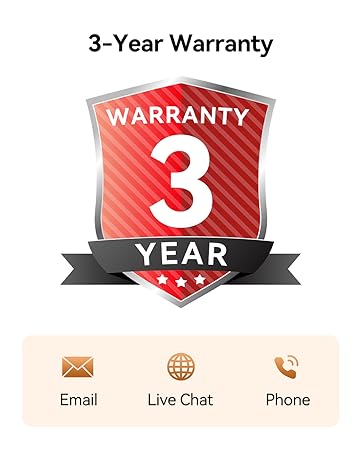
The GEEKOM GT2 Mega Mini PC comes with a 3-year warranty. For technical assistance or warranty claims, please contact GEEKOM customer support.
9.1 Колдоо кызматы менен байланышуу
You can reach GEEKOM support through the following methods:
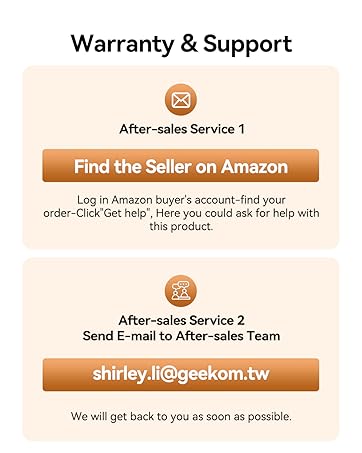
- Электрондук почта: Сатуудан кийинки команда менен байланышыңыз shirley.li@geekom.tw.
- Amazon сатуучунун баракчасы: If purchased on Amazon, log into your Amazon buyer's account, find your order, and click "Get help" to contact the seller.
To ensure authenticity and warranty coverage, always purchase GEEKOM products from the Official Amazon Store or GEEKOM's official webсайт.


