1. Киришүү
This manual provides comprehensive instructions for setting up, operating, and maintaining your Wacom MovinkPad Pro 14 Android Mobile Drawing Tablet. Please read this manual thoroughly to ensure optimal performance and longevity of your device.
The Wacom MovinkPad Pro 14 is a portable, all-in-one digital art tablet designed for creative professionals. It features a 14-inch OLED display, runs on Android 15 OS, and is powered by a Snapdragon 8s Gen 3 processor. It includes the battery-free Slim Pro Pen 3 for precise input.
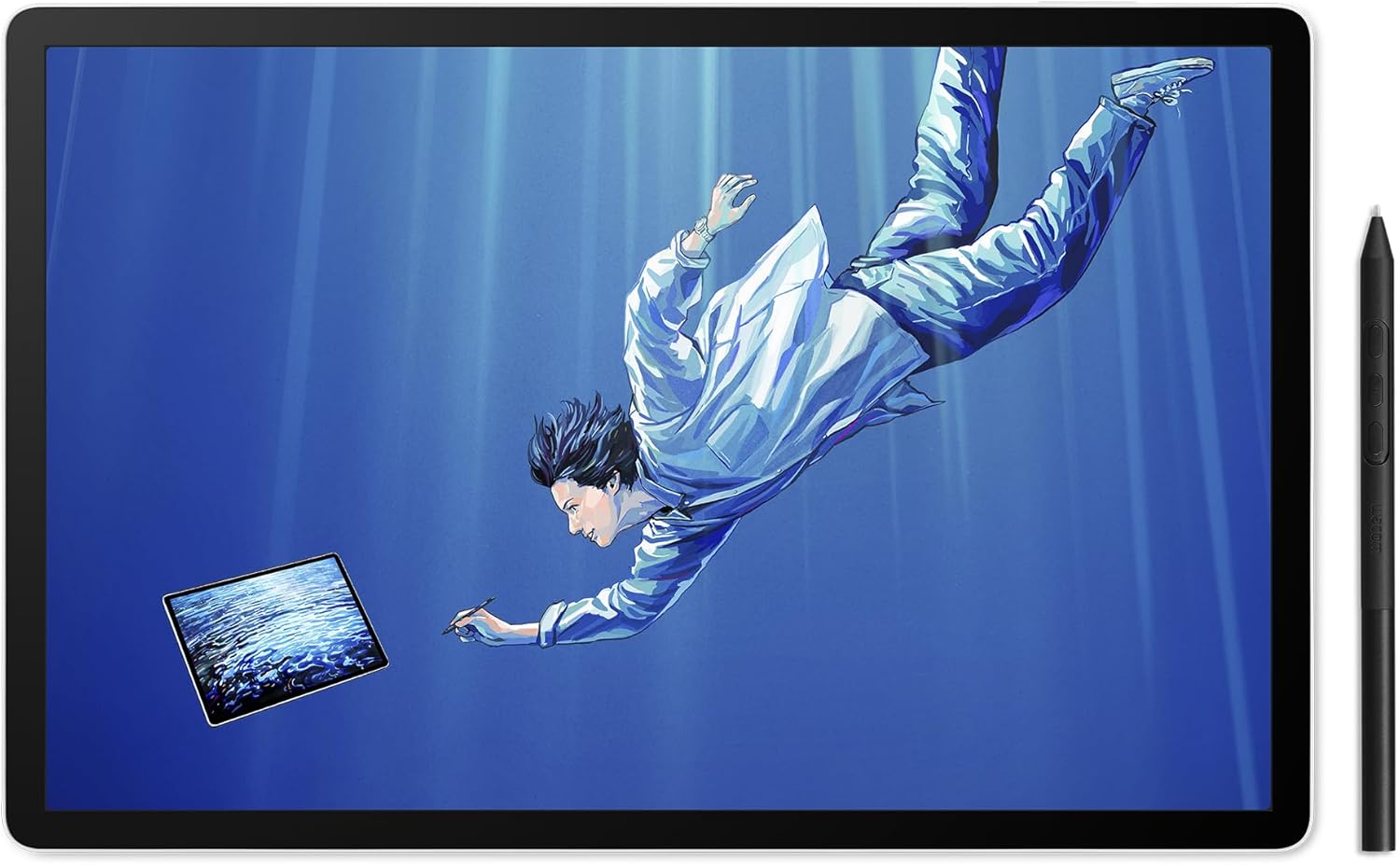
Image 1.1: Wacom MovinkPad Pro 14 Android Mobile Drawing Tablet with Slim Pro Pen 3.
2. Кутуда эмне бар
Таңгакта бардык буюмдар бар экенин текшериңиз:
- Wacom MovinkPad Pro 14
- USB-C to C-Cable
- Wacom Pro Pen 3 with Nib holder
- Replacement nibs (Carbon Shaft POM x1, POM x1, Felt x1)
- SD-card tool

Image 2.1: Contents of the Wacom MovinkPad Pro 14 packaging, including the tablet, pen, cable, and tools.
Video 2.1: An unboxing video demonstrating the contents of the MovinkPad Pro 14 package and initial setup steps.
3. Продукт бүтүп калдыview
3.1 Негизги өзгөчөлүктөрү
- Көчмө "баары бир жерде" дизайны: Thin, lightweight frame with Android 15 OS and pre-installed creative applications.
- Күчтүү аткаруу: Snapdragon 8s Gen 3 processor, 12GB RAM, 256GB storage with expandable microSD slot.
- Stunning 14" OLED Display: Crisp 3K (2880 × 1800px) resolution, wide color gamut (100% sRGB & DCI-P3), and Premium Texture etched glass for a pen-on-paper feel.
- Wacom Pro Pen 3: Battery-free pen with 8,192 pressure levels and interchangeable nibs.
3.2 Аппараттын компоненттери
Familiarize yourself with the physical components of your MovinkPad Pro 14.

Image 3.1: Visual representation of the MovinkPad Pro 14's technical specifications and features.
The tablet includes power and volume buttons, and an SD card slot for expanded storage. The Slim Pro Pen 3 features customizable buttons and a built-in nib holder for convenience.

Image 3.2: The Premium Texture etched glass provides a natural, paper-like drawing experience.
4. Орнотуу
4.1 Баштапкы күйгүзүү
- Press and hold the Power button located on the side of the tablet until the Wacom logo appears.
- Follow the on-screen prompts to complete the initial Android OS setup, including language selection, Wi-Fi connection, and Google account login.
4.2 Pen Setup
The Wacom Pro Pen 3 is battery-free and does not require charging. It is ready for use immediately after the tablet is powered on.
- Ensure the pen nib is properly inserted. Replacement nibs are stored in the pen's back end.
- The pen features customizable buttons. Refer to the 'Wacom Tips' app for configuration options.
4.3 Программа жана тиркемелер
The MovinkPad Pro 14 comes with pre-installed creative applications. The 'Wacom Tips' app is your starting point for guidance on functions, hardware settings, and accessing included software like Clip Studio Paint.
Видео 4.1: таанышуу видеосуasing the Wacom MovinkPad Pro 14's features and creative potential.
5. Иштөө нускамалары
5.1 Basic Pen Usage
- Чийүү жана эскиз: Use the pen directly on the OLED display. The Premium Texture etched glass provides a natural drawing feel.
- Басым сезгичтиги: The pen supports 8,192 levels of pressure sensitivity, allowing for varied line thickness and opacity based on pressure applied.
- Калем баскычтары: The buttons on the pen can be customized for various functions (e.g., right-click, erase, undo) within creative applications. Access pen settings via the Android system settings or the 'Wacom Tips' app.

Image 5.1: The Slim Pro Pen 3 offers precise control for digital artwork, responding to 8,192 levels of pressure.
5.2 Android OS навигациясы
Navigate the Android 15 operating system using touch gestures or the Pro Pen 3. Standard Android gestures apply for home, back, recent apps, and notifications.

Image 5.2: The portable design allows for creative work on the go, such as during travel.
5.3 Байланыш
- Wi-Fi: Connect to wireless networks for internet access and app downloads from the Google Play Store.
- Bluetooth: Pair with Bluetooth accessories such as keyboards, mice, or headphones.
- USB-C: Use the USB-C port for charging, data transfer, or connecting to compatible external displays or computers (features may vary and are subject to Wacom Lab beta testing for computer connectivity).
6. Техникалык тейлөө
6.1 Аппаратты тазалоо
- Планшеттин экранын жана корпусун тазалоо үчүн жумшак, түксүз чүпүрөктү колдонуңуз.
- өжөр тактар үчүн, бир аз гampкездемени суу же экранга тийбей турган тазалоочу эритме менен сүртүңүз. Күчтүү химиялык заттардан алыс болуңуз.
- Тазалоочу эритмелерди түздөн-түз экранга чачпаңыз.
6.2 Калемченин учун алмаштыруу
The pen nibs will wear down over time. Replace them when they become too short or feel rough.
- Unscrew the back end of the Wacom Pro Pen 3 to access the replacement nibs.
- Use the SD-card tool (or a small pair of tweezers) to gently pull out the old nib.
- Insert a new nib firmly until it clicks into place.
- Ensure the back end of the pen is screwed back on securely.
6.3 Батареяга кам көрүү
The MovinkPad Pro 14 contains a Lithium Ion battery. To prolong battery life:
- Ашыкча температурадан сактаныңыз.
- Батареянын бат-баттан толук зарядсызданышына жол бербеңиз.
- For long-term storage, charge the tablet to approximately 50-70%.
6.4 Программалык камсыздоо жаңыртуулары
Regularly check for and install system updates to ensure optimal performance, security, and access to new features. Updates can typically be found in the Android system settings under "System" or "About tablet."
7. Кыйынчылыктарды
If you encounter issues with your MovinkPad Pro 14, refer to the following common solutions:
- Планшет күйбөйт: Ensure the tablet is charged. Connect it to a power source using the USB-C cable and try powering it on after a few minutes.
- Калем жооп бербейт:
- Check if the pen nib is properly inserted.
- Планшетти кайра иштетиңиз.
- Ensure no magnetic interference is affecting the pen's operation.
- Экран жооп бербейт: Күйгүзүү баскычын болжол менен 10-15 секунд басып туруу менен күч менен кайра жүктөөнү аткарыңыз.
- Performance Issues (Lagging):
- Керексиз фон колдонмолорун жабуу.
- Clear cache of frequently used apps.
- жетиштүү бош орун камсыз кылуу.
- Check for and install any available system updates.
- Wi-Fi/Bluetooth байланыш көйгөйлөрү:
- Toggle Wi-Fi/Bluetooth off and on in settings.
- Роутерди өчүрүп-күйгүзүңүз (Wi-Fi үчүн).
- Bluetooth түзмөктөрүн унутуп, кайра жупташтырыңыз.
For persistent issues, consult the 'Wacom Tips' app or visit the official Wacom support webсайт.
8. Техникалык шарттар
| Өзгөчөлүк | Деталь |
|---|---|
| Продукциянын өлчөмдөрү | 12.7 x 8.3 x 0.04 дюйм |
| Элемент Салмагы | 1.61 фунт |
| Бренд | Wacom |
| Байланыш технологиясы | Bluetooth, USB-C to C-Cable, Wi-Fi |
| Басым сезгичтиги | 8192 деңгээл |
| Операция системасы | Android 15 |
| Өзгөчөлүктөр | 256GB storage plus expandable microSD slot, Battery Free Pen, OLED DISPLAY: Crisp 3K (2880 × 1800px), Snapdragon 8s Gen 3 processor, Wacom Premium Textured Glass (anti-reflection/anti-glare/anti-fingerprint) |
| Батареялар | 1 литий-иондук батарейка талап кылынат (кошулган) |
9. Кепилдик жана колдоо
For warranty information and technical support, please visit the official Wacom website or contact Wacom customer service. Keep your proof of purchase for warranty claims.
Онлайн колдоо: www.wacom.com/support


