1. Киришүү
The ATTACK SHARK R11 Ultra is a high-performance wireless gaming mouse designed for precision and speed. Featuring an ultra-lightweight carbon fiber construction, tri-mode connectivity, and an advanced PAW3950 MAX sensor, this mouse offers versatile functionality for various computing environments and gaming styles.

Сүрөт 1.1: Бүттүview of ATTACK SHARK R11 Ultra key features including carbon fiber construction, dual driver access, 8000Hz polling, ice-coating, 49g weight, and PAW3950 MAX sensor.
2. Пакеттин мазмуну
Пакетиңизде бардык буюмдар бар экенин текшериңиз:
- ATTACK SHARK R11 Ultra зымсыз оюн чычканы
- 8K Wireless Receiver (USB-C)
- USB-C - USB-A заряддоо/дата кабели
- User Manual
- Additional PTFE Mouse Feet (optional, may vary by region)
3. Продукт бүтүп калдыview
The R11 Ultra mouse features a lightweight design with strategically placed buttons for optimal control.

Image 3.1: The ATTACK SHARK R11 Ultra mouse shown alongside its 8K wireless receiver.
3.1. Mouse Components
- Сол чыкылдатуу баскычы: Primary input.
- Оң баскычты чыкылдатуу: Secondary input.
- Жылдыруу дөңгөлөгү: For vertical scrolling and middle-click function. Features an F-Switch Scroll Wheel Encoder for tactile feedback.
- Каптал баскычтары (Алга/Артка): Customizable for various functions.
- DPI Cycle баскычы: Located on the underside, cycles through preset DPI levels.
- Connectivity Switch: Located on the underside, switches between 2.4GHz wireless, Bluetooth, and wired modes.
- USB-C порту: Заряддоо жана зымдуу туташуу үчүн.
- PTFE буттары: Low-friction feet for smooth gliding.

Сүрөт 3.2: Детальдуу view of the mouse's internal optical micro switches and the F-Switch scroll wheel encoder, designed for durability and tactile response.
3.2. Дизайн өзгөчөлүктөрү
- Carbon Fiber Construction: The mouse shell is constructed with injection-molded carbon fiber material, contributing to its ultra-lightweight design (approximately 49g) while maintaining structural integrity.
- Nano-Ice Coating: An innovative coating provides a smooth, cool touch and enhances durability.
- Double-Layer Mouse Feet: Designed for smoother and more stable gliding compared to standard mouse feet.
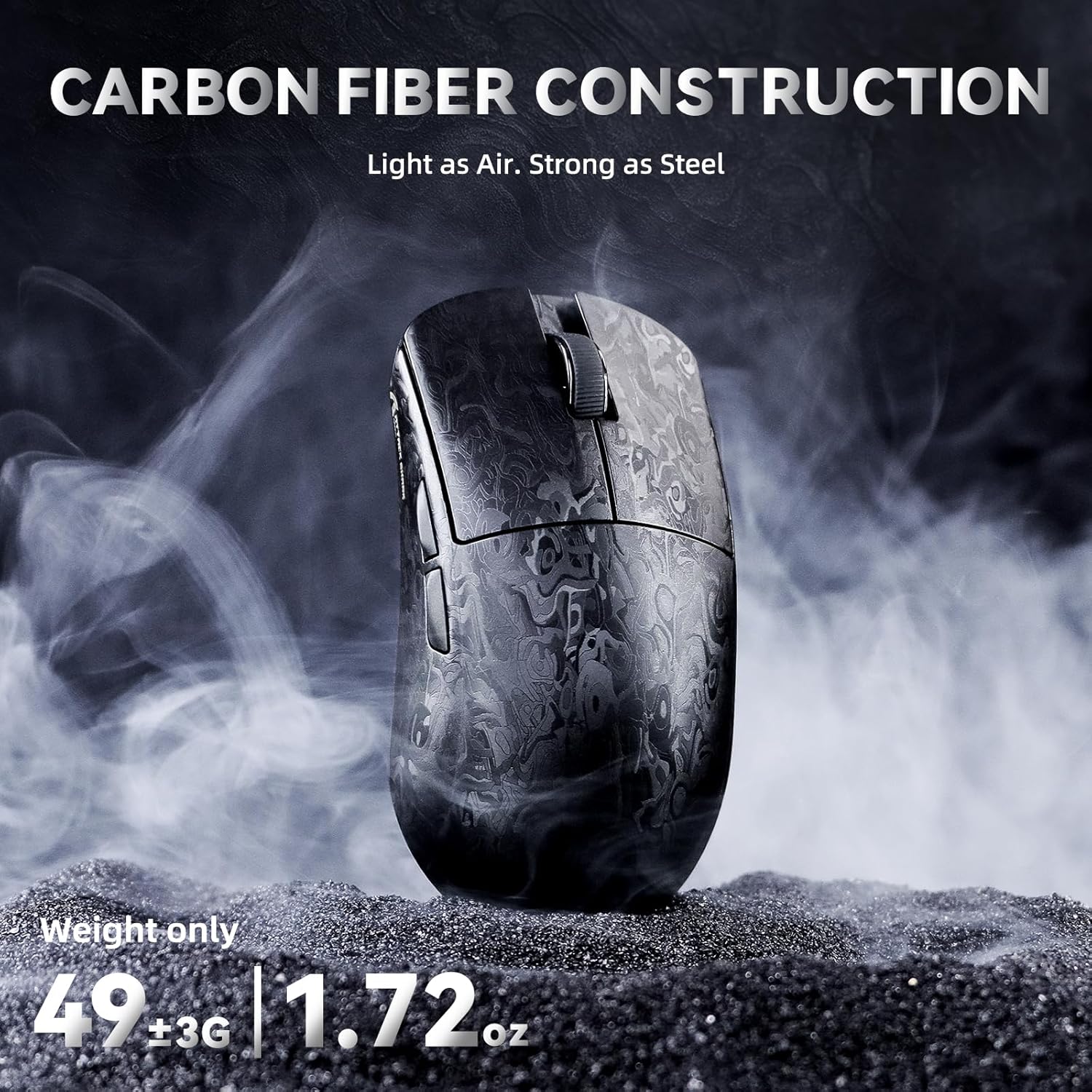
Image 3.3: The ATTACK SHARK R11 Ultra mouse, emphasizing its carbon fiber construction and ultra-lightweight design of 49 grams.

Image 3.4: The mouse featuring its Nano Metallic Ice-Coating and illustrating various grip options: palm grip, finger grip, and claw grip.

Image 3.5: The underside of the mouse, highlighting the double-layer PTFE mouse feet designed for enhanced glide and stability.
4. Орнотуу
4.1. Чычканды заряддоо
Connect the provided USB-C cable to the mouse's front port and the other end to a USB-A port on your computer or a USB power adapter. The mouse will charge automatically. An indicator light will show charging status.
4.2. Байланыш параметрлери
The R11 Ultra supports three connection modes: Wired, 2.4GHz Wireless, and Bluetooth. Use the switch on the underside of the mouse to select your desired mode.
4.2.1. Зымдуу туташуу
- Set the connectivity switch on the mouse to the 'Wired' position.
- Connect the USB-C cable from the mouse to a USB-A port on your computer.
- The mouse will be recognized automatically by your system.
4.2.2. 2.4 ГГц зымсыз туташуу
- Set the connectivity switch on the mouse to the '2.4G' position.
- Plug the 8K Wireless Receiver into an available USB-A port on your computer.
- The mouse and receiver should pair automatically. The receiver supports an 8000Hz polling rate for reduced latency.

Image 4.1: The 8K wireless receiver, which enables an 8000Hz polling rate for the ATTACK SHARK R11 Ultra mouse.
4.2.3. Bluetooth туташуусу
- Set the connectivity switch on the mouse to the 'BT' position.
- Компьютериңизде же түзмөгүңүздө Bluetooth жөндөөлөрүн ачып, жаңы түзмөктөрдү издеңиз.
- Жупташтыруу үчүн жеткиликтүү түзмөктөрдүн тизмесинен "ATTACK SHARK R11 Ultra" тандаңыз.
5. Иштөө нускамалары
5.1. DPI тууралоо
The DPI (Dots Per Inch) can be adjusted using the dedicated DPI button located on the underside of the mouse. Press the button to cycle through preset DPI levels. Default levels typically include 1200, 2400, 3200, 5600, 8000, and 42000 DPI.
5.2. Добуш берүү көрсөткүчү
The R11 Ultra supports an 8000Hz wireless polling rate and a 1000Hz wired polling rate. The polling rate can be configured via the customization software.
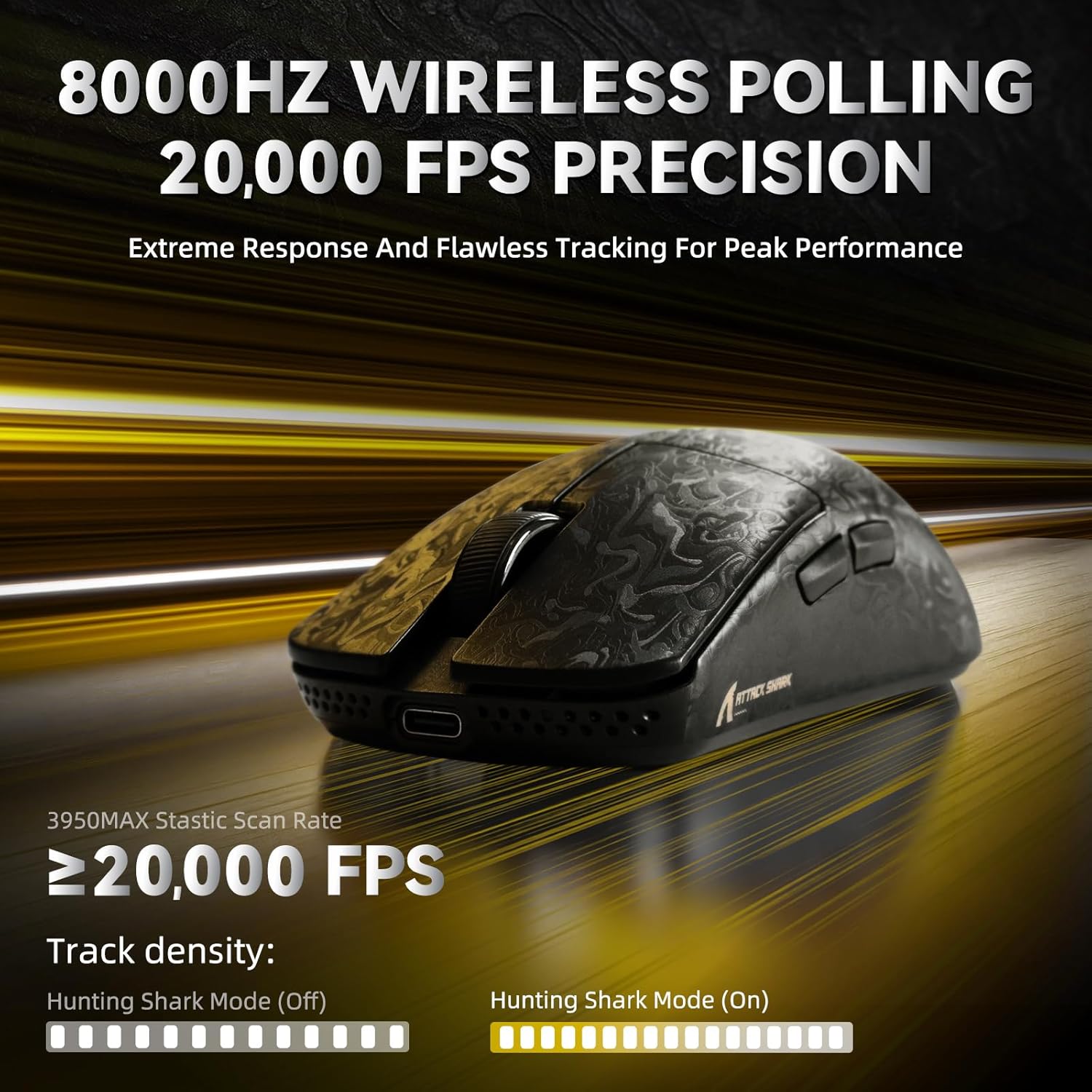
Image 5.1: The mouse demonstrating its 8000Hz wireless polling rate and 20000 FPS precision for accurate tracking.
5.3. Customization Software (AI Designed Driver)
The R11 Ultra features an innovative cloud-driven webpage for customization, eliminating the need for traditional driver software downloads. Access the webбаракчага:
- Adjust DPI settings and create custom profiles.
- Configure polling rate.
- Баскычтарды ыңгайлаштыруу.
- Record and assign macros.
- Adjust Lift-Off Distance (LOD) and other advanced functions.
Refer to the official ATTACK SHARK website for the link to the cloud-driven customization page.

Image 5.2: A screenshot of the cloud-driven customization interface, showing options for DPI adjustment, polling rate, and other settings.
6. Техникалык тейлөө
6.1. Тазалоо
Оптималдуу иштеши үчүн чычканыңызды дайыма тазалаңыз. Бетти сүртүү үчүн жумшак, кургак чүпүрөктү колдонуңуз. өжөр кир үчүн, бир аз гamp cloth can be used, ensuring no moisture enters the mouse's internal components. Avoid harsh chemicals or abrasive materials.
6.2. Сактоо
When not in use, store the mouse in a clean, dry environment away from direct sunlight and extreme temperatures. If storing for an extended period, ensure the mouse is fully charged.
7. Кыйынчылыктарды
- Чычкан жооп бербей жатат: Ensure the mouse is charged. Check the connectivity switch is in the correct position (Wired, 2.4G, or BT). For 2.4G, ensure the receiver is properly plugged in. For Bluetooth, re-pair the device.
- Кечигип же үзгүлтүктүү байланыш: For 2.4G wireless, ensure the receiver is not obstructed and is close to the mouse. Avoid interference from other wireless devices. For Bluetooth, ensure your device's Bluetooth is enabled and updated.
- Көз салуу маселелери: Clean the mouse sensor on the underside. Ensure you are using the mouse on a suitable surface (e.g., a mouse pad). Adjust DPI settings if tracking is too fast or slow.
- Баскычтар иштебейт: Check customization settings in the cloud-driven software to ensure buttons are correctly assigned.
If issues persist, refer to the official ATTACK SHARK support resources or contact customer service.
8. Техникалык шарттар
Detailed technical specifications for the ATTACK SHARK R11 Ultra mouse:
| Өзгөчөлүк | Спецификация |
|---|---|
| Модел | R11 Ultra |
| Байланыш | Wired (USB-C), Bluetooth, 2.4GHz Wireless |
| Сенсор | PixArt PAW3950 MAX |
| MCU | Скандинавия 52840 |
| DPI диапазону | Up to 42,000 DPI (Programmable) |
| Добуш берүү көрсөткүчү | 8000Hz (Wireless), 1000Hz (Wired) |
| Көз салуу ылдамдыгы | 750IPS |
| Ылдамдатуу | 50G |
| Которгучтар | Optical Micro Switches (70 Million Clicks) |
| Салмагы | Approximately 49g ± 3g |
| Батарея сыйымдуулугу | 300mAh |
| Өлчөмдөр | 124 x 65.5 x 38 мм |

Image 8.1: A comprehensive table detailing the specifications of the R11 Ultra mouse.

Image 8.2: Detailed information about the PixArt PAW3950 MAX sensor, including DPI adjustment range, movement speed, and acceleration.

Image 8.3: A visual representation of the Nordic 52840 MCU chip, which provides stable and seamless connectivity.
9. Кепилдик жана колдоо
The ATTACK SHARK R11 Ultra mouse comes with a standard manufacturer's warranty. For specific warranty terms, duration, and support inquiries, please refer to the warranty card included in your package or visit the official ATTACK SHARK website. For technical assistance or troubleshooting beyond this manual, please contact ATTACK SHARK customer support.


