1. Продукт бүтүп калдыview
The NEWFAST 5400Mbps USB WiFi Adapter (Model NF-U353) is designed to provide high-speed wireless connectivity for your PC. It supports the latest WiFi 6E protocol across three frequency bands: 2.4GHz, 5GHz, and 6GHz, offering a combined data transfer rate of up to 5400Mbps. This adapter is suitable for demanding network activities such as 4K video streaming, online gaming, and simultaneous multi-device connections. It incorporates OFDMA and MU-MIMO technologies for stable connections and WPA3 encryption for enhanced network security.

Figure 1: NEWFAST 5400Mbps USB WiFi Adapter with dual adjustable antennas.
2. Пакеттин мазмуну
- 1 x NEWFAST 5400Mbps USB WiFi Adapter (NF-U353)
- 1 x Ыкчам орнотуу колдонмосу
3. Орнотуу колдонмосу
3.1 Системалык талаптар
- Operating System: Windows 10 (32-bit / 64-bit), Windows 11 (64-bit)
- USB Port: USB 3.0 (recommended for optimal performance), compatible with USB 2.0
3.2 Драйверди орнотуу
The NEWFAST USB WiFi Adapter features a built-in driver, eliminating the need for a CD-ROM or external downloads. The driver will automatically load upon initial connection.
- Insert the USB WiFi adapter into an available USB port on your computer.
- Your computer should recognize the adapter as a storage device. Navigate to 'This PC' or 'My Computer' and locate the new drive.
- Double-click the 'Setup.exe' file within the drive to begin the driver installation. Follow the on-screen prompts to complete the installation.
- After successful installation, restart your computer if prompted.

Figure 2: Visual guide for driver installation steps.
3.3 Connecting to a WiFi Network
- Once the driver is installed and your computer has restarted, click the network icon in the system tray (usually bottom-right corner of the screen).
- Select the desired WiFi network from the list of available networks.
- Enter the network security key (password) and click 'Connect'.
- The network status should change to 'Connected' after a short while.
3.4 Антеннаны тууралоо
The adapter features two 5dBi high-gain antennas that can be rotated 180 degrees. Adjust the antennas to optimize signal strength and improve reception, especially in complex network environments or when the router is at a distance.
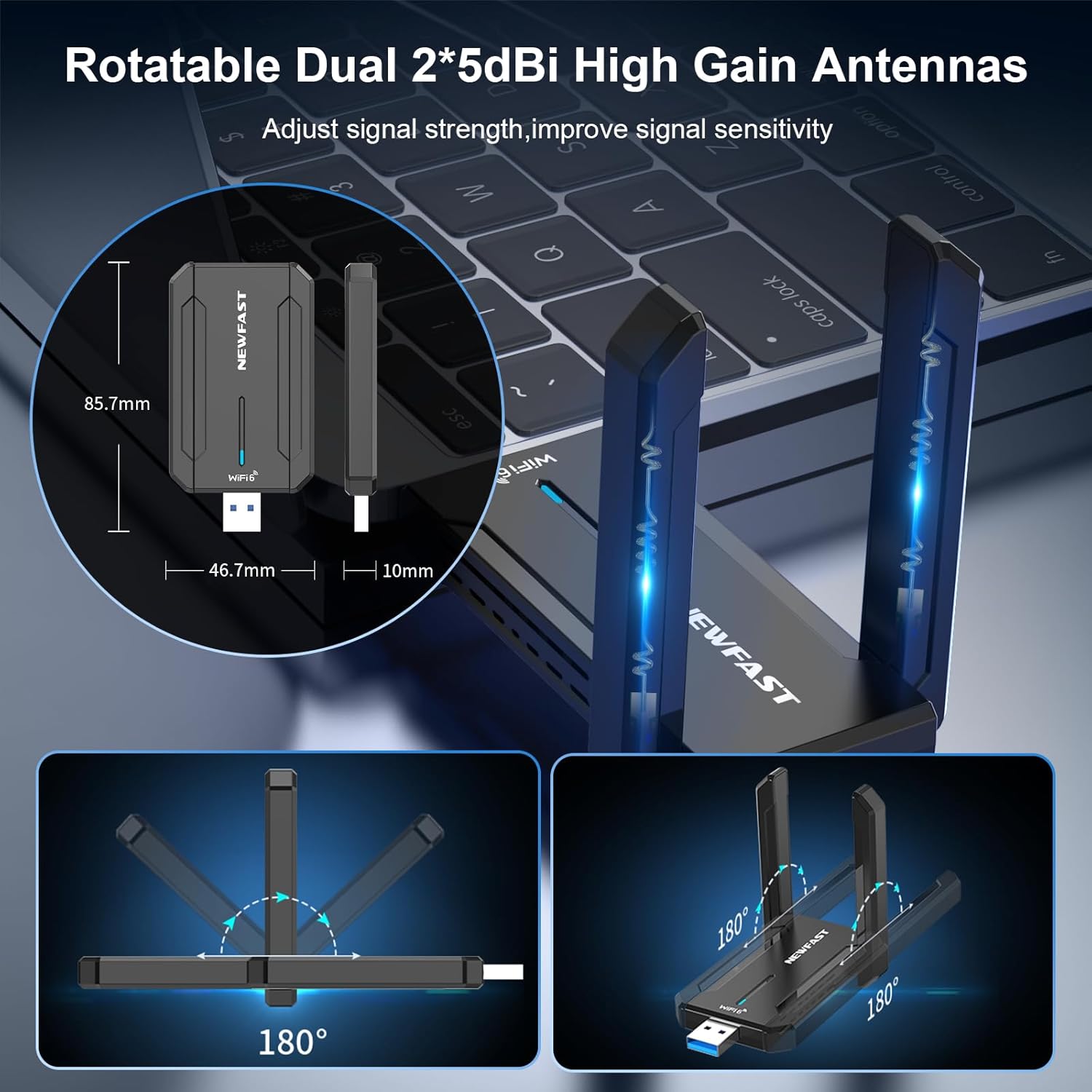
Figure 3: Rotatable antennas for signal optimization and adapter dimensions.
4. Иштөө режимдери
The NEWFAST USB WiFi Adapter supports two primary operating modes:
- Receive WiFi Mode: Connects your desktop or laptop to an existing WiFi network, allowing it to access the internet.
- Launch WiFi Hotspot Mode (AP Mode): Transforms your computer into a WiFi hotspot, enabling other devices (e.g., smartphones, tablets) to connect to its internet connection. This mode is useful for sharing your internet access.

Figure 4: Two working modes: Receive WiFi and Launch WiFi Hotspot.
5. Коопсуздук өзгөчөлүктөрү
The adapter supports advanced WPA3 security features to protect your wireless connections. WPA3 provides stronger encryption and authentication compared to previous standards, safeguarding your data and personal information from unauthorized access.
6. Техникалык тейлөө
To ensure the longevity and optimal performance of your NEWFAST USB WiFi Adapter, consider the following maintenance tips:
- Адаптерди таза жана чаңдан алыс кармаңыз. Тазалоо үчүн жумшак, кургак чүпүрөктү колдонуңуз.
- Адаптерге экстремалдык температурага же нымдуулукка жол бербеңиз.
- Handle the adapter carefully to prevent physical damage to the USB connector or antennas.
- Туруктуу байланышты камсыз кылуу үчүн адаптердин USB портуна бекем сайылганын текшериңиз.
7. Кыйынчылыктарды
7.1 Интернет байланышы жок
- Драйверди орнотууну текшерүү: Verify that the driver is correctly installed. Go to Device Manager (right-click Start button > Device Manager) and check for any yellow exclamation marks next to network adapters. Reinstall the driver if necessary.
- Verify WiFi Connection: Ensure you are connected to the correct WiFi network and have entered the password accurately.
- Маршрутизатордун абалы: Check if your router is functioning correctly and broadcasting a WiFi signal.
- Антеннанын абалы: Adjust the adapter's antennas to improve signal reception.
7.2 Байланыш ылдамдыгынын жайлашы
- USB 3.0 порт: Ensure the adapter is plugged into a USB 3.0 port on your computer for maximum speed. USB 2.0 ports will result in lower speeds.
- Маршрутизатордун шайкештиги: For optimal WiFi 6E speeds, ensure your router also supports WiFi 6E (6GHz band).
- Интерференция: Move the adapter away from other electronic devices that might cause interference (e.g., microwaves, cordless phones).
- Сигнал күчү: Adjust antenna orientation to achieve better signal strength.
- Тармактын тыгыны: If many devices are connected to your network, consider using the 6GHz or 5GHz band for less congestion.
7.3 Адаптер таанылган жок
- Башка USB портун колдонуп көрүңүз: Plug the adapter into a different USB port on your computer.
- Компьютерди кайра иштетүү: A simple restart can often resolve recognition issues.
- Түзмөк башкаргычын текшерүү: Look for the device in Device Manager. If it appears with an error, try updating or reinstalling the driver.
8. Техникалык шарттар
| Бренд | NEWFAST |
| Модел | NF-U353 |
| Маалыматтарды өткөрүү ылдамдыгы | Up to 5400 Mbps (2.4GHz: 574Mbps, 5GHz: 2400Mbps, 6GHz: 2400Mbps) |
| Data Link Protocol | IEEE 802.11ax/ac/a/b/g/n |
| Аппараттык интерфейс | USB 3.0 |
| Шайкеш түзмөктөр | Desktop, Laptop (Windows 10/11 only) |
| Антенналар | 2 x 5dBi High Gain Antennas (180° rotatable) |
| Коопсуздук | WPA3 шифрлөө |
| Өлчөмдөр | 15 x 9 x 1.9 см (болжол менен) |
| Салмагы | 60 г (болжол менен) |
9. Кепилдик жана колдоо
This NEWFAST product comes with a 1-year warranty. For any questions or technical assistance, please contact our professional after-sales service team. We aim to respond to inquiries as soon as possible.
Contact information can typically be found on the product packaging or the official NEWFAST webсайт.


