1. Киришүү
This manual provides essential instructions for setting up, operating, and maintaining your KOORUI G2511P 24.5-inch Gaming Monitor. Designed for an optimal gaming and viewing experience, this monitor features a 200Hz refresh rate, 1ms GTG response time, Full HD IPS panel with 90% DCI-P3 color gamut, HDR400 support, and Adaptive Sync technology. Please read this manual thoroughly before use to ensure proper functionality and longevity of your device.
2. Пакеттин мазмуну
Төмөндө тизмеленген нерселердин баары пакетиңизде бар экенин текшериңиз:
- 24.5 дюймдук монитор
- HDMI кабели
- Кубаттуу адаптер
- Колдонуучунун Колдонмосу (бул документ)
3. Орнотуу
3.1 Стендди чогултуу
The monitor stand consists of two parts: the base and the upright arm. These parts slide together. Once assembled, the stand then slips into a dedicated slot at the back of the monitor. Ensure the stand is securely locked into place before placing the monitor on a surface to prevent accidental detachment.

Сүрөт 3.1: Алдыңкы view of the KOORUI G2511P monitor with its stand.

3.2-сүрөт: Арткы view highlighting the stand attachment and control joystick.
3.2 Түзмөктөргө туташуу
The KOORUI G2511P monitor offers multiple connectivity options for various devices:
- HDMI: Connect your PC, gaming console, or other HDMI-enabled devices using the provided HDMI cable. The monitor features two HDMI 2.0 ports.
- DisplayPort (DP): For optimal gaming performance, connect your PC's graphics card to the monitor's DisplayPort 1.4 input.
- Аудио чыгышы: Use the 3.5mm audio jack to connect external headphones or speakers, as the monitor does not have built-in speakers.
- Күч: Кубат адаптерин монитордун туруктуу ток киргизүүсүнө, андан кийин розеткага туташтырыңыз.

Figure 3.3: Monitor connectivity ports.
3.3 VESA орнотуу
The monitor is VESA 75x75mm compatible, allowing it to be mounted on a wall or an adjustable monitor arm (sold separately). This provides flexibility for optimizing your workspace and viewбурчтар.

Figure 3.4: VESA mounting points on the monitor's rear.
4. Иштөө нускамалары
4.1 Күйгүзүү/өчүрүү
Press the power button/joystick located on the back of the monitor to turn it on or off. A brief press typically powers it on, while a longer press will power it off.
4.2 Экрандагы дисплей (OSD) менюсунун навигациясы
The monitor's settings are adjusted using a single joystick control located on the back. Push the joystick in to confirm selections, and move it up, down, left, or right to navigate through the menu options and adjust values.
- Push In: Select item / Confirm setting
- Өйдө/төмөн: Navigate menu / Adjust value
- Сол оң: Select item / Adjust value
4.3 Display Settings and Features
Сиздин оптималдаштыруу viewing experience through the OSD menu:
- Жаңыртуу ылдамдыгы (200 Гц): Ensures ultra-smooth motion, reducing blur in fast-paced content.
- Жооп берүү убактысы (1мс GTG): Minimizes ghosting and input lag for competitive gaming.
- Resolution (FHD 1080p): Provides crisp and clear Full High Definition visuals.
- IPS панели: Кеңири сунуш кылат viewing angles (178°) and vibrant, accurate colors (90% DCI-P3).
- HDR400: Enhances contrast and color depth for a more immersive visual experience in compatible content.
- Адаптивдүү синхрондоштуруу: Экрандын айрылышын жана кекечтенүүсүн жок кылуу үчүн монитордун жаңыртуу жыштыгын видеокартаңыздын кадр жыштыгы менен синхрондоштурат.
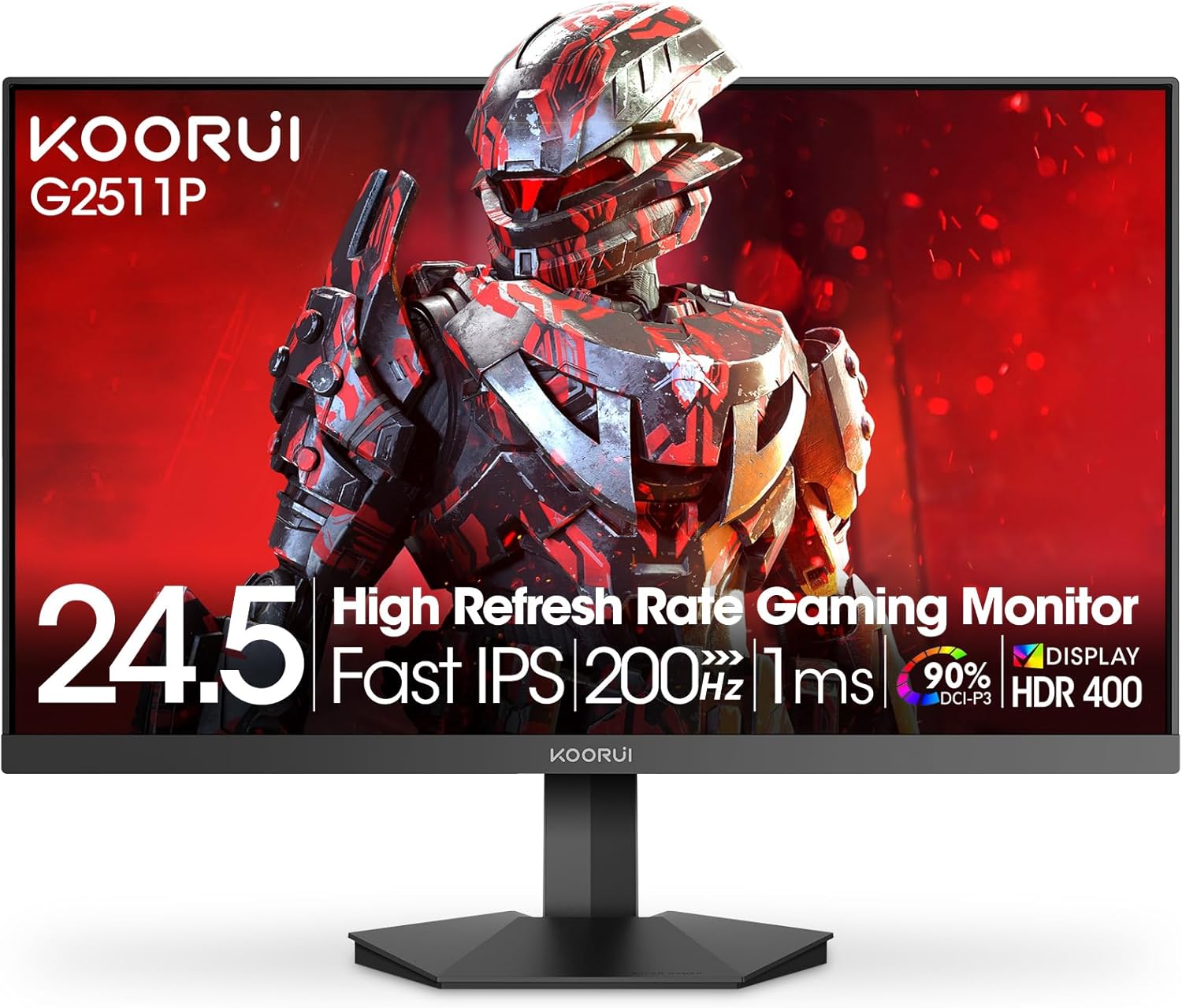
Figure 4.1: Key features of the KOORUI G2511P monitor.

Figure 4.2: Visual representation of high refresh rate benefits.
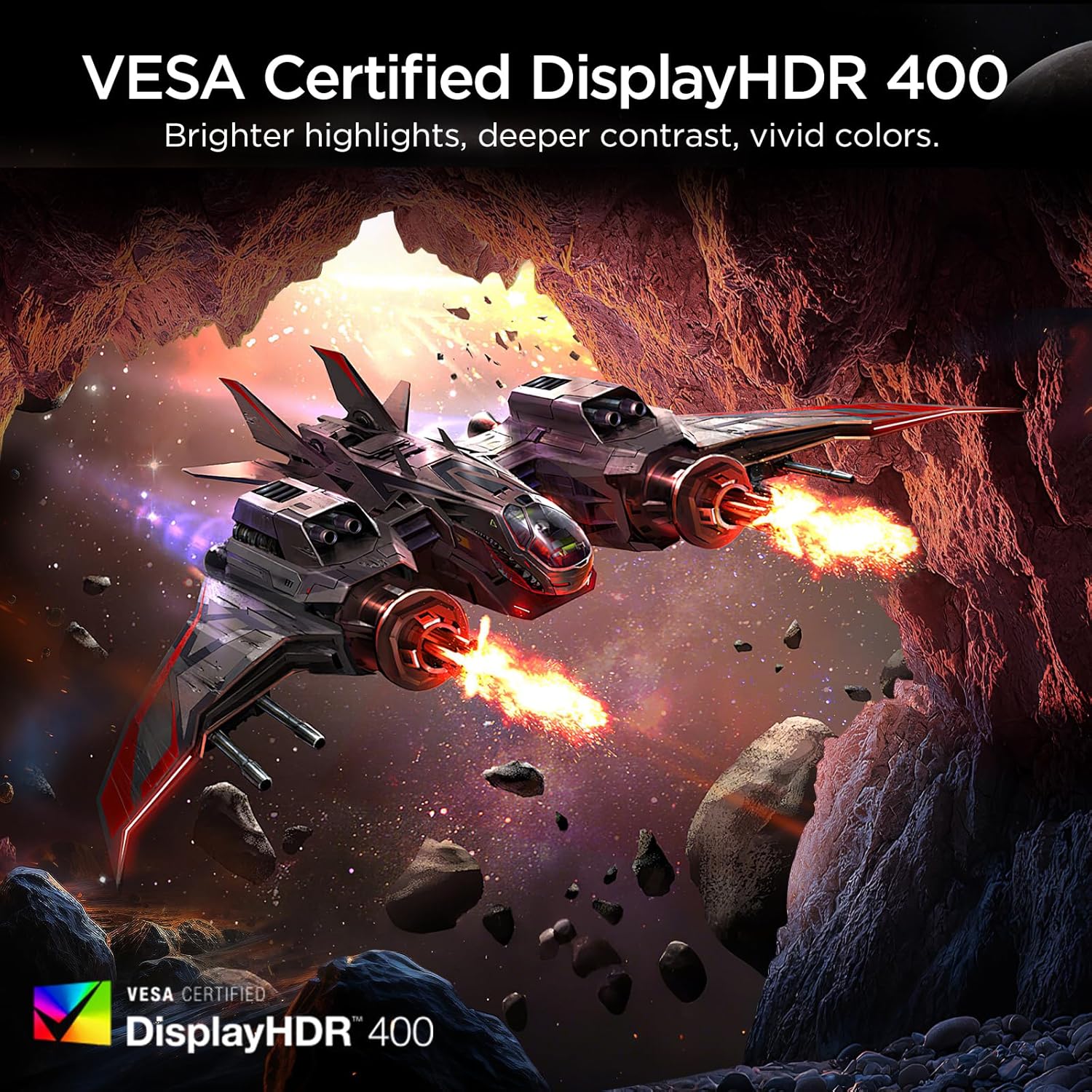
Figure 4.3: HDR400 for enhanced visual quality.
Сүрөт 4.4: Адаптивдүү синхрондоштуруу иштеп жатат.
4.4 Pro-Gaming Enhancements
Access specialized gaming tools via the OSD menu:
- FPS Display Modes: Optimize visual settings for First-Person Shooter games.
- Adjustable On-Screen Timer: Track in-game events or personal bests.
- Customizable Crosshair Overlay: Improve aiming precision.

Figure 4.5: Pro-gaming enhancements for competitive play.
4.5 Көзгө кам көрүүнүн өзгөчөлүктөрү
The KOORUI G2511P monitor incorporates features designed to reduce eye strain during extended use:
- Flicker-Free технологиясы: Reduces screen flickering that can cause eye fatigue.
- Төмөн көк жарык режими: Filters out harmful blue light emissions to protect your eyes.
5. Техникалык тейлөө
Мониторуңуздун узак иштөөсүн жана оптималдуу иштешин камсыз кылуу үчүн төмөнкү тейлөө көрсөтмөлөрүн аткарыңыз:
- Экранды тазалоо: Экранды жумшак, түксүз чүпүрөк менен акырын сүртүңүз. өжөр белгилери үчүн, жеңил гampкездемени суу же аммиаксыз, спиртсиз экран тазалагыч менен сүртүңүз. Тазалоочу каражатты түз экранга чачпаңыз.
- Тазалоо Casing: Мониторду тазалоо үчүн жумшак, кургак чүпүрөктү колдонуңуз casinг. Абразивдүү тазалагычтардан же эриткичтерден качыңыз.
- Вентиляция: Ашыкча ысып кетүүнүн алдын алуу үчүн монитордогу желдетүү тешиктери жабылбаганын текшериңиз.
- Сактагыч: Узак мөөнөткө пайдаланылбаганда, мониторду салкын, кургак жерде, тике күн нурунан жана экстремалдык температурадан алыс сактаңыз.
6. Кыйынчылыктарды
Эгерде сиз мониторуңузда көйгөйлөргө туш болсоңуз, төмөнкү жалпы көйгөйлөрдү чечүү кадамдарын караңыз:
| Көйгөй | Мүмкүн чечим |
|---|---|
| Күч жок | Check if the power cable is securely connected to both the monitor and the power outlet. Ensure the power adapter is functioning. |
| Сигнал жок | Verify that the HDMI or DisplayPort cable is correctly connected to both the monitor and your device. Ensure the correct input source is selected in the OSD menu. |
| Жаркылдаган экран | Check the cable connections. Ensure your graphics card drivers are up to date. Adjust the refresh rate in your device's display settings. |
| Сүрөттүн сапаты начар | Adjust brightness, contrast, and color settings in the OSD menu. Ensure the display resolution on your device matches the monitor's native resolution (1920x1080). |
| Adaptive Sync Not Working | Ensure Adaptive Sync is enabled in the monitor's OSD menu and in your graphics card's control panel. Use a DisplayPort cable for optimal performance. |
7. Техникалык шарттар
| Өзгөчөлүк | Спецификация |
|---|---|
| Модель номери | G2511P |
| Screen Size | 24.5 дюйм |
| Панел түрү | IPS |
| Резолюция | 1920 x 1080 (FHD 1080p) |
| Жаңыртуу ылдамдыгы | 200Hz |
| Жооп убактысы | 1 мс (GTG) |
| HDR колдоо | HDR400 |
| Түс гаммасы | 90% DCI-P3 |
| Сүрөттүн жарыктыгы | Бир чарчы метрге 350 Кандела |
| Сүрөттүн карама-катышы | 1200:1 |
| Байланыш | 2x HDMI 2.0, 1x DisplayPort 1.4, Аудио чыгыш |
| VESA шайкештиги | 75x75мм |
| Продукциянын өлчөмдөрү | 8.84 x 22.05 x 17.52 дюйм |
| Элемент Салмагы | 9.63 фунт |
8. Кепилдик жана колдоо
KOORUI monitors are manufactured with a focus on quality and reliable performance. This product comes with a 3 жылдык Чектелген Кепилдик. For any questions, technical assistance, or warranty claims, please contact KOORUI's dedicated support team. Refer to the contact information provided on the KOORUI official webсайт же сатып алуу документтери.
9. Расмий продукт Video
Көрүү үчүн расмий продукт видеосун көрүңүзview of the KOORUI G2511P Gaming Monitor's features and capabilities.
Видео 9.1: Расмий продукт көргөзмөсүasing the KOORUI G2511P Gaming Monitor's features, including its 200Hz refresh rate, 1ms response time, HDR400, and Adaptive Sync technology.


