Naifay Android 12 Car Radio Instruction Manual
For Toyota Prius (2004-2009) - Model: Android 12 Car Radio
1. Продукт бүтүп калдыview
The Naifay Android 12 Car Radio is an advanced infotainment system designed to upgrade your Toyota Prius (2004-2009). It features a 9-inch 2.5D IPS touch screen, a 4-Core processor, 2GB RAM, and 32GB ROM. This unit supports wireless CarPlay, Android Auto, Bluetooth, GPS navigation, WiFi connectivity, FM radio, and AHD backup camera input. Steering wheel controls are also supported for seamless integration with your vehicle.
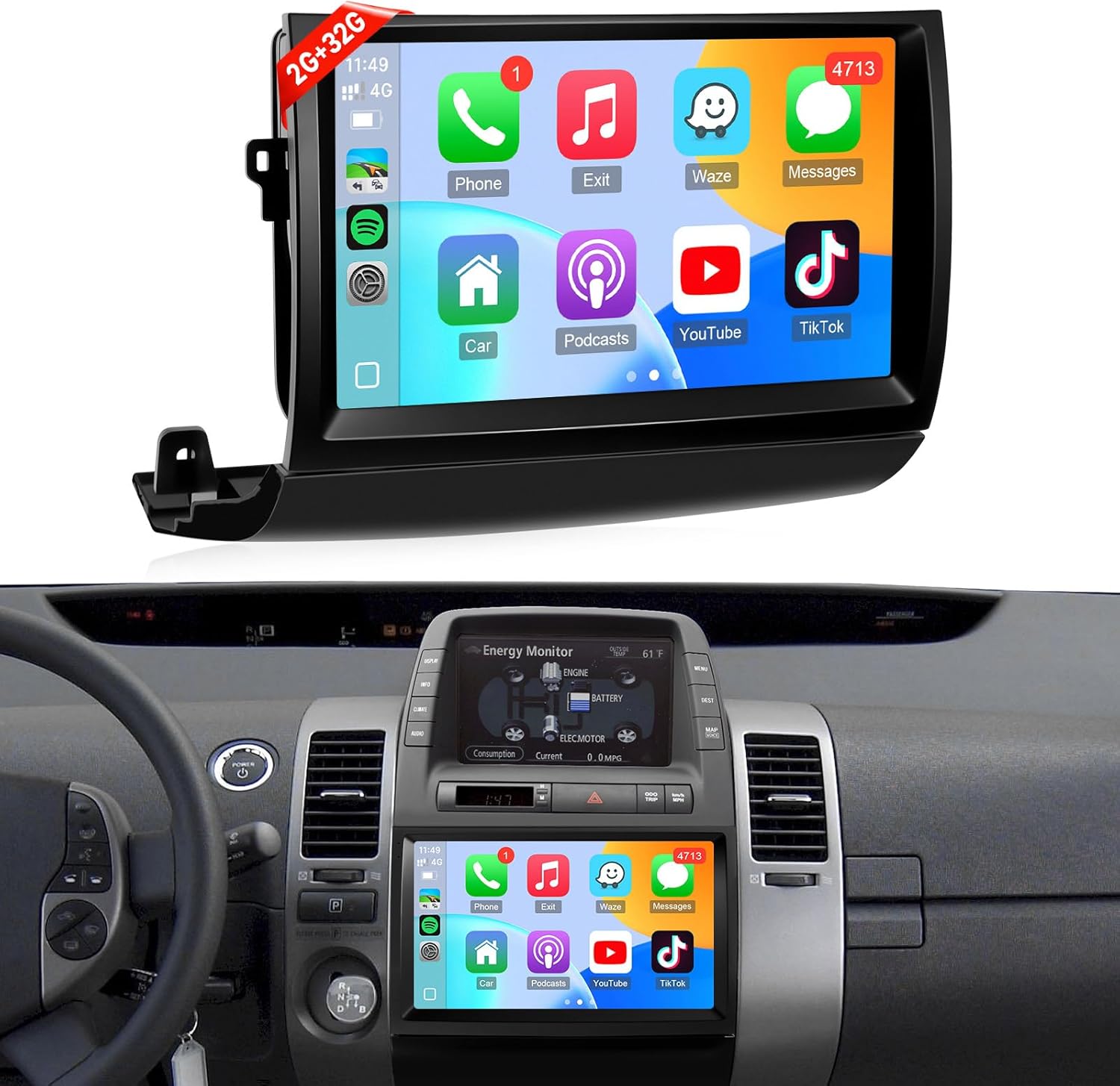
Image 1.1: Naifay Android 12 Car Radio unit and its appearance when installed in a Toyota Prius dashboard.

Image 1.2: Key features of the Naifay Android 12 Car Radio, highlighting its quad-core processor, IPS screen, GPS navigation, CarPlay, Android Auto, FM radio, AHD camera support, Bluetooth, and MirrorLink capabilities.
2. Орнотуу жана орнотуу
This section provides detailed steps for installing your Naifay Android 12 Car Radio. It is recommended to watch the provided installation video for a visual guide.
2.1 Алдын ала орнотуу текшерүү тизмеси
- Ensure your vehicle is parked on a flat surface with the parking brake engaged.
- Before disconnecting the old radio, eject all CDs to prevent them from becoming inaccessible.
- Identify your Toyota Prius model (2004-2009) and check if it has a large screen, navigation system, or JBL sound system. This unit is designed to fit JBL versions.
- Gather necessary tools: trim removal tools, screwdriver (Phillips head), 10mm socket wrench.
2.2 Орнотуу кадамдары
- Башкаруу панелинин бөлүктөрү алынып салынат: Carefully use a trim removal tool to pry out the dashboard trim pieces surrounding the existing radio unit. Start with the side vents and then the lower trim.
- Remove Old Radio Unit: Unscrew any visible screws holding the old radio in place. Disconnect all wiring harnesses and the antenna cable from the back of the old unit.
- Transfer Clips: Remove the yellow/green clips from the old radio unit and transfer them to the new Naifay Android 12 Car Radio. This ensures a secure fit in the dashboard.
- Connect New Wiring: Connect the provided wiring harnesses from the Naifay unit to your vehicle's existing wiring. Ensure all connections are secure. Connect the 4G antenna and GPS antenna, placing them in a suitable location (e.g., taped behind the dashboard).
- Initial Power-On Test: Before fully securing the unit, briefly power on the car radio to verify it powers on, loads the Android system, and produces sound.
- Program Steering Wheel Controls: Access the unit's settings (General > Steering Wheel Study) to program your vehicle's steering wheel buttons for volume, mode, and other functions. Follow the on-screen instructions to long-press buttons on the steering wheel and assign them functions on the screen.
- Secure New Unit: Carefully slide the new Naifay Android 12 Car Radio into the dashboard opening. Ensure all clips align and snap into place. Reinstall any screws removed earlier.
- Trimди кайра орнотуу: Reattach all dashboard trim pieces, ensuring they snap securely into position.
2.3 Орнотуу боюнча видео колдонмо
Video 2.1: A detailed guide on how to install the Naifay Android 12 Car Radio in a Toyota Prius (2004-2009), including dashboard disassembly, wiring connections, and initial setup.
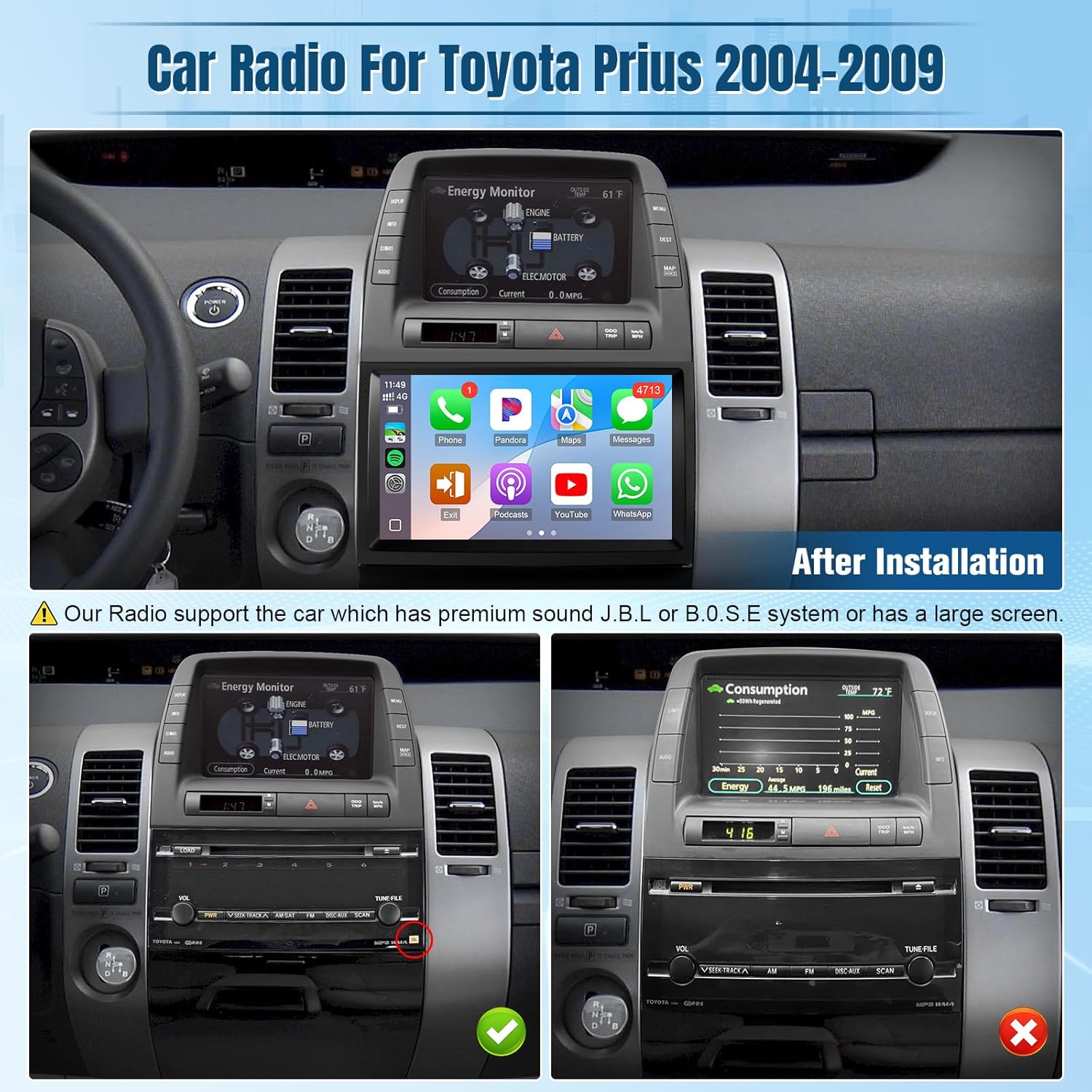
Image 2.2: Visual guide for identifying compatible Toyota Prius models (2004-2009) based on existing audio system configurations (JBL vs. non-JBL/large screen).

Image 2.3: Product dimensions and a comprehensive list of all components included in the package, essential for a complete installation.
3. Иштөө нускамалары
Familiarize yourself with the various functions and features of your new Naifay Android 12 Car Radio.
3.1 Wireless CarPlay & Android Auto
- Connect your smartphone wirelessly via Bluetooth and WiFi.
- Access phone contacts, emails, notifications, map navigation, music, and videos directly on the car radio screen.
- Utilize voice control features like Siri or Google Assistant for hands-free operation.
Video 3.1: Demonstrates the wireless CarPlay and Android Auto connection process and interface on the car stereo radio.

Сүрөт 3.1: Бүттүview of wireless CarPlay, Android Auto, and MirrorLink functionalities, detailing their connection methods and user interfaces.

Image 3.2: Illustrates the seamless integration of wireless CarPlay and Android Auto, including voice commands and navigation features.
3.2 GPS багыттоо & WiFi
- The unit includes a GPS module for offline and online navigation.
- Connect to WiFi or a mobile hotspot to download offline maps and applications from the Play Store.
- Note: Due to 2GB RAM, it is recommended to download only 1-2 applications to prevent system slowdowns.

Image 3.3: Displays the GPS navigation interface and options for WiFi connectivity to download apps and maps.

Image 3.4: Highlights GPS navigation with route planning and WiFi hotspot functionality for internet access and app usage.
3.3 Built-in Bluetooth & FM Radio
- Enjoy stable hands-free calls with the built-in microphone and external microphone support.
- Supports manual and automatic FM station search with unlimited preset stations.

Image 3.5: Illustrates the Bluetooth hands-free calling feature, allowing users to make and receive calls directly from the car radio.

Image 3.6: Displays the FM radio interface, highlighting stable reception and easy station tuning.
3.4 AHD Backup Camera & Steering Wheel Control (SWC)
- Automatic display of the AHD backup camera image when reversing, enhancing safety.
- Supports original car steering wheel controls for hands-free calls, music switching, and volume adjustment.

Image 3.7: Shows the interfaces for Bluetooth, FM radio, AHD backup camera, steering wheel controls, and split-screen functionality.

Image 3.8: Illustrates the AHD backup camera view and the integration of steering wheel controls for convenient operation.
3.5 Бөлүнгөн экрандын иштеши
- Allows two applications to run simultaneously on the screen, such as navigation and music playback.

Image 3.9: Demonstrates the split-screen feature, allowing simultaneous use of two applications for enhanced multitasking.
3.6 EQ Adjustable
- Customize audio output with the built-in equalizer (DSP) to match your preferences.
- Adjust bass, treble, and other sound parameters for optimal listening experience.
Video 3.2: Shows how to access and adjust the equalizer (DSP) settings on the car stereo radio to customize audio output.
4. Техникалык тейлөө
To ensure the longevity and optimal performance of your Naifay Android 12 Car Radio, follow these maintenance guidelines:
- Экранды тазалоо: Сенсордук экранды акырын сүртүү үчүн жумшак, түксүз чүпүрөктү колдонуңуз. өжөр тактар үчүн, бир аз гampчүпүрөккө суу же экранды тазалоочу каражат. Катуу химиялык заттардан же абразивдүү материалдардан алыс болуңуз.
- Программалык камсыздоо жаңыртуулары: Periodically check for available software updates through the unit's settings menu. Updates can improve performance, add new features, and fix bugs.
- Ашыкча температурадан сактаныңыз: Автоунааларда колдонуу үчүн иштелип чыкканы менен, өтө ысыкка же суукка узак убакытка дуушар болуу анын иштешине таасир этиши мүмкүн.
- Кабелдик башкаруу: Бардык кабелдердин бекем туташтырылганын жана кысылып калбаганын же ашыкча эскирбегенин текшериңиз.
5. Кыйынчылыктарды
If you encounter issues with your car radio, refer to the following common troubleshooting tips:
- Кубат жок: Check all power connections. Ensure the vehicle's ignition is on. Verify the unit's fuse is intact.
- Үн жок: Check speaker connections. Verify volume levels on the unit and through steering wheel controls. Access the DSP/Equalizer settings to ensure audio output is correctly configured.
- CarPlay/Android Auto туташпай жатат: Ensure Bluetooth and WiFi are enabled on both the car radio and your smartphone. Try restarting both devices. Verify the correct pairing process.
- GPS сигналынын көйгөйлөрү: Ensure the GPS antenna is properly installed and has a clear line of sight (e.g., not obstructed by metal).
- Рулдун башкаруу элементтери иштебейт: Кайра киргизиңиз
Тектеш документтер - Android 12 унаа радиосу

NAIFAY унаа үчүн зымсыз көчмө экран - колдонуучунун колдонмосу
Бул колдонуучу колдонмосунда унаа үчүн NAIFAY зымсыз көчмө экраны боюнча кеңири көрсөтмөлөр камтылган. Анда орнотуу, жөндөө, Apple CarPlay, Android Auto жана MirrorLink сыяктуу функциялар, медиа ойнотуу, системанын жөндөөлөрү, кеңири таралган көйгөйлөрдү чечүү, продукттун мүнөздөмөлөрү жана кепилдик жөнүндө маалымат камтылган.
NAIFAY унаа стереосу CarPlay колдонмосу
NAIFAY унаа стереосу үчүн толук колдонмо, анда орнотуу, CarPlay, Android Auto, MirrorLink, Bluetooth, радио жана көйгөйлөрдү чечүү сыяктуу функциялар камтылган.
Naifay 7 дюймдук HD сенсордук экрандуу унаа стереосу: Орнотуу жана колдонуучунун колдонмосу
Apple CarPlay, Android Auto, Bluetooth, MirrorLink жана арткы бөлүктөрү бар Naifay 7 дюймдук HD сенсордук экрандуу унаа стереосун орнотуу жана иштетүү боюнча кеңири колдонмо.view камераны колдоо.
Naifay унаа стереосу колдонуучунун колдонмосу: Зымсыз CarPlay жана Android Auto
Naifay 7 дюймдук HD сенсордук экрандуу унаа стереосу боюнча толук колдонмо, анда орнотуу, Wireless CarPlay жана Android Auto сыяктуу функциялар, Bluetooth, MirrorLink жана көйгөйлөрдү чечүү камтылган.
NAIFAY 7 дюймдук HD сенсордук экрандуу унаа стереосу - колдонуучунун колдонмосу жана орнотуу боюнча колдонмо
NAIFAY 7 дюймдук HD сенсордук экрандуу унаа стереосу боюнча толук колдонмо, анда орнотуу, Apple CarPlay, Android Auto, MirrorLink, Bluetooth сыяктуу функциялар жана көйгөйлөрдү чечүү камтылган.
Naifay 7 дюймдук HD сенсордук экрандуу унаа стереосу колдонуучунун колдонмосу
Naifay 7 дюймдук HD сенсордук экрандуу унаа стереосу үчүн толук колдонуучу колдонмосу, анда орнотуу, зымдар, негизги иштөө, көйгөйлөрдү чечүү жана Bluetooth, телефон байланышы жана ыңгайлаштырылган логотиптер сыяктуу функциялар камтылган.