1. Киришүү
The Mercusys Halo H3600BE (2-Pack) is a Whole Home Mesh Wi-Fi 7 System designed to provide extensive and high-speed wireless coverage throughout your home. This system combines advanced Wi-Fi 7 technology with a mesh network architecture to eliminate dead zones and deliver seamless connectivity for multiple devices. This manual provides instructions for setting up, operating, and maintaining your Halo H3600BE system.
2. Пакеттин мазмуну
Пакетиңизде бардык буюмдар бар экенин текшериңиз:
- 2 × Halo H3600BE Units
- 1 × RJ45 Ethernet кабели
- 2 × Power Adapters
- Ыкчам орнотуу колдонмосу
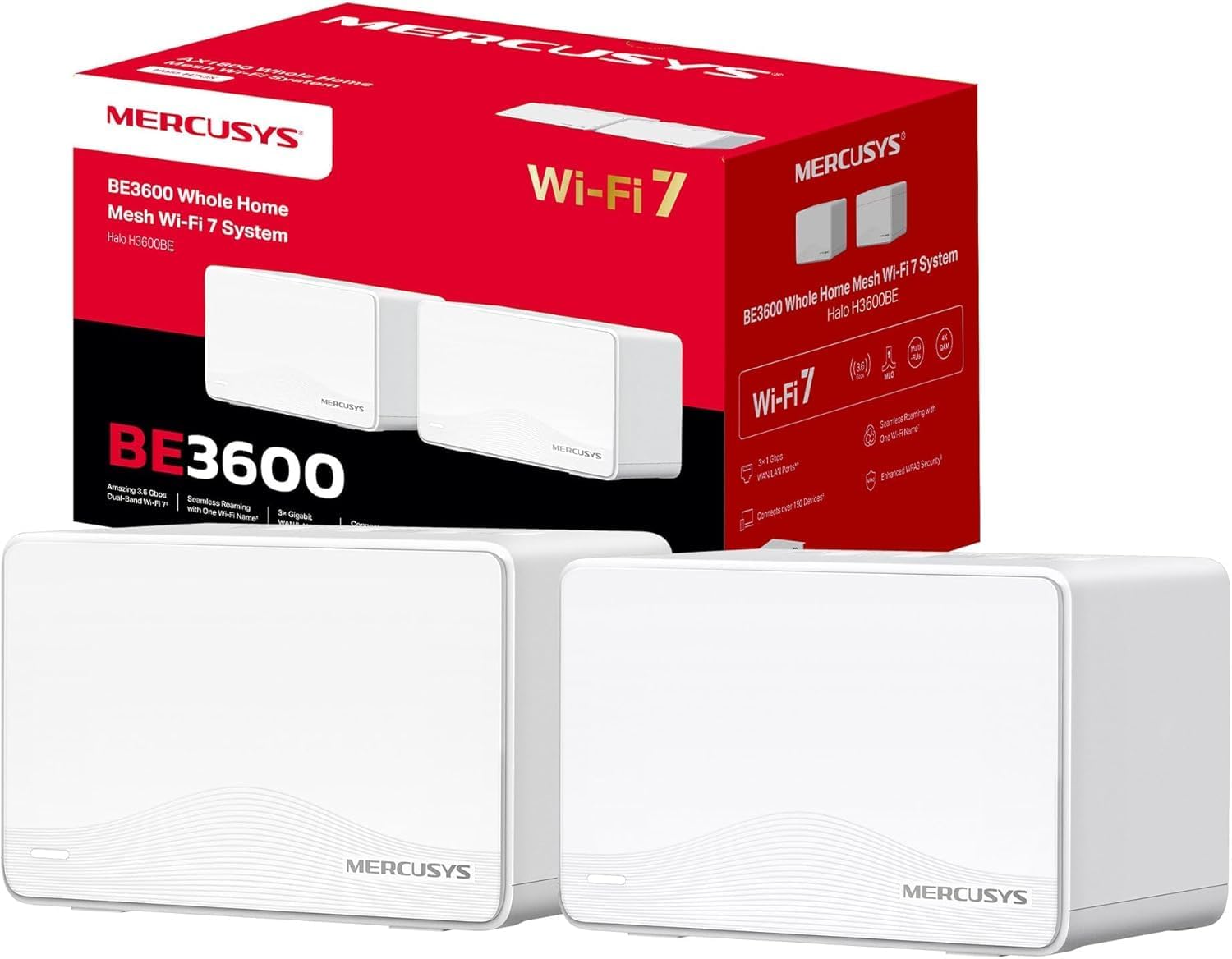
Image: The Mercusys Halo H3600BE (2-Pack) Mesh WiFi 7 System, showing two units and their retail packaging.
3. Орнотуу колдонмосу
Follow these steps to set up your Mercusys Halo H3600BE Mesh WiFi System:
- Step 1: Unpack the Devices. Таңгактан бардык компоненттерди алып салыңыз.
- Step 2: Connect the Main Halo Unit.
- Connect one Halo unit to your modem or existing router using the provided Ethernet cable. Plug one end into any of the Gigabit ports on the Halo unit (these ports are auto-sensing WAN/LAN) and the other end into your modem/router's LAN port.
- Connect the power adapter to the main Halo unit and plug it into an electrical outlet. Wait for the LED indicator on the Halo unit to turn solid white, indicating it is ready for setup.
- Step 3: Download and Configure via Mercusys App.
- Download the Mercusys app from the App Store (iOS) or Google Play Store (Android).
- Open the app and follow the on-screen instructions to create a Mercusys ID and set up your main Halo unit. The app will guide you through creating your Wi-Fi network name (SSID) and password.
- Step 4: Add Additional Halo Units.
- Place the second Halo unit in a central location within your home, ideally between the main Halo unit and the area needing improved coverage.
- Connect the power adapter to the additional Halo unit and plug it into an electrical outlet.
- The additional unit will automatically detect and join the existing mesh network. The LED indicator will turn solid white once successfully connected.
- Step 5: Verify Connection. Once all units are set up, check the Mercusys app to ensure all Halo units are online and functioning correctly.

Image: A visual representation of the Mercusys Halo H3600BE setup process, including connecting power, Ethernet, and using the mobile application for configuration.
4. Иштөө нускамалары
4.1. Network Management via Mercusys App
The Mercusys app provides comprehensive control over your mesh network. Key features include:
- Ата-энелик көзөмөл: Белгилүү түзмөктөр үчүн интернетке кирүү убакыттарын жана мазмунун башкарыңыз.
- Коноктор тармагы: Негизги тармагыңыздын коопсуздугун камсыз кылуу менен коноктор үчүн өзүнчө Wi-Fi тармагын түзүңүз.
- Түзмөктүн абалы: View connected devices, their signal strength, and manage their access.
- Кызматтын сапаты (QoS): Prioritize bandwidth for specific applications or devices.
- Monthly Reports: Receive summaries of network usage and security events.
4.2. Үзгүлтүксүз роуминг
The Halo H3600BE system supports seamless roaming, meaning your devices will automatically switch to the strongest Wi-Fi signal as you move around your home, without experiencing drops or interruptions.
4.3. Wi-Fi 7 технологиясы
This system utilizes Wi-Fi 7 (802.11be) technology, offering:
- Кош тилкелүү операция: Combines 5GHz (up to 2880Mbps) and 2.4GHz (up to 688Mbps) bands for high-speed data transfer.
- Жогорку кубаттуулугу: Supports over 150 devices simultaneously.
- Төмөн күтүү: Optimized for demanding applications like 4K/8K streaming and VR/AR gaming.
- WPA3 Коопсуздук: Enhanced security protocols for your wireless network.

Сүрөт: бүттүview of Mercusys Halo H3600BE features, including Wi-Fi 7 dual-band speeds, device capacity, and Gigabit ports.
5. Техникалык тейлөө
- Программалык камсыздоонун жаңыртуулары: Regularly check the Mercusys app for available firmware updates to ensure optimal performance and security.
- Жайгашкан жери: Ensure Halo units are placed in open areas, away from obstructions and sources of interference (e.g., microwaves, cordless phones).
- Тазалоо: Gently wipe the units with a soft, dry cloth. Do not use liquid cleaners or aerosols.
- Кайра баштоо: If you experience network issues, try restarting your Halo units and modem.
6. Кыйынчылыктарды
- Интернетке кирүү жок:
- Модемиңиз туура иштеп жатканын текшериңиз.
- Ensure the Ethernet cable between the main Halo unit and the modem is securely connected.
- Restart your modem and all Halo units.
- Wi-Fi сигналы начар же өлүк аймактар:
- Relocate the additional Halo units closer to the main unit or to a more central location.
- Ensure there are no major physical obstructions (thick walls, large metal objects) between the units.
- Wi-Fi'га туташуу мүмкүн эмес:
- Verify you are using the correct Wi-Fi network name (SSID) and password.
- Туташууга аракет кылып жаткан түзмөктү өчүрүп-күйгүзүп көрүңүз.
- Check the Mercusys app to ensure the network is broadcasting.
- Жай ылдамдыктар:
- Интернет провайдериңиз (ISP) күтүлгөн ылдамдыкты камсыз кылып жатканын текшериңиз.
- Minimize interference by moving other wireless devices away from the Halo units.
- Микропрограмма жаңыртууларын текшериңиз.
7. Техникалык шарттар
| Өзгөчөлүк | Деталь |
|---|---|
| Бренд | MERCUSYS |
| Модель аты | Halo H3600BE |
| Зымсыз туташуу түрү | 802.11.be (Wi-Fi 7) |
| Жыштык тилкесинин классы | Dual Band |
| Өзгөчөлүктөр | Parental Control, Guest Networks, Mesh, WPA3 |
| Шайкеш түзмөктөр | Smartphone, Laptop, Smart TV, IoT Devices |
| Сунушталган колдонуу | Үй |
| Бирдиктердин саны | 2-пакет |
| Камтуу (2-пакет) | Up to 460m² / 5,000 ft² |
| Максималдуу туташкан түзмөктөр | 150тен жогору |
| Ethernet Ports per Unit | 3 Gigabit (Auto-sensing WAN/LAN) |
| Өлчөмдөрү (бирдик үчүн) | Болжол менен 21.9 x 16.4 x 15.9 см |
| Салмагы (бирдик үчүн) | Болжол менен 660 г |
| Операция системасы | TP-Link ОС |

Сүрөт: Арткы view of a Mercusys Halo H3600BE unit, displaying the power input, reset button, and three Gigabit WAN/LAN ports.
8. Кепилдик жана колдоо
For warranty information and technical support, please refer to the official Mercusys website or contact Mercusys customer service. The Quick Installation Guide included in your package may also contain specific warranty details for your region.
Көбүрөөк маалымат жана колдоо булактарын таба аласыз Mercusys Brand Store.


