1. Продукт бүтүп калдыview
This manual provides detailed instructions for the Gamrombo Wireless Controller, designed for use with Xbox One, Xbox Series X|S, PC, and Windows 10/11 operating systems. Please read this manual carefully before use.
1.1 Пакеттин мазмуну
- Gamrombo Wireless Controller (x2)
- 2.4GHz USB Adapter (x2)
- USB Type-C заряддоо кабели (x2)
- Колдонуучунун Колдонмосу (бул документ)
1.2 Controller Layout
The Gamrombo Wireless Controller features a standard layout with responsive buttons, joysticks, and triggers for an enhanced gaming experience.

Сүрөт 1.1: Алдыңкы view of the Gamrombo Wireless Controllers and 2.4GHz USB Adapters.

Сүрөт 1.2: Детальдуу view of controller buttons, joysticks, and triggers.
2. Орнотуу жана туташуу
2.1 Connecting to Xbox Consoles (Xbox One, Xbox Series X|S)
- Xbox консолуңуз күйгүзүлгөнүн текшериңиз.
- Insert the 2.4GHz USB adapter into an available USB port on your Xbox console.
- Press and hold the Home button on the controller for 3 seconds to power it on. The indicator light on the controller will flash rapidly.
- Once the controller connects to the adapter, the indicator light will become solid, indicating a successful connection.
2.2 Connecting to PC (Windows 10/11)
- Компьютериңиз күйгүзүлгөнүн текшериңиз.
- Insert the 2.4GHz USB adapter into an available USB port on your PC. The system will automatically install the necessary drivers.
- Press and hold the Home button on the controller for 3 seconds to power it on. The indicator light on the controller will flash rapidly.
- Once the controller connects to the adapter, the indicator light will become solid. You can now use the controller for PC games.

Image 2.1: Controller compatibility with various platforms.
2.3 Контроллерди заряддоо
To charge the controller, connect the included USB Type-C cable to the charging port on the controller and the other end to a USB power source (e.g., console, PC, or USB wall adapter). The indicator light will show charging status and turn off when fully charged.
3. Иштөө нускамалары
3.1 Күйгүзүү/өчүрүү
- Күйгүзүү: Башкы бет баскычын 3 секунд басып туруңуз.
- Өчүрүү: Press and hold the Home button for 5-8 seconds. The controller will automatically power off after 5 minutes of inactivity.
3.2 Турбо функциясы
The Turbo function allows for rapid, repeated input of a button press, which can be beneficial in certain games.
- Турбо баскычын басып, кармап туруңуз.
- While holding the Turbo button, press the desired action button (e.g., A, B, X, Y, LB, RB, LT, RT). The Turbo function is now activated for that button.
- To deactivate Turbo for a specific button, repeat the process: press and hold the Turbo button, then press the action button again.

Image 3.1: Instructions for activating the Turbo function.
3.3 Кош титирөө
The controller features dual motors for vibration feedback, providing an immersive gaming experience. Vibration intensity can vary based on game support and in-game settings.

Image 3.2: Dual-motor vibration feedback levels.
3.4 Audio Jack and Volume Control
The controller includes a standard 3.5mm stereo audio jack for connecting headsets. Volume can be adjusted directly on the controller.
- Көлөмү: Push the volume slider to the right (+).
- Үнүн азайтуу: Push the volume slider to the left (-).
- Үнсүз: Press and hold the middle of the volume slider to mute audio.

Image 3.3: Audio jack and volume control details.
4. Техникалык тейлөө
- Тазалоо: Контроллерди тазалоо үчүн жумшак, кургак чүпүрөктү колдонуңуз. Катуу химиялык заттарды же абразивдүү материалдарды колдонуудан алыс болуңуз.
- Сактагыч: Контроллерди түз күн нурунан жана экстремалдык температурадан алыс салкын, кургак жерде сактаңыз.
- Батареяга кам көрүү: To prolong battery life, avoid fully discharging the controller frequently. Charge the controller regularly, even if not in active use.
5. Кыйынчылыктарды
5.1 Байланыш маселелери
- Контроллер туташпай жатат: Ensure the 2.4GHz USB adapter is securely plugged into the console/PC. Make sure the controller is charged. Try re-pairing by powering off and on the controller.
- Үзгүлтүксүз туташуу: Ensure there are no strong wireless interference sources nearby. Try moving closer to the console/PC.
5.2 Controller Firmware Upgrade
If you experience persistent connection issues, particularly with Xbox consoles, a firmware upgrade may be required. The upgrade process is performed on a Windows PC.

Image 5.1: Information regarding controller firmware upgrade for connection issues.
- Upgrade Program Download: we.tl/t-I78iIsdPhP
- Video Upgrade Steps: youtu.be/2Q_x2bhtcUU
- The upgrade typically takes 2-3 minutes and ensures continued compatibility with Xbox devices.
5.3 Башка маселелер
- Баскычтар жооп бербейт: Ensure the controller is powered on and connected. Restart the controller and try again.
- Вибрация иштебейт: Дирилдөө иштетилгенин текшерүү үчүн оюндагы жөндөөлөрдү текшериңиз.
6. Техникалык шарттар
| Өзгөчөлүк | Деталь |
|---|---|
| Байланыш | 2.4GHz Зымсыз |
| Шайкештик | Xbox One, Xbox Series X|S, PC (Windows 10/11) |
| Батарея сыйымдуулугу | 650mAh |
| Заряддоо убактысы | 2-3 саат |
| Иштөө убактысы | 8-10 саат |
| Аудио Jack | 3.5 мм стерео |
| Вибрация | Dual Motors |
| Motion Sensor | 6-Axis (for supported games/platforms) |
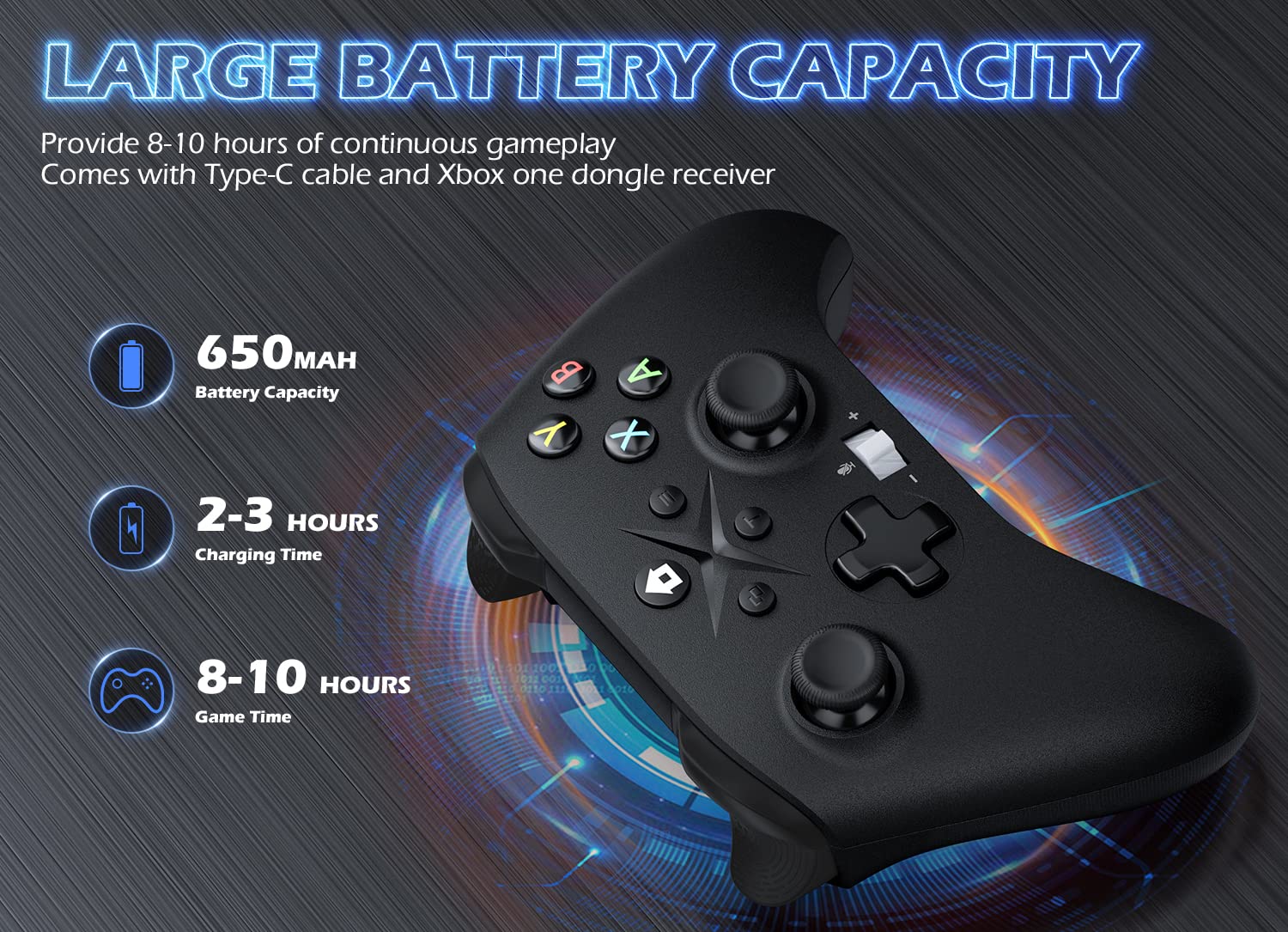
Image 6.1: Battery specifications.
7. Коопсуздук боюнча маанилүү маалымат
- Контроллерди өтө жогорку температурага, нымдуулукка же түз күн нуруна дуушар кылбаңыз.
- Көзөмөлдөгүчтү кулап же катуу таасирлерге дуушар кылуудан качыңыз.
- Контроллерди бөлүктөргө бөлүүгө же өзгөртүүгө аракет кылбаңыз. Бул кепилдикти жокко чыгарып, зыян келтириши мүмкүн.
- Keep the controller and its accessories out of reach of small children.
- Берилген заряддоо кабелин же тастыкталган эквивалентти гана колдонуңуз.
8. Кардарларды колдоо кызматы
For further assistance or inquiries, please contact Gamrombo customer support through the retailer's platform or the official Gamrombo webсайт.


