1. Киришүү
Welcome to the user manual for your new SGIN 15.6-inch Laptop Computer, Model SGIN-Y101. This guide provides essential information to help you set up, operate, and maintain your device. Please read this manual thoroughly to ensure optimal performance and longevity of your laptop.

Image 1.1: SGIN 15.6-inch Laptop Computer.
2. Пакеттин мазмуну
Таңгактан чыгаргандан кийин, төмөндө көрсөтүлгөн нерселердин бардыгы бар экенин текшериңиз:
- SGIN 15.6-inch Laptop Computer
- Кубат адаптери (заряддагыч)
- Колдонуучунун Колдонмосу (бул документ)
3. Продукт бүтүп калдыview
The SGIN-Y101 laptop is designed for versatile use, featuring a powerful Intel Core i3 processor, ample memory and storage, and a high-definition display. It runs on Windows 11, providing a modern and efficient operating environment.
Негизги өзгөчөлүктөрү:
- Процессор: Intel Core i3 CPU (2-core, 4-thread) with speeds up to 3.9GHz for efficient multitasking.
- Эстутум жана сактоо: 16GB RAM and 1024GB SSD for quick application loading and smooth operation. Storage is expandable via TF card up to 1TB.
- Дисплей: 15.6-inch Full HD (1920x1080) IPS screen with wide viewing angles and a 180° hinge for flexible use.
- Баскычтоп: Backlit keyboard for improved visibility in low-light conditions.
- Батарея: 53.2WH (7000mAh) rechargeable battery, offering up to 8 hours of usage.
- Байланыш: Equipped with WiFi 6, USB 3.0, HDMI, Micro SD slot, Kensington lock, and a headphone jack. Includes a full-featured Type-C port.
- Операция системасы: Windows 11 менен алдын ала орнотулган.
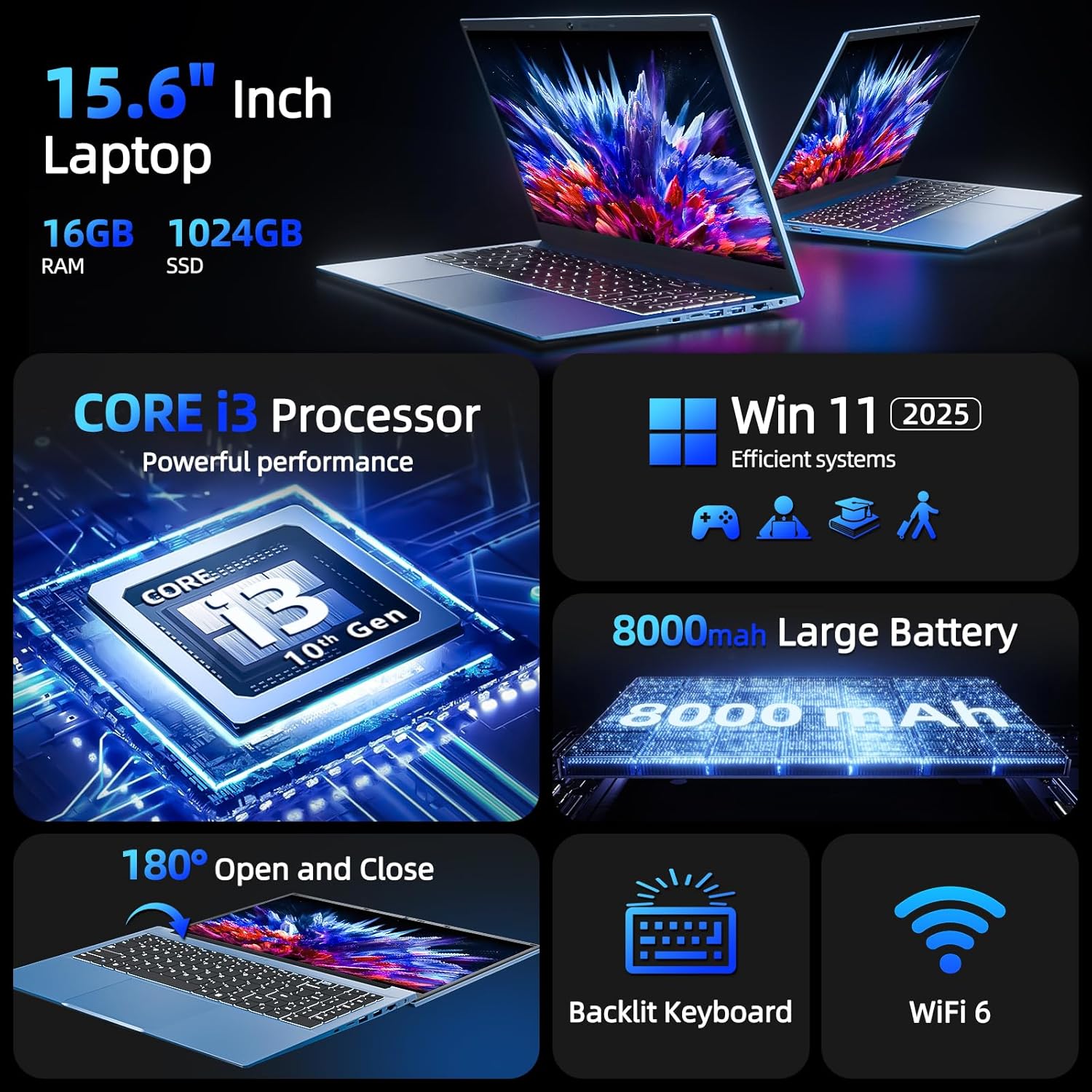
Сүрөт 3.1: Бүттүview of SGIN Laptop's key features including CPU, OS, battery, display, keyboard, and WiFi 6.

Image 3.2: Visual representation of the Intel Core i3 CPU performance.
Продукциянын видеосу:
Видео 3.1: Бүттүview of the SGIN 15.6-inch Laptop Computer, highlighting its design, wide mousepad, 16GB RAM, 1024GB SSD, Windows 11 operating system, backlit keyboard, 53.2WH battery, 15.6-inch Full HD screen, 180-degree hinge, and various connectivity ports including Type-C, HDMI, and USB.
4. Орнотуу
4.1 Алгачкы заряддоо
- Ноутбуктун кубаттоо портуна кубат адаптерин туташтырыңыз.
- Кубат адаптерин розеткага сайыңыз.
- Allow the laptop to charge for at least 3 hours before initial use, or until the battery indicator shows a full charge.
4.2 First Power-On and Windows 11 Setup
- Ноутбуктун капкагын ачыңыз.
- Баскычтопто жайгашкан кубат баскычын басыңыз.
- Follow the on-screen instructions to complete the Windows 11 initial setup, including language selection, region, network connection, and user account creation.
4.3 Wi-Fiга туташуу
- During Windows 11 setup, you will be prompted to connect to a Wi-Fi network. Select your desired network from the list.
- Суралган болсо, Wi-Fi сырсөзүн киргизиңиз.
- If you skip this step, you can connect later via the Windows Settings menu: Go to Баштоо > Орнотуулар > Тармак жана интернет > Wi-Fi.
5. Ноутбугуңузду иштетүү
5.1 Баскычтоп жана сенсордук такта
Your SGIN laptop features a full-size keyboard with a numeric keypad and a large touchpad for navigation.
- Арткы жарык клавиатура: To turn the keyboard backlight on or off, press the Fn менен бир убакта ачкыч F5 ачкыч.
- Сенсордук такта: Supports multi-touch gestures for scrolling, zooming, and other functions. Refer to Windows 11 settings for customization.

Image 5.1: The backlit keyboard of the SGIN laptop, showing illumination in low-light conditions.
5.2 Дисплей
The 15.6-inch Full HD IPS display offers clear visuals and wide viewing angles. The 180° hinge allows the screen to lay flat, facilitating easy content sharing and collaboration.

Image 5.2: Demonstration of the 180-degree hinge design, allowing the laptop screen to lay completely flat.
5.3 Порттар жана туташуу
The laptop provides various ports for connecting peripherals and external devices:
- Сол жагы: Power input, USB Type-C (full-featured, rechargeable), HDMI, USB 3.0.
- Оң жагы: Kensington lock slot, Micro SD card slot, 2x USB 3.0, Ethernet (RJ45), 3.5mm Headphone Jack.

Сүрөт 5.3: Детальдуу view of the various ports and interfaces on both sides of the SGIN laptop.
5.4 Webкамеранын купуялык которгучу
For enhanced privacy, your laptop includes a physical switch to cover the webcam. Slide the switch to the left to open the camera and to the right to close it.
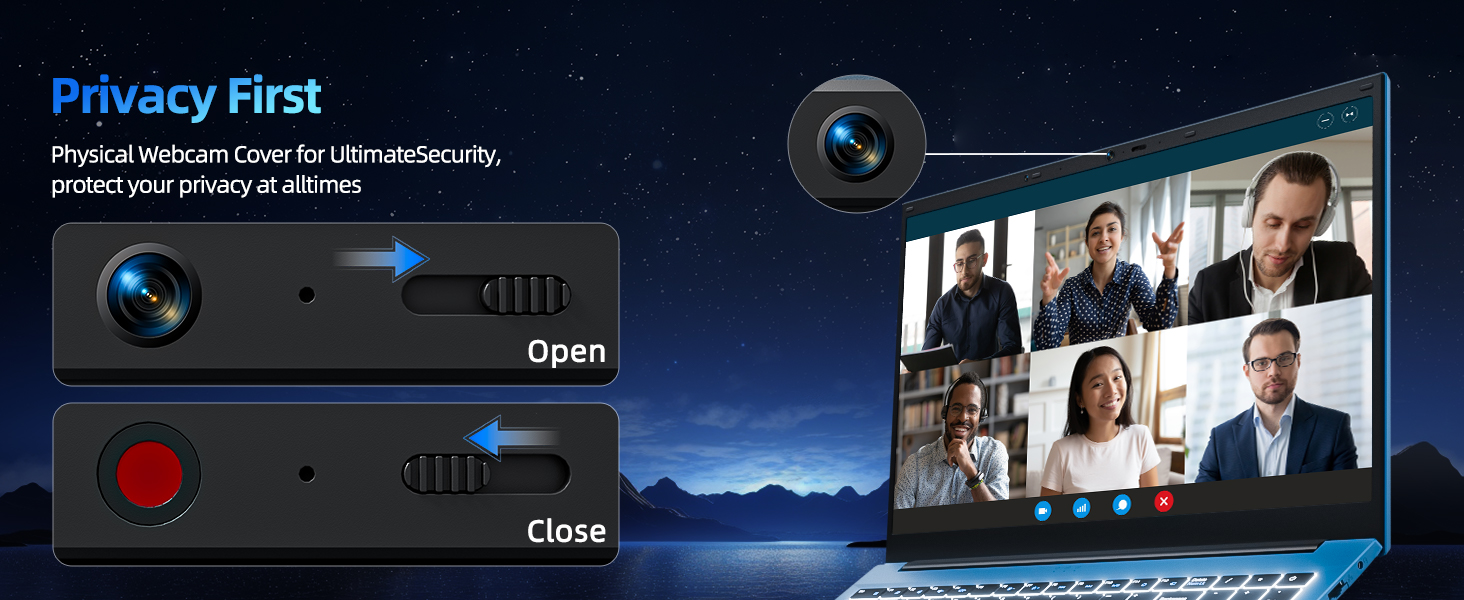
Image 5.4: Illustration of the physical webcam cover for privacy.
6. Техникалык тейлөө
6.1 Батареяга кам көрүү
- Батареяны бат-баттан толук кубаттап калуудан алыс болуңуз.
- Ноутбукту узак убакытка колдонбогондо салкын, кургак жерде сактаңыз.
- Оптималдуу батареянын ден соолугу үчүн, заряддын деңгээлин 20% жана 80% арасында кармап турууга аракет кылыңыз.
6.2 Тазалоо
- Экран: Бир аз жумшак, түксүз кездемени колдонуңуз dampсуу же экран тазалоочу менен бүттү. Катуу химиялык заттардан алыс болуңуз.
- Баскычтоп жана шасси: Use a soft, dry cloth. A can of compressed air can help remove dust from between keys.
- Тазалоодон мурун ноутбуктун өчүрүлгөнүн жана розеткадан ажыратылганын текшериңиз.
6.3 Программалык камсыздоо жаңыртуулары
Regularly update your Windows 11 operating system and device drivers to ensure security, stability, and optimal performance. Access updates via Баштоо > Орнотуулар > Windows жаңыртуу.
7. Кыйынчылыктарды
This section addresses common issues you might encounter with your SGIN laptop.
7.1 Ноутбук күйбөйт
- Кубат адаптери ноутбукка да, иштеген электр розеткасына да бекем туташып турганын текшериңиз.
- Башка аспапка сайып, розетка иштеп жатканын текшериңиз.
- Эгер батарейка толугу менен түгөнүп калса, аны кайра күйгүзүүдөн мурун кеминде 30 мүнөт кубаттоого уруксат бериңиз.
7.2 Wi-Fi туташуу маселелери
- Check if Wi-Fi is enabled in Windows Settings (Баштоо > Орнотуулар > Тармак жана интернет > Wi-Fi).
- Роутериңизди жана модемиңизди өчүрүп күйгүзүңүз.
- Wi-Fi тармагынын чегинде экениңизди жана туура сырсөздү киргизгениңизди текшериңиз.
7.3 Жай аткаруу
- Фондо иштеп жаткан керексиз тиркемелерди жабыңыз.
- Күтүүдөгү Windows жаңыртууларынын бардыгын текшерип, орнотуңуз.
- SSD'ңизде жетиштүү бош орун бар экенин текшериңиз.
- Кесепеттүү программаны текшерүү үчүн вирусту сканерлеңиз.
7.4 Keyboard Backlight Not Working
- Басыңыз Fn + F5 арткы жарыкты күйгүзүү/өчүрүү үчүн.
- Ноутбугуңуздун драйверлери жаңыртылганын текшериңиз.
8. Техникалык шарттар
| Өзгөчөлүк | Спецификация |
|---|---|
| Модель аты | SGIN-Y101 |
| Туруктуу экран дисплей өлчөмү | 15.6 дюйм |
| Screen Resolution | 1920 x 1080 пиксел (Full HD) |
| Процессор | Intel Core i3 (up to 3.9 GHz) |
| RAM | 16 ГБ DDR3 |
| Катуу диск | 1024 ГБ SSD |
| Графикалык сопроцессор | Интеграцияланган |
| Зымсыз түрү | WiFi 6, Bluetooth |
| USB 3.0 порттордун саны | 3 |
| Операция системасы | Windows 11 |
| Элемент Салмагы | 4.99 фунт |
| Продукциянын өлчөмдөрү | 15.6 x 9 x 0.6 дюйм |
| Түс | Боз |
| Батареялар | 1 литий-иондук батарейка (кошулган) |
| Өзгөчө өзгөчөлүк | Memory Card Slot, Backlit Keyboard, 180° Hinge |
9. Кепилдик жана колдоо
Your SGIN laptop comes with a 1-year protection plan. For any technical assistance, product inquiries, or warranty claims, please contact SGIN customer support. They offer 24/7 instant help to address your concerns.
Please refer to the official SGIN webЭң акыркы колдоо чоо-жайын алуу үчүн сайтка же сатып алууңуз менен бирге берилген байланыш маалыматына кайрылыңыз.


