1. Продукт бүтүп калдыview
The JideTech 5MP PoE IP Bullet Camera is designed for both indoor and outdoor surveillance, offering high-resolution video and advanced detection capabilities. It features a 1/2.8" Mstar SSC30KQ Chip and IMX335 Sensor, delivering smooth 2560 x 1920 resolution at 30 frames per second. Key features include 120 feet color night vision, human/vehicle detection, two-way audio, and IP66 weatherproofing.

Figure 1.1: JideTech 5MP PoE IP Bullet Camera. This image displays the main unit of the JideTech 5MP PoE IP Bullet Camera.
2. Кутуда эмне бар
Пакетте бардык компоненттер бар экенин текшериңиз:
- 1x JideTech 5MP PoE Camera (Outdoor)
- 1x Колдонуучунун колдонмосу
- 1x Installation Screw Package
- 1x Tail Line Waterproof Cap
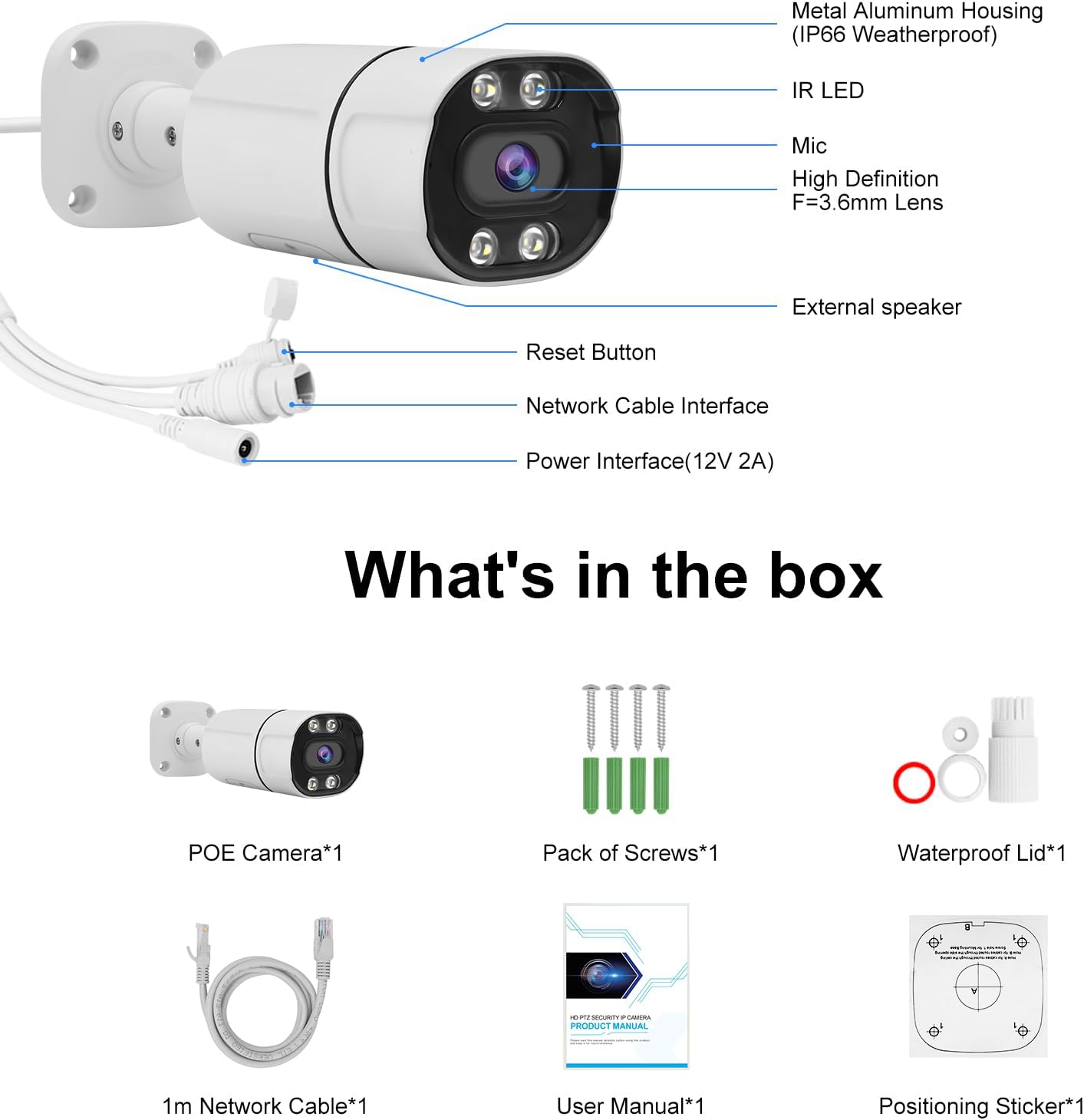
Figure 2.1: Package Contents. This image displays the JideTech 5MP PoE camera, installation screws, user manual, and tail line waterproof cap.
3. Орнотуу жана орнотуу
The JideTech 5MP PoE IP Bullet Camera offers flexible connection options. Ensure proper power and network connections for optimal performance.
3.1 Туташуу ыкмалары
There are three primary ways to connect your PoE IP camera:
- Connect via NVR PoE (Power over Ethernet)
- Connect by DC12V Power Supply
- Connect via PoE Injector or PoE Switch
Video 3.1: PoE IP Camera 3 Ways to Connect. This video demonstrates the three different methods for connecting the JideTech PoE IP camera to your network and power source.
3.2 Detailed Connection Steps
Method 1: Connect via NVR PoE
This method simplifies installation by providing both power and data through a single Ethernet cable from a Power over Ethernet (PoE) Network Video Recorder (NVR).
- Ethernet кабелинин бир учун камеранын PoE портуна туташтырыңыз.
- Connect the other end of the Ethernet cable to a PoE port on your NVR.
- Ensure the NVR is connected to your router and a power source.
- Connect a monitor to the NVR to view камера берүү.
- Access the NVR interface to configure and view камера.

Figure 3.2: NVR PoE Connection Diagram. This diagram illustrates how to connect the camera to a PoE NVR, which then connects to a router and monitor for local viewing, and allows remote access via mobile devices.
Method 2: Connect by DC12V Power Supply
This method uses a separate power adapter for the camera and connects to your network via a standard Ethernet cable to a router.
- Connect the DC12V power adapter to the camera's power input.
- Кубат адаптерин стандарттуу электр розеткасына сайыңыз.
- Connect one end of an Ethernet cable to the camera's LAN port.
- Ethernet кабелинин экинчи учун роутериңиздеги жеткиликтүү LAN портуна туташтырыңыз.
- Ensure your router is powered on and connected to the internet for remote access.

Figure 3.3: DC12V Power Supply Connection Diagram. This diagram illustrates connecting the camera to a router using a DC12V power supply for power and an Ethernet cable for data, enabling access via mobile devices and laptops.
Method 3: Connect via PoE Injector or PoE Switch
This method is suitable when you need to power the camera over Ethernet but do not have a PoE NVR. A PoE injector or switch provides the necessary power.
- Ethernet кабелинин бир учун камеранын PoE портуна туташтырыңыз.
- Connect the other end of this Ethernet cable to a PoE output port on a PoE injector or PoE switch.
- Connect the PoE injector/switch to a power source.
- Connect a standard Ethernet cable from the PoE injector/switch's data input (or an uplink port on the switch) to a LAN port on your router.
- Бардык түзмөктөр күйгүзүлгөнүн текшериңиз.

Figure 3.4: PoE Injector/Switch Connection Diagram. This diagram illustrates connecting the camera to a PoE switch, which provides both power and data, and then connects to a router for network access.
4. Иштөө нускамалары
4.1 Баштапкы мүмкүндүк алуу жана конфигурациялоо
After connecting the camera, you will need to access its interface for initial setup. This typically involves using a dedicated mobile application (e.g., "Viedolink" for iOS/Android) or a web бир тармакка туташкан компьютердеги браузер.
- Download the "Viedolink" app from your device's app store.
- Follow the in-app instructions to add your camera. This usually involves scanning a QR code on the camera or manually entering its ID.
- Set up a secure password for your camera.
- Configure network settings if necessary (e.g., static IP address).
4.2 Видеобайкоо жана жаздыруу
The camera provides Ultra HD 5MP resolution (2560 x 1920@30fps) for clear video monitoring.

Figure 4.1: 5MP Full HD Image Quality. This image demonstrates the superior clarity and detail provided by the 5MP resolution compared to a 2MP image.
The camera supports up to a 512GB MicroSD card for local storage. Recording options typically include continuous recording, scheduled recording, and event-triggered recording (e.g., motion detection).
4.3 Түнкү көрүнүш
The camera features advanced night vision capabilities, providing clear images up to 120 feet (36 meters) in low-light conditions, including color night vision.

Figure 4.2: 5MP Day & Night Vision. This image illustrates the camera's ability to capture clear video both during the day and at night, with night vision extending up to 120 feet.
4.4 Human/Vehicle Detection and Motion Alerts
Utilizing cutting-edge detection algorithms, the camera can accurately identify people and vehicles, reducing false alarms from other movements. When a person or vehicle is detected, the camera sends real-time alert messages to your mobile phone or email.

Figure 4.3: Smart Human/Vehicle Detection. This image demonstrates the camera's intelligent detection capabilities, distinguishing between human and vehicle movement.

Figure 4.4: Motion Detection and Alarm. This image illustrates how the camera detects motion and sends instant alerts via email or app notifications, allowing for timely action.
4.5 Эки тараптуу аудио
The built-in microphone and speaker enable two-way communication through the camera. This allows you to speak with visitors or deter intruders directly via the app.

Figure 4.5: Two-Way Audio Communication. This image demonstrates the camera's two-way audio feature, allowing real-time conversation with individuals near the camera.
5. Техникалык тейлөө
To ensure the longevity and optimal performance of your JideTech 5MP PoE IP Bullet Camera, follow these maintenance guidelines:
- Тазалоо: Дайыма камеранын линзасын жумшак, гamp cloth to remove dust, dirt, or smudges that may affect image quality. Avoid abrasive cleaners.
- Аба ырайын коргоо: The camera features an IP66 waterproof rating and a stable aluminum casing, designed to withstand various weather conditions (hot, snow, rain). However, ensure the tail line waterproof cap is securely installed to protect connections.
- Программалык камсыздоонун жаңыртуулары: Мезгил-мезгили менен өндүрүүчүнүн текшерүү website or the Viedolink app for firmware updates. Keeping the firmware updated ensures access to the latest features and security enhancements.
- Кабелдик башкаруу: Бардык кабелдер бекем туташтырылганын жана айлана-чөйрөнүн зыянынан корголгонун текшериңизampring.
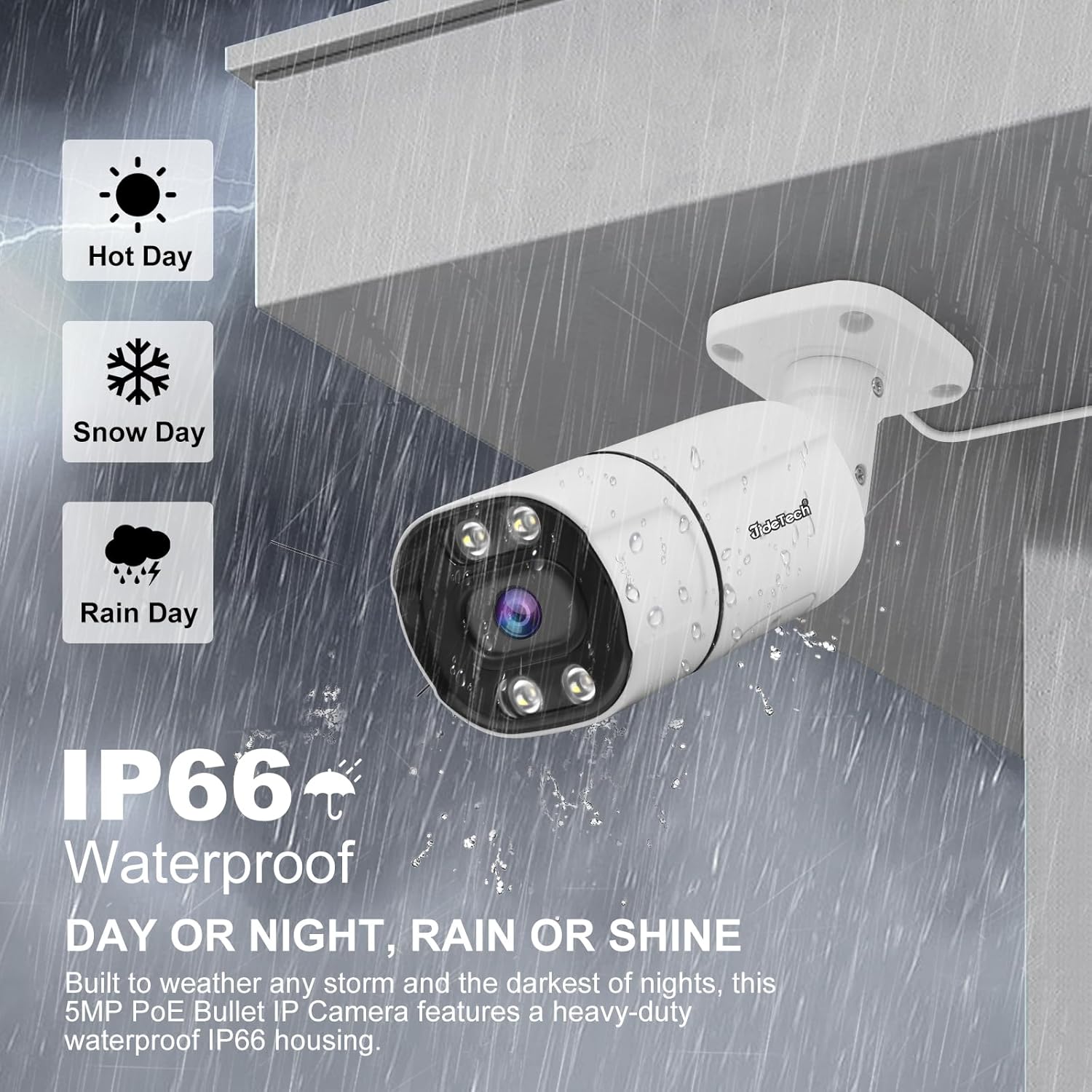
Figure 5.1: IP66 Waterproof Rating. This image emphasizes the camera's robust design, capable of operating reliably in diverse weather conditions.
6. Кыйынчылыктарды
If you encounter issues with your JideTech 5MP PoE IP Bullet Camera, refer to the following common troubleshooting steps:
- No Image/Offline:
- Check all power connections to the camera, NVR, PoE switch/injector, and router.
- Verify that Ethernet cables are securely connected and not damaged.
- Ensure the camera and NVR/router are on the same network segment.
- Restart the camera, NVR, and router.
- Сүрөттүн сапаты начар:
- Камера линзасын тазалаңыз.
- Камеранын талаасындагы тоскоолдуктарды текшериңиз view.
- Ensure sufficient lighting for night vision if applicable.
- Verify camera resolution settings in the app or NVR.
- Кыймылды аныктоо иштебей жатат:
- Check motion detection sensitivity settings in the app.
- Ensure detection zones are correctly configured.
- Verify notification settings (app push, email) are enabled and correctly configured.
- Эки тараптуу аудио көйгөйлөр:
- Колдонмодон микрофондун жана динамиктин үн жөндөөлөрүн текшериңиз.
- Ensure there are no physical obstructions blocking the microphone or speaker.
- Test network connectivity, as audio streaming requires a stable connection.
If these steps do not resolve the issue, please refer to the support section of this manual.
7. Техникалык шарттар
| Өзгөчөлүк | Деталь |
|---|---|
| Модель аты | BC9 |
| Натыйжалуу Video Resolution | 5 МП (2560 x 1920) |
| Frame Rate | секундасына 30 кадр |
| Объектив | 3.6 мм Fixed Focus |
| Түнкү көрүү диапазону | 120 фут (36 метр) чейин |
| Түнкү көрүнүш түрү | Color Night Vision, Infrared+LED |
| Аудио | Эки тараптуу аудио (орнотулган микрофон жана динамик) |
| аныктоо | Human/Vehicle Detection, Motion Detection |
| Сактагыч | Микро SD карта (512 ГБ чейин) |
| Байланыш | PoE (Power over Ethernet), Ethernet (Wired), ONVIF, RTMP, RTSP |
| Power Source | Зымдуу электр (DC12V же PoE) |
| Ички/тышкы колдонуу | Ички, сырткы |
| Сууга туруктуулук деңгээли | IP66 суу өткөрбөйт |
| Материал | Металл |
| Өлчөмдөрү (L x W x Y) | 7.87 x 3.94 x 2.76 дюйм |
| Элемент Салмагы | 1.26 фунт |
| Шайкеш түзмөктөр | Desktop, Digital Video Recorder, Laptop, Smartphone, Tablet |
| Видеону коддоо | H.264, H.265, H.265+ |
8. Кепилдик жана колдоо
JideTech is committed to providing quality products and customer satisfaction. For any issues or inquiries regarding your camera, please contact JideTech customer service.
- Байланыш: Refer to the contact information provided in the product packaging or on the official JideTech website. You may also contact the seller via the Amazon platform.
- Кепилдик: Information regarding the product warranty period and terms can be found in the included warranty card or on the manufacturer's webсайт.


