1. Киришүү
Welcome to the user manual for your new jumper J1 16-inch Convertible Laptop. This guide provides essential information for setting up, operating, maintaining, and troubleshooting your device. Please read this manual thoroughly to ensure optimal performance and longevity of your laptop.
The jumper J1 is a versatile 2-in-1 laptop featuring a 16-inch touchscreen display, a 360-degree hinge for multiple usage modes, a backlit keyboard, and a fingerprint reader for enhanced security. It comes equipped with Windows 11 Home and includes a 1-year subscription to Office 365.
2. Кутуда эмне бар
Пакетиңиздин мазмунун текшериңиз. Эгерде кандайдыр бир нерселер жок болсо же бузулса, кардарларды колдоо менен байланышыңыз.
- 1x jumper J1 16-inch Touchscreen Laptop
- 1x Power Charger
- 1x Колдонуучунун колдонмосу (бул документ)
3. Баштапкы орнотуу
3.1 Батареяны заряддоо
Before first use, connect the laptop to the power adapter and charge it fully. The charging port is located on the side of the laptop. The battery indicator light will show the charging status.
3.2 Күйгүзүү
Press and hold the power button located on the side of the laptop until the screen illuminates. The laptop will boot into the Windows 11 setup process.
3.3 Windows 11 орнотуу
Follow the on-screen instructions to complete the initial Windows 11 setup. This includes selecting your region, language, connecting to a Wi-Fi network, and creating a user account.
3.4 Office 365ти активдештирүү
Your laptop includes a 1-year subscription to Office 365. Follow the instructions provided with your laptop or on the Microsoft webжазылууңузду активдештирүү үчүн сайт.
4. Ноутбугуңузду иштетүү
4.1 2-бирде кабриолет режимдери
The jumper J1 features a 360-degree hinge, allowing it to transform into four distinct modes:
- Ноутбук режими: Терүү жана өндүрүмдүүлүк үчүн салттуу ноутбук конфигурациясы.
- Туруу режими: Fold the keyboard back to prop up the screen, ideal for presentations or watching videos.
- Чатыр режими: Position the laptop in an inverted 'V' shape, suitable for small spaces or touch-based interaction.
- Планшет режими: Fold the keyboard completely behind the screen for a full tablet experience.

Image: The jumper J1 laptop demonstrating its four convertible modes: traditional laptop, stand mode, tent mode, and tablet mode, highlighting its 360-degree hinge flexibility.
4.2 Сенсордук экрандын иштеши
The 16-inch IPS display supports ten-point touch input. Use gestures similar to a smartphone or tablet for navigation, zooming, and interaction with applications.

Image: A close-up of the jumper J1's 16-inch display, emphasizing its 1920x1200 resolution and touch screen capabilities for an immersive visual experience.
4.3 Арткы жарыктандырылган баскычтоп
Баскычтоптун арткы жарыгын иштетүү же өчүрүү үчүн, баскычын басыңыз Fn менен бир убакта ачкыч Боштук. This feature is useful for typing in low-light conditions.

Сүрөт: деталдуу view of the jumper J1's keyboard, showing the backlit keys, the integrated fingerprint reader on the side, and the hideable camera above the screen.
4.4 Манжа изин окугуч
The fingerprint reader is located on the side of the laptop. During Windows setup, you can configure your fingerprint for secure and fast login. To set up or manage fingerprints, navigate to Windows Settings > Accounts > Sign-in options.
4.5 Hideable Camera
The integrated camera features a physical toggle for privacy. Slide the switch to cover or uncover the camera lens as needed. This ensures your privacy when the camera is not in use.
4.6 Байланыш порттору
Your laptop is equipped with various ports for external devices and connectivity:
- USB 3.0 порттору: Тышкы дисктер, чычкандар же баскычтоптор сыяктуу USB түзмөктөрүн туташтыруу үчүн.
- HDMI порту: Тышкы дисплейлерге же проекторлорго туташуу үчүн.
- Тип-C Port: A versatile port for data transfer, video output, and charging (check specific model for full functionality).
- Микро SD карта слоту: Сактагычты кеңейтүү же эстутум карталарынан маалыматтарды өткөрүү үчүн.
- Гарнитура уячасы: Наушниктерди же тышкы динамиктерди туташтыруу үчүн.

Image: An illustration detailing the various input/output ports available on the jumper J1 laptop, including Micro SD, USB 3.0, DC power, headphone jack, HDMI, and Type-C.
4.7 Зымсыз байланыш
The laptop supports Wi-Fi 6 (802.11ax) for fast and stable internet connections, and Bluetooth 5.2 for connecting wireless peripherals like headphones or speakers.
5. Техникалык тейлөө
5.1 Тазалоо
- Экран: Электроника үчүн атайын жасалган жумшак, түксүз кездемени колдонуңуз. Дampen the cloth slightly with water or a screen cleaner, then gently wipe the screen. Avoid harsh chemicals.
- Дене: сыртын жумшак менен сүртүңүз, гamp кездеме. Нымдуулуктун портторго киришинен сактаныңыз.
- Баскычтоп: Баскычтардын ортосундагы чаңды жана калдыктарды тазалоо үчүн кысылган абаны колдонуңуз.
5.2 Батареяга кам көрүү
- Батареяны бат-баттан толук кубаттап калуудан алыс болуңуз.
- Ноутбукту узак убакыт бою колдонбосо, салкын, кургак жерде сактаңыз.
- Use only the original charger provided with the laptop.
5.3 Муздатуу системасы
The laptop includes a bottom fan for efficient cooling. Ensure the vents are not obstructed to prevent overheating, especially during intensive tasks. Operating the laptop on a hard, flat surface can improve airflow.
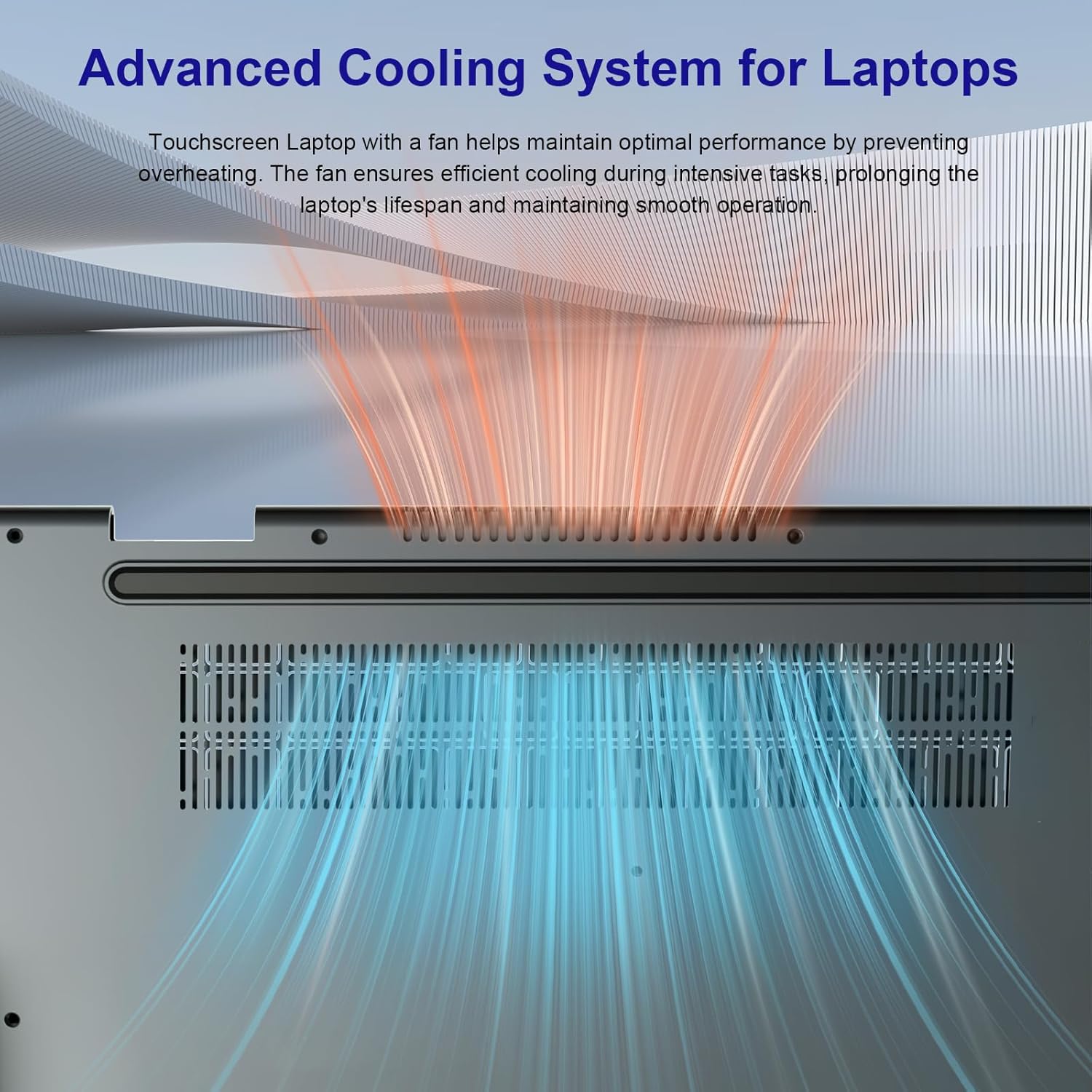
Image: An illustration demonstrating the advanced cooling system of the jumper J1 laptop, showing air intake and exhaust to maintain optimal operating temperatures.
5.4 Сактагычты кеңейтүү
The laptop comes with 128GB eMMC storage and a 512GB SSD. The SSD can be upgraded up to 2TB. Note that SSD upgrade requires removal of the bottom cover, which should be performed by a qualified technician to avoid voiding the warranty.

Image: A visual breakdown of the jumper J1's memory and storage configuration, showing 16GB RAM, 128GB eMMC, and a 512GB SSD, with a note about SSD upgrade potential.
6. Кыйынчылыктарды
This section addresses common issues you might encounter with your jumper J1 laptop.
| Көйгөй | Мүмкүн чечим |
|---|---|
| Ноутбук күйбөйт. | Ensure the charger is properly connected and the battery has sufficient charge. Try holding the power button for 10-15 seconds to force a restart. |
| Экран бош же жооп бербей жатат. | Check if the laptop is powered on. Try connecting an external monitor to see if there is display output. Restart the laptop. |
| Keyboard backlight is not working. | Басыңыз Fn + Боштук to toggle the backlight on/off. Ensure keyboard drivers are up to date. |
| Fingerprint reader not recognized. | Ensure your finger is clean and dry. Re-register your fingerprint in Windows Settings > Accounts > Sign-in options. |
| Wi-Fi туташуу маселелери. | Restart your router and the laptop. Check Wi-Fi settings in Windows. Ensure Wi-Fi drivers are updated. |
| Жай аткаруу. | Керексиз тиркемелерди жабыңыз. Фондук процесстерди текшериңиз. жетиштүү бош орун камсыз кылуу. Кесепеттүү программа үчүн системаны сканерлеңиз. |
7. Техникалык шарттар
Below are the key technical specifications for the jumper J1 16-inch Convertible Laptop:
| Өзгөчөлүк | Деталь |
|---|---|
| Модель аты | J1 |
| Screen Size | 16 дюйм |
| Screen Resolution | 1920 x 1200 пиксель |
| Процессор | Intel Celeron N (Quad Core, 1.7 GHz) |
| RAM | 16 GB DDR DRAM |
| Сактагыч | 640 GB SSD (128GB eMMC + 512GB SSD, expandable up to 2TB) |
| Графикалык сопроцессор | Intel UHD графикасы |
| Операция системасы | Windows 11 Home |
| Зымсыз түрү | 2.4 GHz Radio Frequency, 5 GHz Radio Frequency, 802.11ax (WiFi 6) |
| Bluetooth | Ооба (5.2 версиясы) |
| USB порттору | 3x USB 3.0 |
| Башка порттор | HDMI, Type-C, Micro SD, Headphone Port, DC-in |
| Батареянын орточо иштөө мөөнөтү | 8 Hours (53.2WH) |
| Элемент Салмагы | 5.05 фунт |
| Продукциянын өлчөмдөрү | 14.37 x 9.6 x 0.78 дюйм |
| Өзгөчөлүктөр | 360 Degree Flip, Backlit Keyboard, Fingerprint Reader, Hideable Camera, 1 Year Office 365 |
8. Кепилдик жана колдоо
8.1 Кепилдик маалыматы
The jumper J1 laptop comes with a 1-year limited warranty from the date of purchase. This warranty covers manufacturing defects and hardware malfunctions under normal use. It does not cover damage caused by misuse, accidents, unauthorized repairs, or normal wear and tear.
Кепилдик дооматтары үчүн сатып алганыңыздын далилин сактап коюңуз.
8.2 Кардарларды колдоо
For technical assistance, warranty claims, or any questions regarding your jumper J1 laptop, please refer to the contact information provided on the jumper official webсайт же сатып алуу документтери.
When contacting support, please have your model number (J1) and purchase details ready.


