1. Киришүү
This manual provides essential information for setting up, operating, and maintaining your XGIMI HORIZON 20 4K RGB Triple Laser Home Projector. Please read it thoroughly to ensure optimal performance and longevity of your device.

Figure 1: The XGIMI HORIZON 20 4K RGB Triple Laser Home Projector with included 3D glasses.
2. Негизги өзгөчөлүктөрү
- RGB Triple Laser Engine: Delivers 3200 ISO lumens and a 100,000:1 contrast ratio for vivid and accurate colors.
- Cinematic Certified: Supports IMAX Enhanced, Dolby Vision, HDR10+, and Filmmaker Mode for high-quality visuals.
- Интеграцияланган система: Features powerful Harman Kardon speakers, built-in Google TV, and an integrated stand.
- Lossless Optics: Flexible lens shift and optical zoom for setup versatility without clarity loss.
- Pro-Level Gaming: Offers 1ms response time, 240Hz refresh rate, VRR, and ALLM for a smooth gaming experience.
- Чоң дисплей: Capable of projecting visuals up to 300 inches.
- Licensed Netflix: Official Netflix support integrated.
3. Орнотуу
3.1 кутудан чыгаруу
The XGIMI HORIZON 20 comes in premium packaging. Carefully remove the projector and its accessories from the box. A portable box is included for convenient transport and outdoor use.
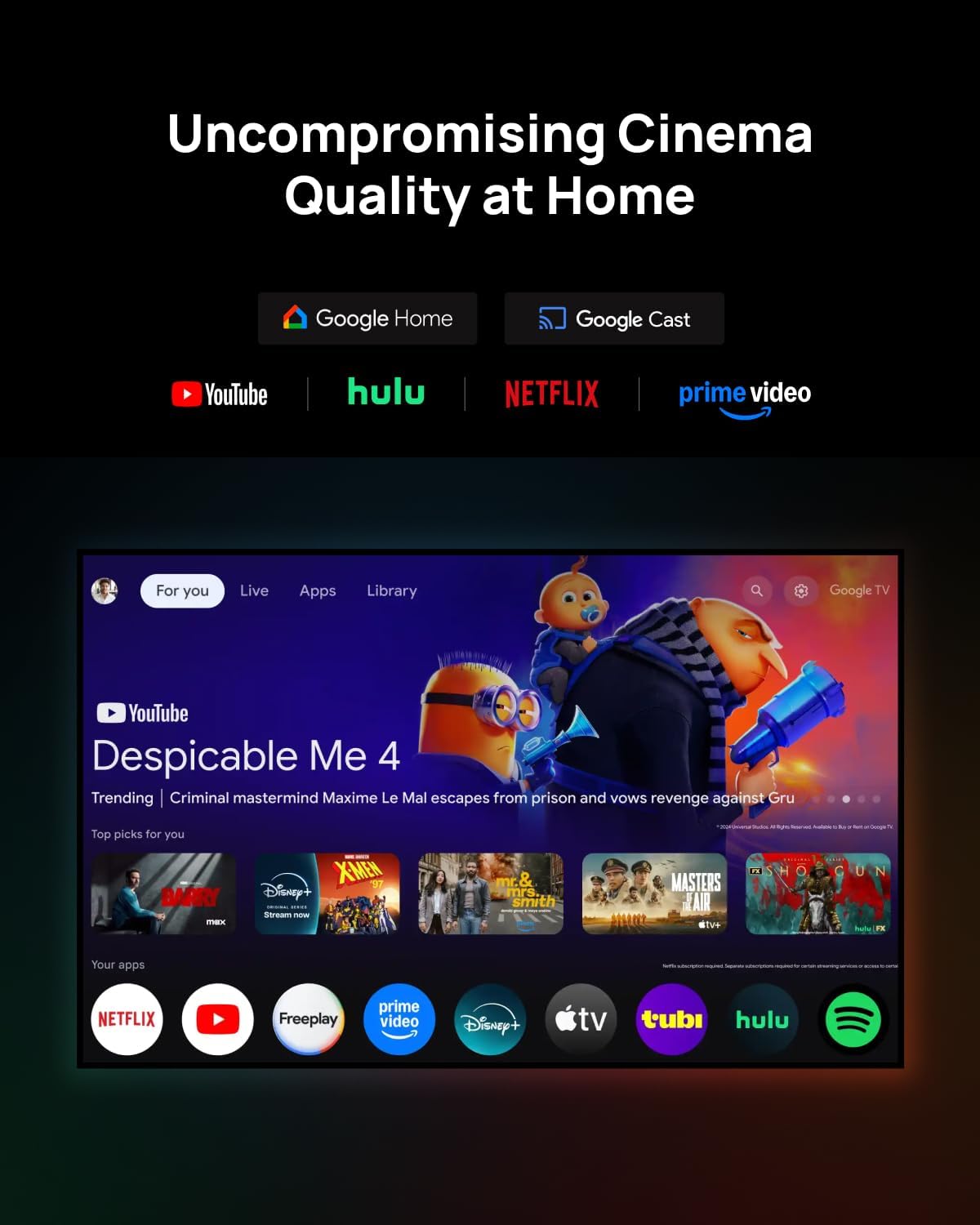
Figure 2: The XGIMI HORIZON 20 projector being unboxed from its protective, portable packaging.
3.2 Орнотуу
The projector can be placed on a flat surface or mounted to the ceiling. Ensure the projector is stable and has adequate ventilation. For ceiling mounting, use a compatible mount (sold separately).

Figure 3: The XGIMI HORIZON 20 projector showcasing its flexible installation options, including dynamic lens shift for optimal image placement.
3.3 Байланыштар
Проектордун арткы панелинде туташуу үчүн ар кандай порттор бар:
- HDMI порттору: Two HDMI ports, one supporting eARC for enhanced audio return.
- USB порттору: One USB 3.0 port and one USB 2.0 port for media playback and external devices.
- Аудио чыгаруу: Digital audio out and an analog audio output (3.5mm jack).
- Кубат киргизүү: Connect the power adapter to this port.

4-сүрөт: Арткы view of the XGIMI HORIZON 20, highlighting its various connectivity ports for external devices.
4. Операция
4.1 Күйгүзүү/өчүрүү
Аппаратты күйгүзүү же өчүрүү үчүн проектордун же пульттун кубат баскычын басыңыз.
4.2 Navigation (Google TV)
The projector runs on Google TV OS, providing a user-friendly interface for accessing apps, streaming services, and settings. Navigate using the provided remote control.

Figure 5: The Google TV interface on the XGIMI HORIZON 20, showing access to popular streaming applications like Netflix, YouTube, and Prime Video.
4.3 Сүрөт орнотуулары
Access the picture settings menu to adjust various display parameters:
- Сүрөт режими: Select from predefined modes (e.g., Standard, Filmmaker).
- Жарыктык: Adjust the overall luminance of the image.
- Контраст: Эң жарык жана эң караңгы жерлердин ортосундагы айырманы көзөмөлдөңүз.
- Каныккандыгы: Modify the intensity of colors.
- Айкындыгы: Enhance or soften image edges.
- Өркүндөтүлгөн орнотуулар: Includes options for 11-Point White Balance Correction, 2-Point White Balance Correction, Color Temperature, Dynamic Black Level Enhancer, Gamma, Color Space, and Color Tuner for precise calibration.
4.4 Аудио орнотуулары
The projector features an integrated Harman Kardon sound system. Adjust audio settings via the menu:
- Үн стили: Ар кандай үн профессионалдарынан тандаңызfiles (e.g., Standard, Game).
- Негизги Орнотуулар: Adjust Balance, Bass, Treble, enable Surround Sound, and fine-tune Equalizer Detail.
- DTS DRC: Digital Theater System Dynamic Range Control.
- Баяндамачылар: Toggle internal speakers on/off.
- Спикердин кечигүүсү: Adjust delay for audio synchronization.
- eARC: Enhanced Audio Return Channel settings.
- Төмөн аралаштыруу режими: Select stereo or other downmix options.
- Dialog Enhancer: Improve clarity of spoken dialogue.
4.5 Smart өзгөчөлүктөрү
The HORIZON 20 includes several smart features for ease of use:
- Auto Focus: Automatically adjusts the image for optimal clarity.
- Автоматтык негизги ташты оңдоо: Corrects image distortion when the projector is not perfectly aligned with the screen.
- Дубал түсүнө ылайыкташуу: Adjusts colors based on the wall surface.
- Экранды айлантуу: Automatically adjusts image orientation.
- Көздү коргоо режими: Reduces blue light emission for eye comfort.
4.6 Lens Shift and Optical Zoom
The projector offers advanced optical adjustments:
- Линзаны жылдыруу: Allows you to move the projected image vertically (up to ±120%) and horizontally (up to ±45%) without moving the projector. This feature maintains image quality without digital scaling or distortion. Note that enabling Lens Shift may disable some automatic smart features like Auto Focus and Auto Keystone Correction.
- Оптикалык масштаб: Provides framing flexibility by adjusting the image size optically, avoiding digital scaling and preserving image quality.
4.7 Оюн режими
For an enhanced gaming experience, the projector offers a dedicated gaming mode with 1ms response time, 240Hz fluidity, VRR (Variable Refresh Rate), and ALLM (Auto Low Latency Mode). When gaming mode is enabled, Keystone correction may be disabled, but Lens Shift and Optical Zoom can be used to maintain image geometry.
Figure 6: The XGIMI HORIZON 20 delivering a high-performance gaming experience with minimal input lag.
4.8 3D Video Support
The HORIZON 20 supports 3D video playback. Compatible 3D glasses (such as XGIMI Active 3D Glasses) are required for view3D мазмуну.

Figure 7: XGIMI Active 3D Glasses, designed for a brighter and clearer 3D viewing experience with long battery life.
5. Техникалык тейлөө
5.1 Тазалоо
Regularly clean the projector's lens with a soft, lint-free cloth specifically designed for optical surfaces. Use a soft brush or compressed air to remove dust from the vents. Do not use abrasive cleaners or solvents.
5.2 Сактоо
Проекторду узак убакыт бою колдонбогон учурда, чаңдын топтолушун жана бузулушун алдын алуу үчүн, аны салкын, кургак жерде, мүмкүн болсо, баштапкы таңгагында же коргоочу капта сактаңыз.
6. Кыйынчылыктарды
If you encounter any issues with your XGIMI HORIZON 20, please refer to the following general troubleshooting steps:
- Кубат жок: Ensure the power cable is securely connected and the power outlet is functional.
- Сүрөт жок: Check HDMI or other input connections. Verify the correct input source is selected.
- бүдөмүк сүрөт: Adjust focus manually or use the auto-focus feature. Ensure the lens is clean.
- Бурмаланган сүрөт: Use keystone correction or lens shift to adjust the image geometry.
- Үн жок: Check audio settings, volume levels, and external audio connections.
For more detailed troubleshooting or persistent issues, please contact XGIMI customer support.
7. Техникалык шарттар
| Өзгөчөлүк | Спецификация |
|---|---|
| Модел | HORIZON 20 |
| Дисплей технологиясы | 4K RGB Triple Laser |
| Жарыктык | 3200 ISO люмен |
| Контраст катышы | 100,000:1 |
| Max Display Size | 300 дюйм |
| Операция системасы | Google TV |
| Процессор | MediaTek MT9679 SoC |
| RAM | 4 ГБ |
| Сактагыч | 128 ГБ |
| Input Lag (Gaming Mode) | 1ms |
| Refresh Rate (Gaming Mode) | 240Hz |
| HDR колдоо | HDR10+, Dolby Vision |
| Аудио | Harman Kardon Integrated System |
| Байланыш | 2x HDMI (1x eARC), 1x USB 3.0, 1x USB 2.0, Digital Audio Out, Analog Audio Out (3.5mm), Wi-Fi, Bluetooth |
| Өзгөчөлүктөр | Lens Shift, Optical Zoom, Auto Focus, Auto Keystone, Wall Color Adaption, Screen Rotation, Eye Protection Mode, VRR, ALLM, 3D Video Support, Licensed Netflix |
8. Кепилдик жана колдоо
For warranty information and technical support, please refer to the official XGIMI webсайтына же продуктуңузга тиркелген документтерге кайрылыңыз. Ошондой эле, бул жерге баш баксаңыз болот XGIMI Store on Amazon кошумча ресурстар үчүн.


