Introduction
The Insignia USB Dual Hard Drive Docking Station provides a convenient and efficient solution for connecting 2.5-inch and 3.5-inch SATA hard drives (HDDs) and solid-state drives (SSDs) to your computer. This docking station supports high-speed data transfer and offers plug-and-play functionality, making it ideal for data recovery, backups, and expanding storage capacity.
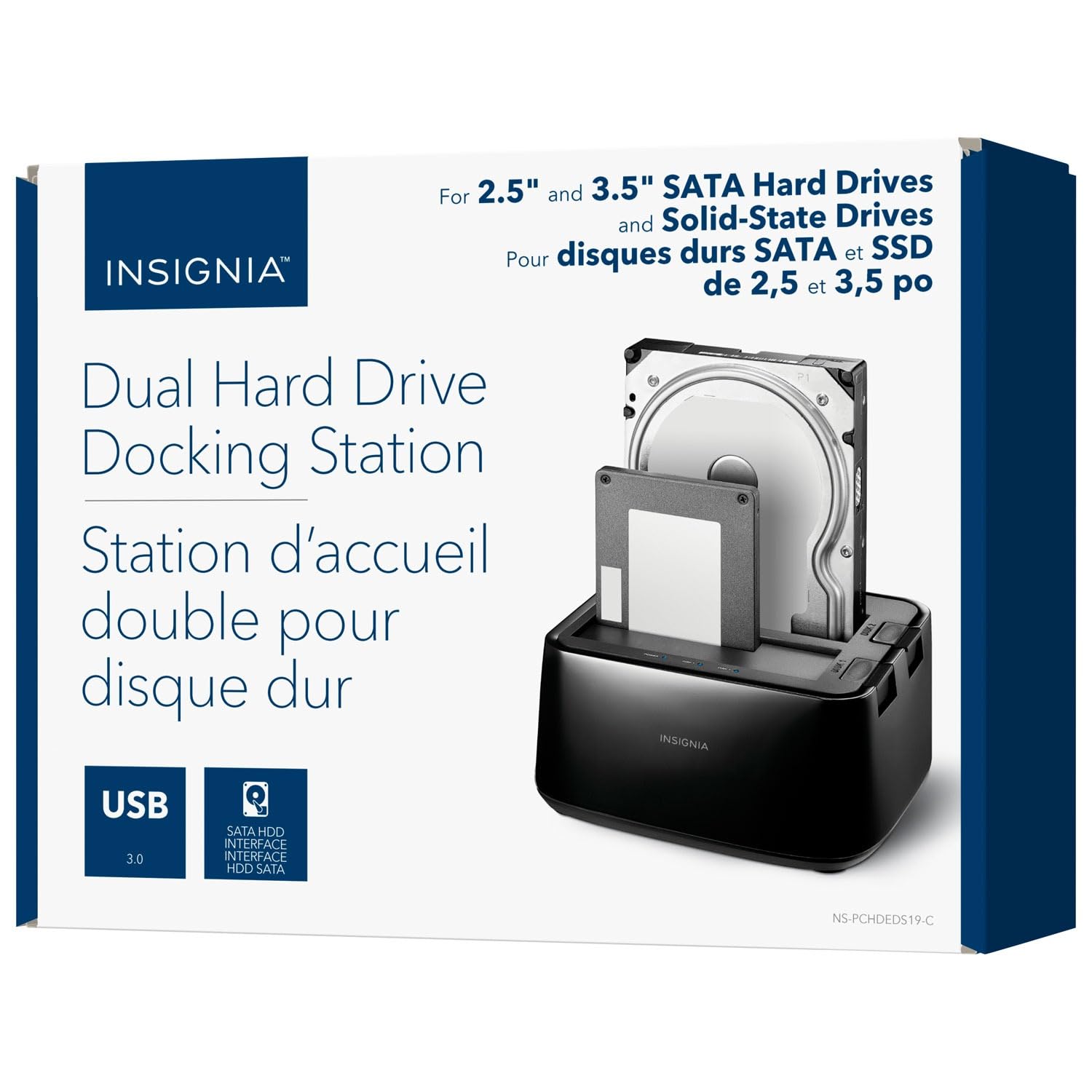
Сүрөт: алдыңкы view of the Insignia USB Dual Hard Drive Docking Station packaging, showing the product and its compatibility with 2.5" and 3.5" SATA drives.
Пакеттин мазмуну
Пакетиңизде бардык буюмдар бар экенин текшериңиз:
- Insignia USB Dual Hard Drive Docking Station
- Кубат адаптери (12V/3A)
- USB 3.0 Кабель
- Ыкчам орнотуу көрсөтмөлөрү
Продукт өзгөчөлүктөрү
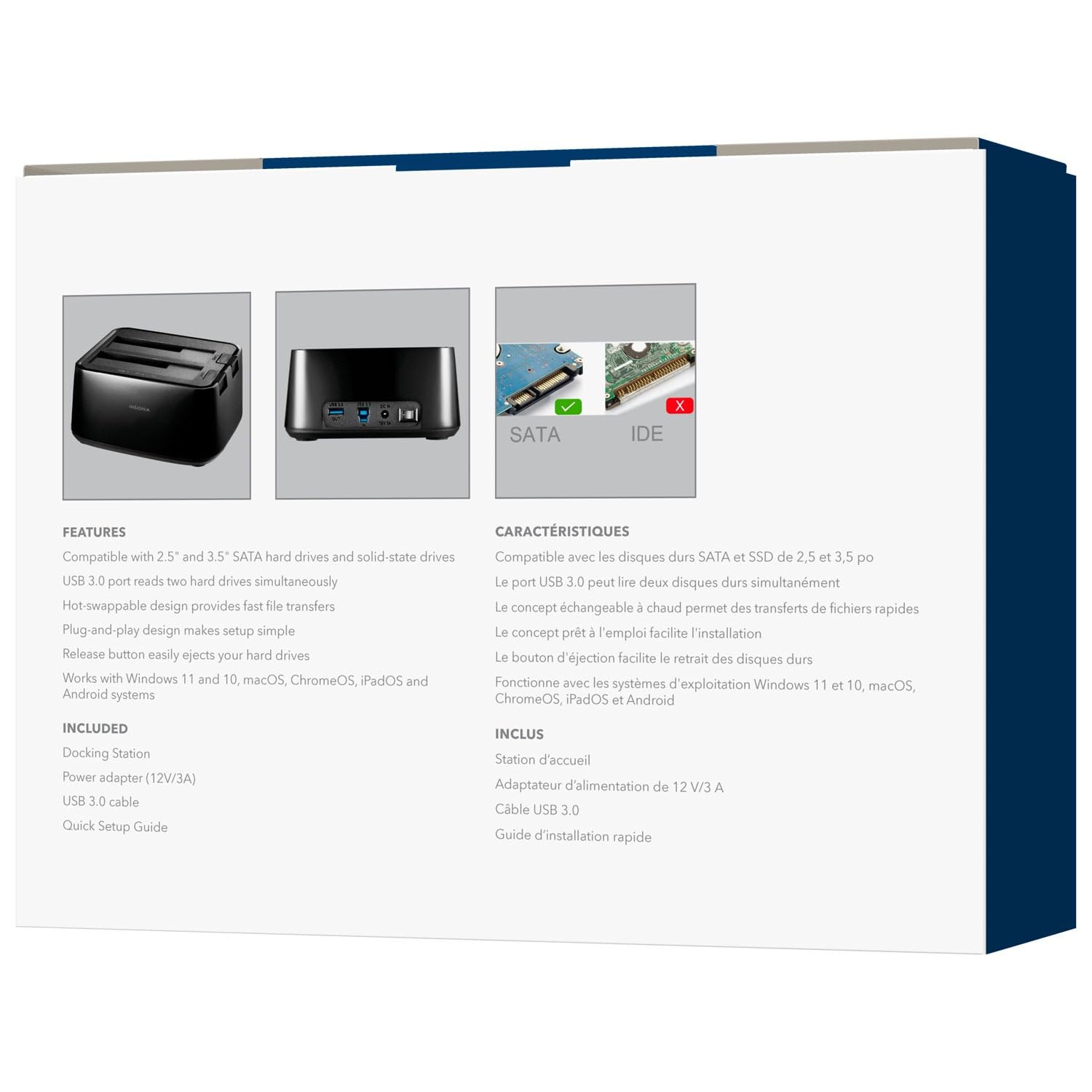
- Ар тараптуу шайкештик: Supports both 2.5-inch and 3.5-inch SATA I/II/III HDDs and SSDs. Compatible with Windows 11, 10, macOS, ChromeOS, iPadOS, and Android systems.
- Жогорку ылдамдыктагы аткаруу: Utilizes USB 3.0 technology for data transfer speeds up to 5 Gbps.
- Эки жактуу дизайн: Allows simultaneous access to two hard drives.
- Plug & Play Simplicity: Орнотуу үчүн драйверлердин кереги жок.
- Ыкчам алмашуу: Drives can be inserted and removed without restarting the computer.
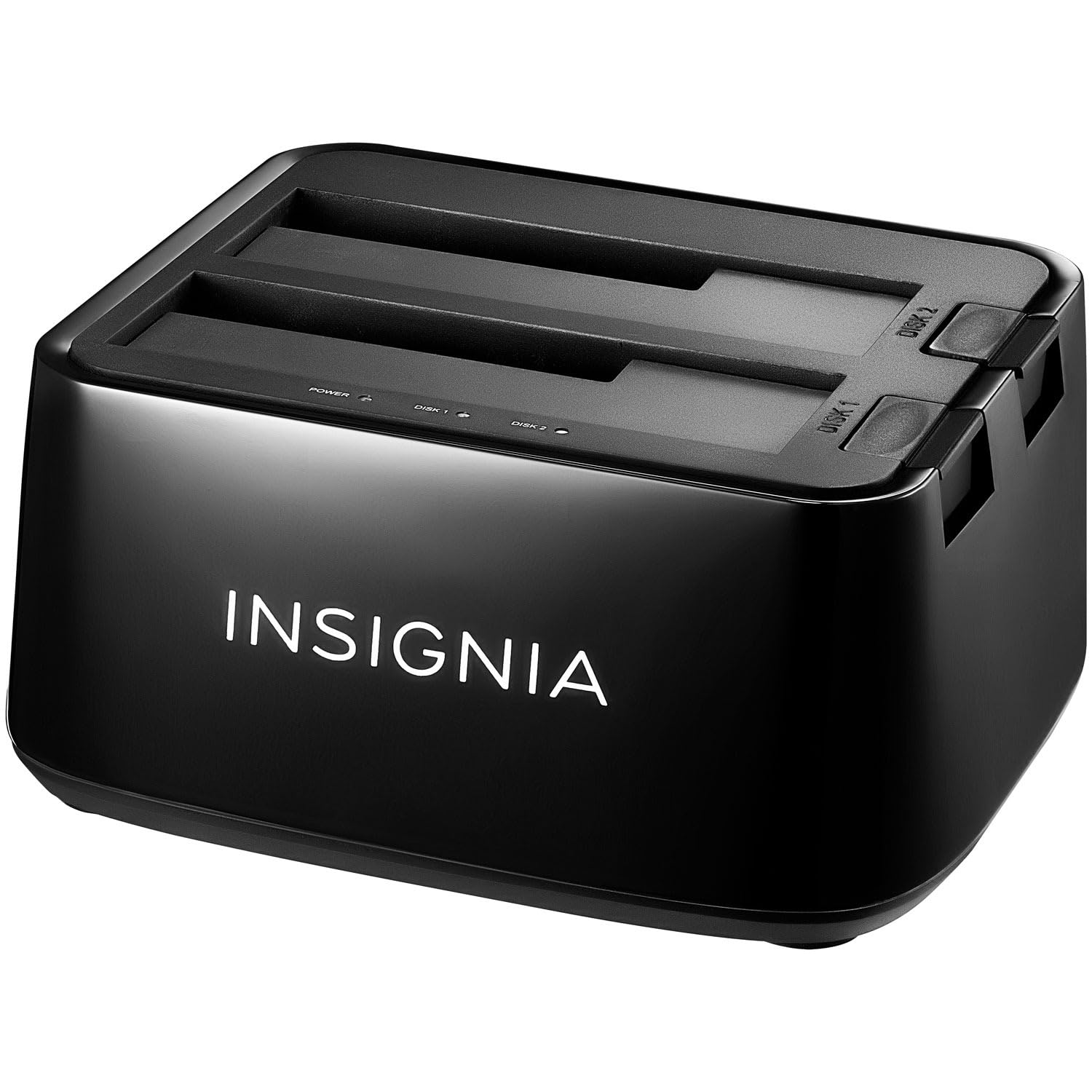
- LED көрсөткүчтөрү: Provides visual feedback for power and data activity.
- Туруктуу курулуш: Crafted with robust plastic materials for long-lasting use.
Жайгашуу
Follow these steps to set up your Insignia USB Dual Hard Drive Docking Station:
- Туташуу кубаты: Plug the included 12V/3A power adapter into the DC IN port on the back of the docking station, then plug the adapter into a power outlet.
- Катуу дисктерди киргизүү: Gently slide your 2.5-inch or 3.5-inch SATA HDD/SSD into an available drive bay (Disk 1 or Disk 2) until it is firmly seated. Ensure the SATA connector on the drive aligns with the connector in the bay.
- Компьютерге туташуу: Connect one end of the USB 3.0 cable to the USB 3.0 IN port on the docking station and the other end to an available USB port on your computer.
- Күйгүзүү: Flip the power switch on the back of the docking station to the ON position. The power LED indicator will illuminate.
Сүрөт: Арткы view of the docking station, highlighting the USB 3.0 IN/OUT ports, DC IN power port, and power switch.
Сүрөт: Үстүңкү бети view of the docking station with a 2.5-inch SSD and a 3.5-inch HDD correctly inserted into their respective bays.
Иштөө нускамалары
Дисктерди киргизүү жана алып салуу
- Кыстаруу үчүн: Align the SATA connector of your HDD/SSD with the slot in the docking station bay and gently push down until the drive is securely seated.
- Алып салуу үчүн: Ensure no data transfer is active. Safely eject the drive from your operating system (e.g., "Safely Remove Hardware" on Windows, "Eject" on macOS). Then, press the release button next to the drive bay and carefully pull the drive upwards to remove it.
Маалыматтарды өткөрүү
Once connected and powered on, your operating system should automatically detect the inserted drives. They will appear as removable storage devices. You can then drag and drop files, copy, paste, or use backup software as you would with any other external storage device.
LED көрсөткүчтөрү
- Power LED: Illuminates when the docking station is powered on.
- Activity LEDs (Disk 1, Disk 2): Blink when data is being accessed or transferred to/from the corresponding drive.
Техникалык тейлөө
- Тазалоо: Use a soft, dry cloth to clean the exterior of the docking station. Do not use liquid cleaners or solvents.
- Сактагыч: Колдонулбай турган учурда, док-станцияны салкын, кургак жерде, күндүн түз нурунан жана өтө жогорку температурадан алыс сактаңыз.
- Колдонуу: Түзмөктү түшүрүп алуудан же катуу соккуга кабылтуудан алыс болуңуз, анткени бул ички компоненттерге зыян келтириши мүмкүн.
Проблемаларды чечүү
Диск аныкталган жок
- Кубат адаптери бекем туташтырылганын жана док-станция күйүп турганын текшериңиз.
- Verify that the USB cable is firmly connected to both the docking station and your computer.
- USB кабелин компьютериңиздин башка USB портуна туташтырууга аракет кылыңыз.
- Ensure the hard drive is properly seated in the docking station bay.
- Check Disk Management (Windows) or Disk Utility (macOS) to see if the drive is recognized but unformatted or unallocated.
- Test with a different known-good hard drive to rule out a drive issue.
Маалыматтарды өткөрүү ылдамдыгынын жай болушу
- Ensure you are connected to a USB 3.0 port on your computer for optimal speeds. Connecting to a USB 2.0 port will result in slower transfer rates.
- Verify the hard drive itself is capable of high speeds. Older HDDs may have slower performance.
- Көптөгөн майда которуулардан качыңыз files simultaneously, as this can reduce overall transfer speed.
Docking Station Not Powering On
- Check that the power adapter is correctly plugged into both the docking station and a working power outlet.
- Ensure the power switch on the back of the docking station is in the ON position.
- Башка электр розеткасын колдонуп көрүңүз.
Техникалык шарттар
| Бренд | Insignia |
| Модел | B0FWFVTZ9W |
| Аппараттык интерфейс | USB 3.0 |
| Шайкеш диск түрлөрү | 2.5" and 3.5" SATA I/II/III HDD/SSD |
| Маалыматтарды өткөрүү ылдамдыгы | 5 Гбит/сек чейин (USB 3.0) |
| Аппараттык платформа | Универсал |
| Материал | Пластик |
| Кубаттуу адаптер | 12V/3A |
Кепилдик жана колдоо
For warranty information and technical support, please refer to the documentation included with your product or visit the official INSIGNIA website. You may also contact INSIGNIA customer service directly for assistance.


