1. Киришүү
Thank you for choosing the Pisichen 27-inch 4K UHD Touchscreen Monitor with Webcam. This manual provides essential information for the safe and efficient operation of your new monitor. Please read it thoroughly before use and retain it for future reference.
2. Коопсуздук маалыматы
- Кубат булагы: Монитор менен кошо берилген кубат адаптерин гана колдонуңуз. Розетканын үнүн үнүн өлчөөчү бөлүккө туура келгенин текшериңиз.tagд талаптар.
- Вентиляция: Вентиляция тешиктерин жаап албаңыз. Туура аба агымы үчүн монитордун айланасында жетиштүү орун калтырыңыз.
- Суюктук таасири: Мониторду суюктуктардан алыс кармаңыз. Аны жамгырга же нымга тийгизбеңиз.
- Тазалоо: Disconnect the power cable before cleaning. Use a soft, dry cloth. Avoid abrasive cleaners.
- Жайгашкан жери: Монитор кулап калбаш үчүн аны туруктуу, тегиз бетке коюңуз.
- Тейлөө: Мониторду өзүңүз тейлөөгө аракет кылбаңыз. Бардык тейлөө иштерин квалификациялуу адистерге тапшырыңыз.
3. Пакеттин мазмуну
Таңгактан чыгарганда таңгактын ичиндегисин текшериңиз. Эгерде кандайдыр бир буюмдар жок болсо же бузулуп калса, сатуучуга кайрылыңыз.
- Pisichen 27-inch 4K UHD Touchscreen Monitor
- Монитор стенд (негизги жана кол)
- Кубаттуу адаптер
- HDMI кабели
- USB-B to USB-A Cable (for Touch Function)
- User Manual
4. Продукт бүтүп калдыview
4.1 Негизги өзгөчөлүктөрү
- Ultra HD 4K Touchscreen Display: 27-inch 4K Ultra HD screen with vibrant colors, sharp details, and wide viewing angles. Features a responsive 10-point touchscreen for intuitive control.
- Built-in High-Definition Webкамера: Интеграцияланган webcam for video calls, online meetings, and streaming, reducing desk clutter.
- Ар тараптуу байланыш: Multiple ports including HDMI, DisplayPort, and USB-C for easy connections to various devices. Supports both touch and traditional input.
- Optimized for Productivity and Creativity: Large 4K touch display for precise control and streamlined workflows, ideal for graphic designers, content creators, and multitasking.
- Sleek and Functional Design: Modern design with an adjustable stand for optimal viewing angles and comfort during extended use.
4.2 Монитор порттору
The monitor features various ports for connecting to your devices. Refer to the image below for port identification.
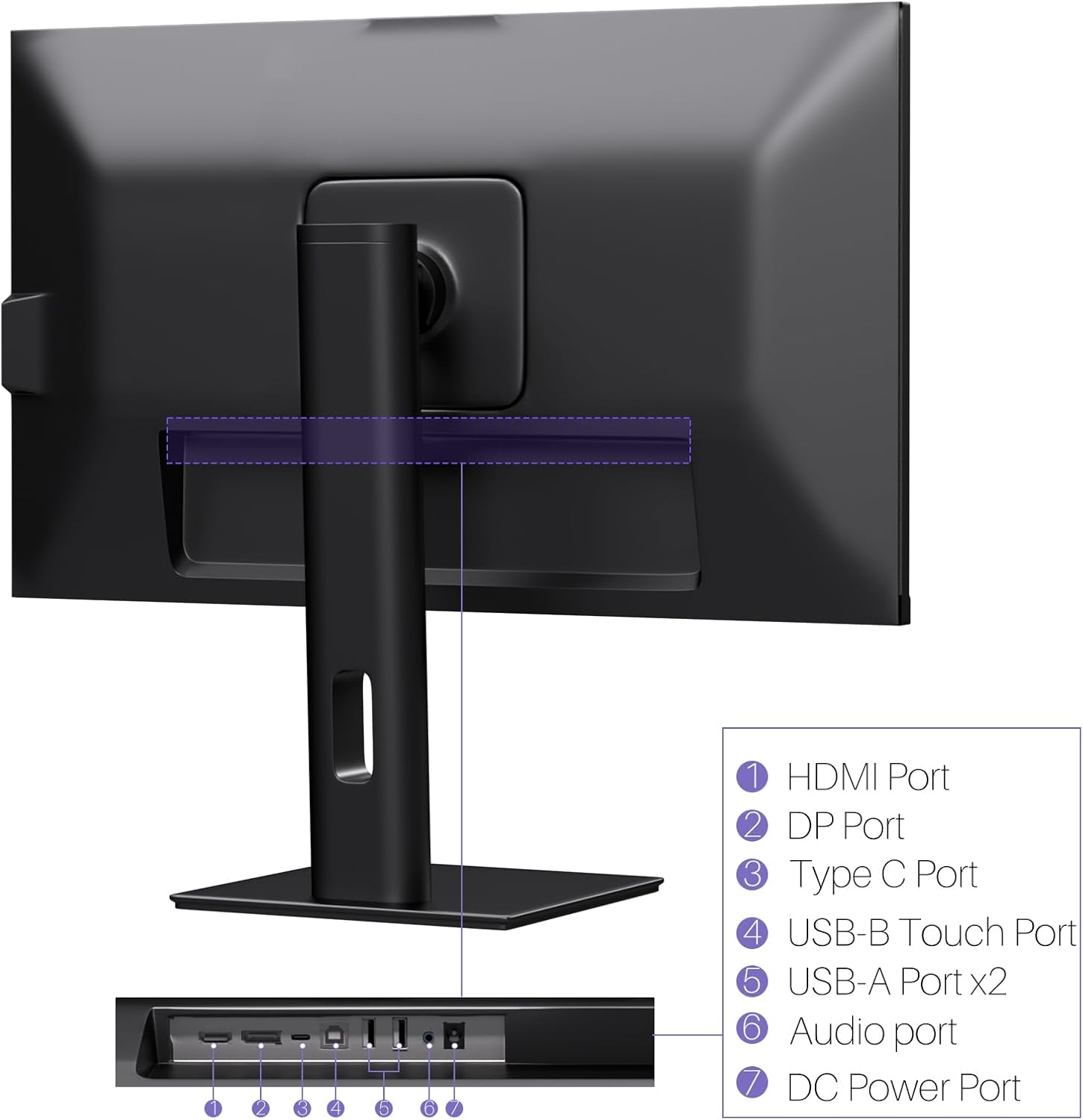
Сүрөт: Арткы view of the monitor displaying the HDMI, DP, Type-C, USB-B Touch, USB-A, Audio, and DC Power ports.
- HDMI порту: Connects to devices via HDMI cable for video and audio input.
- DP порту: Connects to devices via DisplayPort cable for video and audio input.
- Тип-C Port: Connects to devices via USB-C cable for video, audio, and power delivery. (Requires USB-C port on signal device to support DisplayPort Alternate Mode for touch functionality).
- USB-B Touch Port: Connects to your computer via USB-B to USB-A cable to enable touchscreen functionality.
- USB-A порту (x2): For connecting USB peripherals.
- Аудио порт: Тышкы аудио түзүлүштөрдү туташтыруу үчүн.
- DC Power Port: Кубат адаптерине туташат.
5. Орнотуу нускамалары
5.1 Стендди чогултуу
- Мониторду жана стенд компоненттерин таңгактан этияттык менен алып салыңыз.
- Attach the stand arm to the monitor's VESA mounting points.
- Secure the stand base to the arm using the provided screws.
- Ensure all connections are tight and the monitor is stable.
5.2 Түзмөккө туташуу
The monitor supports various connection types. Choose the appropriate cable for your device.

Image: Connection diagrams illustrating how to connect the monitor as a secondary display (HDMI/DP + DC), a touchscreen monitor (HDMI/DP + USB-B + DC), or via USB-C (USB-C + DC).
- For Video and Audio (Non-Touch): Connect an HDMI or DisplayPort cable from your computer to the corresponding port on the monitor.
- For Video, Audio, and Touch (Windows PC): Connect an HDMI or DisplayPort cable for video/audio. Additionally, connect the USB-B to USB-A cable from the monitor's USB-B Touch Port to a USB-A port on your computer.
- For Video, Audio, and Touch (USB-C Compatible Device): Connect a USB-C cable from your device to the monitor's Type-C port. Ensure your device's USB-C port supports DisplayPort Alternate Mode for touch functionality.
5.3 Кубат туташтыруу
- Connect the power adapter to the monitor's DC Power Port.
- Кубат адаптерин розеткага сайыңыз.
6. Иштөө нускамалары
6.1 Күйгүзүү/өчүрүү
Аны күйгүзүү же өчүрүү үчүн монитордо жайгашкан кубат баскычын басыңыз.
6.2 Экрандагы дисплей (OSD) менюсу
Use the control buttons (typically located on the back or bottom of the monitor) to navigate the OSD menu. This menu allows you to adjust settings such as brightness, contrast, color temperature, input source, and other display parameters.
6.3 Сенсордук экрандын иштеши
The monitor features a 10-point multi-touch screen. Ensure the USB-B to USB-A cable (or USB-C cable for compatible devices) is connected to enable touch functionality.
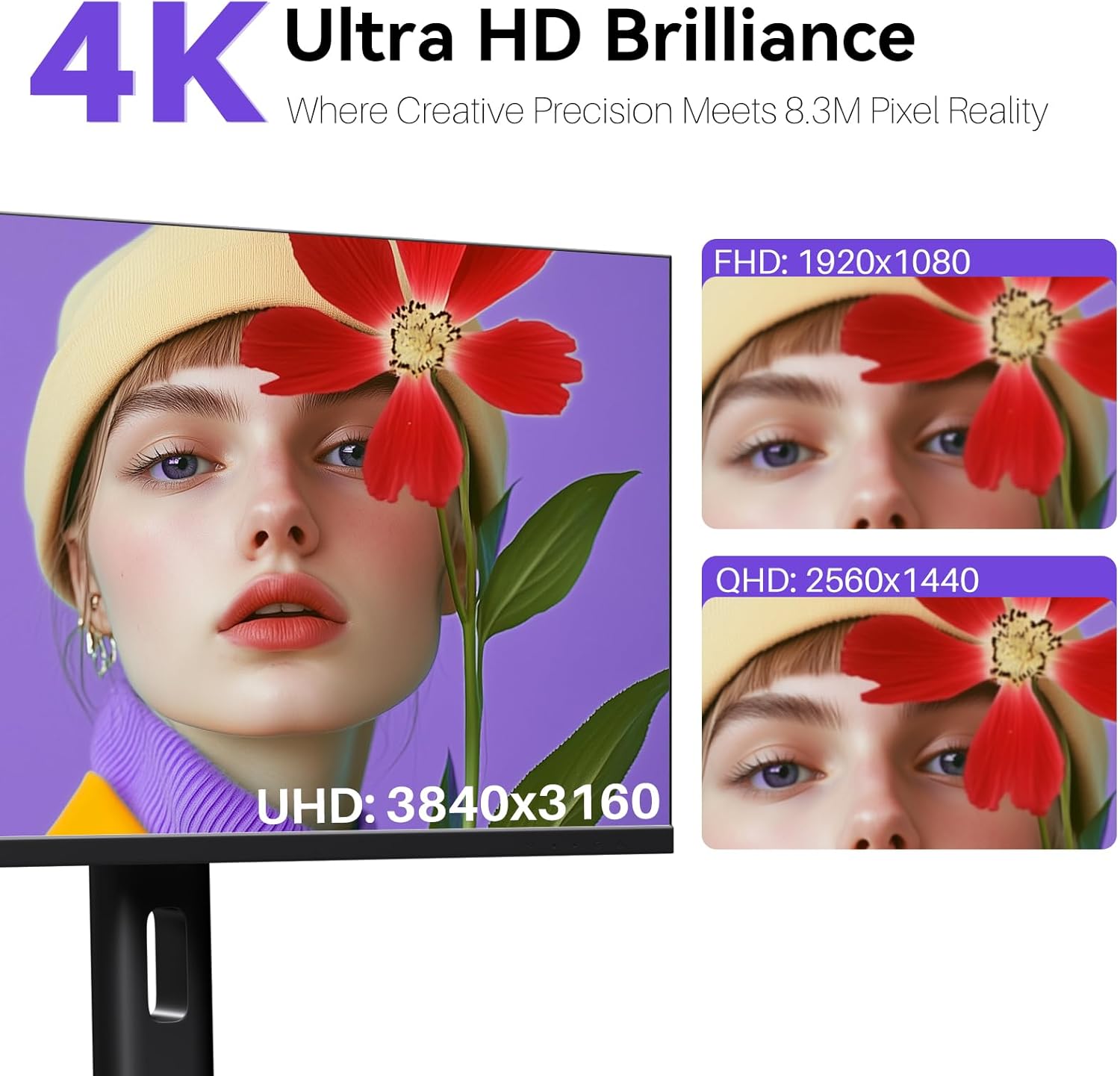
Image: A user's hand interacting with the monitor screen, highlighting the responsive 10-point touch experience.
- Basic Touch: Tap to click, swipe to scroll.
- Мульти-сенсордук жаңсоолор: Use two fingers to zoom in/out, rotate, or pan, depending on the application.
- Touch Calibration (Windows Only): If the cursor does not align with your touch, calibration may be required. Go to Control Panel > Hardware and Sound > Tablet PC Settings > Calibrate. Follow the on-screen prompts.
6.4 Using the Built-in Webcam
интеграцияланган webcam is automatically detected by most operating systems and video conferencing applications. No additional drivers are typically required.

Image: The monitor displaying a video conference call, showcasing its integrated webcam for seamless communication.
- Каалаган видеоконференция программаңызды ачыңыз (мисалы, Zoom, Microsoft Teams, Skype).
- Select the integrated webcam as your video input device in the application's settings.
6.5 Adjusting Display Resolution
To set the resolution of the monitor (Windows):
- Иш тактаңызды оң баскыч менен чыкылдатып, "Экран жөндөөлөрүн" тандаңыз.
- Find your monitor (if multiple displays are connected).
- Under "Display resolution," select the recommended resolution of 3840 x 2160.
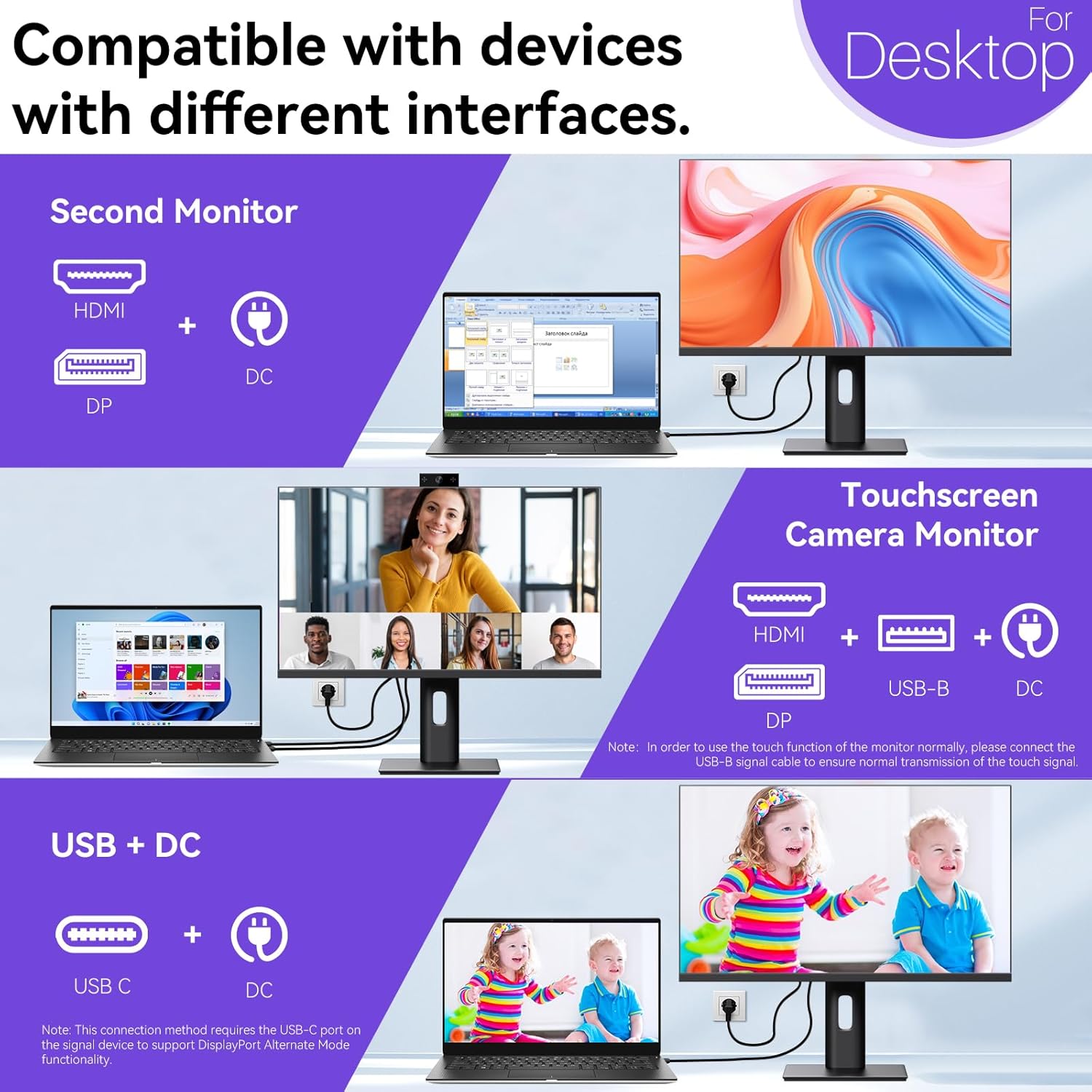
Image: A visual comparison demonstrating the superior clarity of 4K UHD (3840x2160) compared to FHD (1920x1080) and QHD (2560x1440) resolutions.
7. Техникалык тейлөө
- Экранды тазалоо: Экранды жумшак, түксүз чүпүрөк менен акырын сүртүңүз. өжөр белгилери үчүн, жеңил гampкездемени суу же экранга арналган тазалоочу эритме менен сүртүңүз. Суюктукту түз экранга чачпаңыз.
- Тазалоо Casing: Мониторду тазалоо үчүн жумшак, кургак чүпүрөктү колдонуңуз casing.
- Сактагыч: If storing the monitor for an extended period, disconnect it from power, pack it in its original packaging, and store it in a cool, dry place.
8. Кыйынчылыктарды
If you encounter issues with your monitor, refer to the following troubleshooting guide. For problems not listed, please contact customer support.
| Көйгөй | Мүмкүн себеп | Чечим |
|---|---|---|
| Экранда сүрөт жок | Электр кабели ажыратылган; Видео кабели ажыратылган; Туура эмес киргизүү булагы тандалды. | Ensure power cable is securely connected. Check video cable (HDMI/DP/USB-C) connections. Select correct input source via OSD menu. |
| Сенсордук экран жооп бербей жатат | USB-B cable not connected; USB-C port not supporting DisplayPort Alternate Mode; Device incompatibility (e.g., iPhone). | Ensure the USB-B to USB-A cable is connected from the monitor to your computer. If using USB-C, verify your device's USB-C port supports DisplayPort Alternate Mode. Note: Touch function is not supported when connected to an iPhone due to iOS system restrictions. |
| Cursor moves incorrectly (Windows) | Touchscreen calibration required. | Perform touchscreen calibration: Go to Control Panel > Hardware and Sound > Tablet PC Settings > Calibrate. |
| Webкамера табылган жок | USB connection issue; Software settings. | Ensure all necessary USB cables are connected. Check your application's settings to select the correct webкамера |
9. Техникалык шарттар
| Өзгөчөлүк | Деталь |
|---|---|
| Бренд | Pisichen |
| Модель номери | 27INTSCMR-4K |
| Screen Size | 27 дюйм |
| Резолюция | 3840 x 2160 пиксель (4K UHD 2160p) |
| Аспект катышы | 16:9 |
| Сүрөттүн жарыктыгы | 400 Кандела |
| Screen Surface Description | Жылтырак |
| Продукциянын өлчөмдөрү | 14.37 x 24.21 x 16.54 дюйм |
| Элемент Салмагы | 16.59 фунт |
| Өндүрүүчү | Шэньчжэнь Конова Электроника Ко., ЖЧК |
| Байланыш | HDMI, DisplayPort, USB-C, USB-B (for touch), USB-A (x2), Audio Port |
10. Кепилдик жана колдоо
This product comes with a manufacturer's warranty. Please refer to the warranty card included in your package for specific terms and conditions. For technical support or inquiries, please contact Pisichen customer service at support_2308@163.com. When contacting support, please provide your model number and a detailed description of the issue, including any relevant pictures or videos.


