Introduction
Welcome to the user manual for the Apple Watch Ultra 3. This guide is designed to help you unlock the full potential of your smartwatch, whether you are a beginner or a senior user. It provides clear, step-by-step instructions to navigate through setup, security, health monitoring, navigation, communication, and daily functions. Our goal is to transform your experience from 'I think I can do this' to 'I do this every day—with ease.'
This manual is not a technical encyclopedia but an operational guide that replaces doubts with reliable routines. By following the instructions, you will build simple routines that work from day one and continue to benefit you over time.

Image 1: Front cover of the Apple Watch Ultra 3 User Guide. This image illustrates the manual's focus on user-friendliness and key features.
1. Quick and Stress-Free Setup
Setting up your Apple Watch Ultra 3 should be a straightforward process. This section guides you through the initial pairing and configuration steps, ensuring a smooth start.
1.1 Баштапкы жупташтыруу
- Күйгүзүү: Apple логотиби пайда болгонго чейин капталдагы баскычты басып, кармап туруңуз.
- Bring iPhone Close: Place your Apple Watch near your iPhone. A pairing screen should appear on your iPhone.
- Экрандагы көрсөтмөлөрдү аткарыңыз: Use your iPhone to set up your Apple Watch. This includes selecting your wrist, agreeing to terms, and creating a passcode.
1.2 Customizing Settings for Readability
The manual emphasizes large text and settings suitable for seniors. You can adjust these settings during or after setup:
- Тексттин өлчөмү: On your iPhone, open the Apple Watch app, go to My Watch > Display & Brightness > Text Size. Adjust the slider to your preferred size.
- Калың текст: In the same menu, toggle on Калың текст for improved visibility.
- Чоңойтуу: Enable Zoom for a magnified view of the screen. Go to My Watch > Accessibility > Zoom.
2. Operating Your Apple Watch Ultra 3
This section covers daily operations, including watch faces, complications, and everyday convenience features.
2.1 Legible Watch Faces and Complications
Customize your watch face to display information that is most important to you, with clear readability.
- Сааттын жүзүн өзгөртүү: On your Apple Watch, press firmly on the display, then swipe left or right to choose a new face. Tap Түзөтүү өзгөчөлөштүрүү.
- Adding Complications: While editing a watch face, tap a complication area to select what information it displays (e.g., battery, medications, weather, heart rate).
2.2 Everyday Convenience Features
Integrate your Apple Watch into your daily routine for enhanced convenience.
- Wallet & Apple Pay: Set up Apple Pay in the Wallet app on your iPhone. Double-click the side button on your Watch to access your cards for payments.
- Smart Stack: Swipe up from the watch face to access the Smart Stack, which intelligently displays widgets based on your activity and time of day.
- Timers and Reminders: Use Siri or the respective apps on your Watch to set timers and reminders. For Siri, simply raise your wrist and say, "Hey Siri, set a timer for 10 minutes."
- Dictation Tips: When responding to messages or creating notes, tap the microphone icon and speak clearly. The Watch will convert your speech to text.
3. Simplified Safety Features
The Apple Watch Ultra 3 includes robust safety features designed to provide peace of mind.
- Шашылыш SOS: Press and hold the side button until the Emergency SOS slider appears. Drag the slider to call emergency services. You can also set up automatic calls after a countdown.
- Medical ID (Health App): Set up your Medical ID in the Health app on your iPhone. This allows first responders to access critical medical information from your locked Watch.
- Күзгү аныктоо: Your Watch can detect a hard fall and initiate an emergency call if you are unresponsive. Enable this in the Apple Watch app on your iPhone under Шашылыш SOS.
- Кырсыкты аныктоо: The Watch can detect a severe car crash and automatically connect you with emergency services. This feature is enabled by default.
- Аракет баскычы: Customize the Action Button (the orange button on the left side) to quickly access a specific function, such as starting a workout, marking a Compass Waypoint, or initiating a dive. Configure this in Settings > Action Button on your Watch.
4. Understandable Health Monitoring
Monitor your health with clear insights and useful alerts without feeling overwhelmed.
- Уйкуга көз салуу: Wear your Watch to bed to track your sleep stages жана узактыгы. View your sleep data in the Health app on your iPhone.
- Vital Signs: The Watch continuously monitors your heart rate. You can also take an ECG (Electrocardiogram) and measure blood oxygen levels using the respective apps.
- Useful Alerts: Receive notifications for unusually high or low heart rates, irregular heart rhythms, and low cardio fitness. Configure these alerts in the Health app on your iPhone.
5. Navigation and Off-Grid Features
The Apple Watch Ultra 3 is equipped with features for outdoor adventures and off-grid peace of mind.
- Жол чекиттери: Use the Compass app to mark your current location as a Waypoint. This is useful for remembering specific spots during hikes or explorations.
- Артка жол: If you get lost, the Backtrack feature in the Compass app can help you retrace your steps to your starting point.
- Түнкү режим: When using the Wayfinder watch face, rotate the Digital Crown to activate Night Mode, which turns the interface red for better visibility in low-light conditions.
- Battery Saving Routines: To extend battery life, consider enabling Low Power Mode (Settings > Battery > Low Power Mode) or disabling features like Always-On Display when not needed.
6. Техникалык тейлөө
Proper care ensures the longevity and optimal performance of your Apple Watch Ultra 3.
- Тазалоо: Regularly clean your Apple Watch and band. Wipe the Watch with a non-abrasive, lint-free cloth. For the band, follow specific cleaning instructions based on its material.
- Заряддоо: Use the provided magnetic fast charger. Ensure the charger is properly aligned with the back of your Watch. Avoid extreme temperatures during charging.
- Суу каршылык: The Apple Watch Ultra 3 is water resistant and suitable for recreational diving. However, avoid exposing it to high-velocity water or soaps, shampoos, and conditioners, which can affect water seals.
7. Кыйынчылыктарды
This section provides quick solutions for common issues you might encounter.
- Жупташтыруу маселелери: If your Watch won't pair, ensure both devices have Bluetooth enabled, are charged, and are close to each other. Try restarting both devices.
- Заряддоо көйгөйлөрү: If your Watch isn't charging, check the charger connection, ensure the charging puck is clean, and try a different power adapter or outlet.
- Билдирмелер көрүнбөйт: Verify that notifications are enabled in the Apple Watch app on your iPhone (My Watch > Notifications). Also, check that Do Not Disturb or Focus modes are not active on either device.
- Баштапкы абалга келтирүү:
- Кайра баштоо: Press and hold the side button until the power off slider appears, then drag it. To power on, press and hold the side button again.
- Мажбурлап кайра иштетүү: If the Watch is unresponsive, press and hold both the side button and the Digital Crown for at least 10 seconds until the Apple logo appears.
- Erase All Content and Settings: On your Watch, go to Орнотуулар > Жалпы > Кайра коюу > Бардык мазмунду жана жөндөөлөрдү өчүрүү. This will unpair your Watch and erase all data.
8. Бул колдонмо жөнүндө
This manual is an independent user guide created for educational purposes. It is not affiliated with, authorized, or endorsed by Apple Inc. The functions described may vary based on region, carrier, and software version.
8.1 Manual Details
- Author: Alex Meadow
- Жарыялоочу: Көз карандысыз басылып чыккан
- Жарыяланган датасы: 25-октябрь, 2025-жыл
- Тил: English (Original source in Italian)
- ISBN-13: 979-8271571381
9. Warranty and Official Support
For official warranty information, product support, and service for your Apple Watch Ultra 3, please refer to the official Apple Inc. website or contact Apple Support directly. As this is an independent guide, it does not provide warranty coverage or official support services for the device.
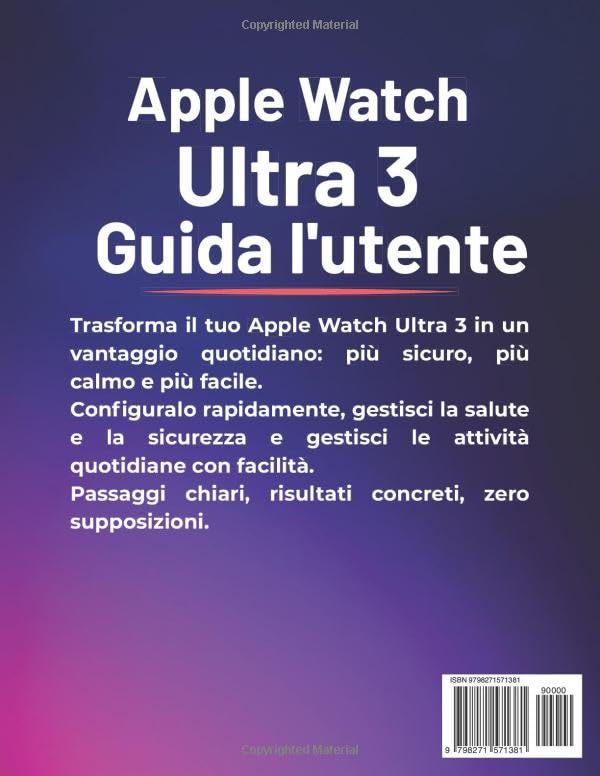
Image 2: Back cover of the Apple Watch Ultra 3 User Guide. This image provides a summary of the manual's value proposition.


