Introduction
This manual provides detailed instructions for the Qubick Wireless Controller, designed for use with Nintendo Switch, NS2, and PC. Please read this manual carefully before using the product to ensure proper operation and to maximize your gaming experience. Keep this manual for future reference.
Продукт бүттүview
The Qubick Wireless Controller features advanced wireless technology, Hall Effect triggers, precise analog sticks, and a Six-Axis motion sensor for immersive gameplay. It includes programmable back buttons, adjustable vibration, and multiple connectivity modes.
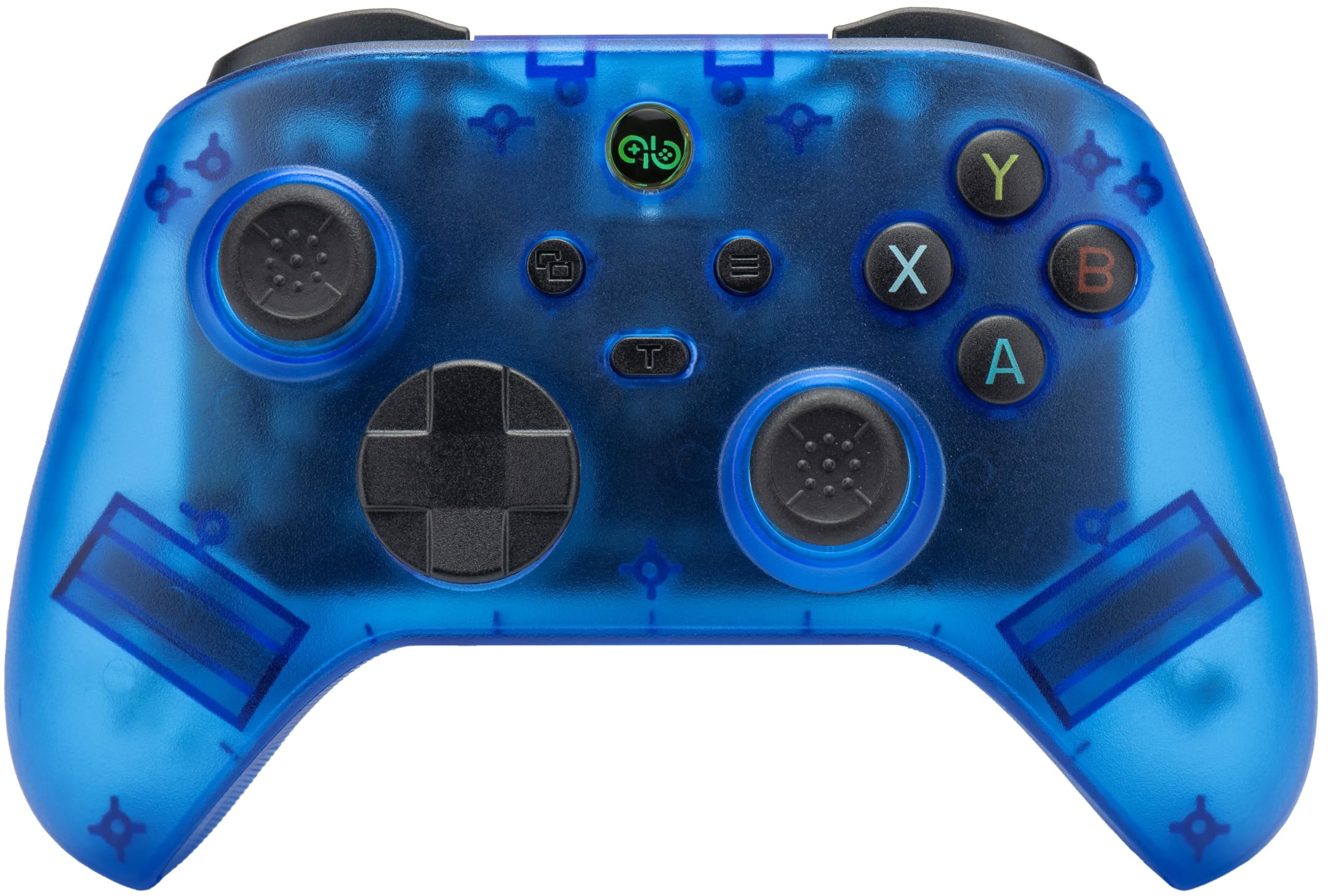
Сүрөт: алдыңкы view of the Qubick Wireless Controller, showcasing its transparent blue casing, dual analog sticks, D-pad, and face buttons (A, B, X, Y).
Жайгашуу
1. Баштапкы заряддоо
Before first use, fully charge the controller. Connect the supplied USB Type-C cable to the controller's charging port and the other end to a USB power source (e.g., console, PC, or USB wall adapter). The LED indicators will show charging status.
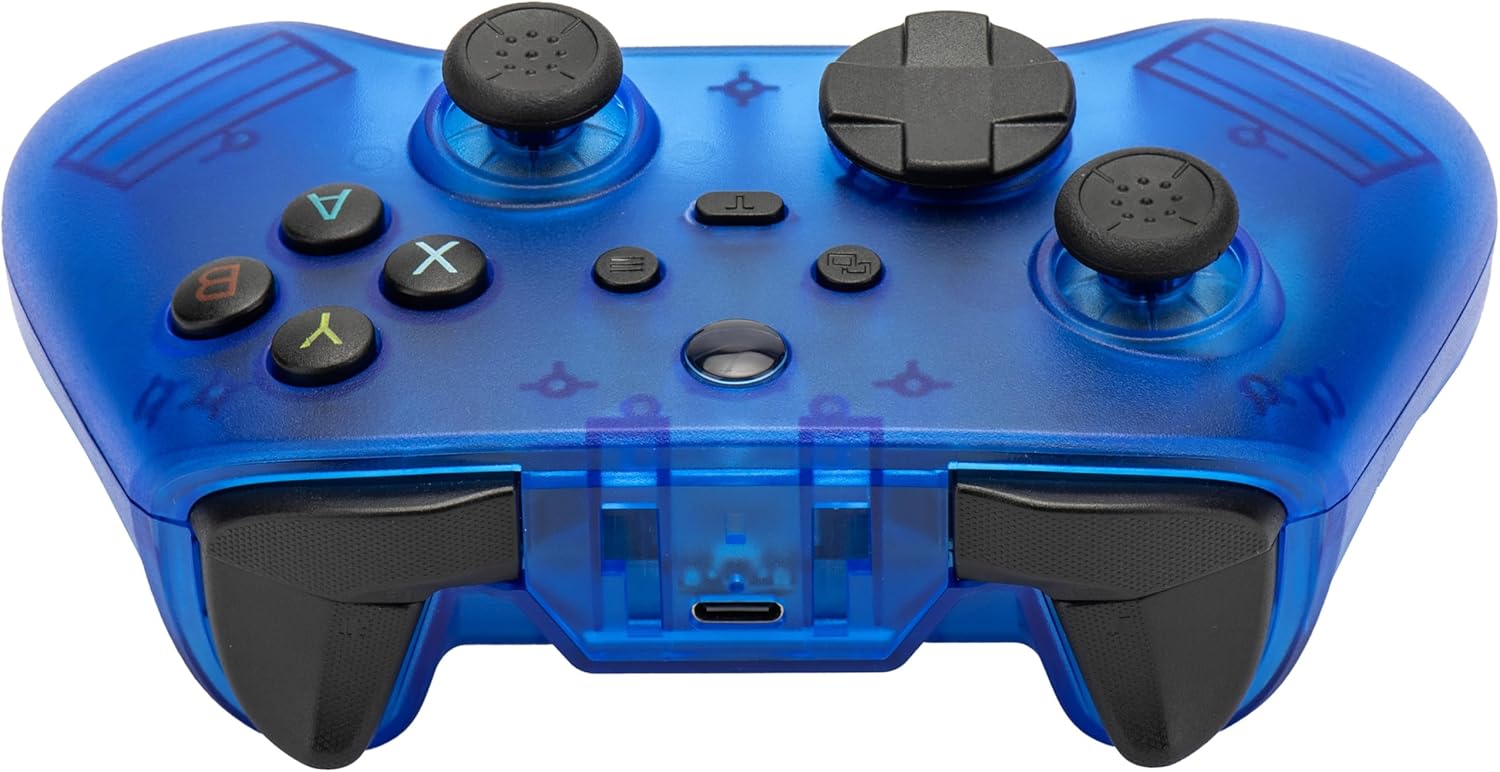
Сүрөт: алдыңкы view of the Qubick Wireless Controller, highlighting the USB Type-C charging port located at the top center.
2. Nintendo Switch менен жупташуу
- On your Nintendo Switch console, go to the HOME Menu.
- 'Controllers' > 'Change Grip/Order' тандаңыз.
- Press and hold the pairing button on the Qubick Wireless Controller until the LED indicators begin to flash rapidly.
- Once paired, the controller's LED will remain solid, indicating a successful connection.
3. Pairing with PC
- Ensure the controller is in the correct PC mode (Xinput). Use the mode change button if necessary.
- Connect the controller to your PC via the USB Type-C cable, or follow Bluetooth pairing instructions if your PC supports it.
- For Bluetooth, go to your PC's Bluetooth settings, enable Bluetooth, and search for new devices. Select the Qubick Wireless Controller when it appears.
4. Которуу режими
The controller supports multiple modes: V3, MFi, Xinput, Switch, and 2.4G. Use the dedicated mode change button to cycle through these options to match your device's requirements.
Иштөө нускамалары
1. Button Layout
Familiarize yourself with the controller's buttons:
- Аналогдук таякчалар: Left and Right for movement and camera control.
- D-Pad: Багыттуу киргизүү.
- Бет баскычтары (A, B, X, Y): Негизги аракет баскычтары.
- Ийин баскычтары (сол, оң) жана триггерлер (сол, сол): Кошумча аракеттер жөнүндө маалымат.
- Үй баскычы: Returns to the console's home screen.
- Плюс (+) / Минус (-) баскычтары: System functions.
- Скриншот баскычы: Скриншотторду тартат.
- M1 / M2 баскычтары: Программалануучу арткы баскычтар.

Сүрөт: бурчтуу алдыңкы view of the Qubick Wireless Controller, showing the arrangement of all primary buttons and analog sticks.
2. Turbo and Auto Turbo Function
The controller supports Turbo and Auto Turbo functions for rapid button presses.
- Turbo иштетүү үчүн: Press and hold the desired action button, then press the Turbo button. The button will now rapidly repeat its input when held down.
- To activate Auto Turbo: Press the desired action button, then press the Turbo button twice. The button will now rapidly repeat its input without being held down.
- To deactivate Turbo/Auto Turbo: Repeat the activation steps for the specific button, or clear all Turbo settings by holding the Turbo button for 5 seconds.
3. Вибрацияны жөндөө
The dual-motor vibration system has 3 intensity levels. To adjust, press and hold the vibration adjustment button (refer to controller diagram for location) and use the D-pad Up/Down to cycle through intensity levels.
4. Six-Axis Motion Sensor Calibration
If motion controls feel inaccurate, you can recalibrate the Six-Axis sensor. Refer to the specific instructions provided in the console's system settings or the full online manual for detailed calibration steps.
5. Программалануучу артка баскычтар (M1/M2)
The M1 and M2 buttons on the back of the controller can be programmed to replicate other button inputs.

Сүрөт: Артка view of the Qubick Wireless Controller, clearly showing the M1 and M2 programmable buttons on the grips.
- Программалоо үчүн: Press and hold the 'Program' button (usually a small button near M1/M2) until the indicator light flashes.
- Press the M1 or M2 button you wish to program.
- Press the button (or sequence of buttons) you want M1/M2 to emulate.
- Press the 'Program' button again to save the setting. The indicator light will stop flashing.
6. LED көрсөткүчтөрү
The controller features LED indicators to display its status:
- Жаркылдаган LED'лер: Жупташтыруу режимин же батареянын аздыгын көрсөтөт.
- Solid LED(s): Indicates successful connection and player number (for Switch).
- Pulsing LED: Толуктоо жүрүп жатканын көрсөтөт.
- LED Off (when connected to power): Indicates fully charged.
Техникалык тейлөө
1. Тазалоо
Башкаргычты тазалоо үчүн жумшак, кургак чүпүрөктү колдонуңуз. Өтө кир болсо, бир аз сүртүңүзampen the cloth with water. Do not use harsh chemicals or abrasive cleaners, as these can damage the surface.
2. Сактоо
Store the controller in a cool, dry place away from direct sunlight and extreme temperatures. Avoid placing heavy objects on the controller.
3. Батареяга кам көрүү
To prolong battery life, avoid fully discharging the controller frequently. If storing for an extended period, charge the battery to approximately 50% every few months.
Проблемаларды чечүү
- Контроллер туташпай жатат:
Ensure the controller is charged. Verify it is in the correct mode for your device (Switch, Xinput for PC). Re-attempt the pairing process. If using Bluetooth, ensure your device's Bluetooth is enabled and discoverable. - Баскычтар же таякчалар жооп бербейт:
Check if the controller is properly connected. Restart the controller and the console/PC. If the issue persists, a factory reset (if available, refer to online manual) might be necessary. - Заряддоо маселелери:
Ensure the USB Type-C cable is securely connected to both the controller and the power source. Try a different USB port or charging cable. - Вибрация иштебей жатат же өтө алсыз/күчтүү:
Adjust the vibration intensity as described in the 'Operating Instructions' section. Ensure the game you are playing supports vibration feedback. - Motion controls inaccurate:
Perform a Six-Axis motion sensor calibration as described in the 'Operating Instructions' section.
Техникалык шарттар
| Бренд | Qubick |
| Модел | Wireless Controller (NSW) |
| Шайкештик | Nintendo Switch, NS2, PC |
| Байланыш | Advanced Wireless Technology |
| Триггерлер | Hall Effect Technology |
| Аналогдук таякчалар | Precise Analog Sticks |
| Motion Sensor | Six-Axis with Calibration Function |
| Вибрация | Dual Motor with 3 Intensity Levels |
| Батарея | Integrated 400 mAh Li-ion Rechargeable Battery |
| Заряддоо порту | USB Type-C |
| Программалануучу баскычтар | M1 / M2 Back Buttons |
| Өлчөмдөр | Болжол менен 16 x 12 x 8 см |
| Салмагы | Болжол менен 350 г |
Кепилдик жана колдоо
For warranty information, technical support, or to download the latest version of this manual, please visit the official Qubick webсайт.
Official Manuals and Support: https://www.qubick.it/manuali
This product is manufactured by Cidiverte.
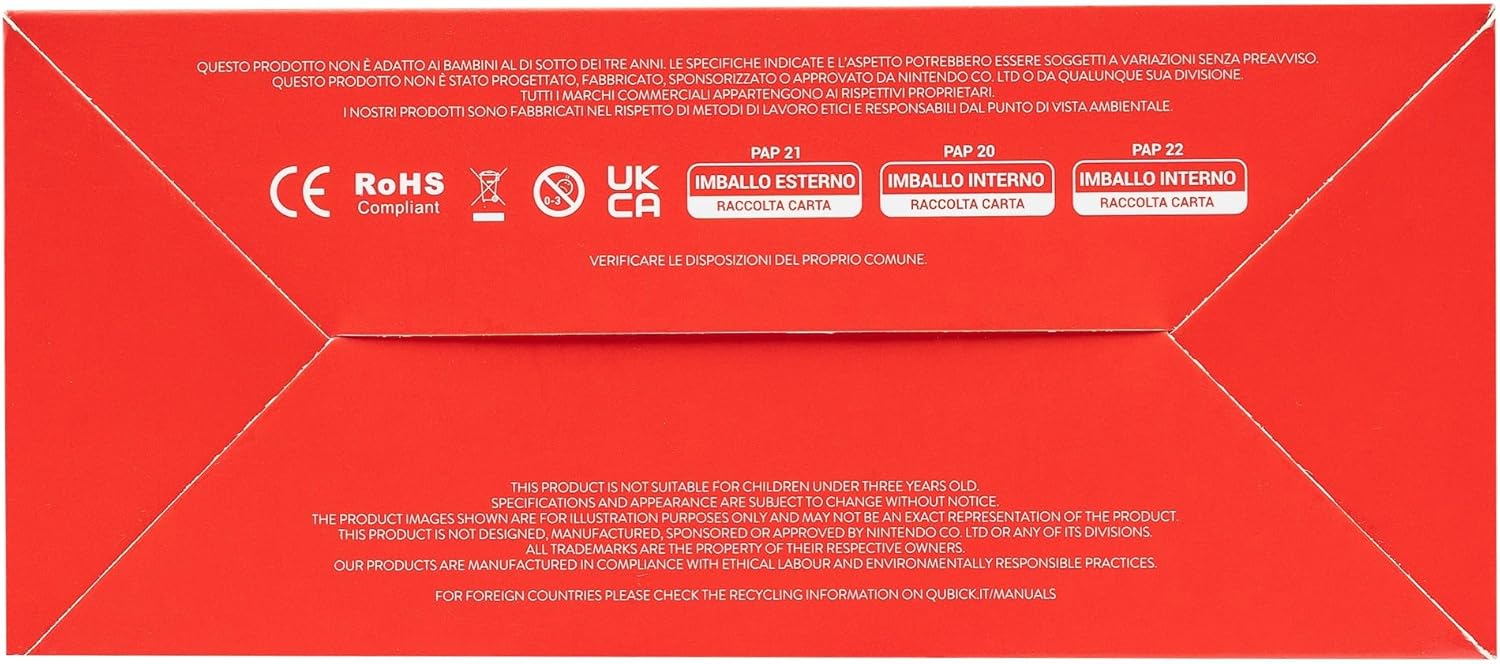
Image: Packaging of the Qubick Wireless Controller, displaying multilingual product information and a QR code linking to the online manual.
Image: Product packaging bottom, showing CE, RoHS, UKCA compliance marks and recycling information for cardboard packaging.


