1. Киришүү
Thank you for choosing the BitFenix AL118 ATX Mid Tower PC Case. This manual provides essential information for the proper installation, operation, and maintenance of your new PC case. Please read this manual thoroughly before beginning installation to ensure correct setup and to prevent any damage to the product or its components. Keep this manual for future reference.
Коопсуздук маалыматы
- Компоненттерди орнотуудан же алып салуудан мурун ар дайым кубат менен жабдууну розеткадан ажыратыңыз.
- Handle components with care to avoid electrostatic discharge (ESD) damage. Consider using an anti-static wrist strap.
- Вентиляторлорго же башка кыймылдуу бөлүктөргө тоскоолдук жаратпоо үчүн бардык кабелдердин туура жайгаштырылганын жана бекитилгенин текшериңиз.
- Do not open the power supply unit (PSU) as it contains high voltage компоненттери.
- Keep the case away from direct sunlight, high temperatures, and moisture.
2. Продукт бүтүп калдыview жана өзгөчөлүктөрү
The BitFenix AL118 is a high-performance ATX Mid Tower PC case designed for enthusiasts. It features a tempered glass side panel, integrated ARGB lighting, and comes equipped with a 1000W 80+ Gold Gen5 ATX 3.0 power supply unit. The case offers extensive compatibility for various motherboard sizes, GPUs, and cooling solutions.
Негизги өзгөчөлүктөрү:
- Форма фактору: ATX Mid Tower
- Электр камсыздоо: Integrated 1000W 80+ Gold Gen5 ATX 3.0 PSU
- Каптал панели: Температуралуу айнек
- Жарыктандыруу: Addressable RGB (ARGB) elements
- Motherboard колдоо: MicroATX, Mini-ITX (ATX implied by case type)
- Алдыңкы I/O: 1 x USB 3.2 Type-C, 2 x USB 3.0
- Storage Bays: 2 x 2.5" internal, 1 x 3.5" internal
- GPU тазалоо: 400 мм чейин
- Муздатуу колдоо:
- Top Radiator: 240mm, 280mm, 360mm
- Rear Radiator: 1 x 120mm
- Rear Fan: 1 x 120mm (pre-installed ARGB)
- Top Fan: 3 x 120mm or 3 x 140mm (support)
- Side Fan: 3 x 120mm (pre-installed ARGB)
3. Орнотуу колдонмосу
Follow these steps to properly set up your BitFenix AL118 PC case and install your components.
3.1 Таңгактан чыгаруу жана алгачкы текшерүү
- Кутучаны таңгагынан этияттык менен чыгарыңыз.
- Inspect the case for any signs of damage during transit. If damaged, contact your retailer immediately.
- Remove the tempered glass side panel by unscrewing the thumb screws (if present) or releasing the latch mechanism. Place it on a soft, flat surface to prevent scratches.
- Бурамалар, кабель байлагычтар жана башка бекитүүчү жабдыктар камтылган кутучанын ичиндеги аксессуарлар кутучасын табыңыз.
3.2 Motherboard орнотуу
- Ensure the correct standoffs are installed for your motherboard form factor (MicroATX, Mini-ITX). Additional standoffs may be in the accessory box.
- Киргизүү/чыгаруу калканчын корпустун арткы тешигине орнотуңуз.
- Этияттык менен энелик платаңызды буроо тешикчелерин тегиздеп, стендтерге жайгаштырыңыз.
- Энелик платаны берилген бурамалар менен бекитиңиз. Өтө катуу тартпаңыз.

3.2.1-сүрөт: Ички view of the case, highlighting the motherboard tray and various mounting points for fans and components.
3.3 Графикалык картаны (GPU) орнотуу
- Remove the necessary expansion slot covers from the rear of the case, corresponding to your GPU's size.
- Insert your GPU into the appropriate PCIe slot on the motherboard until it clicks into place.
- GPUну корпуска бурама менен бекитиңиз.
- Connect the required PCIe power cables from the PSU to the GPU.
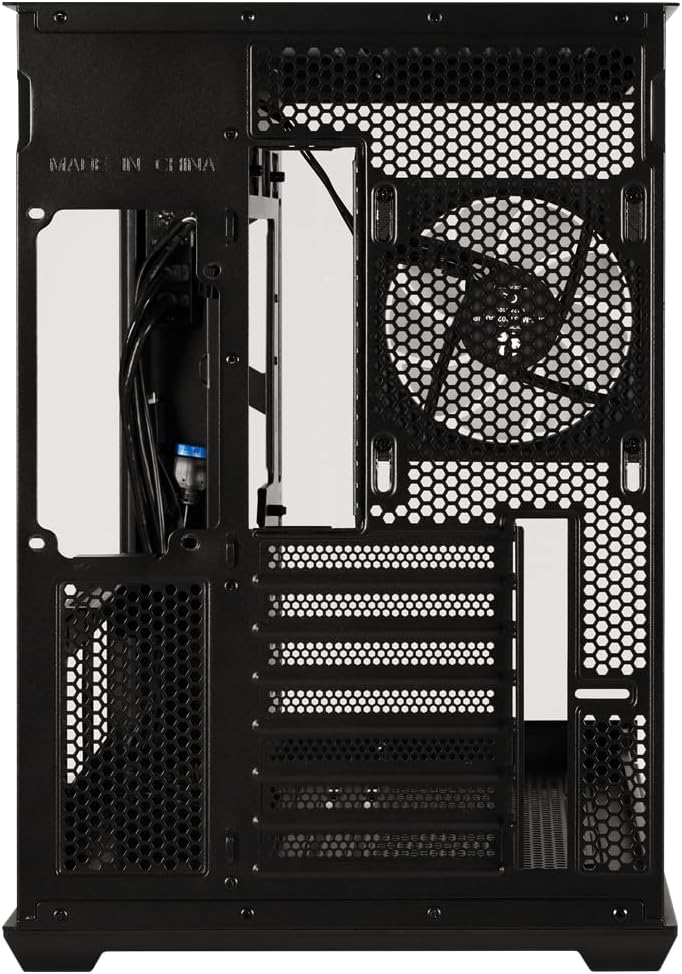
3.3.1-сүрөт: Арткы view of the case, showing the expansion slots where graphics cards are mounted and the pre-installed rear fan.
3.4 Storage Drive Installation (2.5" SSD/HDD, 3.5" HDD)
- Locate the 2.5" drive mounts (2 available) and 3.5" drive bay (1 available). These are typically found behind the motherboard tray or in a dedicated drive cage.
- For 2.5" drives, secure them to the mounting brackets with screws.
- For 3.5" drives, slide them into the drive cage and secure with screws or tool-less clips if available.
- Connect SATA data cables to the motherboard and SATA power cables from the PSU to each drive.
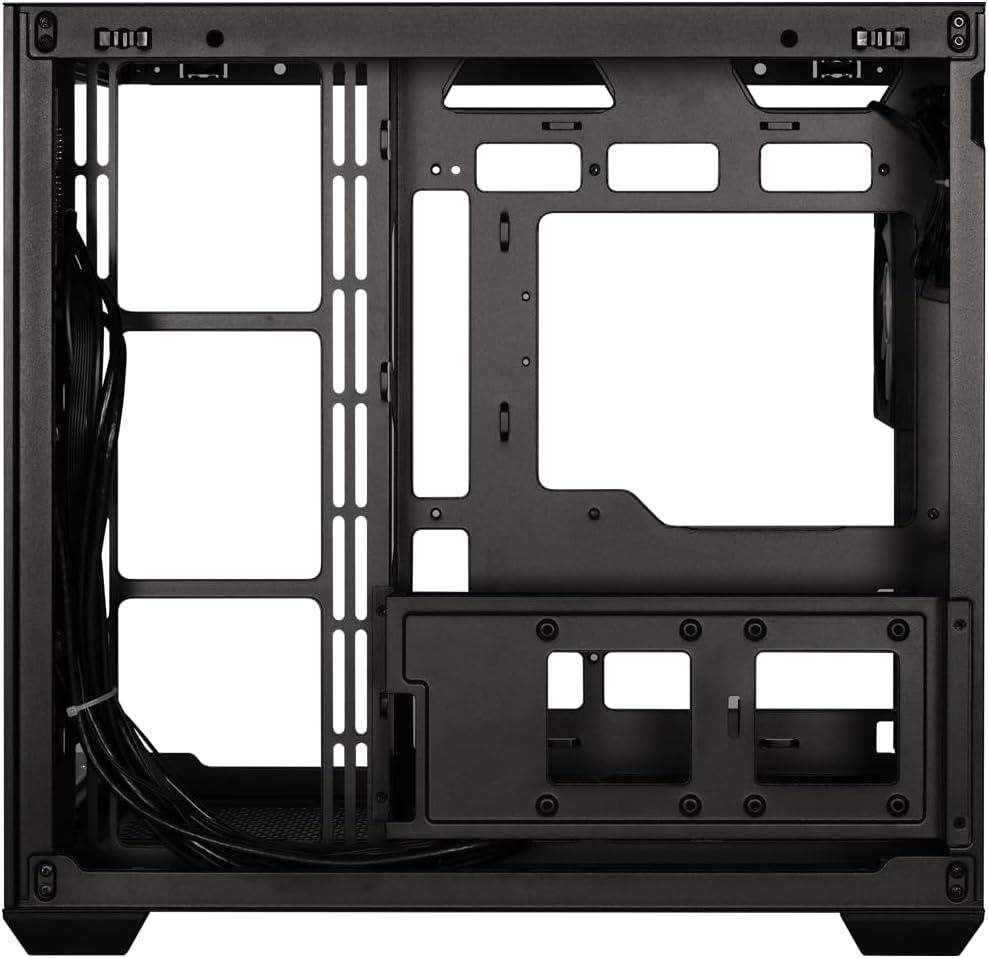
3.4.1-сүрөт: View behind the motherboard tray, illustrating the cable management channels and mounting locations for 2.5-inch and 3.5-inch storage drives.
3.5 Power Supply Unit (PSU) Connections
Your BitFenix AL118 case comes with a pre-installed 1000W 80+ Gold Gen5 ATX 3.0 PSU. Ensure all necessary power cables are connected:
- 24-пин ATX күчү: Connect to the motherboard.
- 8-pin (4+4) EPS/CPU Power: Connect to the motherboard CPU power header.
- PCIe кубаттуулугу: Керектүү учурда видеокартаңызга туташтырыңыз.
- SATA күчү: Connect to your storage drives.
- Peripheral/Molex Power: Connect to any other components requiring this type of power.
3.6 Front Panel Connections
Connect the front panel cables to the corresponding headers on your motherboard:
- USB 3.2 Type-C: Connect the internal USB-C header cable to your motherboard's USB 3.2 Gen2 Type-C header.
- USB 3.0: Connect the internal USB 3.0 header cable to your motherboard's USB 3.0 header.
- HD аудио: Connect to your motherboard's audio header.
- Power SW, Reset SW, HDD LED, Power LED: Connect these small connectors to the front panel header pins on your motherboard according to your motherboard manual.

3.6.1-сүрөт: Ички view showing the pre-installed ARGB fans and the routing of front panel I/O cables, including USB 3.2 Type-C and USB 3.0 connections.
3.7 Кабелди башкаруу
Utilize the cable routing cutouts and tie-down points behind the motherboard tray to manage cables. Proper cable management improves airflow and aesthetics.
- Route main power cables (24-pin, EPS) through the largest cutouts.
- Use cable ties or Velcro straps (included in accessory box) to bundle and secure cables.
- Ensure no cables obstruct fan blades or airflow paths.
4. Иштөө нускамалары
4.1 Системаңызды күйгүзүү
- Once all components are installed and cables connected, replace the tempered glass side panel.
- AC кубат шнурун кубат булагына, андан кийин розеткага туташтырыңыз.
- Кубат блогунун арткы жагындагы кубат которгучун "ON" абалына коюңуз.
- Press the power button on the front panel of your case.
4.2 ARGB Жарыкты башкаруу
The BitFenix AL118 features Addressable RGB (ARGB) lighting. The control method depends on how the ARGB components are connected:
- Motherboard синхрондоштуруу: If the ARGB cables are connected to a compatible 3-pin 5V ARGB header on your motherboard, you can control the lighting effects using your motherboard's RGB software (e.g., ASUS Aura Sync, MSI Mystic Light, Gigabyte RGB Fusion, ASRock Polychrome Sync).
- Интеграцияланган контроллер: If the case includes a built-in ARGB controller (often connected to a reset button or dedicated ARGB button), you can cycle through pre-programmed lighting modes by pressing that button. Refer to the specific controller's instructions if applicable.
5. Техникалык тейлөө
Үзгүлтүксүз тейлөө сиздин PC компоненттеринин оптималдуу иштешин жана узак иштөөсүн камсыз кылууга жардам берет.
- Чаң чыпкалары: The case is equipped with dust filters (e.g., top, front, bottom). Regularly remove and clean these filters with water and mild soap, or by vacuuming/brushing them. Ensure they are completely dry before re-installing.
- Ички тазалоо: Periodically use compressed air to blow dust out of the case interior, especially from fan blades, heatsinks, and vents. Ensure the system is powered off and unplugged before cleaning.
- Жылууланган айнек: Чыңалган айнек панелди микрофибра чүпүрөк жана абразивдүү эмес айнек тазалагыч менен тазалаңыз. Күчтүү химиялык заттардан алыс болуңуз.
6. Кыйынчылыктарды
If you encounter issues with your PC build, refer to the following common troubleshooting steps:
- Кубат жок / Система иштебей жатат:
- Ensure the PSU power switch is in the 'ON' position.
- Check that the AC power cord is securely connected to both the PSU and the wall outlet.
- Verify all PSU cables (24-pin, EPS, PCIe) are firmly connected to the motherboard and components.
- Алдыңкы панелдин кубат которуштуруу кабели эне платасынын башына туура туташтырылганын ырастаңыз.
- Дисплей чыгышы жок:
- Ensure your monitor is connected to the graphics card (GPU) output, not the motherboard's integrated graphics output (unless you are using integrated graphics).
- Графикалык картаны PCIe слотуна кайра орнотуңуз.
- Check that the GPU's power cables are securely connected.
- Fans Not Spinning / ARGB Not Working:
- Verify that all fan power cables are connected to the motherboard fan headers or a fan controller.
- Check ARGB cables are connected to a compatible 3-pin 5V ARGB header on the motherboard or an ARGB controller.
- Эгерде энелик плата программасын колдонсоңуз, анын туура орнотулганын жана конфигурацияланганын текшериңиз.
- Ашыкча ысып кетүү:
- Оптималдуу аба агымы (киргизүү/чыгаруу) үчүн бардык корпус желдеткичтери туура айланып, багытталып турганын текшериңиз.
- Clean dust filters and case interior as described in the Maintenance section.
- CPU муздаткычы жана GPU муздаткычы туура орнотулганын жана иштеп жатканын текшериңиз.
7. Техникалык шарттар
| Өзгөчөлүк | Спецификация |
|---|---|
| Модель аты | BitFenix AL118 1000W 80+Gold Gen5 ATX 3.0 TemperedGlass ARGB ATX MidTower SiyahKasa BFC-ALB100KKGSK-4A |
| Бөлүмдүн номери | BFC-ALB100KKGSK-4A |
| Иштин түрү | ATX Mid Tower |
| Motherboard шайкештиги | MicroATX, Mini-ITX (ATX implied by case type) |
| Энергия менен камсыздоо бирдиги (PSU) | 1000W 80+ Gold Gen5 ATX 3.0 (Pre-installed) |
| PSU жайгашкан жери | Төмөнкү |
| Каптал панели | Температуралуу айнек |
| Алдыңкы I / O порттору | 1 x USB 3.2 Type-C, 2 x USB 3.0 |
| Ички 2.5 дюймдук айдоо орундары | 2 |
| Ички 3.5 дюймдук айдоо орундары | 1 |
| Максималдуу GPU узундугу | 400мм |
| Жогорку Радиатор колдоо | 240мм, 280мм, 360мм |
| Арткы радиатор колдоо | 1 x 120 мм |
| Front Panel Fan Support | None (Side fans are present) |
| Rear Panel Fan Support | 1 x 120 мм |
| Top Panel Fan Support | 3 x 120 мм, 3 x 140 мм |
| Pre-installed Fans (Side) | 3 x 120mm ARGB |
| Pre-installed Fans (Rear) | 1 x 120mm ARGB |
| Продукциянын өлчөмдөрү | 48 x 45.5 x 34.5 см |
| Продукт Салмагы | 8 килограмм |
8. Кепилдик жана колдоо
BitFenix products are manufactured to the highest quality standards. For specific warranty terms and conditions, please refer to the warranty card included with your product or visit the official BitFenix website. If you encounter any issues that cannot be resolved using this manual, please contact BitFenix customer support or your retailer for assistance.
Official BitFenix Webсайт: www.bitfenix.com


