Продукт бүттүview
The TECKNET Ergonomic Mouse with Jiggler is a versatile wireless vertical mouse designed for comfort and efficiency. It offers multiple connectivity options, adjustable DPI settings, and a built-in jiggler mode to keep your computer active. This manual provides detailed instructions for its use.
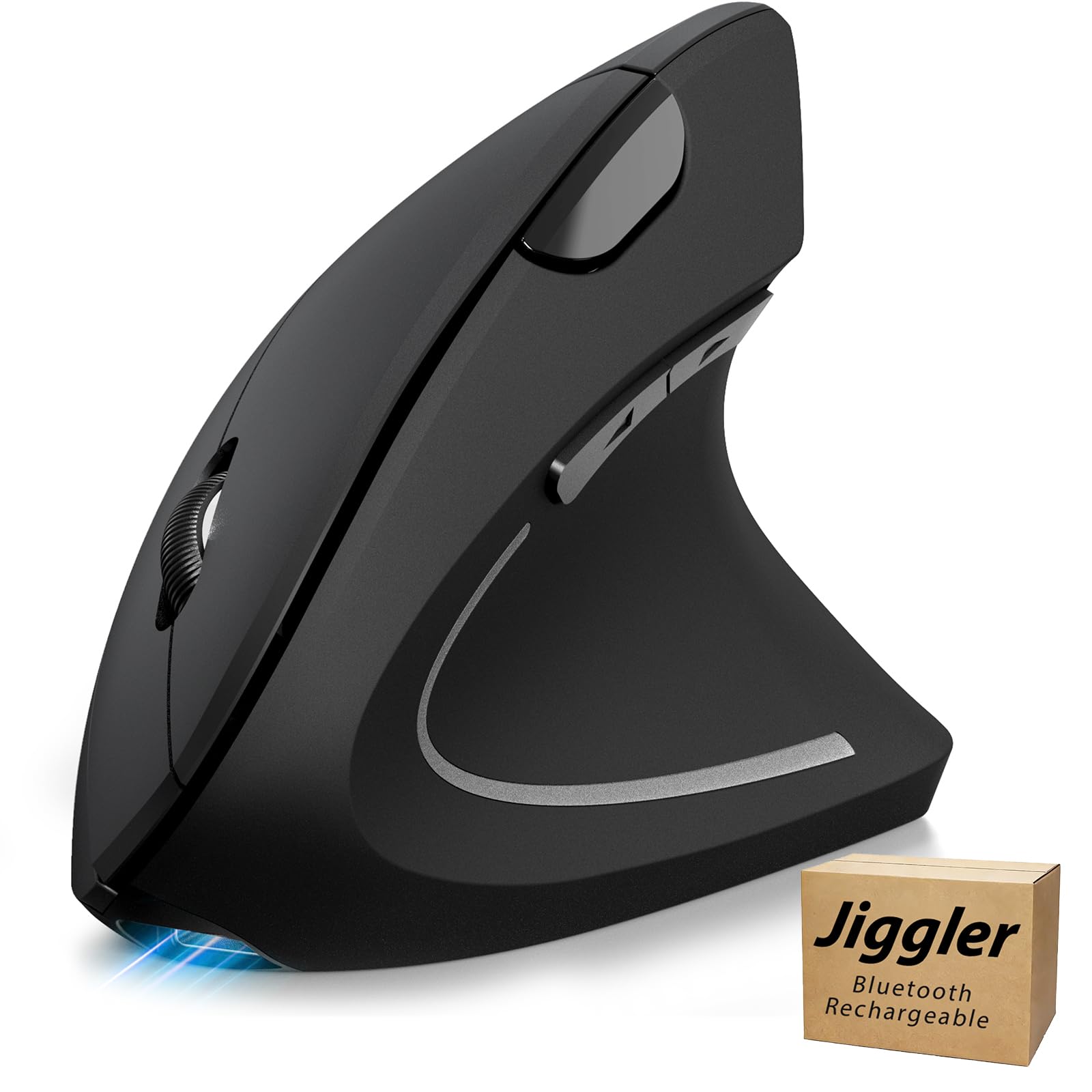
Image: The TECKNET Ergonomic Mouse, showcasinанын вертикалдуу дизайны.
Кутуда эмне бар
- TECKNET Ergonomic Mouse with Jiggler
- USB кабыл алгыч
- USB-C маалымат кабели
- User Manual

Image: The mouse, USB receiver, and USB-C cable laid out next to the user manual.
Продукт өзгөчөлүктөрү
- Simultaneous Connection of 3 Devices: Connect via BT5.0, BT3.0, or 2.4GHz. Easily switch between up to three devices (laptops, tablets, desktops) using the toggle button.
- Rechargeable and Energy Efficient: The mouse includes a Type-C cable for charging. A 1.5-hour charge provides 1-2 months of intensive use. Features a Wake-on-Button function and auto-sleep mode for power saving.
- Built-in Jiggler Mode: Activate the automatic jiggler mode by pressing and holding the DPI button for 3-5 seconds. This feature keeps your computer awake with undetectable random movement, without interfering with normal mouse use.
- Эргономикалык дизайн: The vertical design promotes a natural and comfortable position for your arm and wrist, reducing muscle tension and stress.
- Так башкаруу: Features 4800/3200/2400/1600/1200/800 DPI resolution optical tracking technology for smooth and precise cursor movement on various surfaces.
- Колдун өлчөмү боюнча сунуш: Designed for medium to large right hands, measuring 4.73 x 2.96 x 2.48 inches (12 x 7.5 x 6.3 cm).
- Quick Browse Buttons: Forward/back buttons enhance productivity for web browsing and email. (Note: Side buttons are not compatible with Mac OS and are not programmable).
- Hassle-Free Design & Compatibility: Compatible with Windows 11/10/8/7/XP/Vista, Mac OS/Linux/Android/iOS (10.4+). Simply plug in the USB receiver or connect via Bluetooth.
- Quieter Clicks: The left and right buttons click silently. The scroll wheel glides silently. Other buttons (side buttons, DPI buttons, connection mode switch, power button) emit a clicking sound.

Image: The mouse positioned between a laptop, desktop monitor, and tablet, illustrating multi-device connectivity.

Image: The mouse connected to a USB-C charging cable, indicating its rechargeable nature.

Image: A computer screen displaying mouse movement, indicating the jiggler mode is active, with the TECKNET mouse nearby.

Image: A hand comfortably gripping the vertical ergonomic mouse, highlighting its design for wrist comfort.

Image: An illustration showing the various DPI settings (800 to 4800) available on the mouse.

Image: A visual guide comparing hand sizes (S, M, L) to the mouse dimensions for optimal fit.

Image: A person using the TECKNET mouse on a laptop, with an icon indicating silent clicks.
Орнотуу жана туташуу
This mouse offers three connection modes: 2.4GHz (via USB receiver), Bluetooth 5.0, and Bluetooth 3.0. You can switch between these modes using the 3-mode switch button located on the bottom of the mouse.
2.4GHz Mode Connection
- Locate the USB receiver stored at the bottom of the mouse.
- USB ресиверди компьютериңиздеги жеткиликтүү USB-A портуна салыңыз.
- Toggle the 3-mode switch button on the bottom of the mouse to the 2.4G mode position (indicated by a USB icon).
- The corresponding 2.4G channel indicator light will briefly turn on and then turn off, indicating a successful connection.
Bluetooth Mode Connection (BT1 or BT2)
- If you are currently using the 2.4GHz mode, remove the USB receiver from your computer.
- Short press the 3-mode switch button on the bottom of the mouse to select either BT1 or BT2 channel. The corresponding indicator will flash slowly.
- Press and hold the 3-mode switch button until the corresponding indicator flashes quickly. This indicates the mouse is in Bluetooth pairing state.
- On your computer, turn on Bluetooth.
- Go to your computer's Bluetooth settings and select "Add device" or "Pair new device".
- Издөө and select "TK-MS007 3.0" or "TK-MS007 5.0" from the list of available devices to start pairing.
- Once the indicator light on the mouse turns off, the Bluetooth connection is established.
Video Guide: How to Use the Mouse
Video: A comprehensive guide demonstrating unboxing, button functions, 2.4GHz and Bluetooth connection steps, DPI adjustment, and troubleshooting tips for the TECKNET Ergonomic Mouse.
DPI тууралоо
The mouse features 6 adjustable DPI levels: 800, 1200, 1600, 2400, 3200, and 4800. DPI (Dots Per Inch) affects the cursor movement speed. A higher DPI means faster cursor movement across the screen.
- To change the DPI level, click the DPI button located on the top of the mouse.
- Each click will cycle through the DPI levels. The indicator light will flash a certain number of times to signify the current DPI level:
- 1 жаркылдак: 800 DPI
- 2 жаркылдак: 1200 DPI
- 3 жаркылдак: 1600 DPI
- 4 жаркылдак: 2400 DPI
- 5 жаркылдак: 3200 DPI
- 6 жаркылдак: 4800 DPI
Проблемаларды чечүү
Tip 1: Reconnecting 2.4G Mode if Disconnected
- Switch the 3-mode switch button on the bottom of the mouse to 2.4G mode.
- Press and hold the left button, right button, and scroll wheel simultaneously for 3 seconds. The channel indicator light will rapidly flash.
- Within 20 seconds, insert the USB receiver into your computer's USB-A port.
- Once the indicator light stays on, the 2.4G pairing is successful.
Tip 2: Bluetooth Connection Interruption
If your Bluetooth connection is interrupted:
- Open your computer's Device Manager or Bluetooth settings.
- Locate the mouse (e.g., "TK-MS007 3.0" or "TK-MS007 5.0") in the Bluetooth options and click "Remove/Uninstall" this device.
- Then, follow the Bluetooth Mode Connection steps above to reconnect.
Tip 3: Cursor Lag or Inaccurate Tracking
If you experience cursor lag or inaccurate tracking:
- Inspect the bottom lens of the mouse for any dirt or debris. Clean it gently if necessary.
- Ensure the surface you are using is not glass or overly smooth, as this can interfere with optical tracking.
- Check if your mouse pad is made of plastic. If so, try cleaning the mouse pad or using a different surface.
Техникалык шарттар
| Продукциянын өлчөмдөрү | 4.73 x 2.96 x 0.1 дюйм |
| Элемент Салмагы | 4.2 унция |
| ASIN | B0GHP28PKL |
| Батареялар | 1 Литий Полимер батарейкалары талап кылынат (кошулган) |
| Өндүрүүчү | TECNET |
| Бренд | TECNET |
| Түс | Кара боз |
| Байланыш технологиясы | USB, Bluetooth |
| Өзгөчө өзгөчөлүк | Ergonomic Design, Jiggler, Rechargeable, Wireless, Bluetooth |
| Кыймылды аныктоо технологиясы | Оптикалык |
Кепилдик жана колдоо
TECKNET offers 36 months of support for registered users of this product. If you encounter any issues that are not resolved by the troubleshooting steps in this manual, please contact our support team.
Колдоо электрондук почтасы: support@teckneteu.com


