1. Киришүү
This manual provides essential information for the safe and efficient use of your Xiaomi X Pro Series QLED 4K UHD Smart Google TV (Model: L75MB-APIN). Please read this manual thoroughly before operating the device and retain it for future reference.

Сүрөт 1: Алдыңкы view of the Xiaomi X Pro Series QLED 4K UHD Smart Google TV.
2. Коопсуздук маалыматы
Телевизордун бузулуп калышынын алдын алуу жана жеке коопсуздугуңуз үчүн төмөнкү коопсуздук чараларын сактаңыз:
- Электр камсыздоо: Телевизорду көрсөтүлгөн көлөмдө AC кубат булагына гана туташтырыңызtage диапазону (240 Вольт).
- Вентиляция: Телевизордун айланасында жетиштүү желдетүүнү камсыз кылыңыз. Вентиляция тешиктерин жаап албаңыз.
- Суу жана ным: Do not expose the TV to rain, moisture, or excessive humidity.
- Тазалоо: Disconnect the power cord before cleaning. Use a soft, dry cloth. Avoid liquid cleaners.
- Жайгашкан жери: Place the TV on a stable, level surface or mount it securely to a wall. Keep it away from heat sources and direct sunlight.
- Тейлөө: Do not attempt to service the TV yourself. Refer all servicing to qualified personnel.
3. Кутуда эмне бар
Таңгакта бардык компоненттер бар экенин текшериңиз:
- 1 x LED TV Unit
- 1 x Алыстан башкаруу
- 1 х Колдонуучунун колдонмосу (бул документ)
- 2 x Stand Units
- Тирөөчтү орнотуу үчүн 4 x бурамалар
- 2 x AAA батарейкалар (алыстан башкаруу үчүн)
- 1 х Кубат кабели

Сүрөт 2: Камтылган аксессуарлар.
4. Орнотуу
4.1 Стендди орнотуу
Телевизордун стенддерин орнотуу үчүн:
- Телевизордун экранын кылдаттык менен ылдый каратып жумшак, тегиз жерге коюңуз.
- Align each stand unit with the corresponding slots on the bottom of the TV.
- Ар бир стендди берилген бурамалар менен бекитиңиз. Алардын бекем тартылганын текшериңиз.
4.2 Дубалга орнотуу
The TV supports wall mounting. A compatible VESA wall mount kit (not included) is required. For safe installation, it is recommended to consult a professional installer.
4.3 Тышкы түзмөктөрдү туташтыруу
Connect your devices to the TV's ports as shown below:
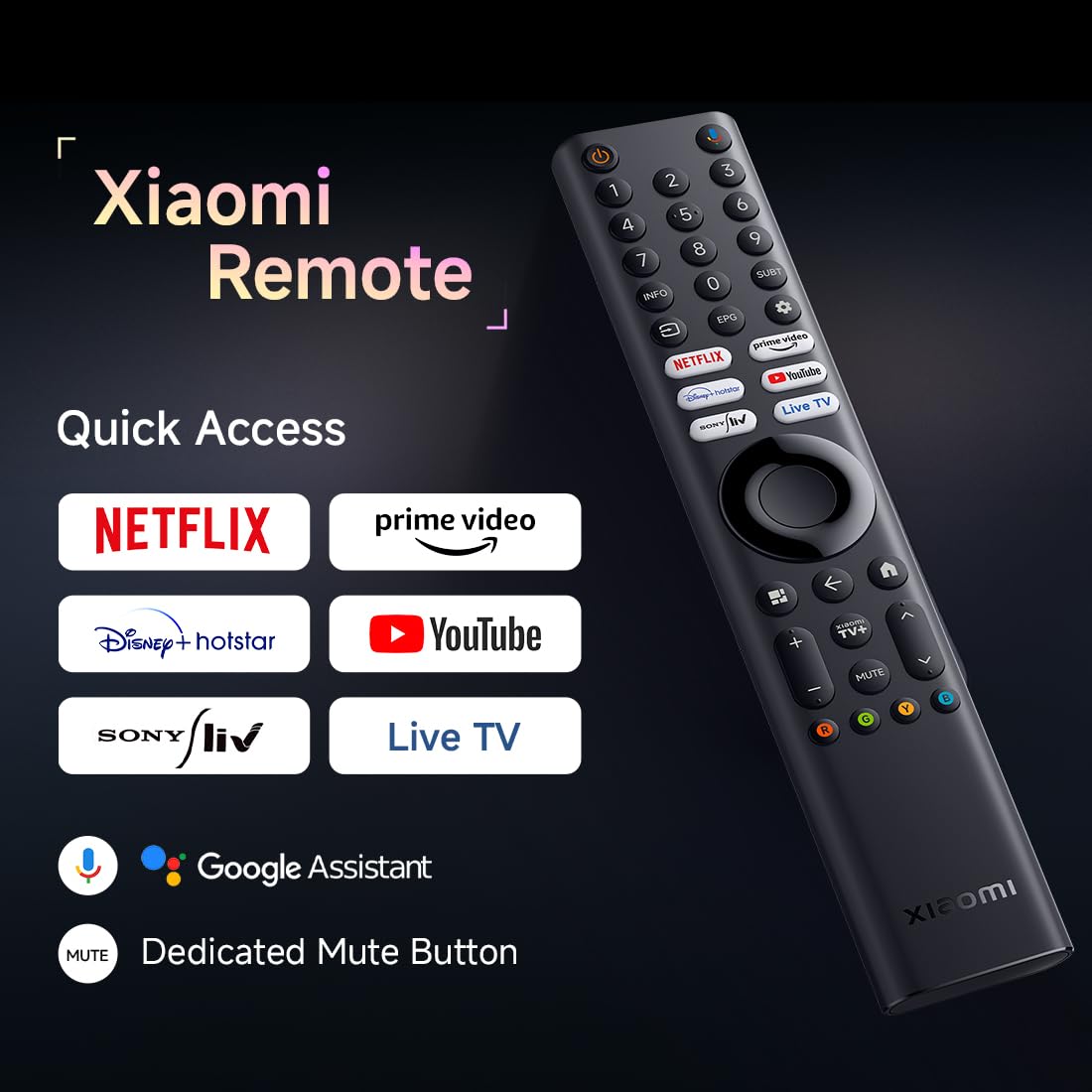
Figure 3: TV Connectivity Ports.
- HDMI (x3): Connect gaming consoles, Blu-ray players, set-top boxes, or other HDMI-enabled devices. One port supports eARC for enhanced audio return.
- USB (x2): Медиа ойнотуу үчүн USB сактагыч түзмөктөрдү туташтырыңыз.
- Тармак (Ethernet): Зымдуу интернет байланышы үчүн Ethernet кабелин туташтырыңыз.
- Оптикалык: Connect to external audio systems or soundbars.
- AV киргизүү: Композиттик видео жана стерео аудио кабельдер аркылуу эски түзмөктөрдү туташтырыңыз.
- Антенна: Connect an antenna for receiving broadcast TV signals.
4.4 Баштапкы күйгүзүү жана Google TV орнотуу
After connecting all necessary cables and the power cord:
- Пульттун же сыналгыдагы кубат баскычын басыңыз.
- Баштапкы орнотууну аяктоо үчүн экрандагы көрсөтмөлөрдү, анын ичинде тилди тандоону, тармакка туташууну (Wi-Fi же Ethernet) жана Google аккаунтуна кирүүнү аткарыңыз.
- The Google TV interface will guide you through setting up your preferred apps and content.
5. Сыналгыңызды иштетүү
5.1 Алыстан башкаруу функциялары
The remote control allows you to navigate the TV's features. Insert the two AAA batteries into the remote control, ensuring correct polarity.

Figure 4: Xiaomi Remote Control.
- Кубат баскычы: Телевизорду күйгүзөт же өчүрөт.
- Навигация аянтчасы: Use the directional buttons to move through menus and the OK button to confirm selections.
- Артка баскычы: Мурунку экранга кайтат.
- Үй баскычы: Google TV башкы экранына жетет.
- Үн баскычтары: Үн деңгээлин тууралайт.
- Канал баскычтары: Телеканалдарды алмаштырат (эгер бар болсо).
- Колдонмонун кыска баскычтары: Direct access to popular streaming services like Netflix, Prime Video, YouTube.
- Google Жардамчы баскычы: Издөө жана башкаруу үчүн үн буйруктарын иштетет.
5.2 Google TV интерфейси
Your TV runs on Google TV (Android 14 OS), providing a personalized content experience. The home screen displays recommended content, installed apps, and your watchlist.

Figure 5: Google TV Home Screen.
- Колдонмого мүмкүндүк алуу: Navigate to the 'Apps' section to browse and launch installed applications like Netflix, Prime Video, YouTube, Zee5, etc.
- Google Жардамчысы: Use voice commands via the remote to search for content, control smart home devices, or get information.
- Google Cast Built-in: Wirelessly stream content from compatible mobile devices or computers to your TV.
- Apple AirPlay 2: Stream content from Apple devices directly to your TV.
5.3 Сүрөт орнотуулары
Access the TV settings menu to adjust picture quality:
- 4K Ultra HD: The TV supports 3840 x 2160 resolution for detailed images.
- HDR (HDR10+, HLG, Dolby Vision): These technologies enhance contrast and color for a more dynamic viewтажрыйбасы.
- Режиссёр режими: This mode disables post-processing effects to display content as intended by the director.
- Көзгө кам көрүү режими: Reduces blue light emission and flicker for comfortable viewing.

Figure 6: Filmmaker Mode.

Figure 7: Eye Care Mode.
5.4 Үн орнотуулары
Adjust audio output and select sound modes:
- 34 Ватт чыгаруу: The TV features powerful integrated speakers.
- Dolby Audio, DTS-X, DTS Virtual X: These technologies provide immersive audio experiences.
- Xiaomi Sound: Optimized audio profiles for various content types.

Figure 8: 34W Boom Box Sound.
5.5 Оюн функциялары
- 120Hz Game Booster: Automatically boosts the refresh rate to 120Hz for smoother and more responsive gaming.

Figure 9: 120Hz Game Booster.
6. Техникалык тейлөө
6.1 Тазалоо
- Экран: Экранды жумшак, түксүз чүпүрөк менен акырын сүртүңүз. өжөр белгилери үчүн, жеңил гampкездемени суу же экранга арналган тазалоочу каражат менен сүртүңүз (экранга түз чачпаңыз).
- Дене: Wipe the TV body with a soft, dry cloth. Avoid abrasive cleaners or solvents.
6.2 Программалык камсыздоо жаңыртуулары
Your TV may receive software updates to improve performance and add new features. Ensure your TV is connected to the internet to receive these updates. You can check for updates manually in the TV's settings menu.
7. Кыйынчылыктарды
Эгер көйгөйлөргө туш болсоңуз, төмөнкү жалпы чечимдерди караңыз:
| Көйгөй | Мүмкүн чечим |
|---|---|
| сыналгы күйбөйт | Check if the power cord is securely connected to both the TV and the power outlet. Ensure the power outlet is active. Try a different power outlet. |
| Сүрөт жок, бирок үн бар | Туура киргизүү булагынын тандалганын текшериңиз. HDMI/AV кабелинин туташууларын текшериңиз. Телевизорду өчүрүп-күйгүзүп көрүңүз. |
| Үн жок, бирок сүрөт бар | Check the volume level and ensure the TV is not muted. Verify audio cable connections. Check TV audio output settings. |
| Пульт иштебей жатат | Replace the AAA batteries in the remote control. Ensure there are no obstructions between the remote and the TV. Re-pair the Bluetooth remote if necessary (refer to TV settings). |
| Wi-Fi'га туташпай жатат | Ensure your Wi-Fi router is on and within range. Re-enter the Wi-Fi password. Try restarting your router and the TV. |
8. Техникалык шарттар
Detailed technical specifications for the Xiaomi X Pro Series QLED 4K UHD Smart Google TV (L75MB-APIN):

10-сүрөт: Сыналгынын өлчөмдөрү жана салмагы.
| Өзгөчөлүк | Деталь |
|---|---|
| Бренд | XIAOMI |
| Модел | L75MB-APIN |
| Screen Size | 75 дюйм (189 см) |
| Дисплей технологиясы | QLED |
| Резолюция | 4K Ultra HD (3840 x 2160) |
| Жаңыртуу ылдамдыгы | 60 Hz / 120Hz DLG |
| Операция системасы | Google TV (Android 14 ОС) |
| RAM | 2 ГБ |
| Ички сактагыч | 32 ГБ |
| Байланыш | Dual Band Wi-Fi, Bluetooth, 3 x HDMI (1 eARC), 2 x USB, Optical, Ethernet |
| Аудио чыгаруу | 34 Ватт |
| Аудио технологиялар | Dolby Audio, DTS-X, DTS Virtual X, Xiaomi Sound |
| Видео технологиялар | 4K HDR, HDR10+, HLG, 4K Dolby Vision, Reality Flow MEMC, Vivid Picture Engine 2, DCI-P3 94%, Filmmaker Mode |
| Өзгөчөлүктөр | Google TV, Google Assistant, Google Cast, Apple AirPlay 2, Eye Comfort Mode, 120Hz Game Booster |
| Продукциянын өлчөмдөрү (L x W x Y) | 39.1 x 39.1 x 102.7 см (турбастан) |
| Элемент Салмагы | 19.1 кг |
| Монтаж түрү | Дубалга жана үстөлгө орнотуу |
9. Кепилдик маалыматы
This product comes with a standard manufacturer's warranty. For pre-book customers, a 4-year comprehensive warranty on the product is provided by the brand from the date of purchase. To avail warranty services, please retain your purchase invoice. The user manual can also be accessed from the brand's official webкошумча маалымат алуу үчүн сайт.
10. Колдоо
For technical assistance, service requests, or further inquiries, please contact Xiaomi customer support. Refer to the official Xiaomi webСиздин аймакка тиешелүү байланыш маалыматы үчүн сайт же сатып алуу документтериңиз.


