1. Киришүү
This manual provides detailed instructions for the setup, operation, maintenance, and troubleshooting of your ACASIS DS-0202 14-in-1 USB C Docking Station. Please read this manual thoroughly before using the product to ensure optimal performance and longevity.

Image 1.1: The ACASIS DS-0202 14-in-1 USB C Docking Station, showcasing its compact design and multiple connectivity options including USB-C, USB-A, HDMI, DisplayPort, Ethernet, and card readers.
2. Негизги өзгөчөлүктөрү
- 14-ин-1 туташуусу: Expands a single USB-C/Thunderbolt 3/4 port into 14 ports, including 2 HDMI, 1 DisplayPort, 3 USB-C 3.1 (10Gbps), 2 USB-A 3.1 (10Gbps), 1 USB 2.0, SD/TF card reader, 1Gbps Ethernet, 3.5mm audio, and 100W Power Delivery.
- Үч эселенген дисплейди колдоо: Supports single 4K@60Hz display and triple 4K@30Hz displays (under DP1.4). Windows systems support both MST (Multi-Stream Transport) and SST (Single-Stream Transport) for mirror and extend modes. macOS systems do not support MST.
- Жогорку ылдамдыктагы маалыматтарды өткөрүп берүү: Features 3 USB-C 3.1 and 2 USB-A 3.1 ports, all offering 10Gbps data transfer speeds for rapid file которуулар.
- 100W кубаттуулугу: Provides up to 100W Power Delivery through the dedicated USB-C port to charge compatible laptops, tablets, and phones.
- Гигабит Ethernet: Integrated 1000Mbps Ethernet port ensures stable and fast wired network connectivity.
- Аудио туташуу: Includes a 3.5mm audio and microphone port for headset connection.
- SD/TF картаны окугучтар: Built-in SD and TF card slots for convenient data access.
3. Port Layout
Familiarize yourself with the various ports on the ACASIS DS-0202 docking station:

Сүрөт 3.1: Детальдуу view of the docking station's ports, including RJ45 (Ethernet), DisplayPort, HDMI 1, HDMI 2, USB 2.0, USB-A 3.1, PD 3.0 (Max 100W), 3.5mm Audio, and three USB-C 3.1, two USB-A 3.1, SD/TF 3.0 ports.
- Front/Side Ports:
- 3 x USB-C 3.1 (10Gbps)
- 2 x USB-A 3.1 (10Gbps)
- 1 x SD Card Reader (SD 3.0)
- 1 x TF Card Reader (TF 3.0)
- Арткы порттор:
- 1 x RJ45 Gigabit Ethernet (1000Mbps)
- 1 x DisplayPort (4K@60Hz)
- 2 x HDMI 2.0 (4K@60Гц)
- 1 x USB 2.0 (480Mbps)
- 1 x USB-A 3.1 (10Gbps)
- 1 x USB-C PD 3.0 (Max 100W input)
- 1 x 3.5mm Audio & Mic In
4. Орнотуу нускамалары
Before connecting the docking station, ensure your laptop's USB-C port supports Power Delivery, DisplayPort Alt Mode, and Data Transfer. Refer to your laptop's specifications or manufacturer for details.

Image 4.1: USB-C port compatibility check. Ensure your laptop's USB-C port supports Thunderbolt 3/4 or USB-C with Power Delivery, DisplayPort Alt Mode, and Data Transfer for full functionality.
- Кубат адаптерин туташтыруу (кошумча, бирок сунушталат): If you wish to charge your laptop via the docking station, connect your laptop's USB-C power adapter (up to 100W) to the "PD 100W" USB-C port on the docking station.
- Ноутбукка туташуу: Connect the integrated USB-C cable from the docking station to a compatible USB-C/Thunderbolt 3/4 port on your laptop.
- Тышкы дисплейлерди туташтыруу:
- For single or dual monitors: Connect your monitors using HDMI cables to the HDMI 1 and HDMI 2 ports, or a DisplayPort cable to the DP port.
- For triple monitors: Connect your monitors to the HDMI 1, HDMI 2, and DP ports.
Note: Ensure your display cables are securely connected.
- Перифериялык түзүлүштөрдү туташтыруу: Connect your USB devices (keyboard, mouse, external drives, etc.) to the available USB-A and USB-C data ports.
- Ethernet туташуусу (кошумча): For a wired network connection, connect an Ethernet cable from your router/modem to the RJ45 port on the docking station.
- Аудио түзмөктөрдү туташтыруу (милдеттүү эмес): Кулакчындарды же динамиктерди 3.5 мм аудио уячага сайыңыз.
The docking station is plug-and-play and should be automatically recognized by your operating system. You may need to configure display settings manually.
5. Иштөө нускамалары
5.1 Display Configuration (Windows)
Windows operating systems support both Mirror Mode (SST) and Extend Mode (MST) for multiple displays. You can configure these settings via your display settings.

Image 5.1: Triple display setup examples for Windows, illustrating Mirror Mode (A-BBB) and Extend Mode (A-BCD, A-BC, A-BD) with various monitor arrangements and resolutions.
- Күзгү режими (SST): All connected displays show the same content as your laptop screen.
- Extend Mode (MST): Each connected display can show different content, extending your desktop across multiple screens.
- Чечим: Supports up to 4K@60Hz for a single display and 4K@30Hz for triple displays (under DP1.4).
To adjust display settings in Windows:
- Иш тактаңызды оң баскыч менен чыкылдатып, "Экран жөндөөлөрүн" тандаңыз.
- Identify and arrange your displays.
- Select the desired display mode (Extend these displays, Duplicate these displays).
- Зарылчылыкка жараша чечилишин жана багытын тууралаңыз.
5.2 Display Configuration (macOS)
macOS systems do not support Multi-Stream Transport (MST). Therefore, when multiple external monitors are connected, they will either mirror each other or extend the laptop display, but cannot extend independently to three unique displays.

Image 5.2: Triple display setup examples for macOS, illustrating Mirror Mode (A-AAA) where all displays show the same content, and Extend Mode (A-BBB) where external displays mirror each other while extending the laptop screen.
- MirrorMode: All connected displays show the same content as your MacBook screen.
- Узартуу режими: The external displays will mirror each other, extending your desktop from the MacBook screen. You cannot have three independent extended displays.
- Чечим: Supports up to 4K@30Hz for triple displays.
To adjust display settings in macOS:
- "Система жөндөөлөрүнө" (же macOSтун эски версияларында "Система жөндөөлөрүнө") өтүңүз.
- "Көрсөтмөлөрдү" тандаңыз.
- Arrange your displays and select the desired mode (Mirror Displays or Use as separate display).
5.3 Маалыматтарды өткөрүү
The docking station features 3 USB-C 3.1 and 2 USB-A 3.1 ports, all capable of 10Gbps data transfer. Connect your high-speed storage devices to these ports for optimal performance.

Image 5.3: The docking station's 10Gbps USB-C and USB-A ports enable ultra-fast data transfer for large files and high-bandwidth peripherals.
5.4 Электр энергиясын жеткирүү
The dedicated USB-C PD port supports up to 100W power input. Connect your laptop's power adapter to this port to charge your laptop while using the docking station.

Image 5.4: The 100W Power Delivery port allows for fast charging of your laptop while connected to the docking station, with an example showing 100W input and 85W output to the laptop.
5.5 Гигабит Ethernet
The RJ45 port provides a stable and fast 1000Mbps (1 Gigabit) Ethernet connection. This is ideal for reliable internet access and large file transfers over a local network.

Image 5.5: The Gigabit Ethernet port provides a fast and stable wired network connection, supporting speeds up to 1000Mbps.
5.6 SD/TF Card Readers
Insert your SD or TF (Micro SD) cards into the respective slots for quick access to photos and other data. Both slots can be used simultaneously.
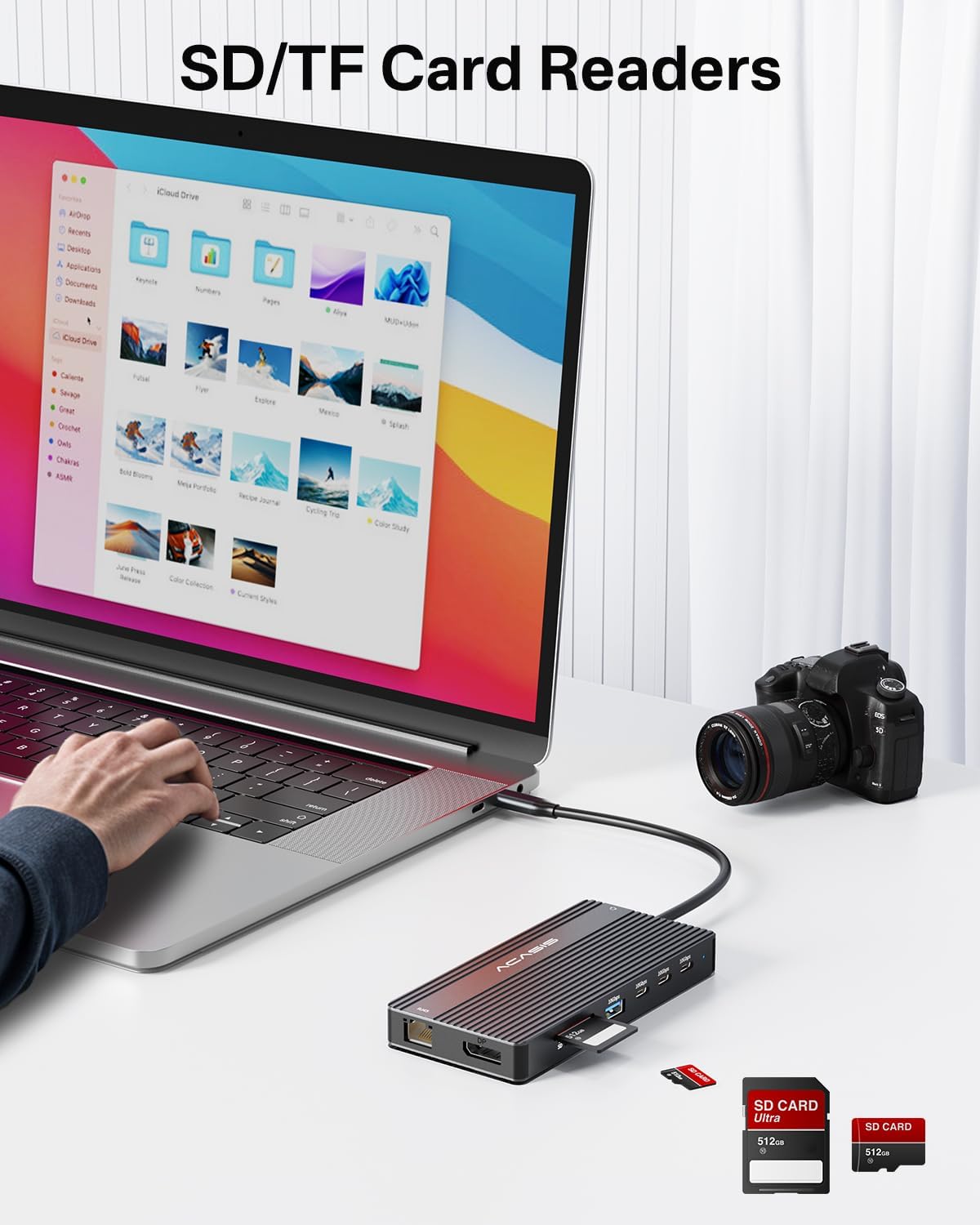
Image 5.6: The integrated SD and TF card readers allow for convenient and fast access to memory card data, useful for photographers and content creators.
6. Техникалык тейлөө
- Тазалоо: Use a soft, dry cloth to clean the surface of the docking station. Avoid liquid cleaners or abrasive materials.
- Сактагыч: Док-станцияны салкын, кургак жерде, күндүн түз тийген нурларынан жана өтө жогорку температурадан алыс сактаңыз.
- Колдонуу: Avoid dropping or subjecting the device to strong impacts. Do not bend the integrated USB-C cable excessively.
- Вентиляция: Ensure the docking station has adequate ventilation to prevent overheating, especially during prolonged use with multiple connected devices.
7. Кыйынчылыктарды
| Көйгөй | Мүмкүн себеп | Чечим |
|---|---|---|
| No display output / Flickering screen |
|
|
| Ноутбук заряддалбай жатат |
|
|
| USB devices not recognized / Slow data transfer |
|
|
| Ethernet connection unstable or not working |
|
|
8. Техникалык шарттар
| Өзгөчөлүк | Деталь |
|---|---|
| Модель номери | DS-0202 |
| Бренд | ACASIS |
| Байланыш | USB-C (Host connection) |
| Video Output | 2 x HDMI 2.0 (4K@60Hz), 1 x DisplayPort (4K@60Hz) |
| USB маалымат порттору | 3 x USB-C 3.1 (10Gbps), 2 x USB-A 3.1 (10Gbps), 1 x USB 2.0 (480Mbps) |
| Ethernet | 1 x RJ45 Gigabit Ethernet (1000Mbps) |
| Card Reader | SD 3.0, TF 3.0 (simultaneous use) |
| Аудио | 1 x 3.5mm Audio & Mic In |
| Power Delivery | USB-C PD 3.0, up to 100W input |
| Шайкеш түзмөктөр | Laptops with full-featured USB-C/Thunderbolt 3/4 ports (Dell, HP, Lenovo, ThinkPad, Surface, MacBook, etc.) |
| Операциялык системалар | Windows, macOS, Linux, iPadOS |
| Продукциянын өлчөмдөрү | 1 x 1 x 1 дюйм (болжол менен) |
| Элемент Салмагы | 5 унция (болжол менен) |
| Түс | Кара |
9. Кепилдик маалыматы
ACASIS products typically come with a standard manufacturer's warranty. For specific warranty terms and conditions, please refer to the warranty card included with your product or visit the official ACASIS webсайт. Сатып алуу квитанциясын кепилдик дооматтары үчүн сатып алуунун далили катары сактаңыз.
Коргоо пландарын өзүнчө сатып алууга да болот:
- 3 жылдык коргоо планы
- 4 жылдык коргоо планы
- Толук коргоо (айлык план)
These plans offer extended coverage beyond the standard manufacturer's warranty.
10. Кардарларды колдоо кызматы
If you encounter any issues or have questions regarding your ACASIS DS-0202 14-in-1 USB C Docking Station, please contact ACASIS customer support through the following channels:
- Официалдуу Webсайт: зыярат кылыңыз ACASIS Store on Amazon продукт маалымат жана колдоо булактары үчүн.
- Электрондук почта колдоо: Refer to your product packaging or the ACASIS webэң акыркы колдоо электрондук почта дареги үчүн сайт.
- Онлайн байланыш формасы: Many manufacturers provide a contact form on their webтехникалык жардам үчүн сайт.
When contacting support, please have your product model number (DS-0202) and purchase details ready.